
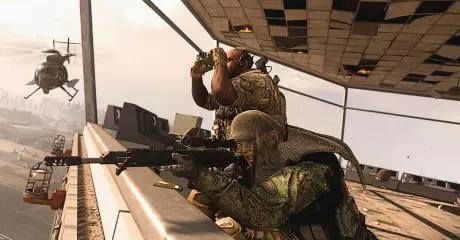
Call of Duty: Warzone, released March 10, 2020, is a free-to-play battle royale for PS4, Xbox One, and PC. Developed by Infinity Ward and Raven, and published by Activision, it features 150-player matches with cross-play and progression across Modern Warfare, Cold War, and Vanguard. At launch, it offered Battle Royale and Plunder, later adding Solos, Duos, and Quads. Players use in-game cash for loadouts, killstreaks, and gear. Despite updates, many face FPS drops, especially after patches—LagoFast is a reliable fix for lag and performance issues.
Brazilian Portuguese Version: O Melhor Guia para Corrigir a Queda de FPS no Warzone: Tudo o que Você Precisa Saber

- ✅ Reduce Lag and High Ping.
- ✅ Boost FPS at the Same Time.
- ✅ Support 2000+ Popular Online Games.
- ✅ Support Easy Lobby in all Cod Games without Lag
The Best Warzone FPS Drop
LagoFast can assist you in determining whether there is Warzone FPS Drop when gaming as well as in resolving it. It has more than 8 years of experience increasing in-game performance with an emphasis on eliminating fps drop, packet loss, lowering high ping, etc. LagoFast has a sophisticated routing system and has created a special game data delivery protocol. It is very simple to use; all you have to do is click the "boost" button to improve every aspect of your PC's performance. In addition to all of these benefits, LagoFast is inexpensive. Currently, it is the only game booster that enables "plan per minute." Scroll back and examine the previous steps for more details on how to enhance performance in-game.
These are some of the features of LagoFast:
- The only game booster that utilizes plans per minute
- Simple to use, prevents all game faults
- Capable of solving packet loss effectively
- More than 8 years of optimizing experience
- Specialized protocol for transmitting game data
- A resourceful routing method
- Support more than a thousand well-known games, including NBA 2K23, Fortnite, and Apex Legends.
Follow the steps to use LagoFast.
Step 1: Click free trail to install LagoFast
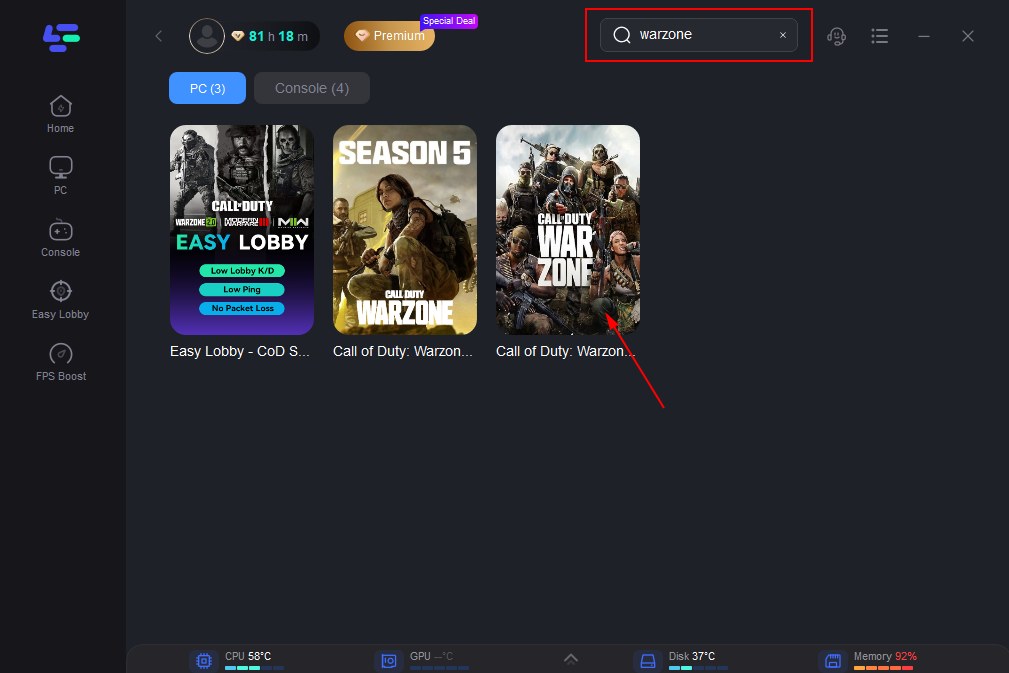
Step 2: In the search box, type “Warzone”, and then choose it from the list of results.
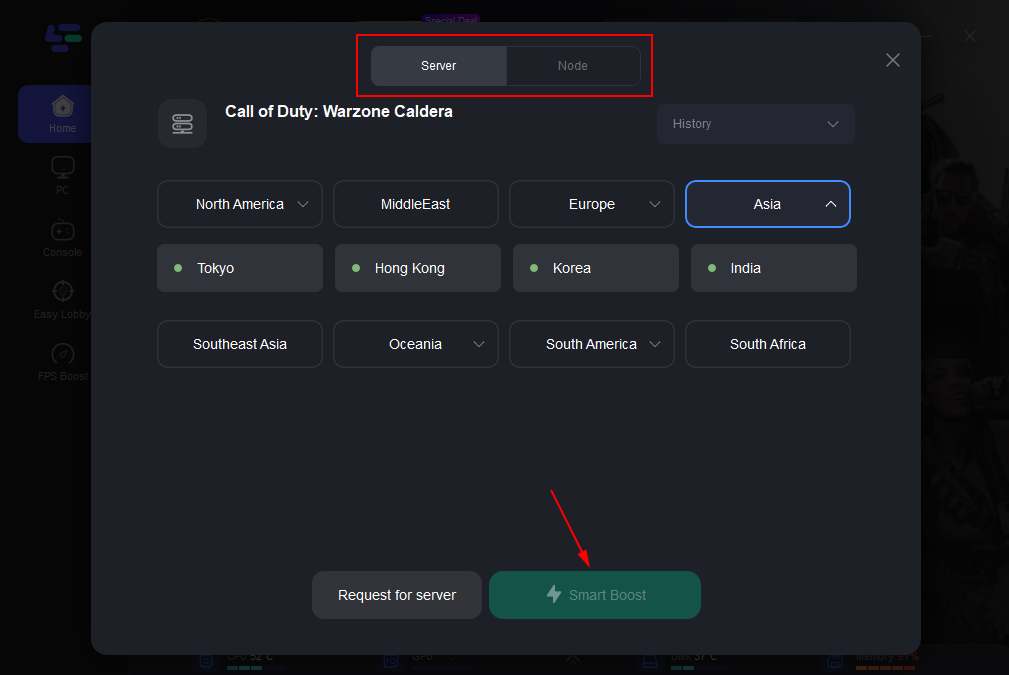
Step 3: Choose a server that matches Warzone.
Step 4: Click the Boost button to start boosting.
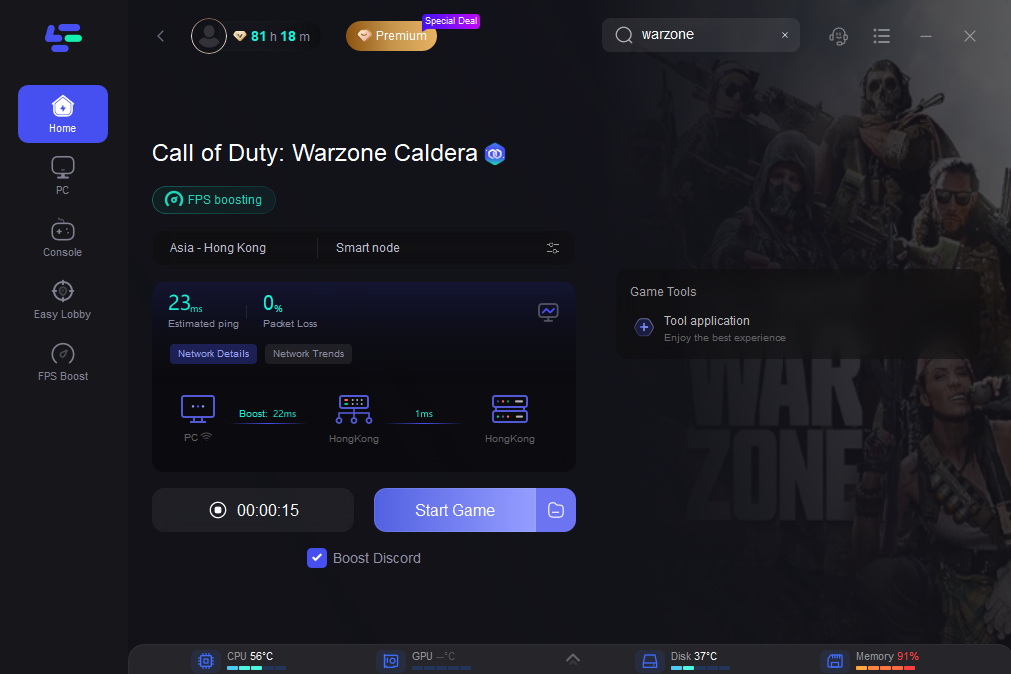
Your current packet loss rate and ping rate are displayed on the following page. If the rates are too high, it will also begin to fix.
Why Warzone FPS Drop Happened?
How does FPS work? The term "FPS" refers to the number of frames per second that a screen transmits in the graphics industry (also the abbreviation for First-Person Shooter game). It also refers to the quantity of frames in an animation or film that are visible on the monitor. The smoother the motion is shown, the more frames per second there are. In general, 30 is the minimum to prevent incoherence action. The minimum frame rate for gaming is often around 30Hz, and a basic smoothness level of above 60Hz is required. Incoherent visuals, stuttering, and even a white screen as well as computer crash are all signs that your FPS has fallen below 60.
Depending on the network connection, FPS will be impacted. In addition, the computer's power will only affect FPS. Consequently, the hardware setup is the primary cause of my game's poor FPS. Additionally, improper game settings may negatively impact the FPS.
Other Solutions to Warzone FPS Drop
Here are other solutions to warzone fps drops, just in case.
- Verify that your game satisfies the system requirements. As was already established, FPS depends more on the power of your machine than it does on the server. Therefore, if you want to increase your game's frame rate, the most crucial thing to do is make sure your system satisfies the minimal requirements. And it would be better if you strive to meet the suggested system requirements! The system requirements are available on the game's official website or on the Steam service.
- Activate Exclusive Fullscreen mode. Because the output on the screen is totally within the control of the graphics driver, your FPS will drop if you simply play the game without using the fullscreen option in some games. Therefore, when you run the game, activate the special Fullscreen mode!
- Lower the in-game graphics settings and resolution. In-game settings for resolution increase the amount of data you must process and display on the screen. The demands on the graphics rendering will also increase if you increase the game's visual settings, such as the fineness of foliage. Try reducing some of the graphic options, such as the quality of the character, the shadow, and the texture.
- Close a few unused background programs. Numerous needless background programs will seriously slow down the computer's performance. Additionally, the game will require less electricity to run. Therefore, before starting the game, close any unwanted background programs in task manager!
- Make your game a high priority application when it launches. Setting your game to launch as a high priority program will place the task of running the game in a more demanding condition and improve game performance. This could lessen framerate fluctuations or game crashes.
Boost Your Game with LagoFast for Epic Speed
Play harder, faster. LagoFast game booster eliminates stutter and lags on PC, mobile, or Mac—win every match!
Quickly Reduce Game Lag and Ping!
Boost FPS for Smoother Gameplay!