
Valorant, Riot Games' tactical shooter, is a global hit, but that doesn’t mean it’s bug-free. One persistent and highly frustrating issue that’s become increasingly common is getting stuck at the “Match Found” screen, where the countdown hits zero and... nothing happens. Whether you're loading into Competitive, Unrated, or Deathmatch, the game seems to just freeze at that crucial moment.
Thousands of players have taken to forums and Reddit threads, all describing similar symptoms: stuck at 0 seconds after “Match Found,” freezing after agent select, or being unable to load into a match despite having decent hardware. If you're reading this, you’ve probably been hit with this issue, too.
Fortunately, there are multiple ways to fix this. Some are easy tweaks; others require more involved changes. We’ll walk you through all of them, starting with why this issue happens in the first place.

- ✅ Reduce Lag and High Ping.
- ✅ Boost FPS at the Same Time.
- ✅ Support 2000+ Popular Online Games.
- ✅ Support Easy Lobby in all Cod Games without Lag
Part 1: What Is the “Valorant Stuck at Match Found” Bug?
Part 2: Why Is Valorant Stuck on “Match Found”?
Part 3: How to Fix Valorant Stuck at Match Found?
Part 1: What Is the “Valorant Stuck at Match Found” Bug?

When players talk about being “stuck at match found” in Valorant, they usually describe the following situation:
- The game successfully finds a match.
- The countdown begins (3...2...1...).
- But then the screen gets stuck at “0.”
- The game either freezes or just doesn't transition to agent selection or match loading.
- Sometimes it eventually crashes or forces a manual Task Manager shutdown.
In some cases, even after restarting, Valorant loads slowly, often too late to avoid an AFK ban. You may also encounter the game freezing again in the next queue. This creates a loop of frustration, especially if you’re trying to climb in ranked.
Part 2: Why Is Valorant Stuck on “Match Found”?

This issue isn’t caused by just one factor. There are several potential culprits:
- Corrupted Game Files: Updates or failed installs can lead to missing or corrupted files.
- Network Instability: If your ping spikes or your connection drops during matchmaking, the game may freeze during the transition to loading.
- Hard Drive Slowness: Many users have reported that installing Valorant on a traditional HDD (instead of an SSD) causes this delay.
- Windows and Driver Conflicts: Background services like the High Precision Event Timer or certain outdated drivers may conflict with Valorant’s launch process.
- Vanguard or Background Apps Interference: Riot’s anti-cheat system, Vanguard, sometimes clashes with overlays (like Discord or GeForce Experience), or monitoring apps.
- FPS Settings & GPU Behavior: Unlimited FPS settings or improper graphics configurations may cause Valorant to stall when switching between screens.
Part 3: How to Fix Valorant Stuck at Match Found
Before diving into advanced steps, restart your PC and ensure you’ve updated both Valorant and Vanguard. Then try the solutions below.
Best Fix: Use LagoFast to Optimize Connection and Game Loading
If your issue is tied to latency, packet loss, or region mismatch, LagoFast is your best bet.
LagoFast is a performance booster built specifically for gamers. It accelerates game loading, reduces ping, and prevents matchmaking issues. Unlike generic VPNs, it targets Valorant's servers directly, helping avoid “match found” freezes and other connection-related bugs.
Top Features:
- Smart routing for stable matchmaking
- Global nodes for region flexibility
- Real-time ping optimization
- FPS boost support
- One-click operation
- Compatible with Riot Vanguard
Many players have reported immediate improvements after switching to LagoFast, especially those frequently hit with “stuck on match loading screen” or disconnections during agent select.
Tutorial to use LagoFast to optimize connection and game loading on PC:
Step 1: Click the Free Trial button to download and install LagoFast.
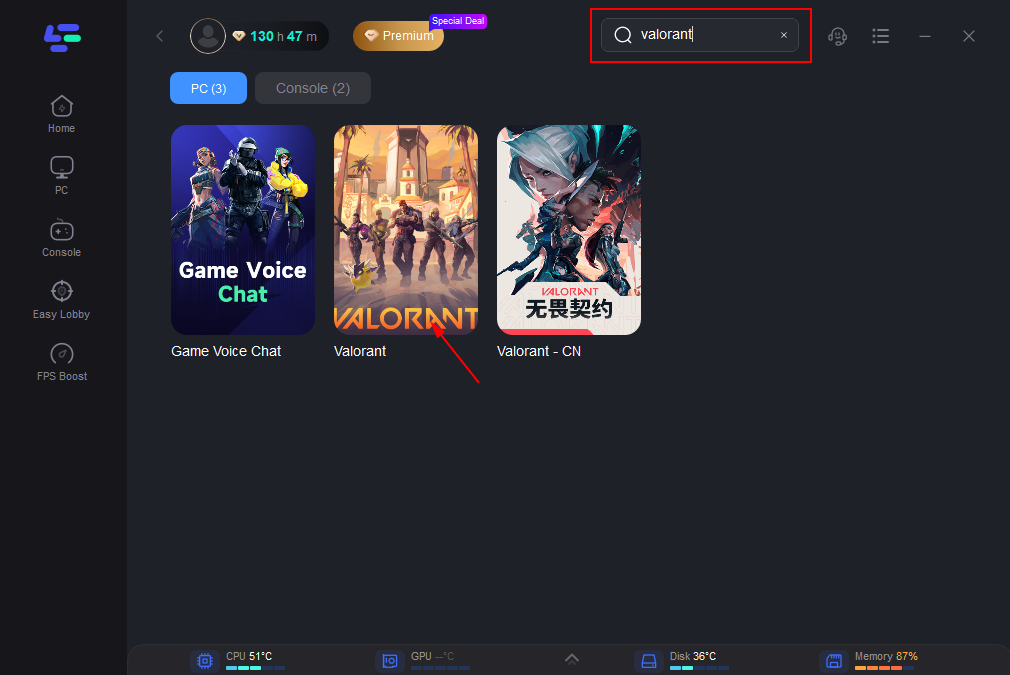
Step 2: Open LagoFast, then click the PC button on the left and search for Valorant in the search bar, and click it after it appears.
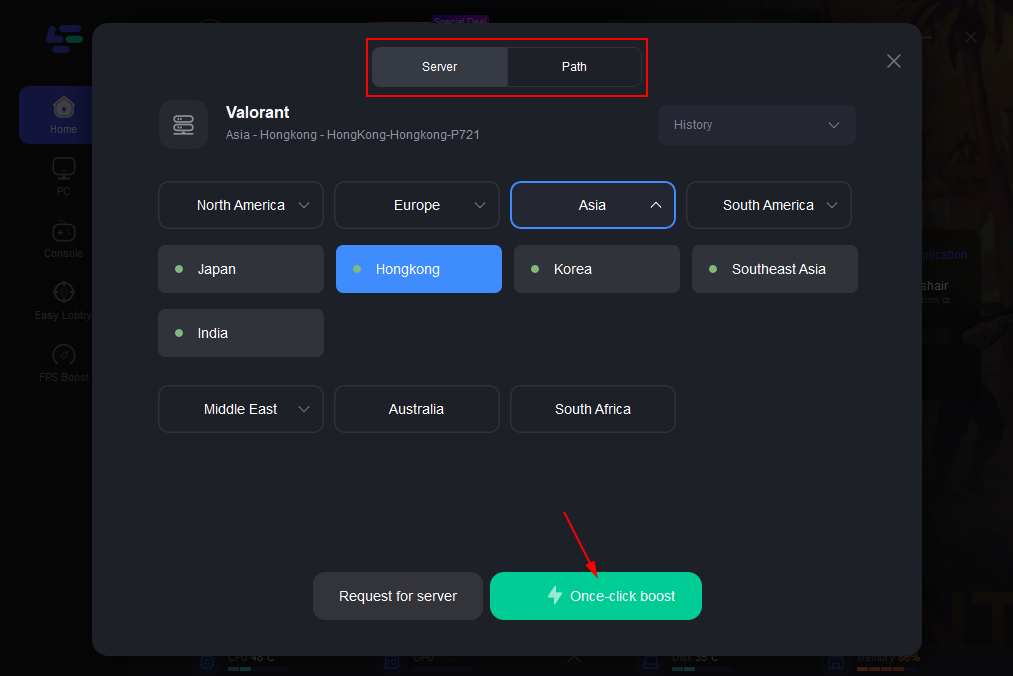
Step 3: Click on “Server” to change to a better server that optimizes the gaming experience, then click on “Smart Boost”.
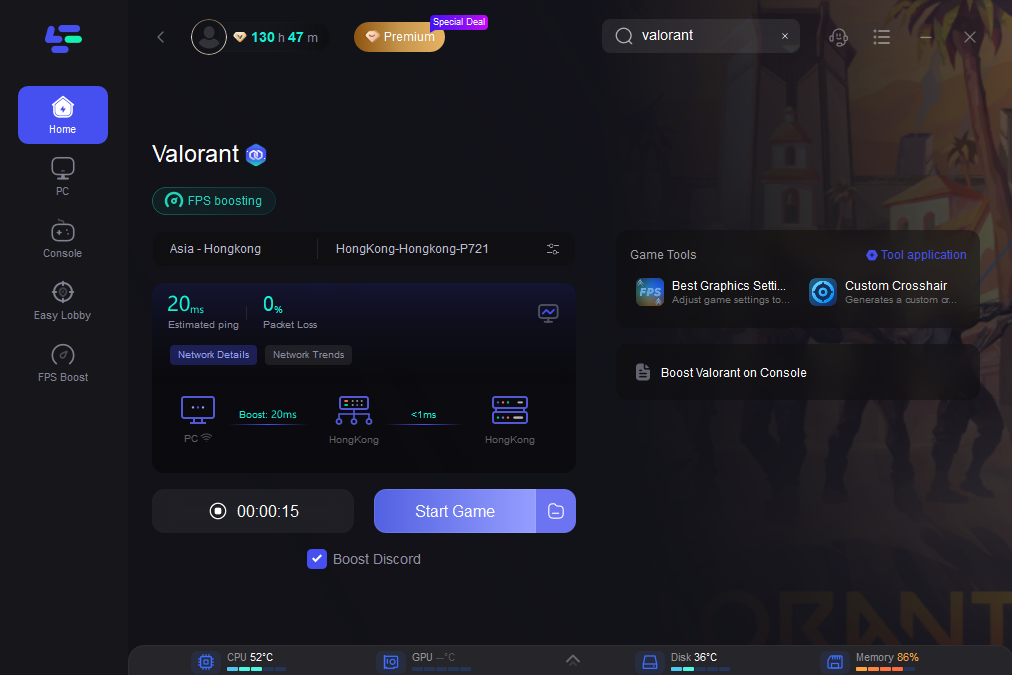
Step 4: Check the specific game ping, packet loss, and multiple path connections on the right side. Finally, click the “Start Game” to play the game.
Move Valorant to SSD
If you're playing Valorant from an HDD, switching to an SSD drastically improves load times and fixes screen transitions.
Step 1: Copy the entire Riot Games folder from your HDD.
Step 2: Paste it onto your SSD (e.g., C:\ drive).
Step 3: Open the Riot Client and click on “Locate” when it fails to find the game.
Step 4: Navigate to your new SSD location.
Step 5: Let it verify the installation.
Step 6: Launch the game and test the matchmaking process.
Limit In-Game FPS
Unlimited FPS can cause GPU-related stalls. Setting a cap often solves screen-freeze issues.
Step 1: Open Valorant and go to Settings, select Video, and click General.
Step 2: Scroll to "Limit FPS Always".
Step 3: Enable it and set a cap (e.g., 144 or 60).
Step 4: Apply changes and restart the game.
Step 5: Queue for a match to test.
Step 6: Adjust FPS limits further if needed.
Disable High Precision Event Timer (HPET)
Several users reported fixing the stuck screen by disabling HPET in Device Manager.
Step 1: Press Win + X and select Device Manager.
Step 2: Expand System Devices.
Step 3: Find High Precision Event Timer.
Step 4: Right-click and select Disable.
Step 5: Reboot your PC.
Step 6: Launch Valorant and check if the bug is resolved.
Run Valorant as Administrator
Insufficient permissions can block transitions between matchmaking states.
Step 1: Right-click your Valorant shortcut.
Step 2: Select Properties and click Compatibility.
Step 3: Check “Run this program as administrator”.
Step 4: Do the same for Riot Client.
Step 5: Apply and save settings.
Step 6: Relaunch and test matchmaking.
Repair or Reinstall Valorant
Corrupted files may be the root cause.
Step 1: Open the Riot Client.
Step 2: Click on your profile icon (top-right).
Step 3: Go to Settings and click Valorant.
Step 4: Click Repair and wait for it to complete.
Step 5: If this fails, uninstall Valorant via Control Panel.
Step 6: Re-download from Riot’s official site and install on SSD.
Check Background Applications and Close Conflicts
Apps like Discord overlay, MSI Afterburner, or even antivirus programs may interfere.
Step 1: Press Ctrl + Shift + Esc to open Task Manager.
Step 2: Look for background apps using high CPU or memory.
Step 3: End unnecessary tasks, especially monitoring or overlay tools.
Step 4: Temporarily disable antivirus or whitelist Valorant.
Step 5: Disable Xbox Game Bar (Windows Settings and select Gaming).
Step 6: Relaunch Valorant and attempt to queue.
Conclusion
Valorant getting stuck on the “Match Found” screen can be incredibly frustrating, especially when it leads to AFK penalties or lost ranked progress. Fortunately, there are several effective fixes, from simple tweaks like limiting FPS and moving the game to an SSD, to using advanced tools like LagoFast for connection and loading optimization. These solutions have helped many players and are worth trying before contacting Riot Support. With the right fix, you can get back in the game smoothly and avoid the dreaded “Match Found 0” freeze.

Boost Your Game with LagoFast for Epic Speed
Play harder, faster. LagoFast game booster eliminates stutter and lags on PC, mobile, or Mac—win every match!
Quickly Reduce Game Lag and Ping!
Boost FPS for Smoother Gameplay!