

Valorant continues to evolve with each new update, introducing Agents, maps, gameplay mechanics, and balance changes. But before these features hit the live servers, they often go through rigorous testing on a separate server environment, the Public Beta Environment (PBE). Whether you're interested in testing unreleased content or want to help improve the game’s stability before each patch, the PBE offers early access to Valorant’s future.
However, joining this test server isn’t as simple as logging in. It requires a bit of setup, regional eligibility, and patience. This comprehensive guide will walk you through everything: what the PBE is, how to get invited, how to install the test client, how to play, and even how to uninstall the client if needed. Plus, we’ll cover how to optimize your experience using tools like LagoFast.

Part 1: What Is the Valorant PBE?
Part 2: How to Get Access to Valorant Test Server?
Part 3: How to Download the Valorant Test Server?
Part 4: How to Play on the Valorant Test Server?
Part 5: How to Uninstall Valorant PBE?
Part 6: How to Ensure Smooth Gaming Experience in Valorant?
Part 1: What Is the Valorant PBE?
Riot Games created the Valorant Public Beta Environment (PBE) as a dedicated space for early testing of unreleased features, patches, agents, and skins. Much like League of Legends' PBE, this server gives selected players a chance to explore new updates before they hit the live servers. The core idea is to gather valuable player feedback and identify bugs or balance issues before the patch goes global.
Within the PBE, users can try out new mechanics, agents, and cosmetics for free, helping Riot Games refine their updates in real time. This is not just a sneak peek; it's a crucial testing phase that directly influences the final version of patches and seasonal content.
However, entry isn’t open to everyone. Riot has placed region-specific limitations, and there are eligibility conditions you’ll need to meet before diving in.
Part 2: How to Get Access to Valorant Test Server?
Gaining entry to the Valorant PBE server requires following a few steps and meeting Riot’s eligibility criteria. Here's how you can get started:

Step 1: Meet the Eligibility Criteria
To qualify for PBE access:
- Your Valorant account must be based in North America (NA).
- Your account should have no bans, restrictions, or behavioral flags.
- You must have a history of consistent play on NA servers.
Riot prioritizes NA accounts because the majority of their development staff and core servers are based there. This allows for quicker bug triage and focused testing.
Step 2: Visit the PBE Sign-Up Page
Head to the official Valorant PBE Sign-Up page.
Step 3: Log In With Your Riot Games Account
Use the same Riot credentials you use for the live version of Valorant. If your account qualifies, you’ll be prompted to move forward. If not, the site will inform you of your ineligibility.
Step 4: Submit Your Application
Once logged in, agree to Riot’s terms and submit your application for access. If successful, you’ll receive a confirmation email when you are granted access. Keep in mind that not all applications are immediately accepted. Invitations are sent in waves, usually tied to upcoming patches or major content changes.
Part 3: How to Download the Valorant Test Server?

After gaining approval, you’ll be able to download and install the PBE client separately from the live Valorant client.
Step 1: Download the Client
Click the download link provided in your confirmation email or revisit the PBE signup site once you're approved.
Step 2: Install the PBE Launcher
Run the downloaded setup file. It will install a separate version of Valorant specifically for the PBE environment.
Step 3: Launch and Sign In
Once installed, open the PBE launcher and sign in using your Riot credentials. You’ll be directed to the test server if it’s currently online.
Step 4: Check Server Availability
The Valorant PBE is not available 24/7. It usually opens on weekends prior to patch releases, often beginning Friday afternoon and closing by Monday morning (Pacific Time). If the servers are offline, you’ll be queued or unable to log in.
Part 4: How to Play on the Valorant Test Server?
Being accepted and having the client isn’t enough; you need to know how to get started on the actual server once it’s live.
Step 1: Check PBE Server Status
Before launching, ensure the test servers are currently live. Riot typically opens them during specific weekends. You can confirm this through the official subreddit or Riot’s social pages.
Step 2: Log In with the Right Credentials
Use the same Riot Games login you use for the live version. If you’ve been accepted into the PBE, the server dropdown in the Riot Client will allow you to switch to “Valorant PBE.”
Step 3: Explore the Changes
Once inside, you’ll find that all Agents are unlocked (though contracts are not completed), and most skins are available to test. Try out the new features and provide feedback via the official Valorant PBE subreddit.
Step 4: Report Bugs
If you find bugs or glitches, report them on the Valorant PBE subreddit. Riot monitors these threads to identify issues before public release.
Part 5: How to Uninstall Valorant PBE?
If you're done with testing or want to free up some space, uninstalling the PBE client is simple.
Step 1. Open your Windows Control Panel.
Step 2. Navigate to Programs, then uninstall a Program.
Step 3. Look for Valorant PBE in the list.
Step 4. Click Uninstall and follow the prompts.
This will only remove the PBE version; your live Valorant client will remain untouched.
Part 6: How to Ensure Smooth Gaming Experience in Valorant?
The PBE server can sometimes feel less optimized due to experimental builds, but lag, high ping, or FPS drops can also come from your local setup. A great way to improve your gameplay smoothness is by using a performance optimizer like LagoFast.
LagoFast is a game booster and ping reducer that enhances your system’s performance while gaming. It’s particularly useful for Valorant players dealing with unstable connections or frame rate drops.
Key Features of LagoFast:
- Real-time ping reduction with global route optimization
- FPS boost by allocating system resources more efficiently
- Smart server selection to minimize latency
- One-click acceleration for over 2000 games
- User-friendly interface designed for all skill levels
Even if you're not on the PBE, LagoFast helps ensure a seamless gaming experience across competitive matches, custom lobbies, or unrated games.
Tutorial to use LagoFast to ensure your Valorant gaming experience on PC:
Step 1: Click the Free Trial button to download and install LagoFast.
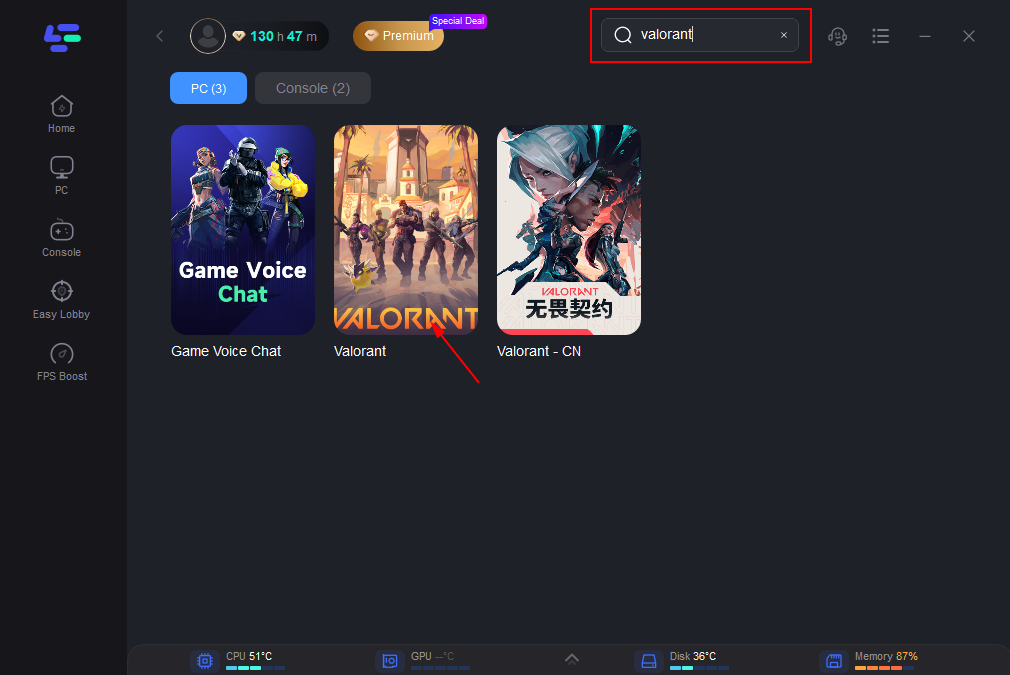
Step 2: Open LagoFast, then click the PC button on the left and search for Valorant in the search bar, and click it after it appears.
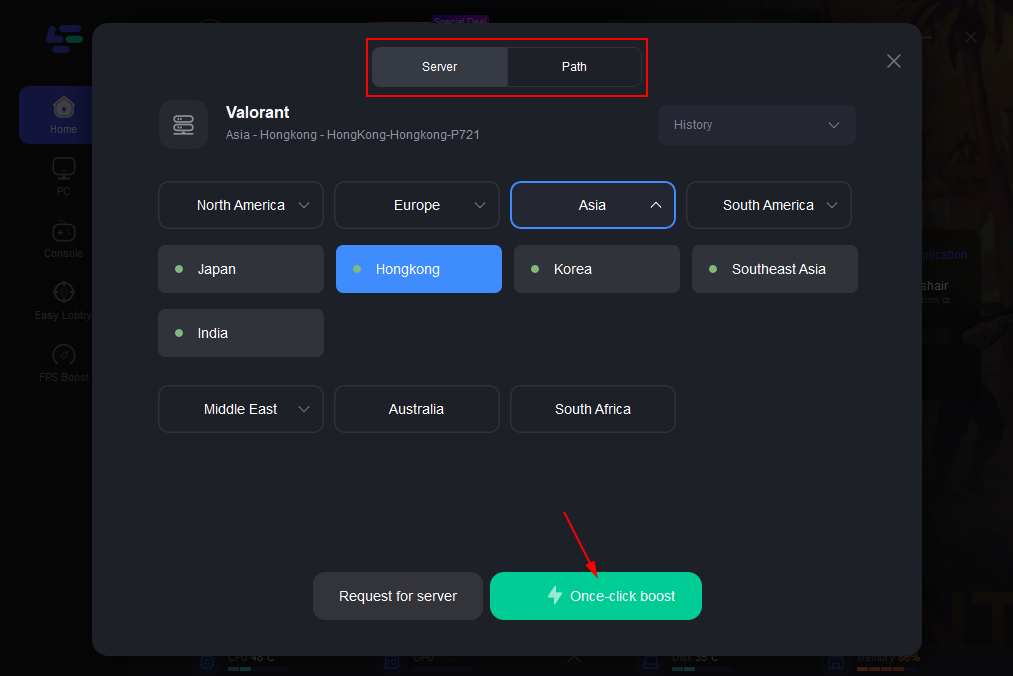
Step 3: Click on “Server” to change to a better server that ensures the gaming experience, then click on “Smart Boost”.
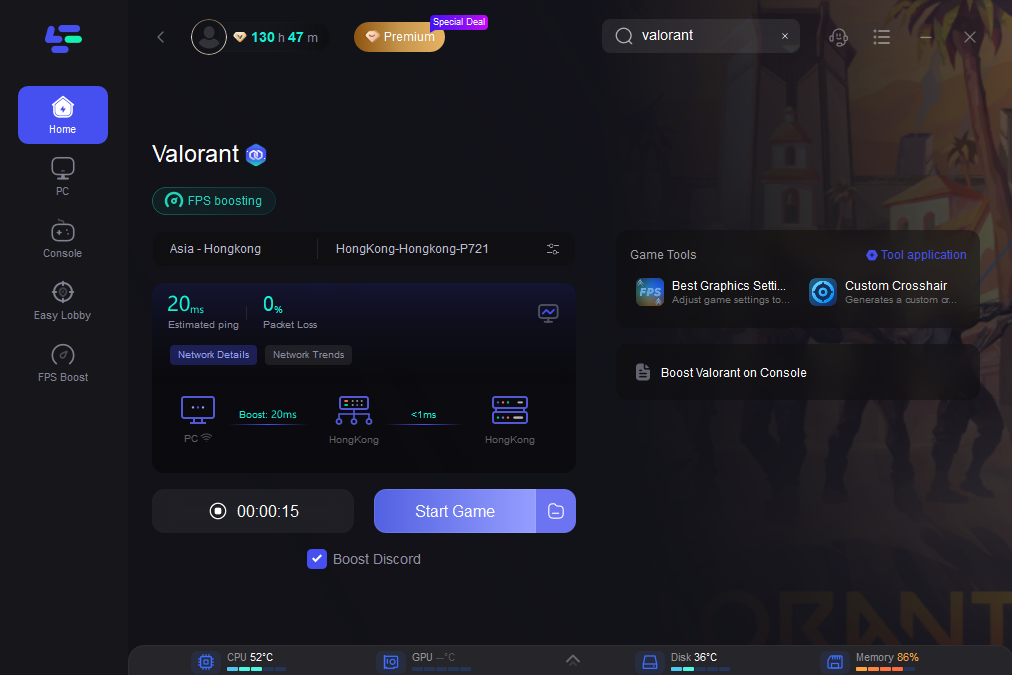
Step 4: Check the specific game ping, packet loss, and multiple path connections on the right side. Finally, click the “Start Game” to play the game.
Conclusion
Getting into the Valorant PBE isn’t instant or guaranteed, but for dedicated players, it offers a valuable opportunity to preview and influence future updates. Whether you’re testing a new Agent or exploring map changes, your feedback contributes to the overall balance and polish of the game. Just remember that access is limited to North American accounts in good standing, and servers are only open during scheduled testing windows. Once you’re in, setting up the client, downloading it, and jumping into matches is straightforward. And if you ever want to leave, uninstalling is just as easy. For players looking to enhance their performance across both the live and beta clients, tools like LagoFast can make a noticeable difference in lag, ping, and frame rate.

Boost Your Game with LagoFast for Epic Speed
Play harder, faster. LagoFast game booster eliminates stutter and lags on PC, mobile, or Mac—win every match!
Quickly Reduce Game Lag and Ping!
Boost FPS for Smoother Gameplay!