
Stumbling upon a connection glitch mid-climb in Ranked is every player’s nightmare, and few codes are as frustrating as the valorant error code van 185. Whether you are about to click "Play" or you're right in the middle of a clutch, this technical hiccup can boot you to the desktop without warning. While Vanguard is legendary for its strictness, it often triggers these alerts due to simple session timeouts or minor software conflicts rather than actual game violations. If you are tired of staring at the "Connection Error" screen, you are in the right place. In this comprehensive 2026 guide, we will break down exactly how to fix valorant error code van 185 so you can stop troubleshooting and start clicking heads again.

- ✅ Reduce Lag and High Ping
- ✅ Boost FPS at the Same Time
- ✅ Support 2000+ Online Games
- ✅Reduce latency and packet loss in Valorant
- ✅Multiplatform: PC, Console, Mobile.
Part 1: What's Valorant VAN 185 Error and When Does It Happen?
Part 2: VAN 185, VAN 152 & VAN 106: What’s the Difference?
Part 3: How to Fix Valorant Error Code VAN 185? – Top Working Solutions
Part 1: What's Valorant VAN 185 Error and When Does It Happen?
If you have seen the pop-up, you’ve likely asked yourself: What does Valorant van185 mean? Essentially, the Valorant VAN 185 error is a session-based connection notification. It typically occurs when the Riot Client has been left running for too long, usually more than seven days, or when the system detects that your account is logged in across multiple devices simultaneously.
Unlike more severe hardware bans, this error is a "soft" interruption. It happens most frequently during the game launch phase or immediately after a patch update when the communication between your local Riot Client and the Vanguard servers becomes desynchronized. Many players ask, "Why do I keep getting error 185?" The answer often lies in "zombie" processes, background tasks that didn't close properly during your last session, leading the server to think you are trying to initiate a duplicate connection. Because the anti-cheat system requires a clean, singular handshake with the server, any discrepancy results in an immediate kick.
Part 2: VAN 185, VAN 152 & VAN 106: What’s the Difference?
Understanding the hierarchy of Vanguard errors is crucial for choosing the right fix. While they all look similar at first glance, their meanings are vastly different:
|
Error Code |
Meaning |
Severity |
|
VAN 185 |
Connection/Session timeout. Usually caused by multiple logins or long up-time. |
Low - Fixable via restarts. |
|
VAN 152 |
Hardware ID (HWID) Ban. Vanguard has flagged the physical machine for cheating. |
High - Usually a 4-month ban. |
|
VAN 106 |
System incompatibility or "VGC" service failure. Common on Windows 11. |
Medium - Requires BIOS/Service tweaks. |
While valorant error code van 185 is simply a "please log in again" nudge, VAN 152 is the "dreaded" ban code. If you are seeing 185, take a deep breath, your account is likely safe, and your hardware isn't blacklisted. You simply need to refresh your connection state.
Part 3: How to Fix Valorant Error Code VAN 185? - Top Working Solutions
When looking for a Fix Valorant VAN 185 error, efficiency is key. You don't want to spend hours digging through registry files if a simpler solution exists.
The All-in-One Solution: LagoFast
Before diving into manual Windows configurations, the most effective way to solve Vanguard error 185 is by using a dedicated game optimization tool like LagoFast. LagoFast is widely recognized as the best game booster on the market because it doesn't just lower your ping; it stabilizes the entire ecosystem between your PC and Riot's servers. It is specifically designed to bypass the handshake issues that trigger valorant error code van 185, 152, and 106. By optimizing your network route and clearing conflicting background processes, it ensures Vanguard maintains a steady heart-beat connection.
Key Features of LagoFast:
- Fix Common Valorant Errors: Instantly resolves connectivity-based codes like VAN 185 and VAN 106.
- One-Click FPS Boost: Optimizes CPU and GPU settings to maximize frames per second.
- Cross-Device Boost: Supports PC, consoles, and mobile, ensuring a smooth experience across all platforms.
- Multipath Connection: Uses multiple data paths to ensure you never lose connection to the game server.
- Global Server Network: Access to exclusive routes that reduce jitter and packet loss significantly.
Tutorial to Use LagoFast to Fix Valorant Error Code VAN 185:
Step 1: Begin by clicking the Free Trial button to download and install the LagoFast Free Trial.
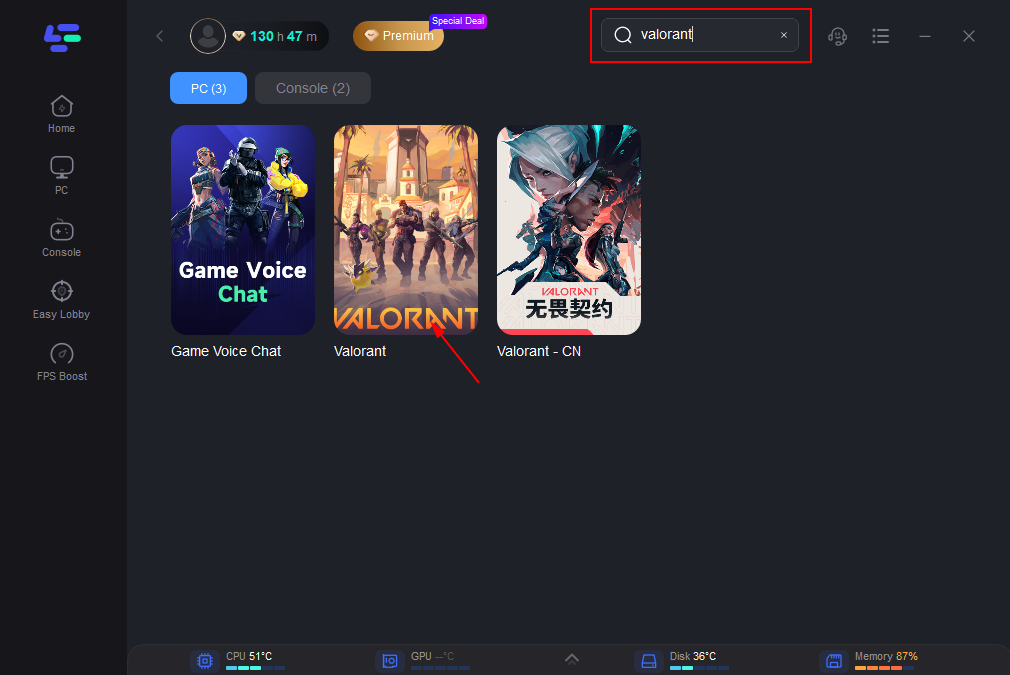
Step 2: Open LagoFast and Select Valorant – Launch LagoFast, find Valorant in the game list, and select it.
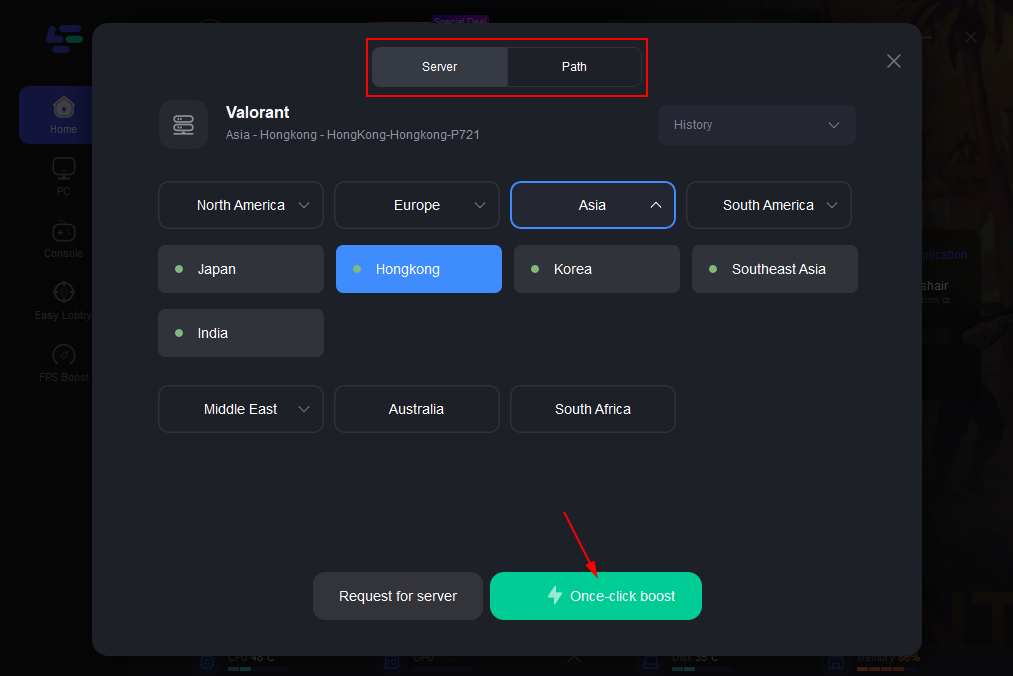
Step 3: Choose a Server Location – Pick the server location closest to you or the server with the lowest ping.
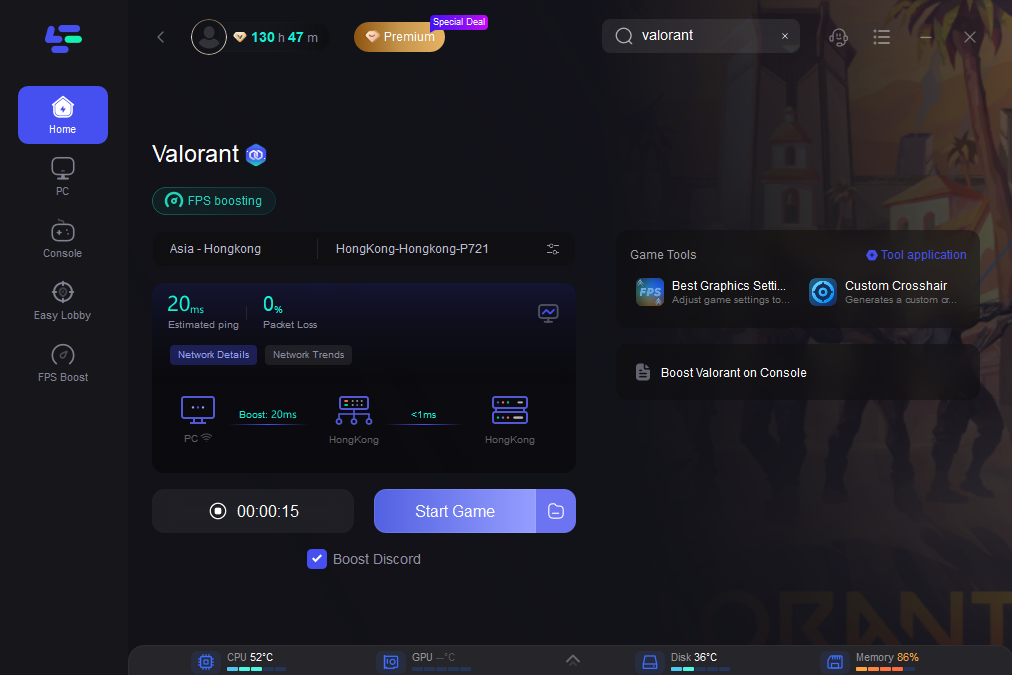
Step 4: Launch Valorant through LagoFast – Click on the Boost button to launch Valorant with optimized settings.
While LagoFast is faster and more effective for permanent stability, you can attempt these manual fixes to address the valorant van 185 error fix. Please follow the steps exactly to avoid further system conflicts.
Solution 1: The "Log Out Everywhere" Method
The most common cause of the Valorant VAN 185 error is a session conflict. If you are logged in on a laptop and a desktop, the server gets confused.
Step 1. Open your web browser and go to the official Riot Games account page.
Step 2. Log in with your Riot ID and password.
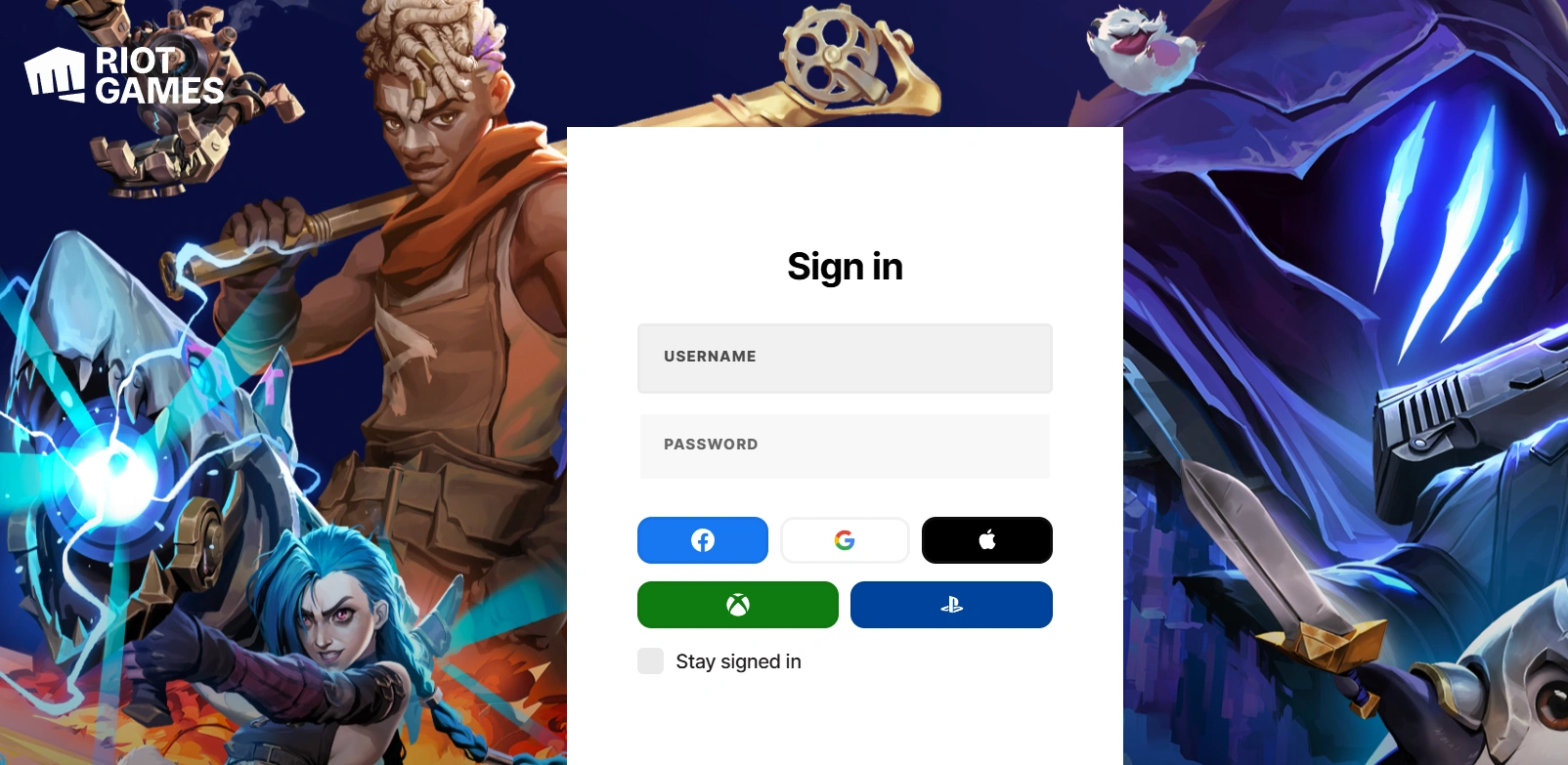
Step 3. Navigate to the "Sign-in Management" or "Security" tab.
Step 4. Find the button labeled "Log Out Everywhere" and click it. This terminates all active sessions, including the "zombie" one causing the error.
Step 5. Restart your PC, launch the Riot Client, and log back in manually (ensure "Stay Signed In" is unchecked for this first attempt).
Solution 2: Re-enabling the VGC Service
Sometimes the valorant error code van 185 appears because the Vanguard service (VGC) has stalled in the background.
Step 1. Press the Windows Key + R, type services.msc, and hit Enter.
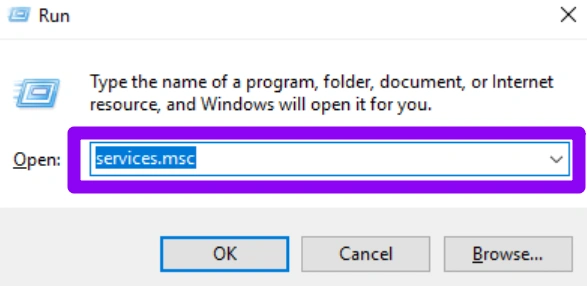
Step 2. Scroll down the list until you find the service named "vgc".
Step 3. Right-click "vgc" and select Properties.
Step 4. Change the "Startup type" to Automatic and click the Start button if it isn't already running.
Step 5. Click Apply, then OK, and restart your computer to finalize the changes.
Solution 3: Flushing DNS and Renewing IP
Network congestion or outdated DNS cache can trigger the Valorant van 185 error. Refreshing your network stack is a classic How to solve Vanguard error 185 technique.
Step 1. Type cmd in the Windows search bar, right-click Command Prompt, and select Run as Administrator.
Step 2. Type ipconfig /flushdns and press Enter.
Step 3. Type ipconfig /registerdns and press Enter.
Step 4. Type ipconfig /release followed by ipconfig /renew (wait for the process to complete between each).
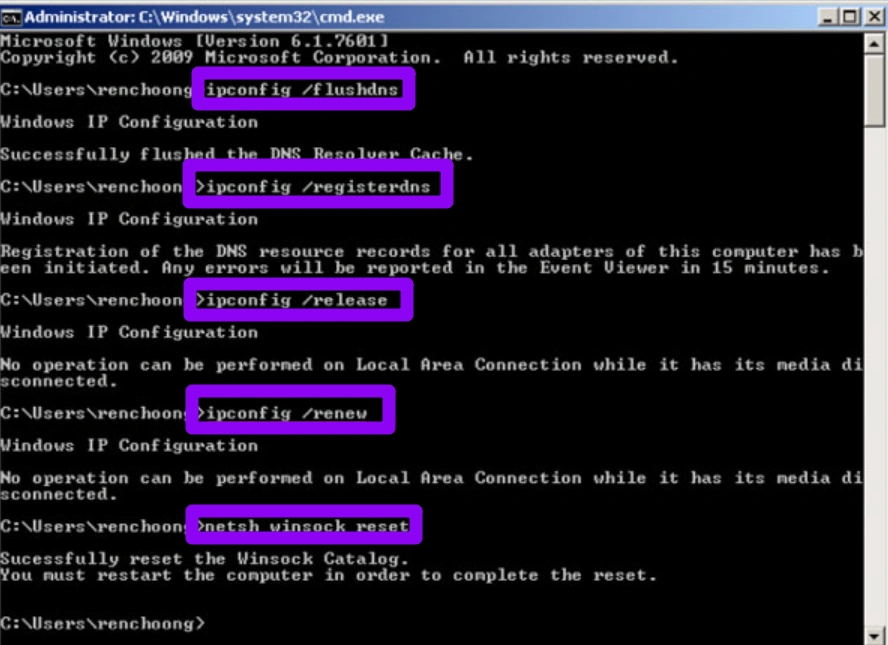
Step 5. Finally, type netsh winsock reset and restart your PC.
Solution 4: Clean Reinstall of Riot Vanguard
If the files within the anti-cheat itself are corrupted, you will keep getting the valorant error code van 185 regardless of your internet speed.
Step 1. Close Valorant and the Riot Client completely.
Step 2. Go to Settings, select Apps, select Installed Apps, and find Riot Vanguard.
Step 3. Click the three dots and select Uninstall.
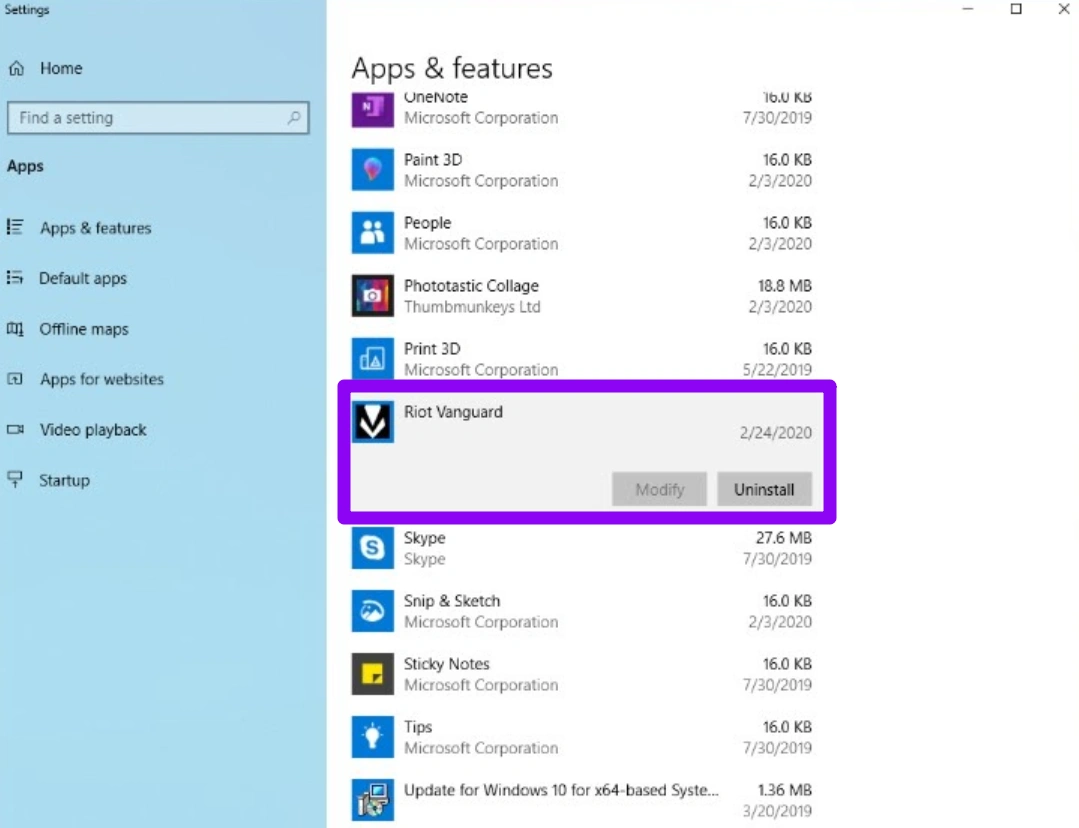
Step 4. Once uninstalled, restart your computer.
Step 5. Open the Riot Client; it will detect that Vanguard is missing and prompt you to download it. Once the download is done, restart your PC one more time before playing.
Solution 5: Adjusting Windows Defender & Firewall
Sometimes your security software thinks Vanguard is a threat, leading to the Valorant VAN 185 error.
Step 1. Press the Windows Key and search for "Firewall & network protection".
Step 2. Click on "Allow an app through firewall".
Step 3. Click "Change settings" and find all instances of Valorant, Riot Client, and Vanguard.
Step 4. Ensure both "Private" and "Public" boxes are checked for all of them.
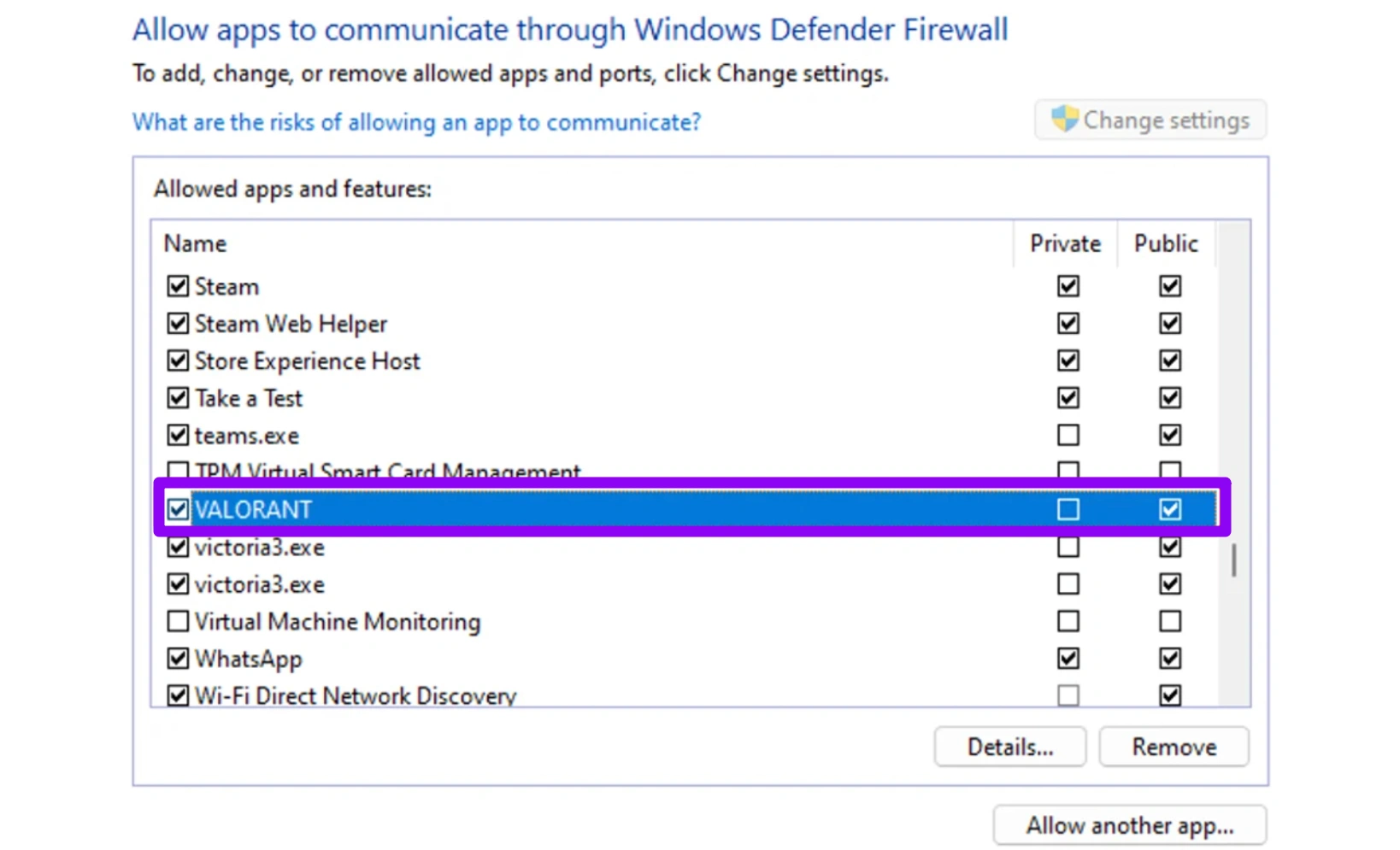
Step 5. If they aren't on the list, click "Allow another app" and browse to your Valorant installation folder to add the .exe files manually.
Conclusion
Dealing with Valorant error code van 185 can be frustrating, especially when it interrupts gameplay at critical moments. Fortunately, understanding the root cause makes it much easier to fix. Whether it’s a Vanguard issue, network instability, or a system configuration problem, there are multiple solutions available. While manual methods can work, they often require time and patience. For a quicker and more stable experience, using LagoFast is a smarter choice. With the right approach, you can eliminate the error and enjoy uninterrupted matches again.

Boost Your Game with LagoFast for Epic Speed
Play harder, faster. LagoFast game booster eliminates stutter and lags on PC, mobile, or Mac—win every match!
Quickly Reduce Game Lag and Ping!
Boost FPS for Smoother Gameplay!