
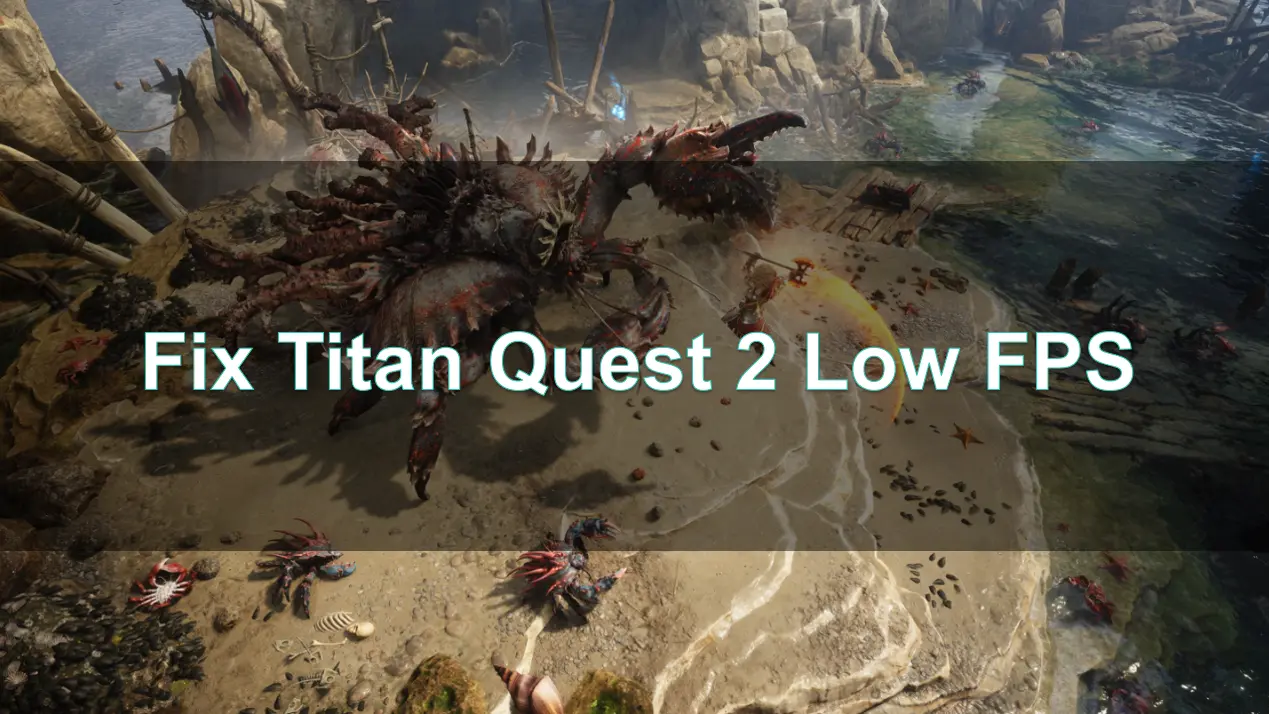
Titan Quest II, the long‑awaited sequel to the classic mythological ARPG, delivers beautiful environments and deep gameplay—but it often struggles with poor performance even on high-end hardware. Players report frequent frame drops, stutter during combat, excessive GPU heat, and dips in framerate in areas with many enemies or visual effects. Since the game is in Early Access, proper optimization is still pending. Thankfully, there are several proven methods—from engine tweaks to external booster tools—that can help boost FPS and stabilize gameplay.

Part 1: Introduction to Titan Quest 2
Part 2: Understanding Titan Quest 2 FPS Drops
Part 3: How to Show FPS in Titan Quest 2
Part 4: Optimizing Game Settings for Better FPS in Titan Quest 2
Part 5: Additional Tips to Resolve Low FPS in Titan Quest 2
Part 1: Introduction of Titan Quest 2
Titan Quest II builds on the legacy of the original 2006 title, reimagined by Grimlore Games and published by THQ Nordic. It immerses players in a rich ancient Greece-inspired world, combining mythic enemies, deep character building through Masteries, and iconic loot-driven progression. Though visually striking, many early players report that the Unreal Engine 5–powered sequel is extremely demanding—even requiring graphics cards like RTX 4070 for recommended settings.
Part 2: Understanding Titan Quest 2 FPS Drops
Common triggers for FPS drops and stuttering in Titan Quest II include:
- Mass on-screen entities: Frequent combat with many enemies causes drops and micro-stutters, especially during ragdoll physics and visual effects.
- Poor optimization: Reddit users and beta testers consistently report that even maxed-out settings yield worse performance than older ARPGs like Grim Dawn or Path of Exile 2.
- Engine limitations: Area transitions, caves, foliage zones, and portals trigger performance dips due to textures and streaming delays.
- Single-core limitations: The default useSingleProcessorMode = true setting restricts CPU usage, worsening FPS stability.
Part 3: How to Show FPS in Titan Quest 2
Before you start optimizing, it's essential to display FPS:
- Use Steam’s built-in FPS counter: Steam > Settings > In‑Game > In‑game FPS counter, or
- Use third-party overlays like MSI Afterburner or Rivatuner to monitor real-time frame rates and identify specific stutter points.
Part 4: Optimizing Game Settings for Better FPS in Titan Quest 2
Graphics Settings
- Shadows: Disable shadows entirely.
- Reflections & Ambient occlusion: Set to low or disable.
- V-Sync: Enable V-Sync and optional triple buffering.
- Resolution: Play in fullscreen vs. borderless or windowed—users report fullscreen works smoother in key areas.
System Tweaks
- Set useSingleProcessorMode = false in options.txt (save file folder) to let Titan Quest II use multiple CPU cores.
- Move game installation and save folder to a fast SSD or NVMe drive to reduce asset streaming lag.
- Keep graphics drivers, Windows updates, and chipset drivers up to date.
Part 5: Additional Tips to Resolve Low FPS in Titan Quest 2
1. Use LagoFast for Network Optimization
While network latency may not affect a mostly single-player game, LagoFast provides system-level resource optimization and FPS boosting:
- It reallocates CPU/GPU resources dynamically during combat.
- It can reduce frame pacing issues and minimize performance dips in action-heavy scenes.
1. Click the button below to download LagoFast for free and complete installation.
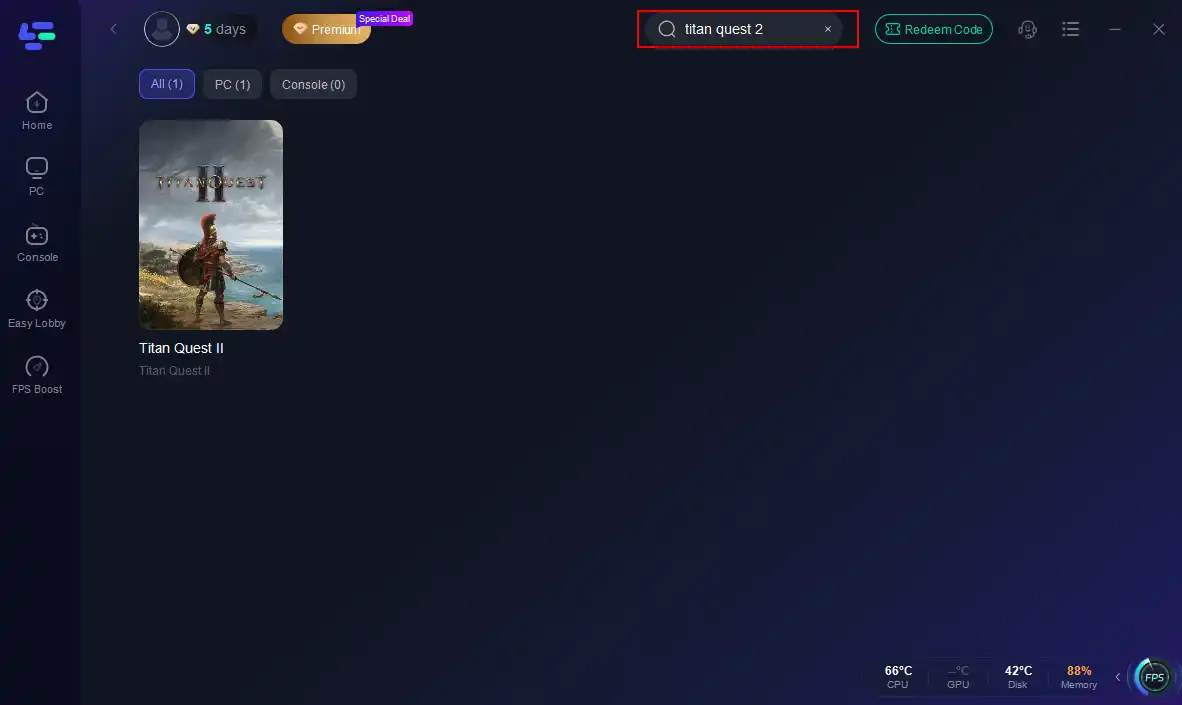
2. Open the LagoFast client, then type “Titan Quest 2” into the search bar and click the result.
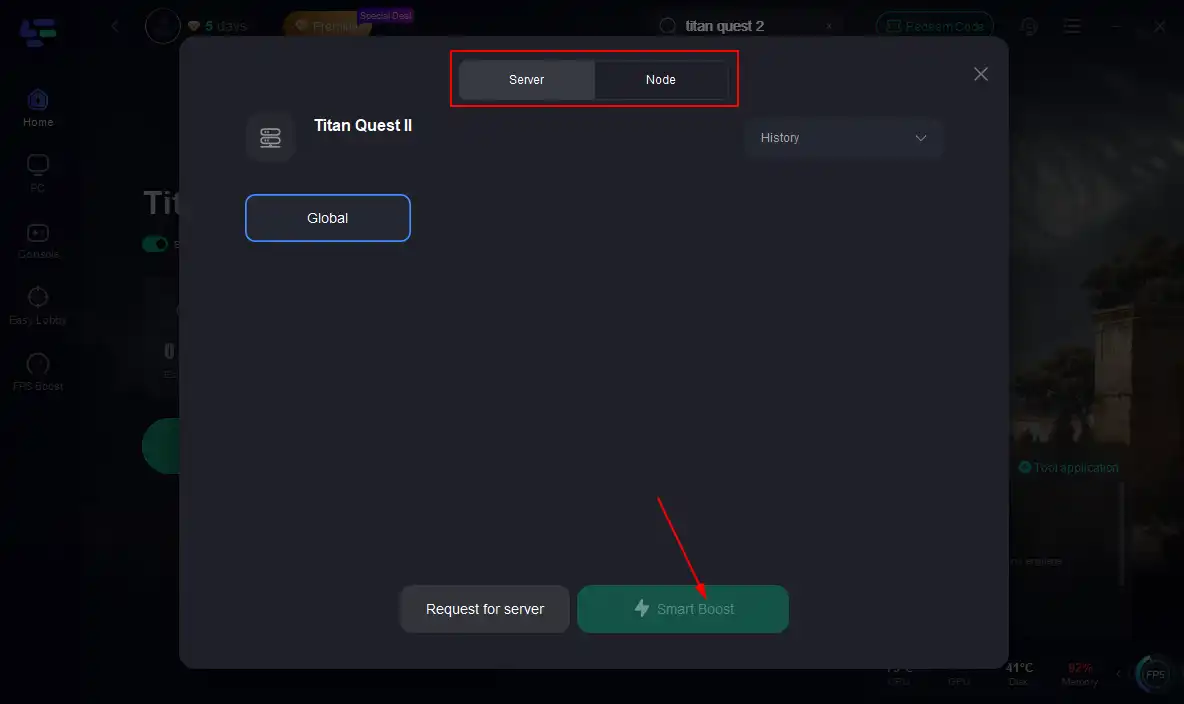
3. Click “Select Server” to choose the best server node, then click “Smart Boost” to activate real-time optimization.
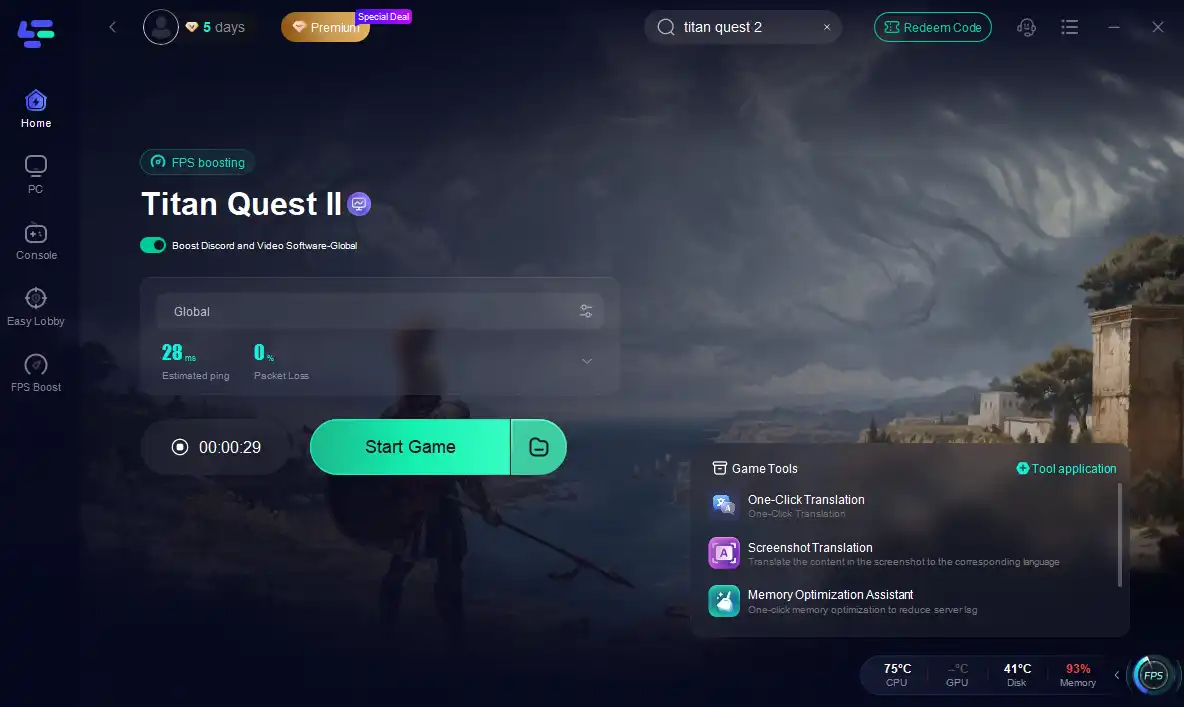
4. Once optimization starts, you'll see reduced packet loss and ping of the game. Click “Start Game” to return to Titan Quest 2 and enjoy lag-free gameplay!
2. Use DXVK Wrapper for Vulkan Rendering
Installing DXVK (Vulkan-based translation layer) can improve performance significantly:
- Copy d3d9.dll, dxgi.dll, and related x32 DLLs into the game folder.
- Launch using DirectX 9 mode via command line or Steam options (-dx9), or use DXVK’s .conf to cap frame rates at 60 fps.
3. Apply NTCore 4GB Patch & Core Switcher
These community tools help stabilize older executables:
- Use the 4GB patch to allow the game to use beyond 2 GB virtual memory—reduces random crashes and stuttering.
- Core Switcher ensures balanced CPU core usage, preventing bottlenecks and improving sustained FPS.
4. Disable Overlays and Antivirus Scanning
Certain overlays (Steam, Discord) or antivirus background scanning can impact performance. Add the Titan Quest II directory to your antivirus exclusion list and disable overlays to improve stability.
5. Lock Frame Rate, Disable G‑Sync / Free‑Sync
Many community users report disabling variable refresh rate technologies and locking FPS at 60 improves smoothness—especially through areas with frequent stutter.
Part 6: FAQs
Q1: Why does Titan Quest II stutter even with high FPS?
A1: It's often due to GPU-bound stutter from texture streaming, asset loading, or engine frame pacing issues—not just raw frame rate.
Q2: Should I use DX11 or DX9 mode?
A2: Most performance-savvy players report DX9 + DXVK offers smoother results than native DX11 in this engine.
Q3: Are system requirements exaggerated?
A3: Titan Quest II currently lists minimum specs of Core i5‑8600K + RTX 2070 + 16 GB RAM, and recommended as high as RTX 4070 + 32 GB RAM—a high bar indicating optimization work remains.
Q4: Will the performance improve in final release?
A4: Optimization is ongoing. Feedback from early testers suggests developers will significantly improve stability and frame pacing before full release.
Conclusion
Titan Quest II is a gorgeous, ambitious ARPG—but due to its heavy visual demands and Early Access status, many players will struggle with low FPS, stuttering, or system lag. The best way to reduce these issues is a multi-pronged approach: use DXVK + DX9, disable single-core mode, cap FPS, offload assets to SSD, and apply community fixes like the 4GB patch. These steps combined should transform your framerate experience from volatile to stable—letting you enjoy Mythic battles instead of performance bottlenecks.
Boost Your Game with LagoFast for Epic Speed
Play harder, faster. LagoFast game booster eliminates stutter and lags on PC, mobile, or Mac—win every match!
Quickly Reduce Game Lag and Ping!
Boost FPS for Smoother Gameplay!