

If you play The Finals CN, you may have experienced sudden crashes, freezes, or blue screens (BSOD). These often happen at the worst moments—during a match or after a game update. While many players blame their hardware, the main culprit is usually ACE (Anti-Cheat Engine) virtualization.
ACE is a system-level anti-cheat module that can clash with certain system settings, security software, or virtualization environments, causing crashes or BSODs.
This guide explains why these crashes occur, shows the fastest fix, and provides backup solutions to help you get back to smooth gameplay without risking your system.

- ✅ Reduce Lag and High Ping.
✅ Boost FPS at the Same Time.
✅ Support 2000+ Popular Online Games.
✅ Change Server without Latency.
✅ Boost Game Loading Speed.
Part 1: Why The Finals CN Crashes & Blue Screens Happen
Part 2: The Best Way to Fix ACE Crashes and BSOD in The Finals CN
Part 3: Other Ways to Fix ACE Crashes & BSOD
Part 1: Why The Finals CN Crashes & Blue Screens Happen
1. Conflicts with Virtualization or System Drivers
ACE may conflict with:
- Hyper-V
- Windows Virtualization Platform
- Residual VMware or VirtualBox components
- CPU virtualization features (VT-x / SVM)
These conflicts can trigger instant crashes or BSODs, often showing errors like SYSTEM SERVICE EXCEPTION.
2. Conflicts with Third-Party Security Software
Common software clashes include:
- Huorong firewall/antivirus
- 360 Security
- Bitdefender, Avast
Such conflicts may freeze the game at login or crash during loading.
3. Damaged or Incomplete ACE Files
These issues often appear when:
- Installing the CN version for the first time
- System shuts down abruptly during updates
- Windows updates do not fully apply
Damaged or missing ACE files can lead to repeated crashes without error messages.
4. Windows Version or Driver Incompatibility
Examples of incompatible setups:
- Windows 10 LTSC or slimmed-down editions missing essential components
- Disabled essential Windows services
- Outdated GPU or chipset drivers
- Incompatible drivers or system versions can cause random crashes, worsening over time.
Part 2: The Best Way to Fix ACE Crashes and BSOD in The Finals CN
If you’re experiencing crashes, freezes, or blue screens in The Finals CN, the most reliable solution is to repair the ACE anti-cheat environment. While system tweaks, driver updates, and network optimization to reduce ping can help, the fastest and safest method is to use a dedicated tool.
Lagofast’s ACE Repair Tool automatically fixes broken ACE drivers, clears virtualization conflicts, and restores system components. It also provides optional network optimization to lower ping and improve overall game stability, making gameplay smoother and more reliable.
After using the tool, most players find that crashes, freezes, and blue screens are resolved, letting them enjoy stable gameplay without constant interruptions.
How to Use LagoFast with The Finals CN
Step 1: Download and install LagoFast.
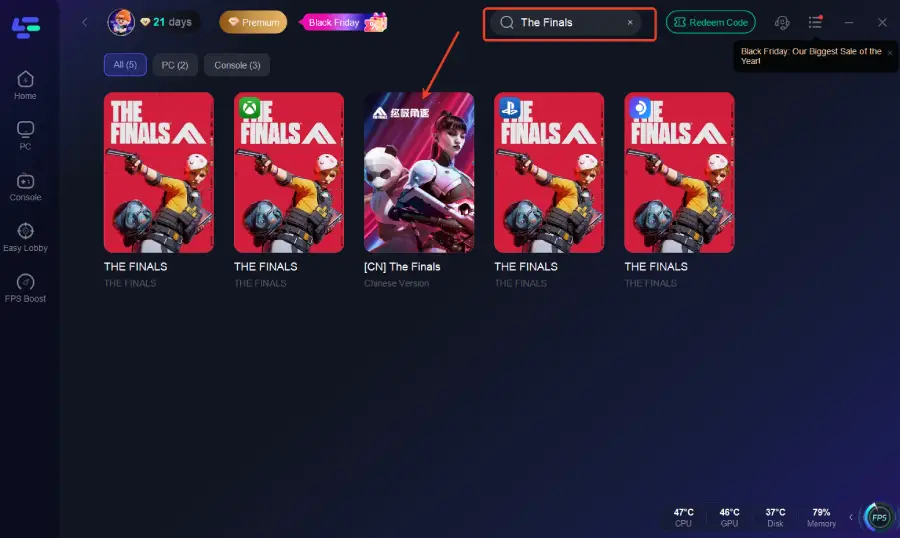
Step 2: Open LagoFast and search for “The Finals” in the search bar.
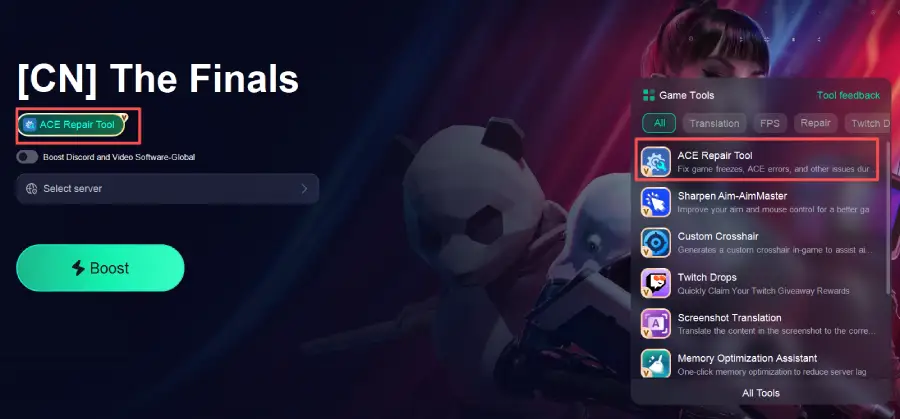
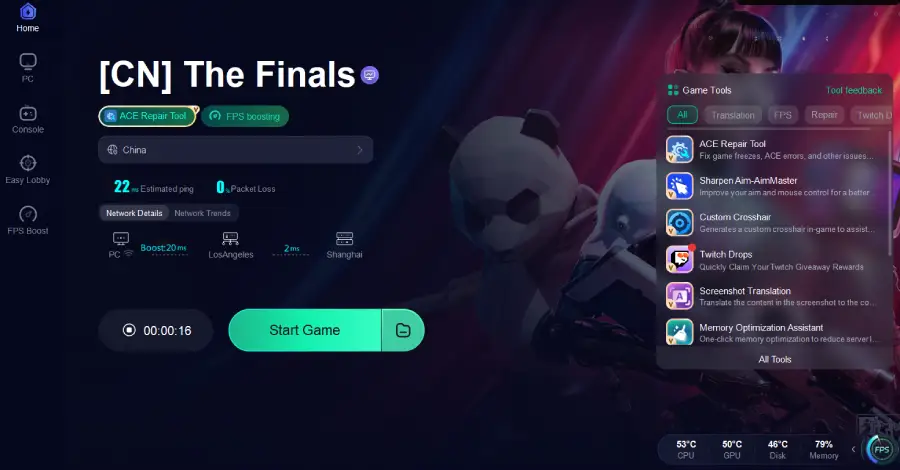
Step 3: Click “ ACE Repair Tool” on the right side of the screen
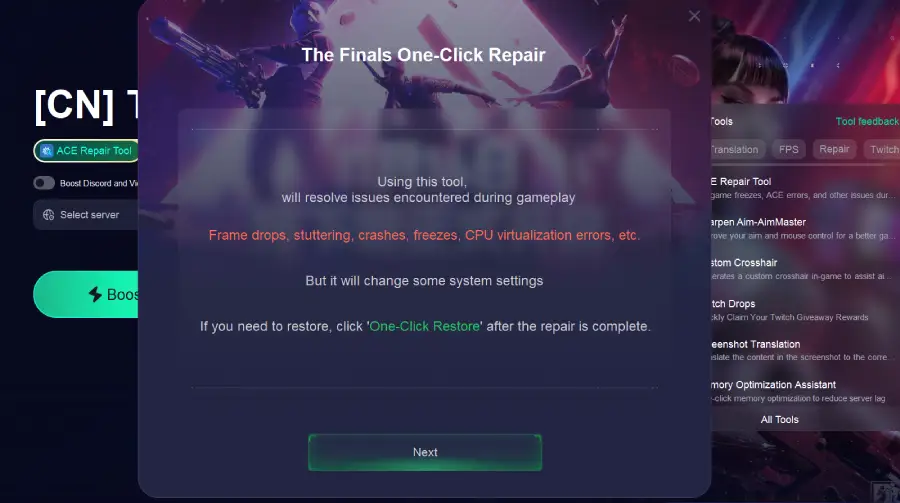
Step 4: The tool will automatically detect and fix issues such as frame drops, stuttering, freezes, crashes, and CPU virtualization errors.
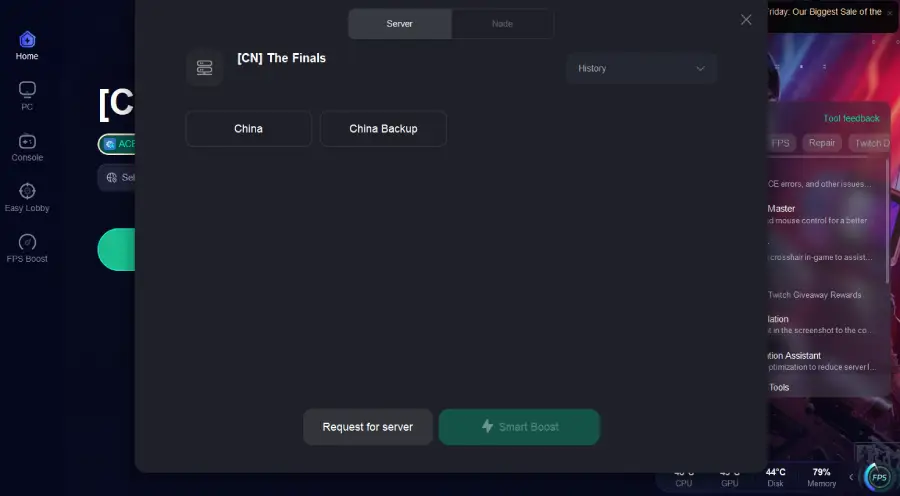
Step 5: Click on “Server” to select the best route for stable connectivity, then click “Smart Boost” to enable intelligent optimization.
Step 6: Once optimization is complete, launch "The Finals" and enjoy an enhanced gaming experience.
Part 3: Other Ways to Fix ACE Crashes & BSOD
If you prefer not to use a dedicated tool or need backup solutions, try the following methods:
1. Disable Conflicting Virtualization Features
- Press Windows + R, type optionalfeatures.exe, and press Enter.
- Uncheck Hyper-V and Windows Hypervisor Platform, then restart your PC.
- Remove residual VMware or VirtualBox drivers via Programs and Features or official uninstallation tools.
2. Update or Roll Back Drivers
- Update GPU drivers (NVIDIA, AMD, Intel) and motherboard chipset drivers.
- Roll back drivers if crashes started after a recent update.
3. Check ACE File Integrity
- Reinstall The Finals CN to ensure ACE files are complete and undamaged.
- Use a stable network to prevent corruption during updates.
- Verify game files via launcher if supported.
4. Adjust Security Software
- Temporarily disable or whitelist The Finals CN and ACE in firewalls/antivirus.
- Avoid software known to conflict with ACE (e.g., Huorong, 360 Security, Avast).
5. System Optimization
Ensure Windows updates are installed.
Confirm essential services like Windows Management Instrumentation and RPC are running.
Perform a clean boot:
- Press Windows + R, type msconfig, and press Enter.
- Under Services, check Hide all Microsoft services and click Disable all.
- Restart and launch the game.
6. Backup Solution: Restore System Points
- Press Windows + R, type rstrui, and press Enter.
- Follow prompts to restore your PC to a previous stable state.
Pro Tip: Combining the ACE Repair Tool with these manual methods often yields the best results, especially for stubborn BSODs or repeated crashes.
Part 4: FAQs
Q1: Can I play The Finals CN without ACE?
No. Disabling ACE may prevent the game from launching or cause instant crashes.
Q2: Why does the game crash even after updating drivers?
Crashes may occur due to leftover virtualization software, damaged ACE files, or conflicts with security programs. Using an ACE repair tool usually resolves this.
Q3: How do I know if my antivirus is blocking ACE?
Symptoms include freezing at login, crashes during loading, or BSOD with ACE-related errors. Temporarily disabling or whitelisting ACE can help confirm this.
Q4: Is it safe to use third-party ACE repair tools?
Yes, provided you use a trusted tool like LagoFast’s ACE Repair Tool. It repairs anti-cheat drivers, fixes virtualization conflicts, and optimizes your system safely.
Q5: Will BSODs happen randomly even after fixing ACE?
If ACE and your system are properly repaired and optimized, crashes should be rare. Persistent issues usually indicate deeper driver conflicts, corrupted system files, or incompatible Windows versions.
Conclusion
Crashes, freezes, and blue screens in The Finals CN are usually caused by ACE anti-cheat conflicts with virtualization, system drivers, or security software.
The fastest and most reliable solution is using a dedicated ACE repair tool, which can automatically fix corrupted files, resolve virtualization conflicts, and optimize your system. Manual methods—like updating drivers, adjusting security software, and checking ACE integrity—serve as excellent backup solutions.
By combining these strategies and following preventive measures, you can enjoy stable gameplay without constant interruptions.
Boost Your Game with LagoFast for Epic Speed
Play harder, faster. LagoFast game booster eliminates stutter and lags on PC, mobile, or Mac—win every match!
Quickly Reduce Game Lag and Ping!
Boost FPS for Smoother Gameplay!