
You're encountering the "Error connection System Request (100199)"—commonly seen as "Disconnected from server. Reason: System Request (100199)—when trying to log in or play Throne and Liberty. In this article, here's what's going on and what you can try to fix it.

- ✅ Reduce Lag and High Ping.
- ✅ Boost FPS at the Same Time.
- ✅ Support 2000+ Online Games.
- ✅ Change Region Server Quickly.
- ✅ Multiplatform Game Support.
Part 2: Why It Keeps Happening
Part 1: What the Error Means
- Message: “Disconnected from server. Reason: System Request (100199)”
- Platforms affected: PC (Steam), PS5, Xbox Series X/S.
- Timing: Often occurs after a patch or game update.
- Behavior: Black screen, stuck character select, or instant disconnects.
This error is not your console or hardware’s fault—it’s a network authorization/connection failure between your client and Amazon’s servers.
Part 2: Why It Keeps Happening
- Network authorization fails between your client and TL’s backend (often after patches). This shows up as 100199 + black screen.
- DNS/ISP quirks block or misroute the handshake. Several players fixed 100199 by switching to Cloudflare/Google DNS.
- Security software interference (PC) stops required files from downloading; verifying files while AV is paused has helped.
- A bad IP/DHCP glitch (e.g., link-local 169.x.x.x) causes restricted connectivity until you renew the IP/reboot the router.
- Region/route issues (some players only get in via VPN, hinting at regional blocks or routing problems). Amazon’s own help docs say you can’t play from unsupported regions.
Part 3: How to fix it?
PC (Steam)—step-by-step
1. Power-cycle everything
Unplug your modem and router for 60 seconds, plug back in, then restart your PC. This alone stopped rubber-banding and 100199 waves for multiple players.
2. Switch your DNS (often the fix)
Your ISP’s DNS can break the handshake to TL’s servers.
- Windows: Settings → Network & Internet → Change adapter options → right-click your adapter → Properties → Internet Protocol Version 4 → “Use the following DNS” → 1.1.1.1 (primary), 1.0.0.1 (secondary). Click OK and reboot. Players reported 100199 vanished after moving to Cloudflare DNS.
3. Verify game files with AV temporarily paused
Some AV suites block a file during patching.
- Pause AV (at your own risk).
- Steam Library → THRONE AND LIBERTY → Properties → Installed Files → Verify integrity.
- Launch while AV is still paused once. A user fixed 100199 exactly this way.
4. Make sure Windows didn’t give you a broken IP
Open Command Prompt → ipconfig.
- If your IP starts 169.254.x.x, DHCP failed (APIPA). Run ipconfig /release → ipconfig /renew, or reboot router until you get a normal 192.168/10.x address. This APIPA behavior is documented by Microsoft.
5. Quick region/route checks
- Steam Download Region: Steam → Settings → Downloads → Change Download Region → Restart Steam.
- VPN diagnostic: Connect to a nearby EU/NA endpoint, try logging in once, then close the game and disconnect.
6. Network profile & overlays
- If you use a VPN/anti-lag app, set Windows network to Public (not Private), reboot, and retry.
7. Optional client nudges (if you reach character select)
- Create/log in to an alt character once, then switch back to your main. It’s a known workaround listed in TL error roundups.
8. Still stuck?
- Delete and reinstall is a last resort, but before that, you can verify again or even delete the TL.exe and then verify to force a clean pull.
PS5—step-by-step
1. Power-cycle your network & console
Unplug the modem/router for 60 seconds → plug in → restart PS5. This cleared disconnect storms for several players.
2. Set manual DNS on PS5
Settings → Network → Set Up Internet Connection → your network → Advanced Settings → DNS: Manual → Primary 1.1.1.1, Secondary 1.0.0.1 → OK → test connection. Community fixes point to ISP DNS causing 100199.
3. Clear cache & rebuild database (Safe Mode)
Turn off PS5 completely → hold power until second beep → connect controller → clear cache and rebuild database → first run clear system software cache, then rebuild database. This is Sony’s official remediation for corrupted caches after updates.
4. NAT/IP sanity
- Use wired if possible.
- Ensure you’re not getting a 169.254.x.x address via your router (rare on consoles but indicative of DHCP failure). Reboot the router if so; APIPA means no valid DHCP lease.
5. Quick route test via hotspot or router-VPN
- Temporarily tether the PS5 to a mobile hotspot and try logging in. If it works there but not at home, it’s an ISP/route/DNS issue—stick with Step 2 and contact your ISP.
- If your router supports it, try a LagoFast Game Booster to a nearby region once to confirm a routing issue.
Step 1: Download Free Trial Download.
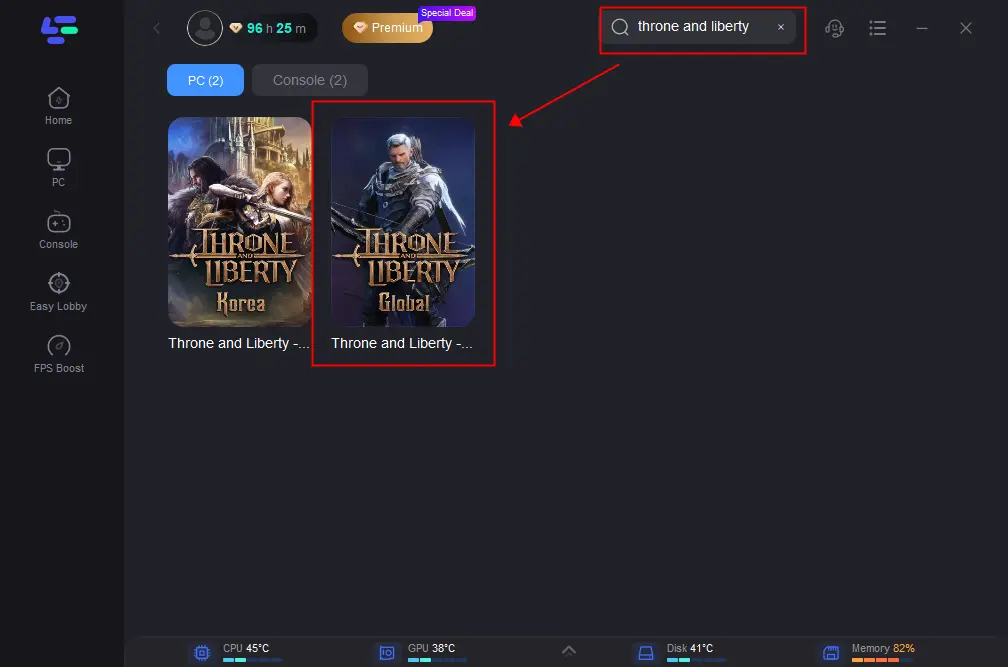
Step 2: Before you start running LagoFast, you should search for it in LagoFast. Then you will find the FPS Boost button on the left; you can first click the Game Boost button to explore more features.
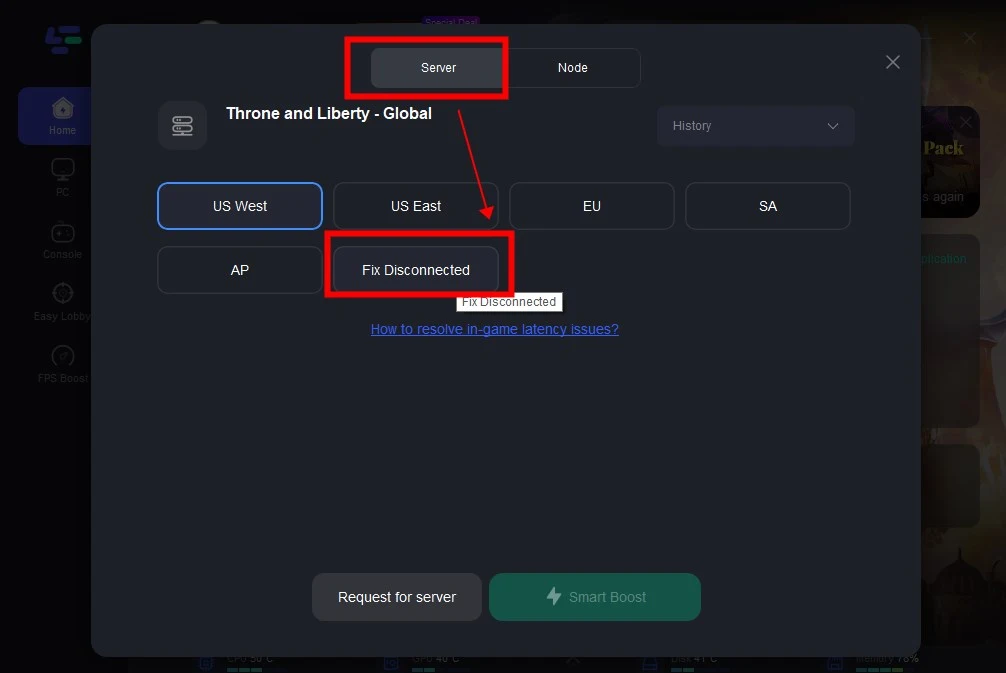
Step 3: Choose Server > Choose Fix Disconnected Server to end loop loading from EU Server and quickly fix the error "Disconnected from Server, GateServer Connection Timeout."
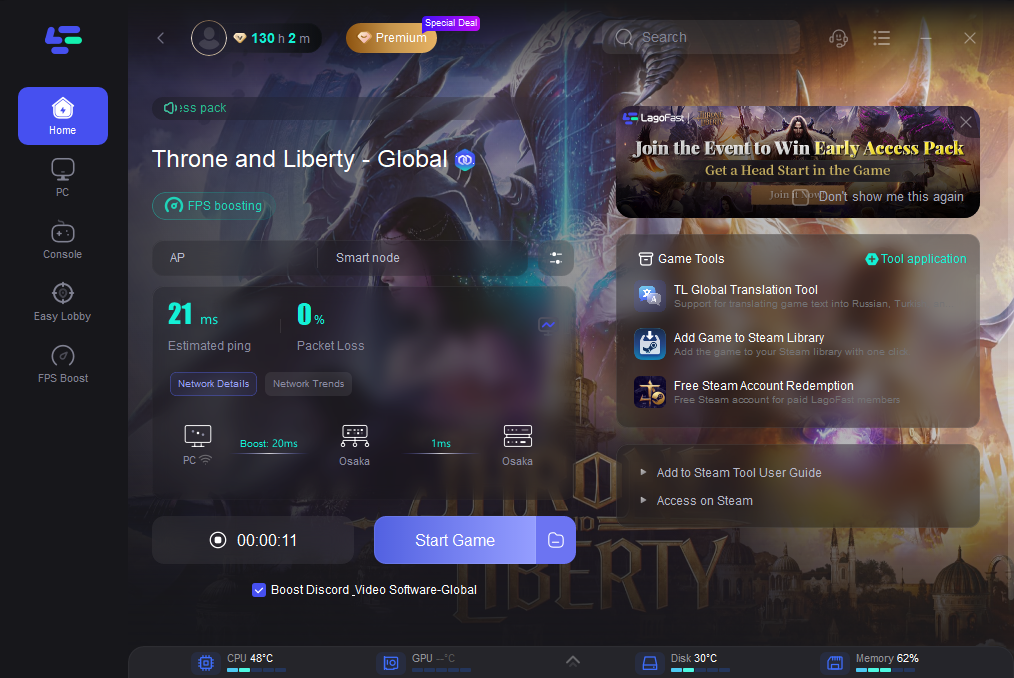
Step 4: By clicking the Smart Boost button, you can see the specific game ping, packet loss, and network type on the right side. Finally, click the Start Game button to start Throne and Liberty.
6. Reinstall (only after 1–5)
Delete TL → reinstall → try again. Reinstall helped a few users post-patch, but it’s usually not needed if DNS/network fixes are applied
If you still can’t get in
Two possibilities remain: (1) a live server-side issue (wait it out and retry), or (2) regional access. Amazon lists supported regions/countries; if you’re outside those, connections may fail.
Conclusion
The “System Request 100199” error in Throne and Liberty is usually tied to DNS or connection issues rather than your hardware. By restarting your network, switching to Cloudflare or Google DNS, and verifying your game files, most players can fix the problem quickly. If it persists, try a stable routing tool like LagoFast or check for regional restrictions before reinstalling the game.
Boost Your Game with LagoFast for Epic Speed
Play harder, faster. LagoFast game booster eliminates stutter and lags on PC, mobile, or Mac—win every match!
Quickly Reduce Game Lag and Ping!
Boost FPS for Smoother Gameplay!