
We’ve all been there. You’ve warmed up, you’re ready to climb the competitive ladder, you gather your friends for a few rounds of aerials and impossible saves, but when you boot up the game, you’re met with a frustrating error: "Not logged in to Rocket League servers." That sinking feeling is a universal experience for any seasoned player. Is it your internet? Is it a bug? Or are the Rocket League servers down for everyone?
Before you start resetting your router for the tenth time or blaming your internet provider, it’s crucial to figure out the root of the problem. This guide will walk you through exactly how to check the Rocket League server status, what to do if the servers are indeed offline, and how to troubleshoot your own connection if the issue is closer to home. We'll also explore ways to enhance your Rocket League game experience for those times when the servers are up, but your connection still feels a step behind.

- ✅ Reduce Lag and High Ping.
- ✅ Boost FPS at the Same Time.
- ✅ Support 2000+ Popular Online Games.
- ✅ End Stuck & Crashing Issues.
Part 1. How to Check Rocket League Server Status
Part 2. What to Do If Rocket League Server Is Down?
Part 3. Why can’t I still connect to the Rocket League server when Servers are Up
Part 4. Leveling Up Your Connection: How to Enhance Your Rocket League Game Experience
Part 1. How to Check Rocket League Server Status
When you can't connect, your first instinct should be to verify if the problem is widespread or isolated to you. A system-wide outage means you can relax and wait it out. Here are the most reliable methods to check the official status.
1. The Official Sources: Epic Games and Rocket League Socials
Your primary, most trustworthy source will always be the developer and publisher themselves.
- Epic Games Server Status Page: Since Psyonix is part of Epic Games, the official Epic Games status page is the definitive place to check. It provides real-time operational status for all Epic services, including Rocket League’s game services, matchmaking, and login systems. Look for "Rocket League" on the list; any issues will be flagged with a color-coded indicator (e.g., green for operational, yellow for degraded performance, red for outage).
- Official Rocket League Twitter (X) Account: The @RocketLeague account is often the first place to post announcements about scheduled maintenance, unexpected outages, or ongoing issues. The social media team is excellent at providing timely updates, so a quick look at their feed can save you a lot of troubleshooting time.
2. Community-Driven Outage Detectors
Sometimes, issues can be regional or affect a smaller number of players before they are officially acknowledged. This is where community reporting comes in handy.
- Downdetector: Websites like Downdetector are invaluable. They work by collecting user reports of connection problems. If you see a massive spike in reports for Rocket League within the last hour, it’s a strong indication that the Rocket League servers down issue is widespread. You can even view a live outage map to see if the problem is concentrated in your geographic area.
- Reddit and Discord: The official Rocket League subreddit (r/RocketLeague) and various Discord communities are bustling with players. If there's an outage, you can be sure a "Servers down?" thread will be at the top of the "New" filter within minutes. This is a great way to get real-time confirmation from fellow players.
Part 2. What to Do If Rocket League Server Is Down?
If you’ve confirmed a widespread outage, the bad news is you can't play online. The good news is that the problem isn't on your end, and you don’t need to tear your hair out trying to fix it. Here’s what you can do while you wait:
- Practice in Free Play: This is the perfect time to head into Free Play and work on your mechanics without the pressure of a live match. Practice your dribbling, wall-to-air aerials, or flip resets.
- Run Custom Training Packs: Download some challenging training packs from the community browser and hone specific skills. Whether it’s power shots, defense, or ceiling shots, you can turn downtime into productive time.
- Watch RLCS Replays: Catch up on professional gameplay to learn new strategies and positioning.
Part 3. Why Can't I Still Connect to the Rocket League server when Servers are Up
This is often the most frustrating scenario. The status page is all green, your friends are in a match, but you’re still stuck in the main menu. If this is the case, it’s time to troubleshoot your own connection.
- The Simple Restart: The oldest trick in the IT book works for a reason. Fully close the Rocket League application and restart it. If that doesn't work, restart your entire PC or console.
- Check Your Internet: Run a quick speed test on your computer or phone to ensure your internet connection is stable. If other devices are struggling to connect, the problem is likely with your network. Try restarting your modem and router.
- Wired vs. Wireless: If you are playing on Wi-Fi, try connecting directly to your router with an Ethernet cable. A wired connection is almost always more stable and faster than a wireless one, reducing the chance of intermittent disconnects that can mimic server issues.
- Firewall and Antivirus: Occasionally, your computer's security software may mistakenly block Rocket League's connection to its servers. Temporarily disable your firewall or antivirus to see if that resolves the issue. If it does, you’ll need to add an exception for Rocket League in your software’s settings.
Part 4. Leveling Up Your Connection: How to Enhance Rocket League Game Experience
Even when you can connect, your online experience might not be perfect. High ping, latency spikes, and packet loss are the invisible enemies of every Rocket League player. They’re the reason you miss a save you know you should have had, or your car stutters just before making contact with the ball. These issues are often caused by network congestion and inefficient routing between your PC and the Rocket League game server.
While you can’t control the Rocket League server status, you can optimize the data path from your end. This is where specialized tools come into play. For gamers looking to gain a competitive edge by stabilizing their connection, solutions like LagoFast can be a game-changer. It functions as a game booster, creating a more direct and optimized "fast lane" for your game data to travel to the server. By bypassing the crowded, inefficient routes of the public internet, it can significantly reduce ping and packet loss.
Think of it this way: when the main highway is jammed, a tool like LagoFast finds the clear side roads to get you to your destination faster and more reliably. For a game as fast-paced as Rocket League, where milliseconds matter, this stability can be the difference between a win and a loss. It ensures that when the servers are running perfectly, your own connection isn’t the bottleneck holding you back from peak performance.
How to use LagoFast to Change Server and Stabilize Connection in Rocket League:
Step 1: Download LagoFast
Step 2: Launch the application, type Rocket League in the search bar and select the game
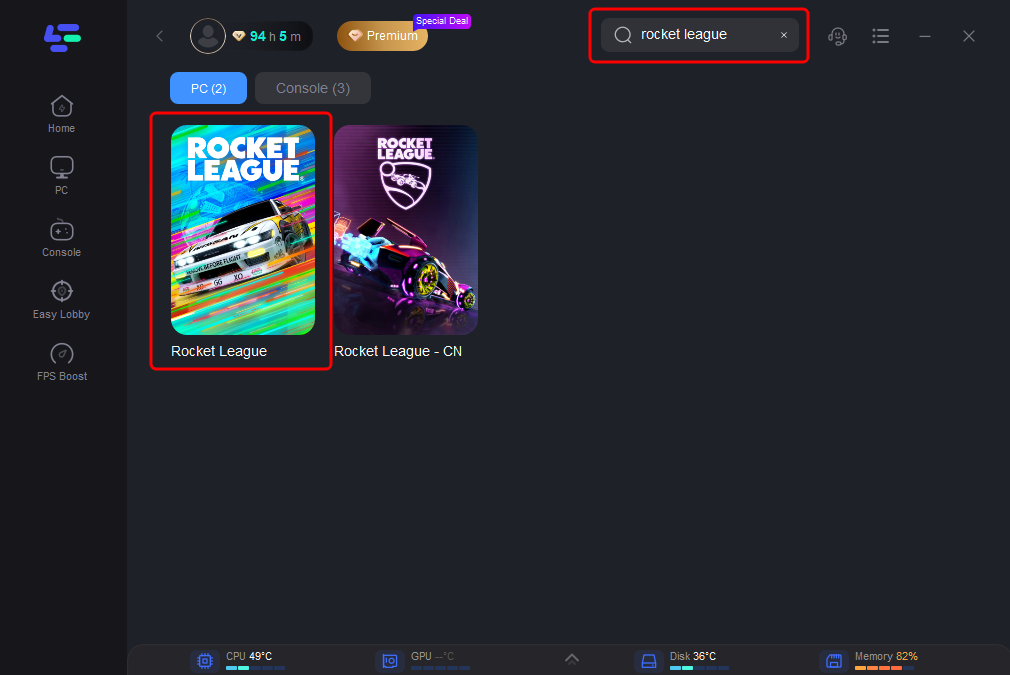
Step 3: Select the recommended server (or any other if you wish)
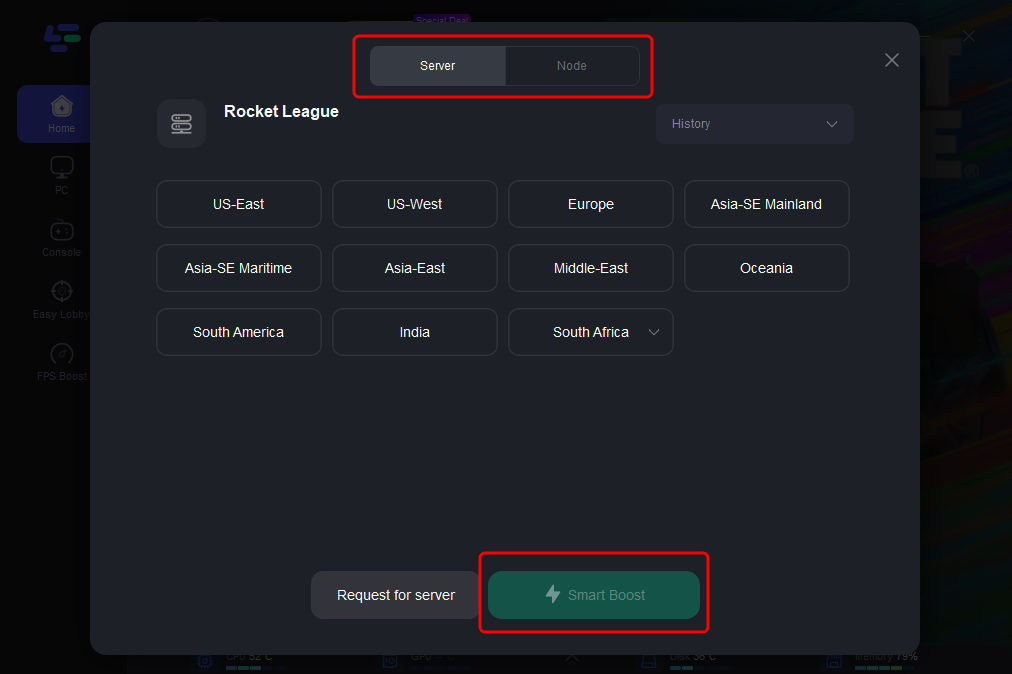
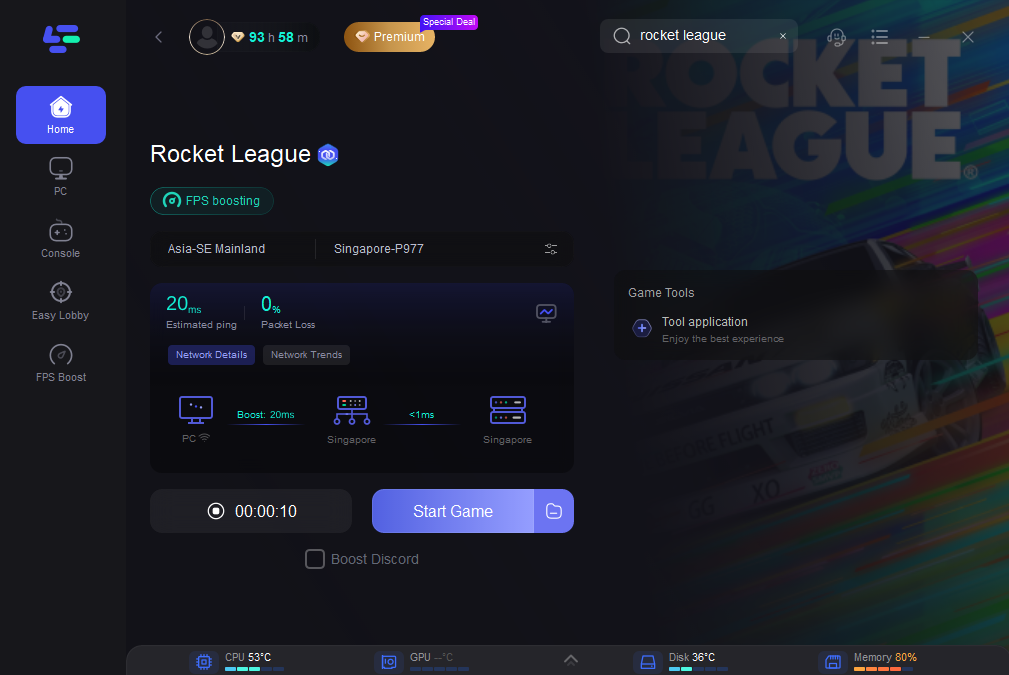
Step 4: Click the Smart Boost button to start optimization. You will see up-to-date metrics - ping, packet loss, etc.
Tutorial on using LagoFast Box to enhance connection and enhance your console gaming experience:
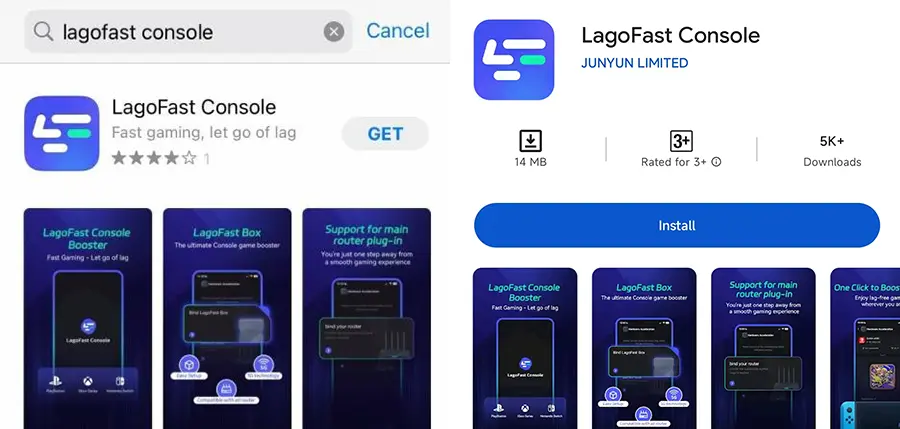
Step 1: Download the LagoFast Console App on your phone to control the LagoFast Box.
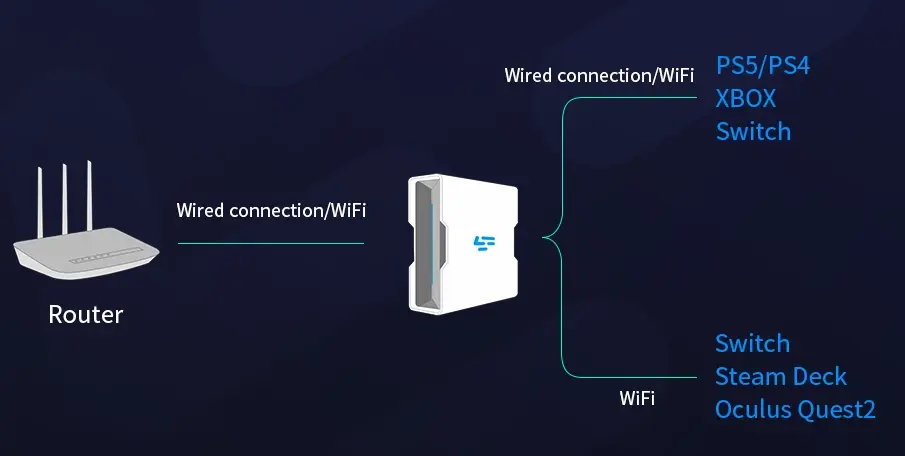
Step 2: Establish a connection between your LagoFast Box, router, and console, choosing between a wired or wireless connection.
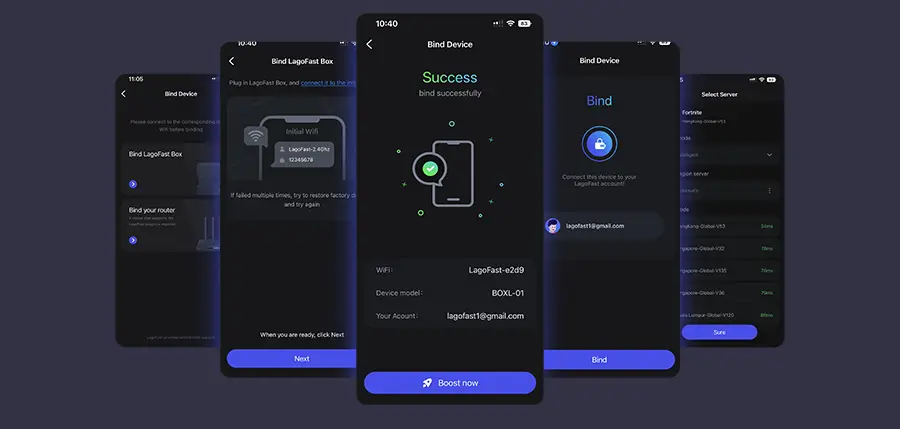
Step 3: Launch the LagoFast Console App and boost Valorant. Once you have completed the binding process with the LagoFast Box, proceed to boost this game within the LagoFast Console App.
Conclusion: Stay Calm and Boost On
The next time you’re faced with a potential Rocket League server down situation, don’t panic. Follow a clear process: first, check the official server status. If they’re down, take the opportunity to practice. If they’re up, run through the troubleshooting steps for your connection. And if you’re looking to take your gameplay to the next level by minimizing lag and ensuring the most stable connection possible, exploring a dedicated game optimization tool could be your next power play. Here's to smooth kickoffs, stable connections, and epic aerials.
Boost Your Game with LagoFast for Epic Speed
Play harder, faster. LagoFast game booster eliminates stutter and lags on PC, mobile, or Mac—win every match!
Quickly Reduce Game Lag and Ping!
Boost FPS for Smoother Gameplay!