
As a multiplayer cooperative horror game, R.E.P.O. sparked a gaming craze right after its launch in late February 2025, and many players are still immersed in the thrilling atmosphere it creates. However, some new issues have recently emerged. Some players have reported getting stuck on the loading screen of R.E.P.O. and being unable to log into the game successfully. This article will guide you through exploring the reasons of R.E.P.O. getting stuck on the loading screen and provide practical solutions to help you successfully return to your gaming kingdom.

- ✅ Reduce Lag and High Ping.
- ✅ Boost FPS at the Same Time.
- ✅ Support 2000+ Popular Online Games.
- ✅ End Stuck & Crashing Issues.
- ✅ Change Server without Latency.
Part 1: Why Does R.E.P.O. Stuck on Loading Screen
Part 2: How to Fix R.E.P.O. Stuck on Loading Screen
Part 3: How to Ensure Stable Connection in R.E.P.O.
Part 1: Why Does R.E.P.O. Stuck on Loading Screen
The issue of R.E.P.O. stucks on the loading screen can be caused by various factors, ranging from simple technical glitches to more complex underlying problems, here are some common causes:
- Policy Restrictions: Due to differing network and technology policies across regions or countries, the server addresses of R.E.P.O. in certain areas may be restricted or blocked due to changes in the political or regulatory landscape. This can result in players getting stuck on the loading screen and being unable to log into the game successfully.
- Insufficient System Resources: Running too many background programs can consume your system's resources, leaving insufficient memory, CPU, or GPU power for R.E.P.O. to load properly.
- Network Issues: A weak or unstable internet connection can disrupt the game's loading process, causing it to get stuck.
- Corrupted Game Files: If some game files are missing or corrupted, R.E.P.O. may fail to load correctly, leading to an infinite loading screen.
- Outdated Device Drivers: Outdated graphics drivers can cause performance issues, including long loading times or the game getting stuck on the loading screen.
- Temporary Glitches: Sometimes, the game may encounter temporary glitches during the loading process, causing it to freeze.
Part 2: How to Fix R.E.P.O. Stuck on Loading Screen
If the issue of R.E.P.O. stucks on the loading screen is due to policy restrictions, players may have no choice but to exit the game temporarily and wait for the policies to be lifted. Alternatively, they can use some legitimate tools to help bypass these restrictions or geographical limitations. However, for some basic technical or device-related problems, one of the following troubleshooting methods should be able to assist you:
1. Restart Game and Computer
Before attempting more complex fixes, a simple restart of game and computer can often resolve minor glitches or temporary issues. Close R.E.P.O. and exit Steam, then restart computer. Launch the game again to see if the issue persists.
2. Check Network Connection
A weak or unstable internet connection can be a major cause of stucking on loading screen. Ensure that the network connection is stable and fast. Try restarting router or modem, or connecting to a different network if possible.
3. Close Background Programs
Running too many background programs can consume system's resources. Close any unnecessary programs or applications before launching R.E.P.O. Press Ctrl + Shift + Esc to open the Task Manager, then right-clicking on any hogging programs and selecting "End Task."
4. Verify Game Files Integrity
Corrupted or missing game files can lead to extended loading times or crashes. Verify the integrity of the game files in Steam by navigating to the Library tab, right-clicking on R.E.P.O., selecting "Properties," going to the "Installed Files" tab, and clicking "Verify integrity of game files." Once repaired, restart Steam and launch the game again.
5. Update Device Drivers
Outdated graphics drivers can cause performance issues. Ensure that the GPU drivers are up to date by right-clicking the Start menu, selecting "Device Manager," expanding the "Display adapters" category, right-clicking the graphics card, and selecting "Update driver." Follow the on-screen instructions to install the latest drivers.
6. Change Launch Options to DirectX 11
Some players have found that changing the launch options in Steam to DirectX 11 can resolve the infinite loading screen issue. To do this, launch Steam, navigate to the Library tab, right-click on R.E.P.O., select "Properties," go to the "General" tab, click on the "Set Launch Options" button, input "--dx11" into the dialog box, and click "OK" to save the change.
7. Delete Save Files
In some cases, deleting the save files in the game's AppData folder can resolve loading issues. Open File Explorer by pressing the Win + E keys, navigate to "C:\Users[YourUsername]\AppData\LocalLow\semiwork\Repo\saves," and delete any save files present. Restart the game to see if the issue is resolved.
8. Use Disk Management Tools
If your computer lacks enough space to run R.E.P.O., you can use disk management tools to extend the game partition, clean up disk space, or upgrade to a larger SSD without data loss. This can improve overall system performance and reduce loading times.
Part 3: How to Ensure Stable Connection in R.E.P.O.
If you want a richer gaming experience, you can use mods—and with LagoFast, you can also enjoy many other mod-supported games. Once you've successfully logged into R.E.P.O. using the methods above, LagoFast can help improve your game loading speed and prevent latency or high ping issues. Using it before entering R.E.P.O. can avoid most problems related to getting stuck on the loading screen or unstable connections, thanks to its optimized acceleration features.
Here are the steps to create a stable connection for R.E.P.O. using LagoFast:
Step 1: Click the "Free Trial" button to download and install LagoFast.
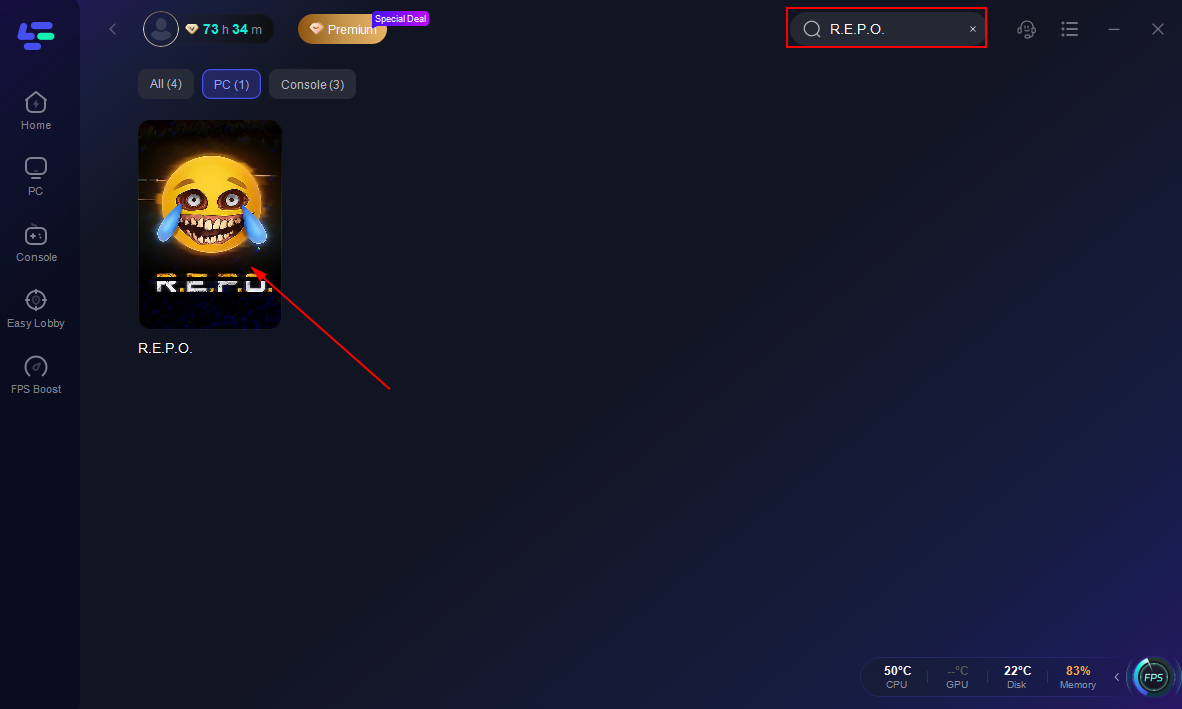
Step 2: Use LagoFast's search bar to find R.E.P.O. and click on it.
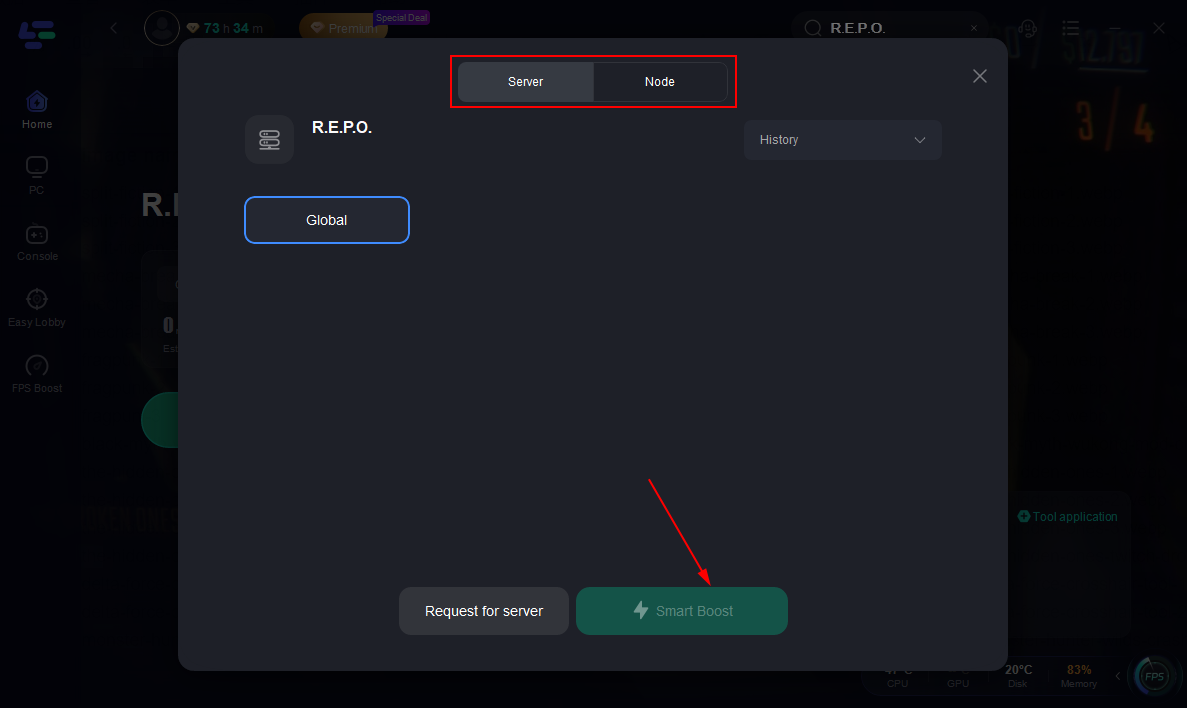
Step 3: Select the best server node to connect to and click "Smart Boost" to start the acceleration.
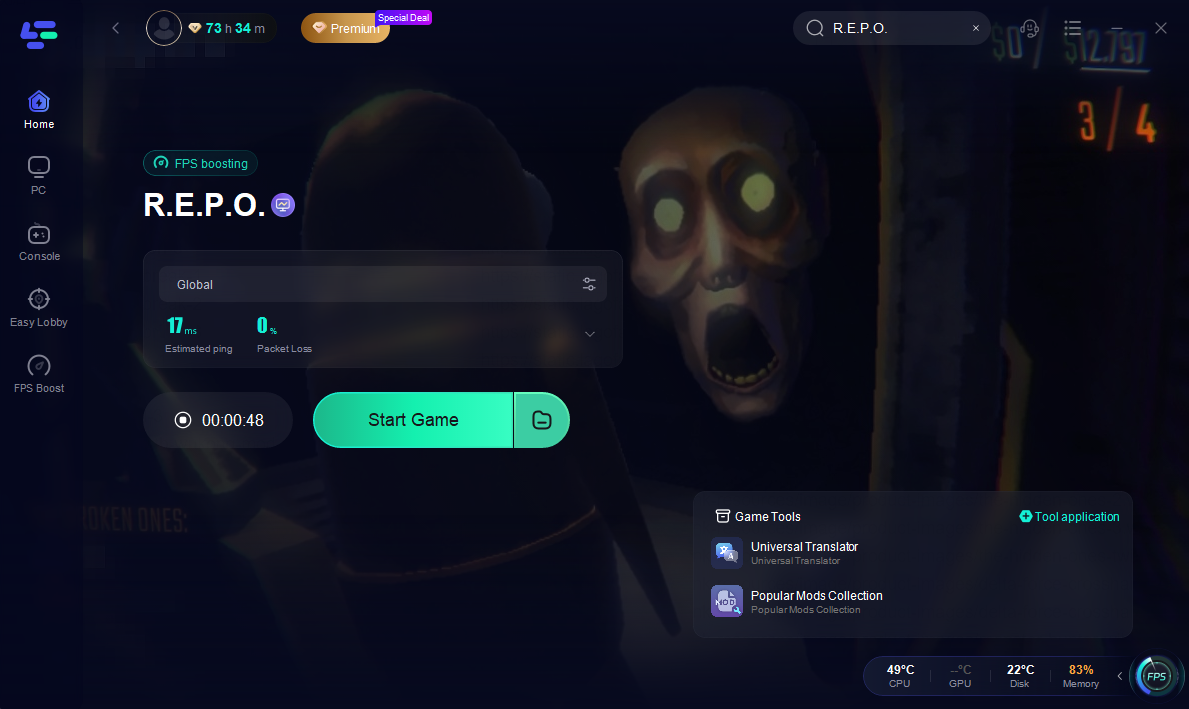
Step 4: After confirming that the acceleration has started, click "Start Game" to begin playing.
Conclusion
Getting stuck on the loading screen while playing R.E.P.O. is a common issue that players often encounter during gameplay. Using the appropriate methods can effectively fix this problem. However, utilizing LagoFast's acceleration feature when logging into R.E.P.O. can significantly reduce the frequency of this issue, thereby improving game loading speed and avoiding problems such as disconnections and unstable connections.

Boost Your Game with LagoFast for Epic Speed
Play harder, faster. LagoFast game booster eliminates stutter and lags on PC, mobile, or Mac—win every match!
Quickly Reduce Game Lag and Ping!
Boost FPS for Smoother Gameplay!