
In recent days, an increasing number of players have encountered frustrating issues trying to connect to Phasmophobia. While occasional downtime is not uncommon in multiplayer horror games, this situation is more severe. Players in certain regions, particularly Siberia, the Ural region, and southern Russia, are struggling with persistent disconnection problems, long loading times, and failure to join game sessions.
These problems are not simply routine server hiccups. They stem from a broader issue involving CloudFlare infrastructure disruptions and geopolitical complications that prevent connections to essential Unity cloud services. In this article, we’ll unpack the root causes behind the Phasmophobia server down situation, explain how it’s affecting users regionally, and walk you through a series of reliable and tested solutions, including LagoFast, which has proven to be the most effective option so far.

- ✅ Reduce Lag and High Ping.
- ✅ Boost FPS at the Same Time.
- ✅ Support 2000+ Popular Online Games.
- ✅ End Crashing & Connection Issues.
- ✅ Fix Client Timeout Errors.
Part 1: Why Are Phasmophobia Servers Down
Part 2: How to Fix Phasmophobia Server Down - 100% Work
Part 1: Why Are Phasmophobia Servers Down
If you’re playing from Siberia, the Ural region, or southern parts of Russia, you may have noticed that Phasmophobia simply won’t connect to online services, or the server keeps dropping you mid-session. The primary reason for these disruptions lies in a CloudFlare outage that has disrupted global routing, particularly impacting Unity Cloud, the platform responsible for hosting backend services for games like Phasmophobia.
The Specifics:
- CloudFlare Outage: CloudFlare is a major content delivery network and DNS provider. A recent disruption affected various network routes between Russia and the United States.
- Unity Cloud Restrictions: According to official sources, international sanctions have blocked access from certain Russian regions to Unity’s US servers. This means that games relying on Unity Cloud services cannot establish proper connections.
- Authentication Failures: Players report authentication timeouts, login loops, and lobbies failing to load, common symptoms of server access issues.
- Kinetic Games' Statement: The developers acknowledged the issue and mentioned that a workaround may be required until a fix is available.
Unfortunately, unless these regional restrictions are lifted or Unity updates its backend infrastructure, the issue will persist for a significant portion of the player base. But the good news? There are effective workarounds available right now.
Hot Related: How to Fix Phasmophobia Connection Problems - 100% Work
Part 2: How to Fix Phasmophobia Server Down - 100% Work
The Best Fix: LagoFast Game Booster
For players hit hardest by this issue, particularly in Siberia, the Ural region, and southern Russia, LagoFast stands out as the most efficient solution. LagoFast is a professional game acceleration tool that not only optimizes network routing but also improves server connectivity for games hosted through Unity Cloud. Unlike conventional VPNs, LagoFast uses a dynamic node-routing system, specifically designed to reduce latency, bypass routing blocks, and enhance connection stability.
Why Choose LagoFast
- Game-Specific Optimization: Fine-tuned for Phasmophobia and Unity-based games.
- Global Smart Routing: Reroutes your traffic through the most stable paths.
- Bypass Geo-Blocks: Ideal for regions affected by sanctions and CloudFlare disruptions.
- Lag Reduction & FPS Boost: Improve gameplay smoothness on both high-end and budget setups.
- Faster Server Access: Speeds up the connection time to lobbies and multiplayer sessions.
- Easy Interface: One-click acceleration gets you back in the game within seconds.
Whether you're stuck on the loading screen or can't connect at all, LagoFast can significantly reduce wait times and stabilize your multiplayer experience in Phasmophobia.
Tutorial to use LagoFast to Fix Phasmophobia Server Down on PC
Step 1: Click the Free Trial button to download and install LagoFast.
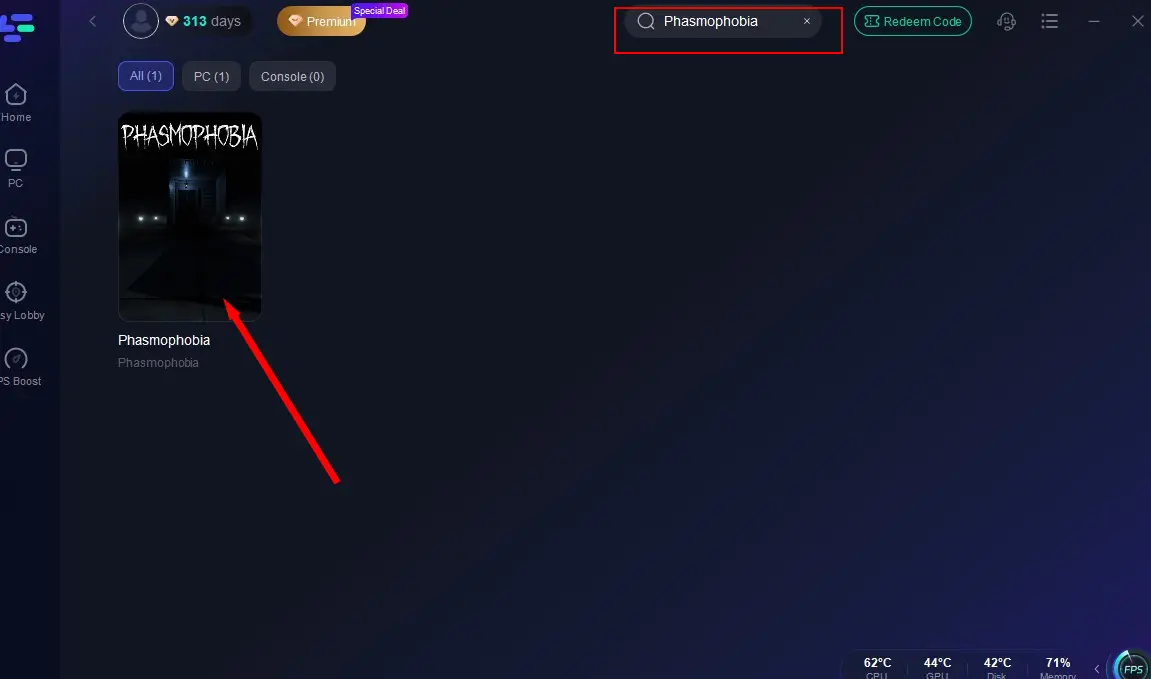
Step 2: Open LagoFast, then click the PC button on the left and search Phasmophobia in the search bar, click it after it appears.
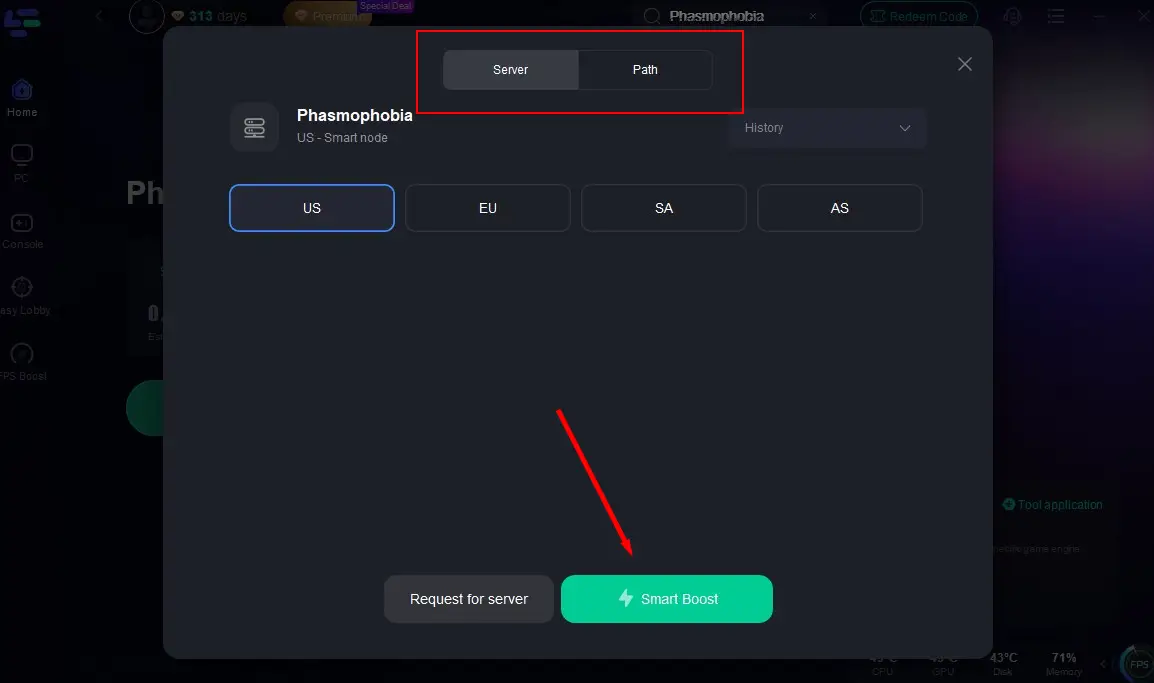
Step 3: Click on "Select Server" to change to a better server that ensures the gaming experience, then click on "Smart Boost".
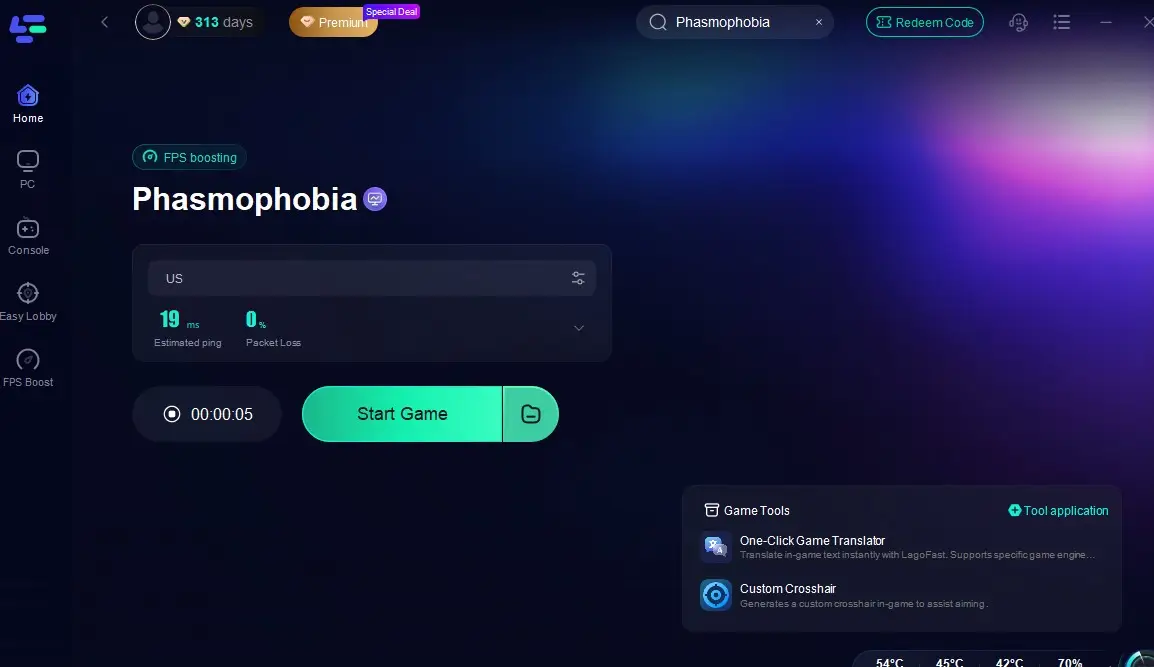
Step 4: Check the specific game ping, packet loss, and multiple path connection on the right side. Finally, click the "Start Game" to play the game.
Switch DNS Settings to Google or Cloudflare
One simple adjustment can improve your routing to Unity’s cloud services.
Steps:
Step 1: Go to your system’s network settings.
Step 2: Open the network adapter properties.
Step 3: Locate "Internet Protocol Version 4 (TCP/IPv4)" and click Properties.
Step 4: Choose "Use the following DNS server addresses".
Step 5: Enter 8.8.8.8 and 8.8.4.4 (Google) or 1.1.1.1 and 1.0.0.1 (Cloudflare).
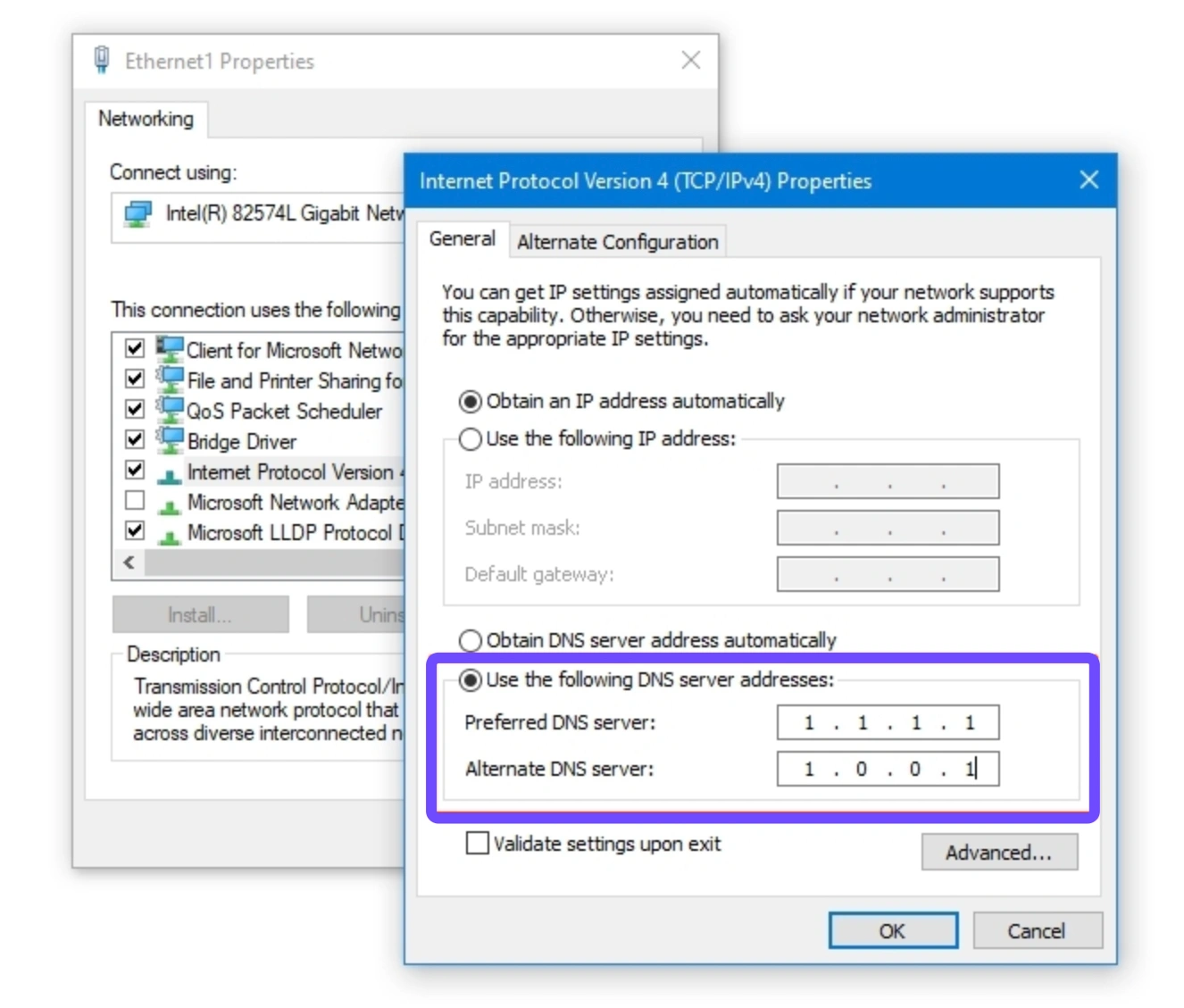
Step 6: Save and restart your computer before launching the game.
Flush DNS and Reset Network Configuration
Corrupted DNS caches can prevent successful server handshakes.
Steps:
Step 1: Open Command Prompt as Administrator.
Step 2: Type ipconfig /flushdns and press Enter.
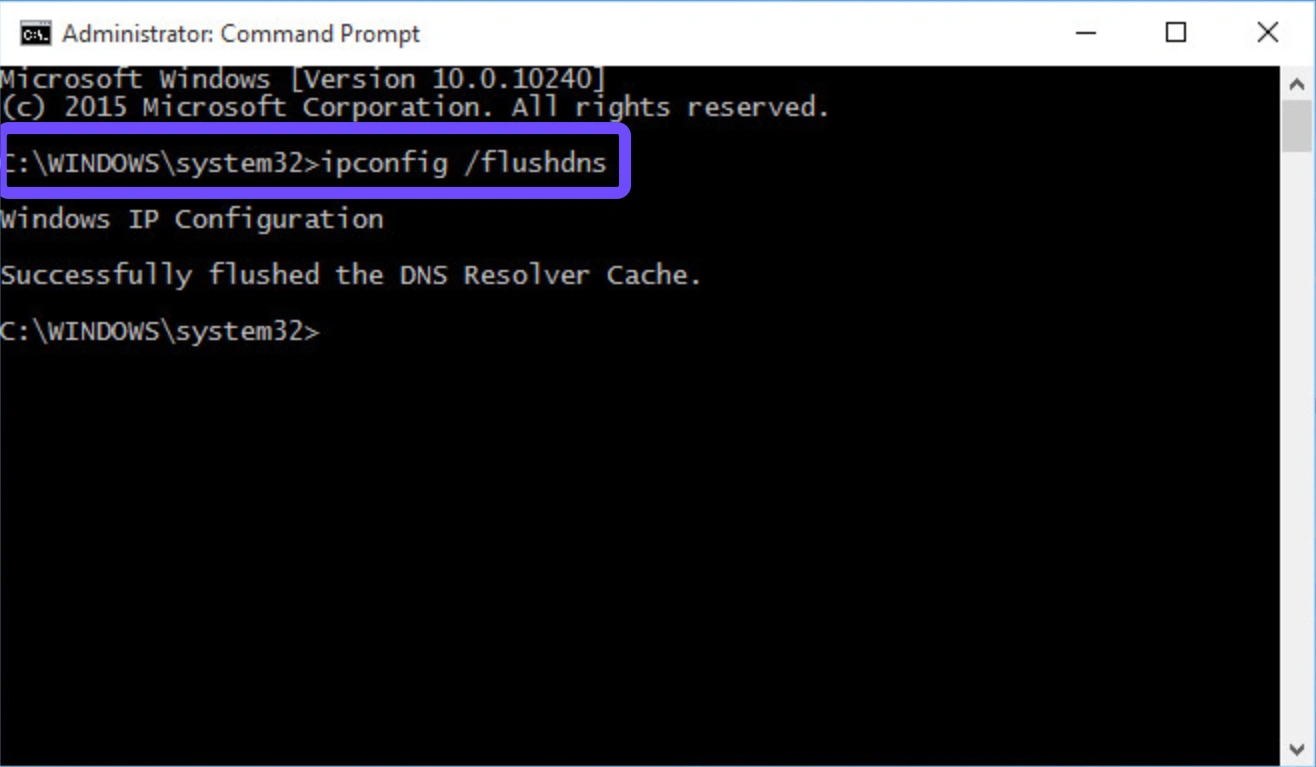
Step 3: Then type netsh winsock reset and press Enter.
Step 4: Reboot your system.
Step 5: Launch Phasmophobia again and test the connection.
Step 6: Repeat if necessary after large OS updates.
Use a Static IP Address
Assigning a static IP helps avoid dynamic allocation conflicts that may disrupt routing.
Steps:
Step 1: Access your Router Admin Panel.
Step 2: Locate DHCP or IP Assignment section.
Step 3: Find your current device and set it to Static IP.
Step 4: Reboot the router.
Step 5: On your PC, assign the same IP manually.
Step 6: Relaunch Phasmophobia and check stability.
Run Steam and Phasmophobia as Administrator
Sometimes permissions can restrict network behavior.
Steps:
Step 1: Right-click your Steam shortcut.
Step 2: Click Properties, then Compatibility.
Step 3: Check "Run this program as an administrator."
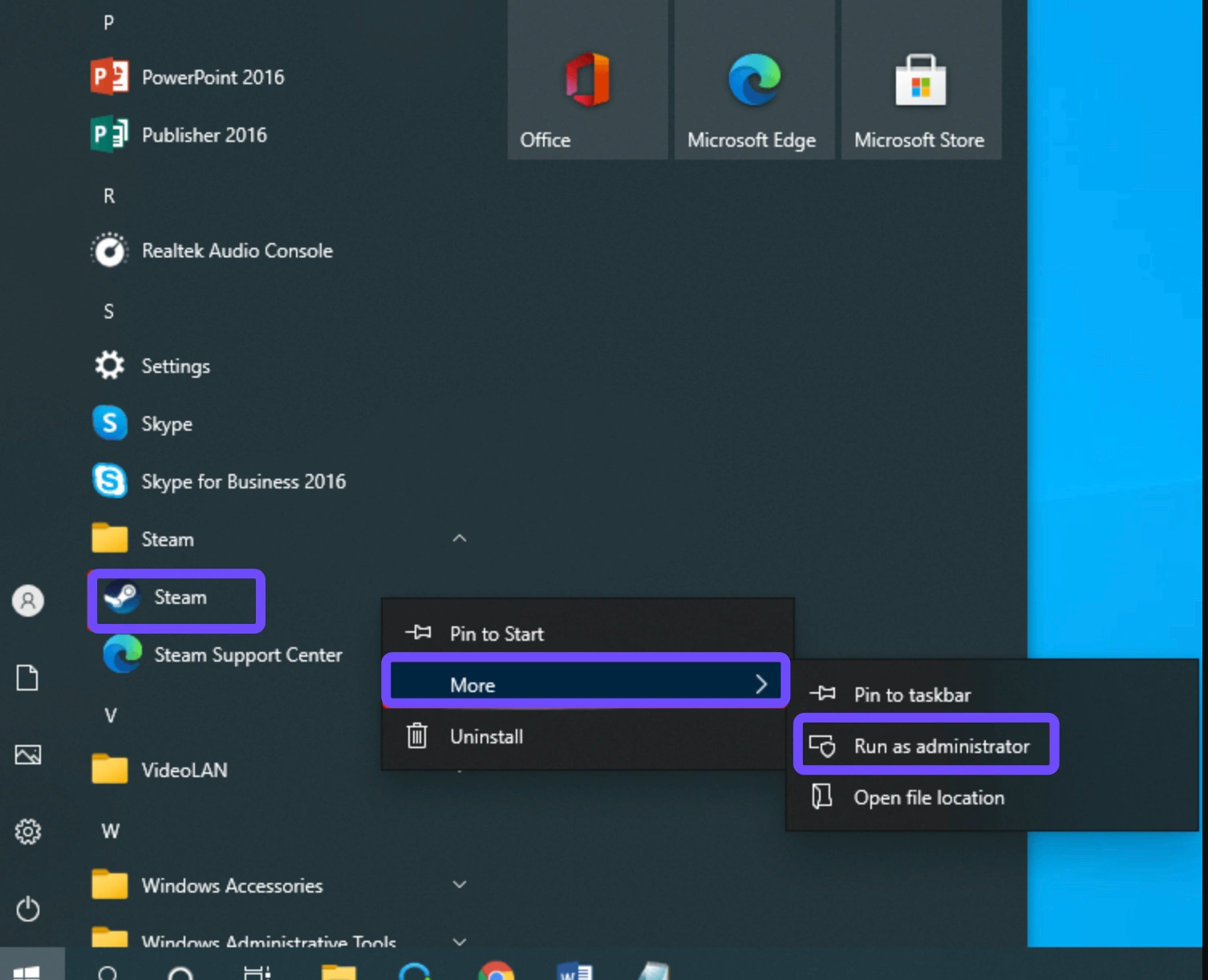
Step 4: Do the same for the Phasmophobia.exe file.
Step 5: Launch Steam, then launch the game.
Step 6: Monitor connection success.
Verify Game Integrity and Reinstall Phasmophobia
Corrupted files may fail to load necessary server modules.
Steps:
Step 1: Open Steam Library.
Step 2: Right-click on Phasmophobia and select Properties.
Step 3: Click Installed Files, then Verify integrity of game files.
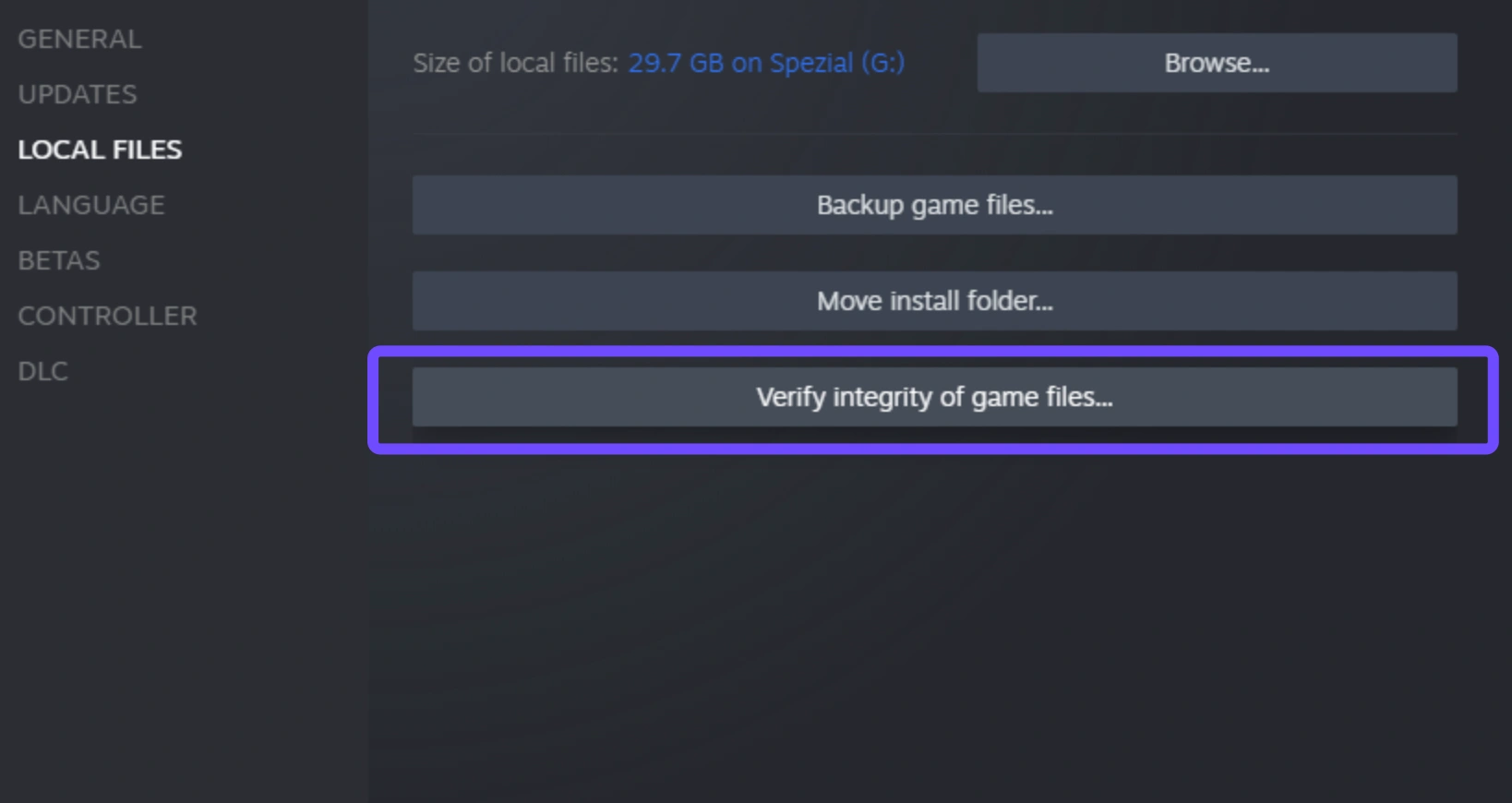
Step 4: Wait for the scan to finish.
Step 5: If problems persist, uninstall the game.
Step 6: Reinstall and relaunch the game to check connectivity.
Part 3: Phasmophobia FAQs
Here are five frequently asked questions about connection issues in Phasmophobia and their solutions.
Q1: Why can’t I log in to Phasmophobia servers right now
A1: You may be impacted by ongoing CloudFlare outages or Unity Cloud access restrictions. This affects players in specific regions such as Russia and nearby territories.
Q2: Are the Phasmophobia servers completely offline
A2: Not globally. Most users outside Russia are not affected. However, regional outages or international policy restrictions may create the illusion that the game is completely down.
Q3: What is causing the login loop or "stuck on connecting" screen
A3: This is typically due to failed authentication with Unity’s backend systems, possibly from a disrupted route or blocked IP range.
Q4: Can I fix the issue permanently
A4: While developer patches may eventually resolve this, tools like LagoFast or changing network settings can provide long-term stability right now.
Q5: Is this issue related to bans or suspensions
A5: No. This is not a disciplinary action. It is entirely a technical issue tied to server routing and international infrastructure limitations.
Conclusion
The ongoing Phasmophobia server down issue, largely affecting players in Siberia, the Ural region, and southern Russia, stems from geopolitical restrictions and CloudFlare disruptions impacting Unity Cloud connectivity. While Kinetic Games works on a long-term solution, tools like LagoFast and other network fixes, such as DNS flushing, IP adjustments, and file verification, can help you restore stable access and get back to ghost hunting with minimal interruption.
Boost Your Game with LagoFast for Epic Speed
Play harder, faster. LagoFast game booster eliminates stutter and lags on PC, mobile, or Mac—win every match!
Quickly Reduce Game Lag and Ping!
Boost FPS for Smoother Gameplay!