
Phasmophobia is an immersive co-op horror experience cherished for its spine-tingling investigations and cooperative ghost-hunting missions. However, many players are finding their excitement cut short by persistent and disruptive connection issues. From being stuck on endless loading screens to errors like "connection lost Phasmophobia," "Phasmophobia network game not working," and "Phasmophobia connection interrupted client timeout," these problems are increasingly flooding community forums and support threads, making it harder than ever to enjoy multiplayer sessions with friends.
The situation is even more severe for players in regions such as Siberia, the Ural region, and southern Russia, where Cloudflare-related outages and international sanctions have disrupted access to Unity's US-based cloud servers. These users often experience infinite connection loops, server or client timeouts, and voice chat failures. If you're struggling to connect, don't worry, this guide breaks down the root causes of Phasmophobia's network issues and provides clear, actionable steps to fix them, including using LagoFast, a top-tier solution to speed up game entry and stabilize your connection.

- ✅ Reduce Lag and High Ping.
- ✅ Boost FPS at the Same Time.
- ✅ End Phasmophobia Server Down Issue.
- ✅ Fix Phamophobia Client Timeout Error.
Part 1: Why You're Facing Phasmophobia Connection Problems
Part 2: How to Fix Phasmophobia Connection Problems
Part 1: Why You're Facing Phasmophobia Connection Problems
There are several reasons why you might be experiencing connection issues in Phasmophobia, ranging from temporary bugs to deeper network infrastructure complications.
1. Cloudflare Outage and Regional Restrictions
A significant number of players in Russia, especially from Siberia, the Ural Mountains, and southern Russia, are currently affected by server instability. One major reason is a Cloudflare outage, which disrupts routing and packet delivery to Unity's US-based cloud servers, the backbone of Phasmophobia's multiplayer backend.
Furthermore, international sanctions have complicated access to US-based Unity servers for Russian users. As a result, even basic connections to the game can fail, showing errors like:
- Connection lost server timeout Phasmophobia
- Infinite connection in Phasmophobia on Steam
- Connection interrupted client timeout Phasmophobia
These issues aren't exclusive to Russia but are significantly more prevalent in regions affected by the current routing restrictions.
2. Game Server Bugs
The developers of Phasmophobia have acknowledged the existence of a Unity connection bug affecting global players. This bug sometimes causes players to be stuck on eternal connection loading screens or completely unable to connect to multiplayer sessions.
3. Voice Server Failures
Another layer of frustration comes from Phasmophobia failed to connect to the voice server errors. These problems can often be traced back to:
- Firewall restrictions
- Poor local internet configurations
- Outdated drivers
Part 2: How to Fix Phasmophobia Connection Problems
Now that we've understood the causes, it's time to fix the issues. The following solutions address a wide variety of problems, including client timeout, server timeout, eternal/infinite loading, and voice server errors.
LagoFast: The Best Solution for Phasmophobia Connection Issues
If you're in Russia or affected by Cloudflare or Unity-related outages, LagoFast is the most efficient and secure way to resolve Phasmophobia's network issues. LagoFast is not just a connection optimizer; it combines game routing acceleration and real-time ping reduction in one lightweight tool.
Why LagoFast works best:
- Optimized Routes: It automatically finds the fastest route to Unity's game servers, even from restricted regions.
- Ping Reduction: Significantly lowers latency and stabilizes your connection.
- Packet Loss Fix: Helps resolve data loss during gameplay.
- Game Booster Mode: Speeds up your system performance while playing.
- Easy Entry: Especially for players in southern Russia, Siberia, and the Ural regions, LagoFast ensures seamless entry into Phasmophobia despite Cloudflare's issues.
- Voice Channel Acceleration: Helps connect to in-game voice servers without errors.
Tutorial to use LagoFast to Fix Phasmophobia Connection Issues on PC:
Step 1: Click the Free Trial button to download and install LagoFast.
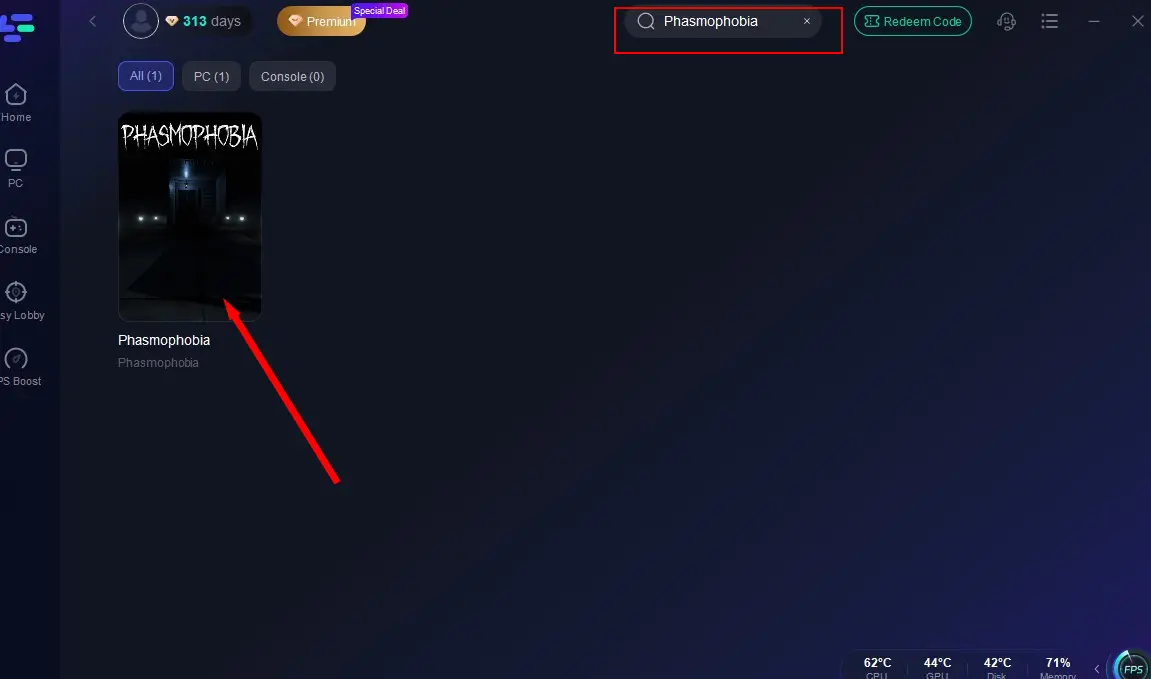
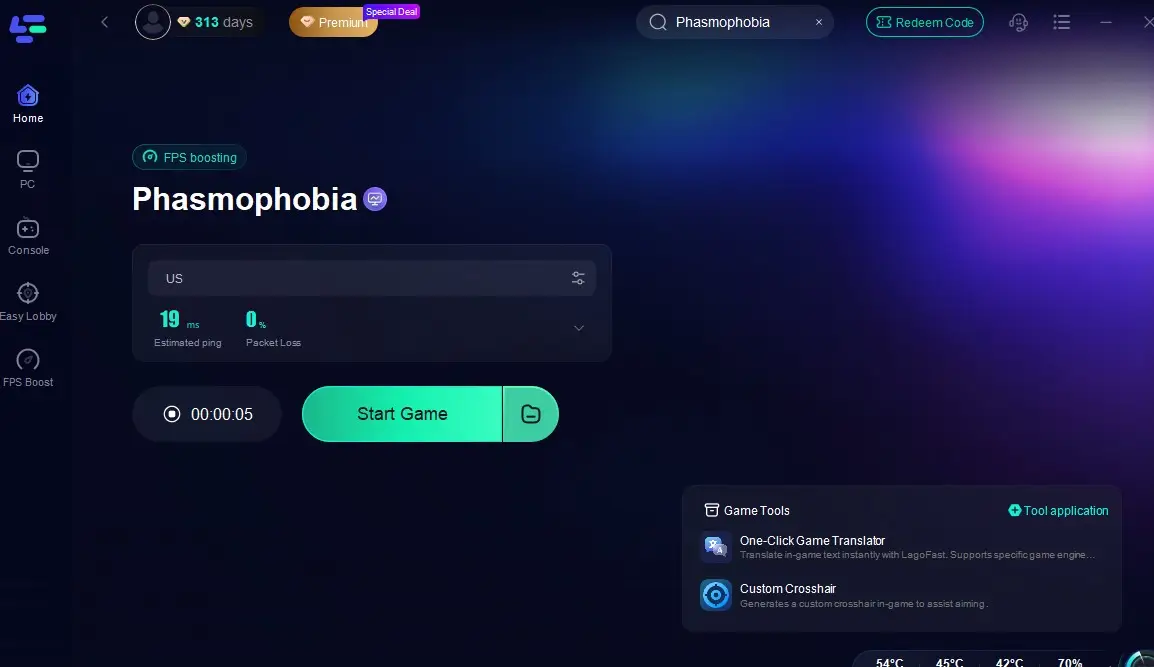
Step 2: Open LagoFast, then click the PC button on the left and search Phasmophobia in the search bar, click it after it appears.
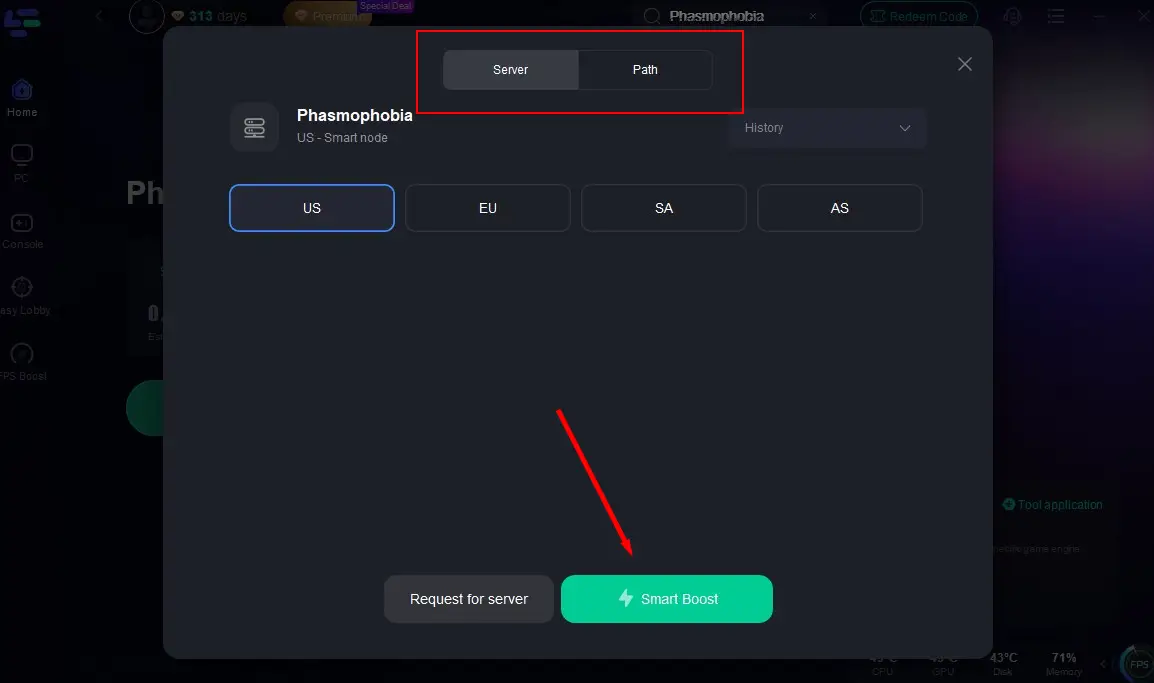
Step 3: Click on "Select Server" to change to a better server that ensures the gaming experience, then click on "Smart Boost".
Step 4: Check the specific game ping, packet loss, and multiple path connection on the right side. Finally, click the "Start Game" to play the game.
Disable Windows Firewall & Allow Phasmophobia Through It
Sometimes Windows Firewall can block Phasmophobia from connecting to the internet properly.
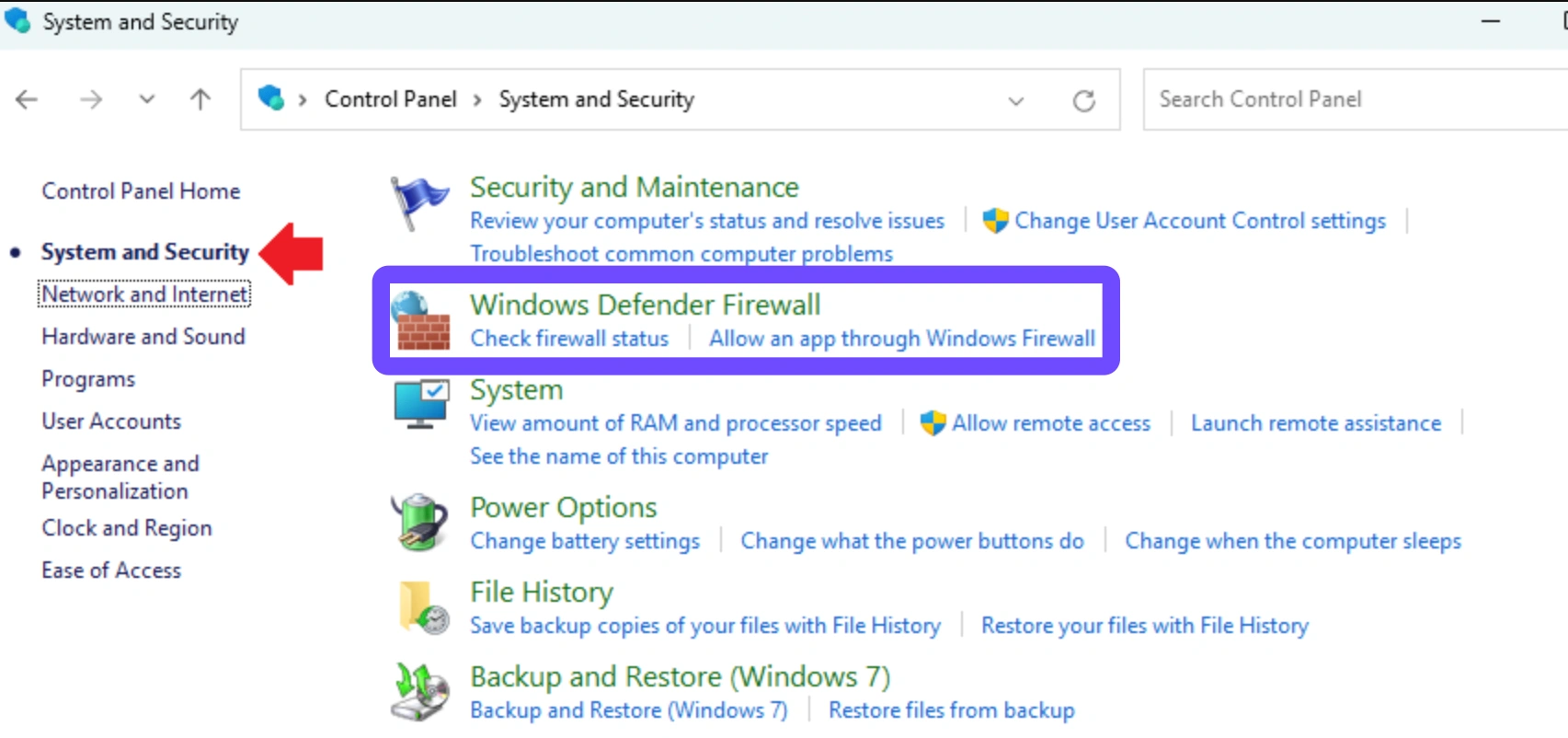
Step 1: Open Control Panel and go to "System and Security" → "Windows Defender Firewall."
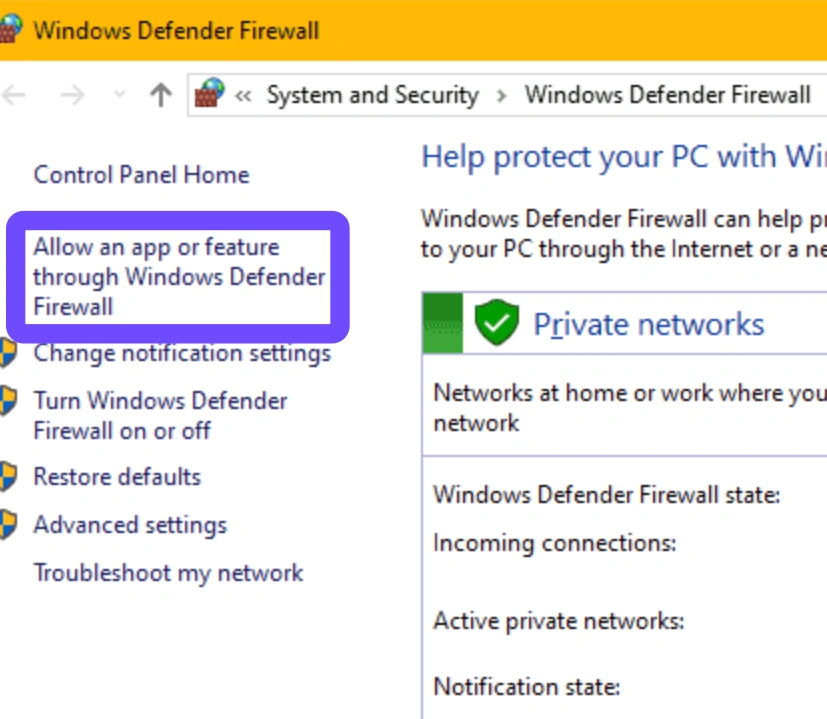
Step 2: Click "Allow an app or feature through Windows Defender Firewall."
Step 3: Look for Phasmophobia and ensure both Private and Public boxes are checked.
Step 4: If it's not listed, click "Allow another app" and manually add the executable from the Steam folder.
Step 5: Save and exit.
Step 6: Restart your PC and try launching the game again.
Verify Game Files via Steam
Corrupted game files can result in client timeout or network game not working errors.
Step 1: Launch Steam and go to your Library.
Step 2: Right-click Phasmophobia and select "Properties."
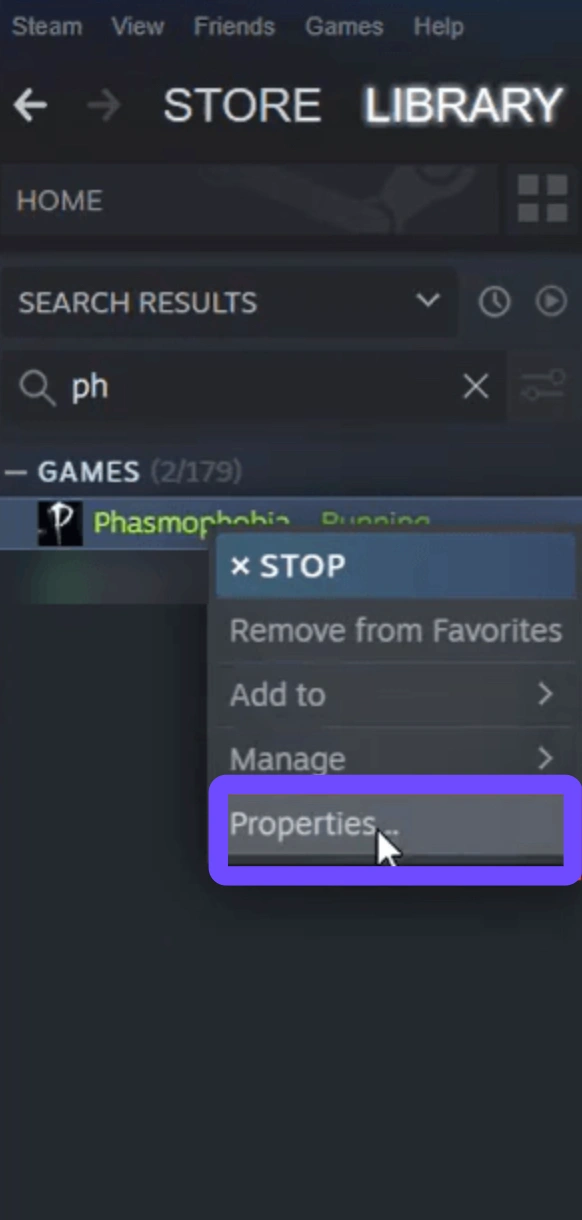
Step 3: Go to the "Installed Files" tab.
Step 4: Click "Verify integrity of game files."
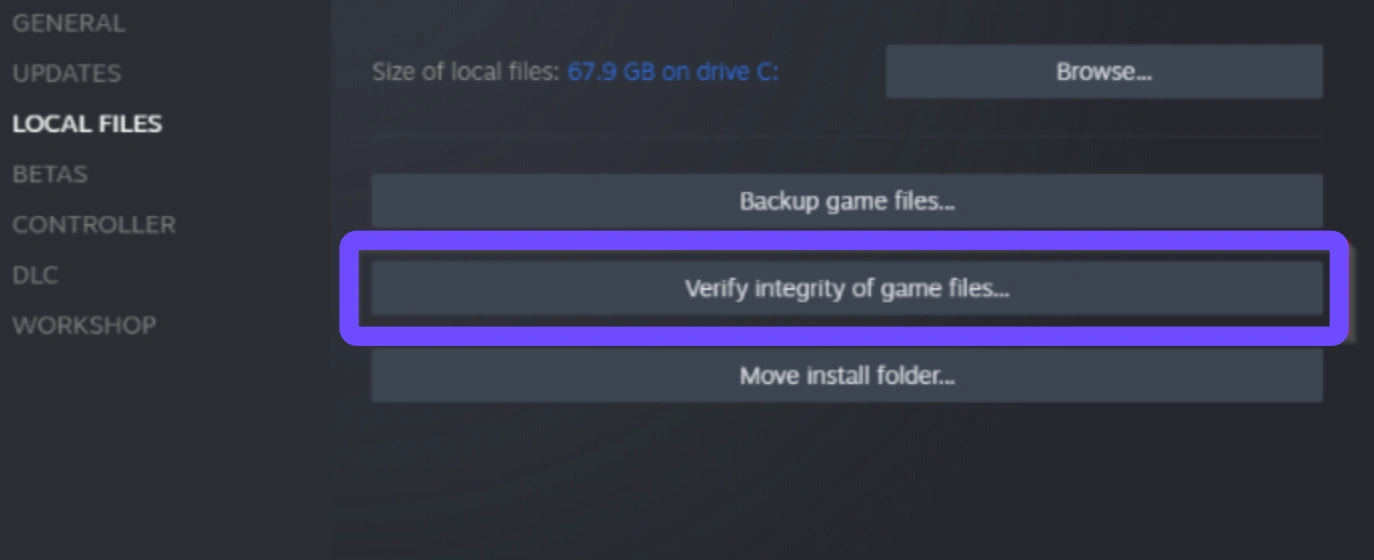
Step 5: Wait for Steam to complete the check and fix any issues.
Step 6: Relaunch the game.
Reset Your Network Settings
Sometimes network settings become misconfigured, leading to Phasmophobia connection interrupted client timeout problems.
Step 1: Open Command Prompt as Administrator.
Step 2: Type netsh winsock reset and press Enter.
Step 3: Then type ipconfig /flushdns and press Enter.
Step 4: Restart your PC.
Step 5: Reconnect to your internet.
Step 6: Launch the game and check if the problem is resolved.
Change Your DNS Settings
Changing your DNS can improve game server reachability and reduce server timeout errors.
Step 1: Go to Control Panel → Network and Internet → Network and Sharing Center.
Step 2: Click "Change adapter settings."
Step 3: Right-click your active internet connection and choose "Properties."
Step 4: Select "Internet Protocol Version 4 (TCP/IPv4)" and click "Properties."
Step 5: Use these DNS settings:
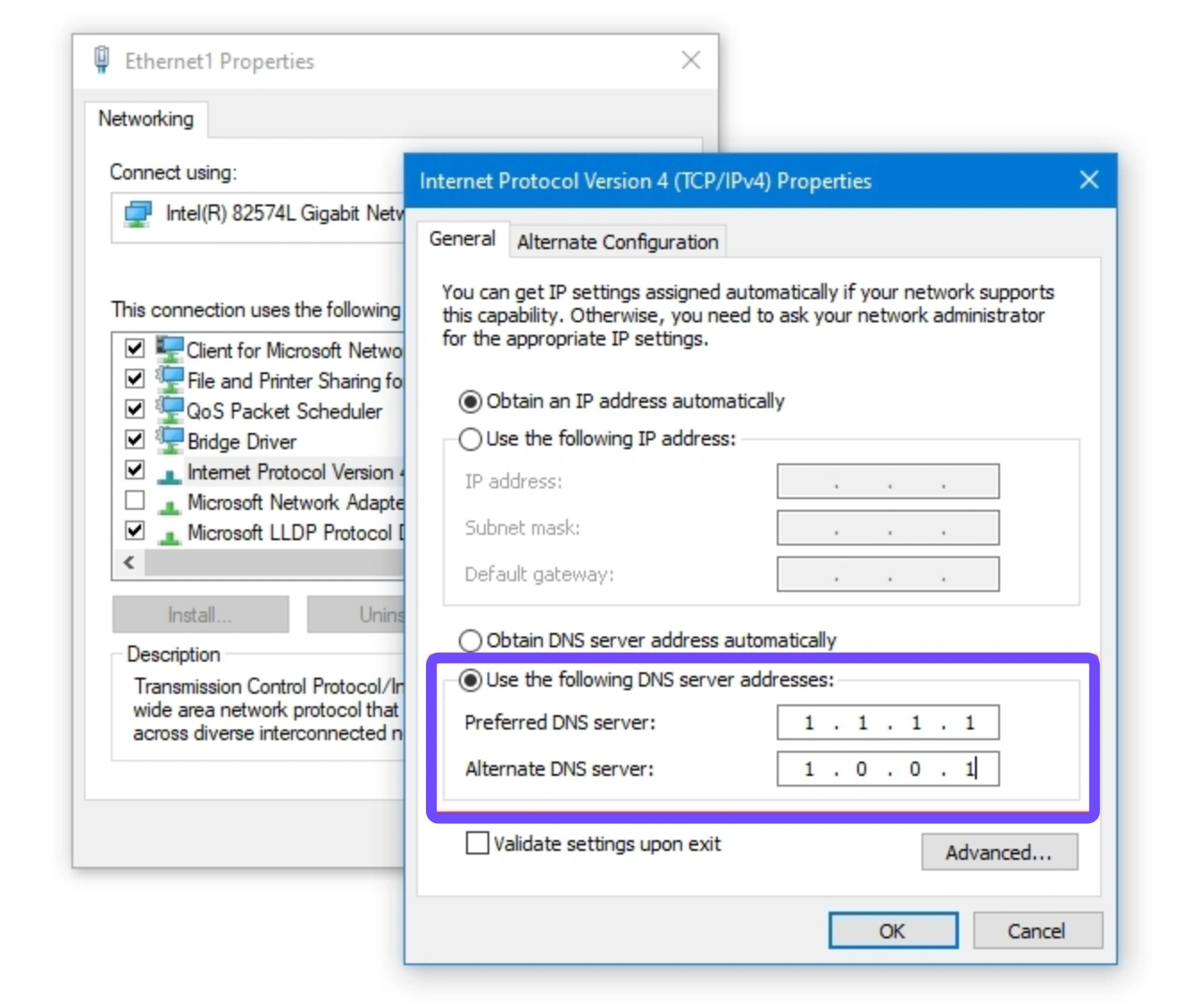
- Preferred DNS: 8.8.8.8
- Alternate DNS: 8.8.4.4
Step 6: Save changes and restart your PC.
Disable IPv6
Phasmophobia may not always play nice with IPv6 connections, especially with older routers.
Step 1: Go to Control Panel → Network and Internet → Network Connections.
Step 2: Right-click your active network and select "Properties."
Step 3: Scroll down and uncheck "Internet Protocol Version 6 (TCP/IPv6)."
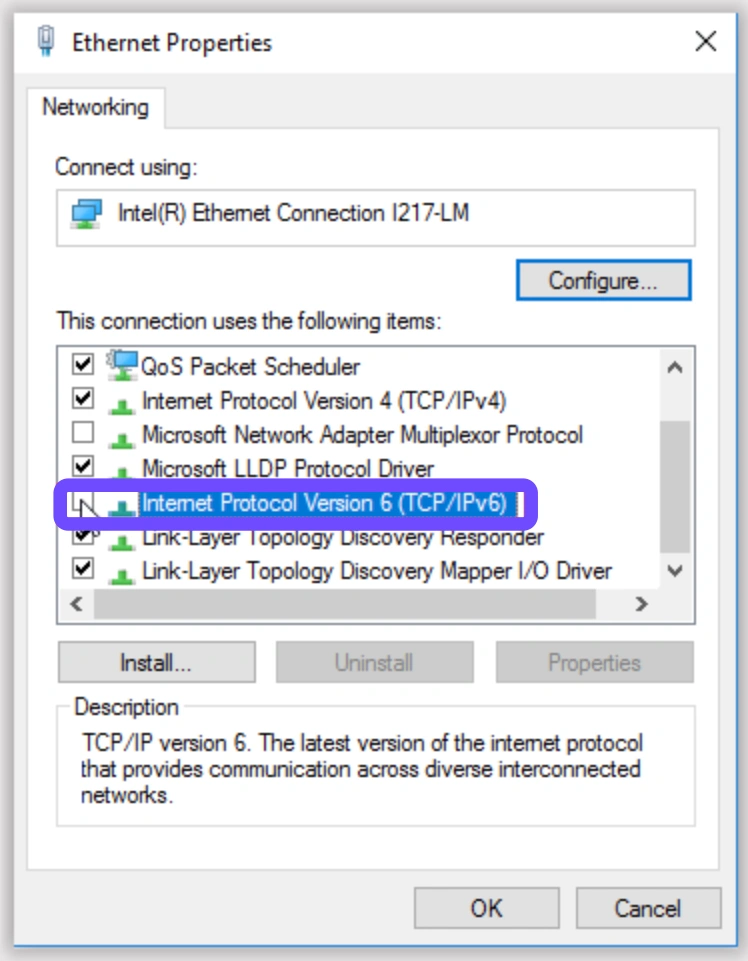
Step 4: Click OK.
Step 5: Restart your computer.
Step 6: Open Phasmophobia and test the connection.
Reinstall the Game
If everything else fails, a fresh installation can remove corrupt data or mismatched updates.
Step 1: Open Steam.
Step 2: Right-click Phasmophobia → Manage → Uninstall.
Step 3: After uninstalling, manually delete the leftover files from your Steam Library folder.
Step 4: Reboot your computer.
Step 5: Re-download Phasmophobia from Steam.
Step 6: Install and launch the game.
Conclusion
The world of ghost-hunting in Phasmophobia should be thrilling and immersive, not disrupted by frustrating network issues like connection lost errors, client timeouts, or eternal loading screens. Fortunately, there are effective ways to resolve these problems. LagoFast stands out as the most powerful and user-friendly solution, particularly for players in Russia dealing with Cloudflare-related outages and Unity Cloud restrictions caused by sanctions. Alongside LagoFast, the six manual fixes outlined above can help address deeper system or network misconfigurations.

Boost Your Game with LagoFast for Epic Speed
Play harder, faster. LagoFast game booster eliminates stutter and lags on PC, mobile, or Mac—win every match!
Quickly Reduce Game Lag and Ping!
Boost FPS for Smoother Gameplay!