
Gaming on a low-spec machine can be frustrating. Low FPS, constant stutters, lag spikes, and random frame drops can easily ruin the experience. The good news is that with the right tweaks, it is absolutely possible to optimize low end PC for gaming and make games feel smoother and more responsive.
This guide focuses on practical and proven methods to boost performance without upgrading hardware. Whether you want to know how to boost low end PC for gaming, how to reduce lag in low end PC, or how to play AAA games on low end PC, this article walks you through everything step by step.

- ✅ Reduce Lag and High Ping.
✅ Boost FPS at the Same Time.
✅ Support 2000+ Popular Online Games.
✅ Change Server without Latency.
✅ Boost Game Loading Speed.
Part 1: System-Level Optimization for Low End PCs
Part 2: Recommended In-Game Settings for Low End PCs
Part 3: Game-Specific Optimization Tips
Part 4: Reducing Lag and Network-Related Stutters
Part 5: Easy FPS and Ping Boost with LagoFast Game Booster
Part 1: System-Level Optimization for Low End PCs
Before touching any in-game settings, system optimization is the foundation of a real low end PC performance boost. These changes free up CPU, RAM, and disk usage so your games can run more smoothly.
Clean Background Processes with Task Manager
Press Ctrl + Shift + Esc to open Task Manager.
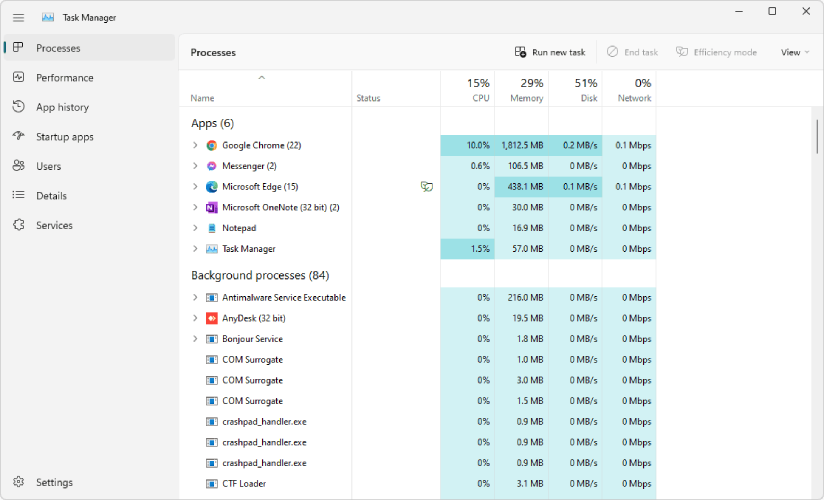
End unnecessary background apps such as browser tabs, update services, RGB software, and unused launchers. On low end systems, even small background tasks can cause FPS drops and lag spikes during gameplay.
Also check the Startup tab and disable programs that do not need to run at boot. This improves system responsiveness and reduces memory pressure.
Clear Temporary Files Using Win + R
Temporary files slowly build up and can affect system performance over time.
- Press Win + R
- Type %temp%
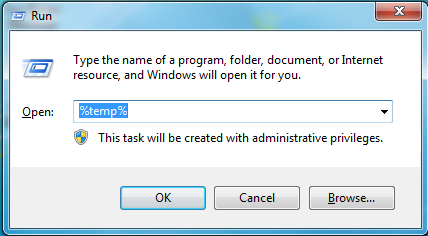
- Select all files and delete them
This clears useless cache files and helps speed up file access, especially on older HDD-based systems.
Set Windows Power Mode to High Performance
Low-end PCs and laptops often throttle performance to save power.
Go to:
Settings → System → Power & Sleep → Power Mode
Select High Performance or Best Performance
This prevents CPU downclocking during gameplay and helps stabilize FPS.
Enable Windows Game Mode
Windows Game Mode prioritizes game processes and reduces background activity.
Settings → Gaming → Game Mode → Turn it ON
This is a simple but effective step when learning how to optimize lower end PC setup for FPS gaming.
Update Graphics Drivers
Even on older GPUs, updated drivers can improve stability and performance. Make sure your NVIDIA, AMD, or Intel graphics drivers are up to date. Driver optimizations often fix stuttering and help fix FPS drops on low end PC.
Part 2: Recommended In-Game Settings for Low End PCs
Tweaking graphics settings is essential if you want to know how to get more FPS on a low end PC.
Lower Resolution and Graphics Quality
Running games at 720p or 900p can dramatically improve performance. Set textures, shadows, effects, and post-processing to Low or Very Low.
These are the most recommended settings for low end PC users dealing with frame drops, lag spikes, and lag.
Disable Heavy Visual Effects
Turn off:
- Motion blur
- Film grain
- Depth of field
- V-Sync
These effects consume GPU resources and increase input lag.
Use Exclusive Fullscreen Mode
Fullscreen mode gives games higher priority than windowed or borderless modes, leading to more stable FPS and fewer stutters.
Cap Your FPS
Instead of uncapped FPS jumping between highs and lows, cap it to a stable value like 30 or 60. This reduces thermal throttling and helps smooth out gameplay on weaker hardware.
Part 3: Game-Specific Optimization Tips
Optimize Low End PC for Fortnite
To optimize low end PC for Fortnite:
- Use Performance Mode
- Set view distance to Medium or Low
- Disable shadows completely
- Turn off replays and background recording
These settings significantly reduce GPU and CPU load while keeping gameplay competitive.
Optimize Low End PC for Valorant
Valorant is well optimized, but low-end systems still benefit from tuning.
- Lower resolution
- Set materials, textures, and detail quality to Low
- Disable V-Sync
- Use fullscreen mode
These changes help reduce input lag and improve consistency, especially in competitive matches.
Part 4: Reducing Lag and Network-Related Stutters
FPS alone does not define smooth gameplay. Network latency matters just as much.
Use Wired Internet
Wi-Fi instability causes lag spikes and rubber-banding. A wired Ethernet connection offers lower ping and more stable gameplay.
Close Downloads and Background Sync
Pause Windows updates, cloud sync tools, and streaming apps while gaming. These compete for bandwidth and can increase latency.
Choose the Closest Game Server
Always select the nearest server region available. Shorter distance equals lower ping and fewer connection issues.
Part 5: Easy FPS Boost and Ping Reduction with LagoFast Game Booster
Manual optimization works, but it takes time and constant tweaking. If you want a simpler solution, LagoFast Game Booster is designed for gamers who want results without changing hardware or system settings.
Why LagoFast Works for Low End PCs
- No hardware upgrades required
- Automatically optimizes system resources
- Reduces background processes while gaming
- Improves FPS stability
- Lowers ping and network latency
- Ideal for Fortnite, Valorant, and even AAA games
Here’s a detailed guide on how to use LagoFast to Boost Your Game (Fortnite as an example):
Step 1: Visit the LagoFast website and click on 'Free Trial' to download the game booster. Install it on your device to get started.
Step 2: Before opening Fortnite, launch LagoFast and use its search feature to find your game. This ensures that the booster will optimize specifically for the game.
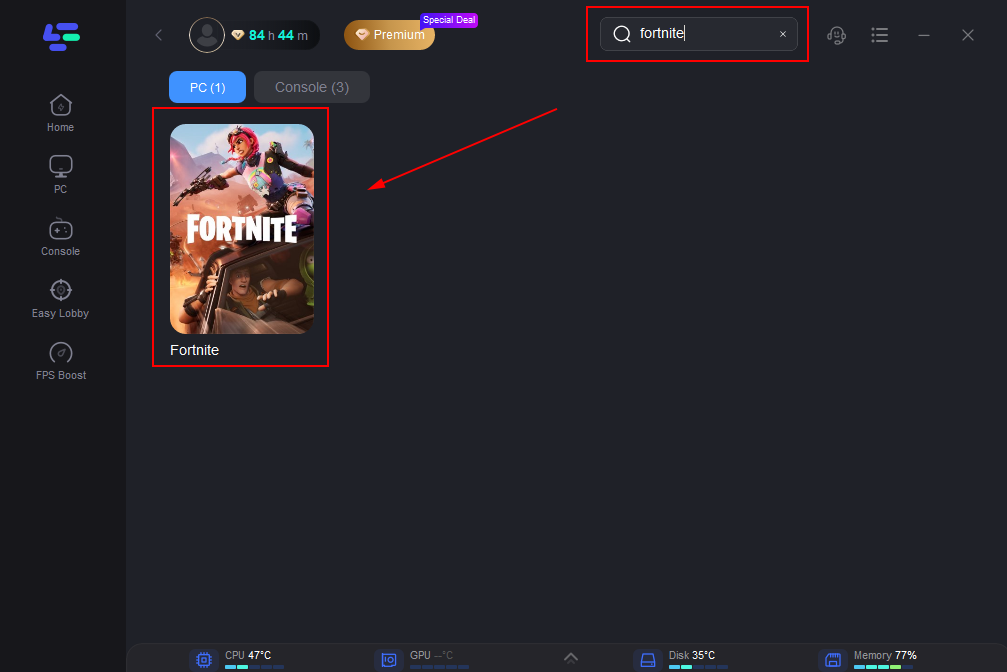
Step 3: Optimize your server connection by selecting 'Select Server' in LagoFast. Choose a stable server from the list, then fine-tune by selecting the most effective 'Node' available on the right side of the application.
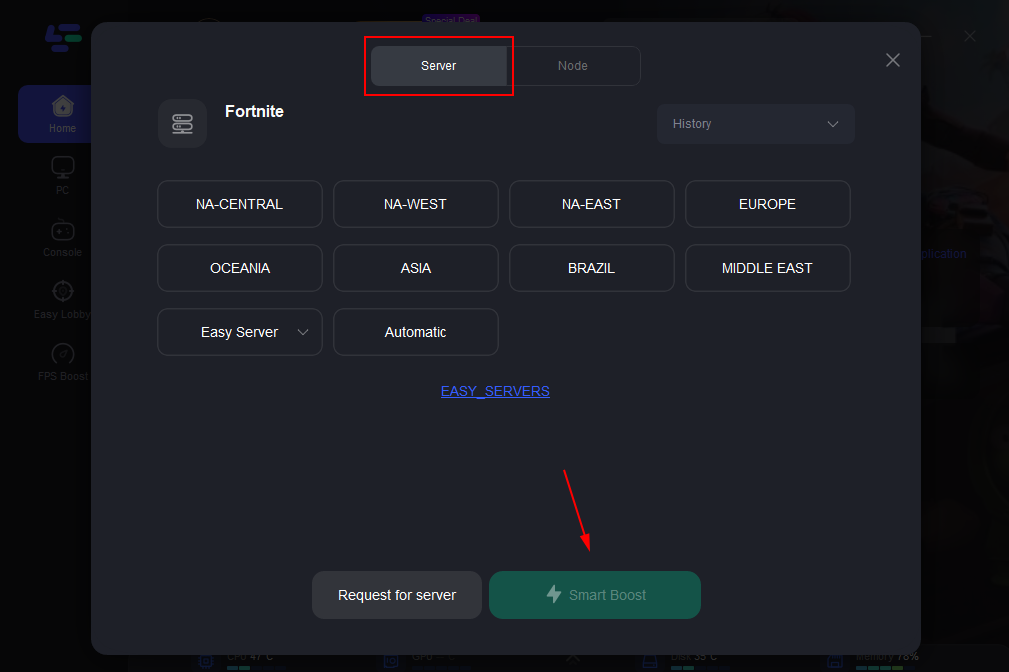
Step 4: Click on the 'Smart Boost' button to activate LagoFast’s optimization features. You’ll be able to view real-time stats on game ping, packet loss, and network type, which are crucial for monitoring the quality of your connection.
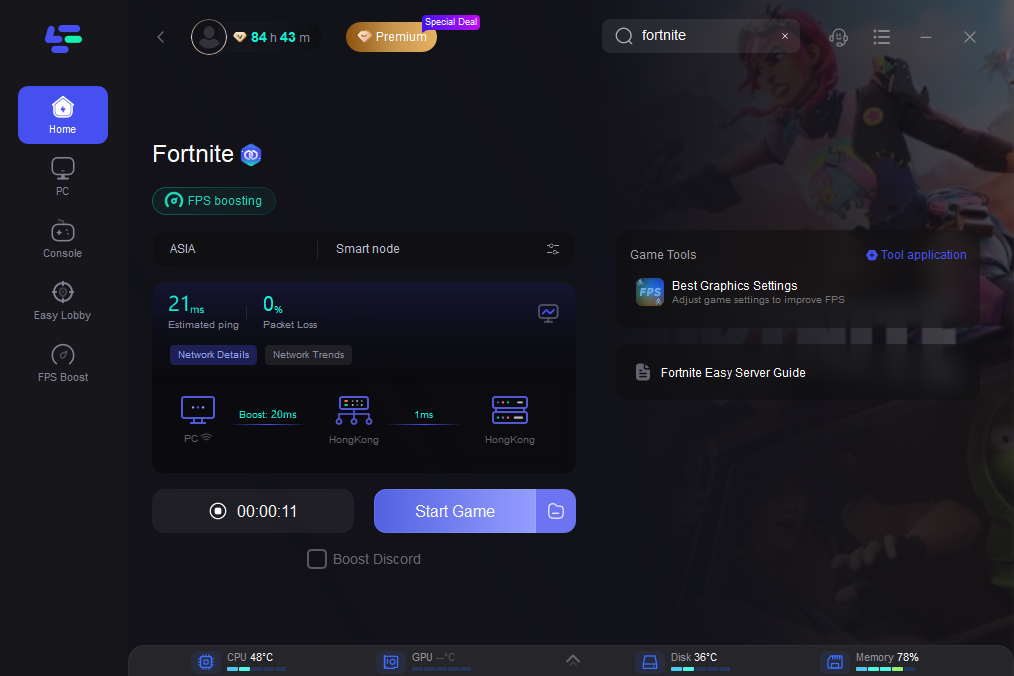
With LagoFast, you do not need to manually optimize low end PC or laptop to boost FPS. Simply launch the booster, start your game, and experience smoother gameplay with higher FPS and improved ping.
Conclusion
Learning how to optimize a low-end PC for gaming is about making smart adjustments, not expensive upgrades. By cleaning your system, tuning in-game settings, reducing lag, and using optimization tools, you can significantly improve performance.
Whether you are trying to run high graphics games smoothly on low end PC, reduce lag in online shooters, or figure out how to play AAA games on low end PC, these methods help you get the most out of your setup. For players who want instant results without technical hassle, LagoFast Game Booster offers a smooth, high-FPS gaming experience with better ping — even on low-end machines.

Boost Your Game with LagoFast for Epic Speed
Play harder, faster. LagoFast game booster eliminates stutter and lags on PC, mobile, or Mac—win every match!
Quickly Reduce Game Lag and Ping!
Boost FPS for Smoother Gameplay!