
Odin: Valhalla Rising is an open-world MMORPG developed by Lionheart Studio and published by Kakao Games. Set in a world inspired by Nordic mythology, the game offers players an immersive experience filled with epic battles and vast landscapes. However, some players have reported issues where the game gets stuck on the loading screen or displays a black screen upon launch.
This guide aims to provide comprehensive solutions to resolve these problems and enhance your gaming experience.

- ✅ Reduce Lag and High Ping.
- ✅ Boost FPS at the Same Time.
- ✅ Support 2000+ Popular Online Games.
- ✅ Improve performance in gameplay.
Part 2: Common Issues: Loading Screen and Black Screen
Part 3: How to Fix Odin: Valhalla Loading Screen and Black Screen Issue
Part 4: How to Enhance Odin: Valhalla Rising Gaming Experience By Using LagoFast Game Booster
Part 1: Introduction
Experiencing a game stuck on the loading screen or encountering a black screen can be frustrating, especially when eager to dive into the world of Odin: Valhalla Rising. These issues can stem from various factors, including hardware limitations, software conflicts, or network instability. Understanding the root causes is the first step toward finding an effective solution.
Part 2: Common Issues: Loading Screen and Black Screen
Several factors can contribute to Odin: Valhalla Rising getting stuck on the loading screen or displaying a black screen:
- Insufficient System Resources: Running the game on hardware that doesn't meet the minimum requirements can lead to performance issues.
- Outdated Graphics Drivers: Old or incompatible drivers can cause rendering problems, resulting in a black screen.
- Corrupted Game Files: Incomplete or corrupted installation files can prevent the game from loading correctly.
- Background Applications: Other programs running simultaneously can interfere with the game's performance.
- Network Connectivity Issues: Unstable internet connections can hinder the game's ability to load resources from the server.
Part 3: How to Fix Odin: Valhalla Loading Screen and Black Screen Issue
To address these issues, consider the following steps:
1. Verify System Requirements
Ensure your PC meets the game's minimum system requirements:
- OS: Windows 10 (64-bit)
- Processor: Intel Core i5 or equivalent
- Memory: 8 GB RAM
- Graphics: NVIDIA GTX 960 or equivalent
- DirectX: Version 11
- Network: Broadband Internet connection
- Storage: At least 50 GB available space
2. Update Graphics Drivers
Outdated drivers can cause compatibility issues. Visit your GPU manufacturer's website to download and install the latest drivers:
NVIDIA: https://www.nvidia.com/Download/index.aspx
AMD: https://www.amd.com/en/support
3. Verify Game Files
If you're playing via a platform like Steam, use the built-in feature to verify the integrity of game files:
- Right-click on the game in your library.
- Select "Properties."
- Navigate to the "Local Files" tab.
- Click on "Verify Integrity of Game Files."
4. Close Unnecessary Background Applications
Programs running in the background can consume system resources. Use Task Manager to close unnecessary applications before launching the game.
5. Check Network Connection
Ensure you have a stable internet connection. Consider using a wired connection for better stability. If issues persist, restarting your router or contacting your ISP may help.
6. Run the Game as Administrator
Running the game with administrative privileges can resolve permission-related issues:
- Right-click on the game's shortcut or executable file.
- Select "Run as administrator."
7. Adjust In-Game Settings
Lowering graphics settings can reduce the strain on your system:
- Resolution: Set to your monitor's native resolution.
- Graphics Quality: Lower to medium or low.
- V-Sync: Disable to improve performance.
- Anti-Aliasing: Set to FXAA or disable.
Part 4: How to Enhance Odin: Valhalla Rising Gaming Experience By Using LagoFast Game Booster
LagoFast Game Booster is a tool designed to optimize your gaming experience by reducing lag and improving overall performance. It offers features such as:
Benefits of LagoFast Game Booster:
- Reduced Lag: Minimizes latency issues, ensuring real-time responsiveness during combat.
- Stable Connection: Provides a consistent network connection, preventing disconnections during crucial moments.
- Optimized Performance: Enhances system performance, allowing for smoother graphics and faster load times.
How to use LagoFast on PC
Step 1: Click the Free Trial button to download and install LagoFast Free Trial.
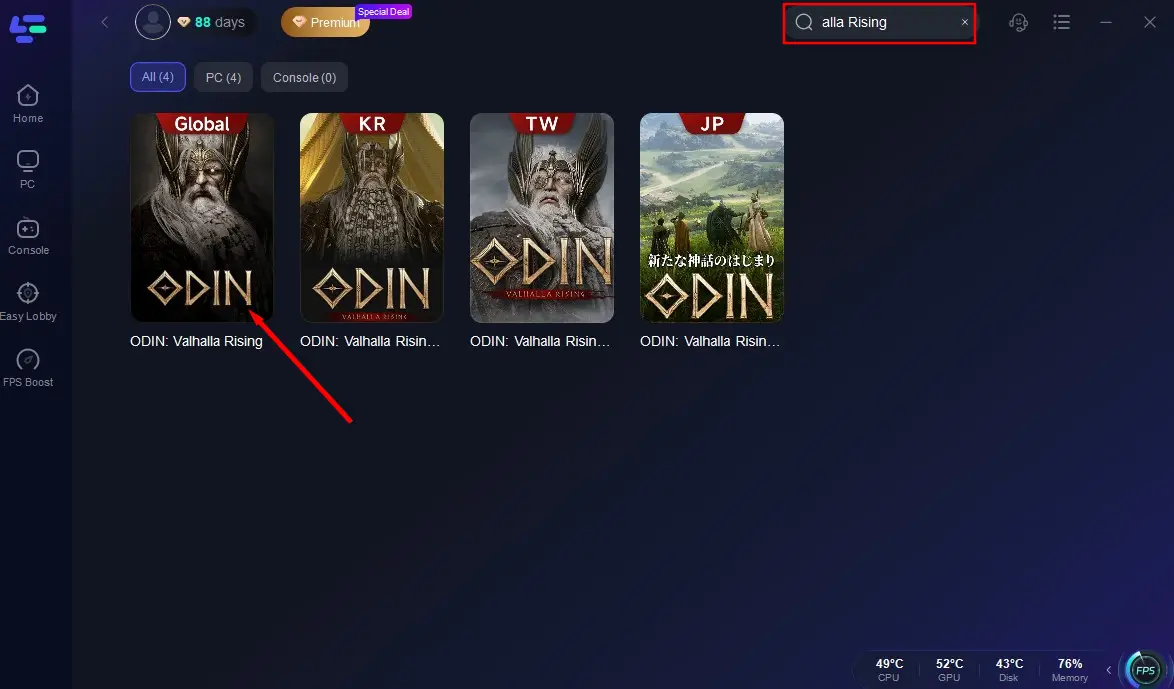
Step 2: Open the application and select Odin: Valhalla Rising from the list of supported games.
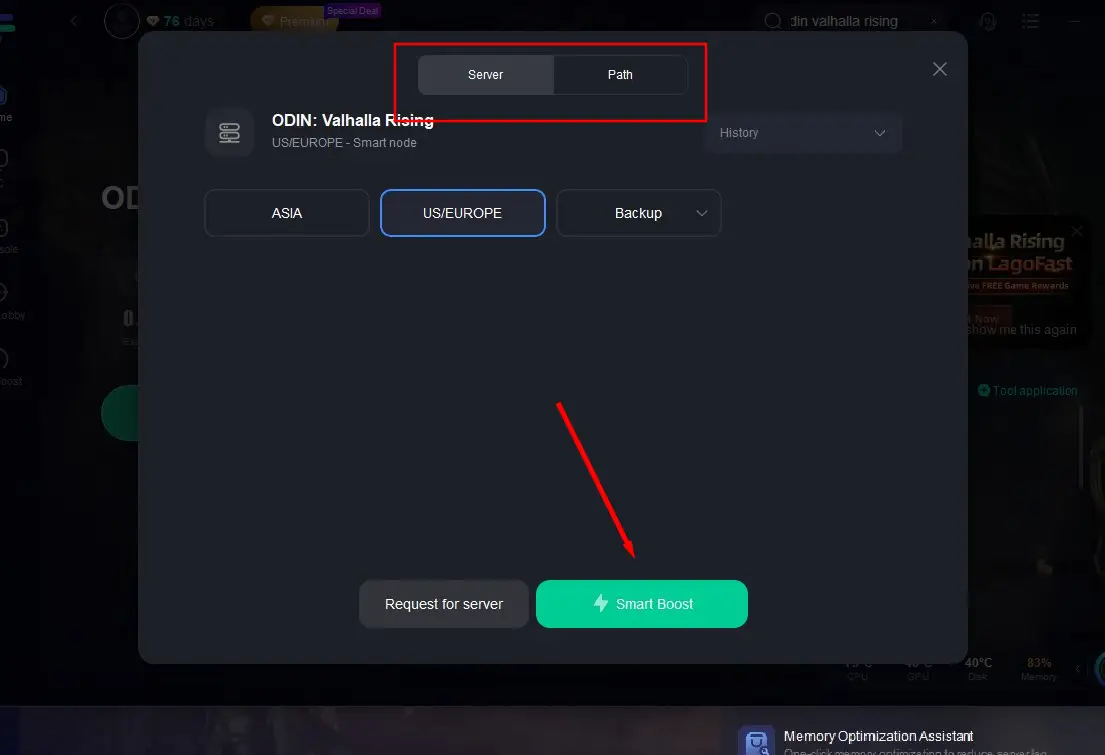
Step 3: Choose the optimal server and click "Smart Boost".
Step 4: Start the game and enjoy an enhanced gaming experience.
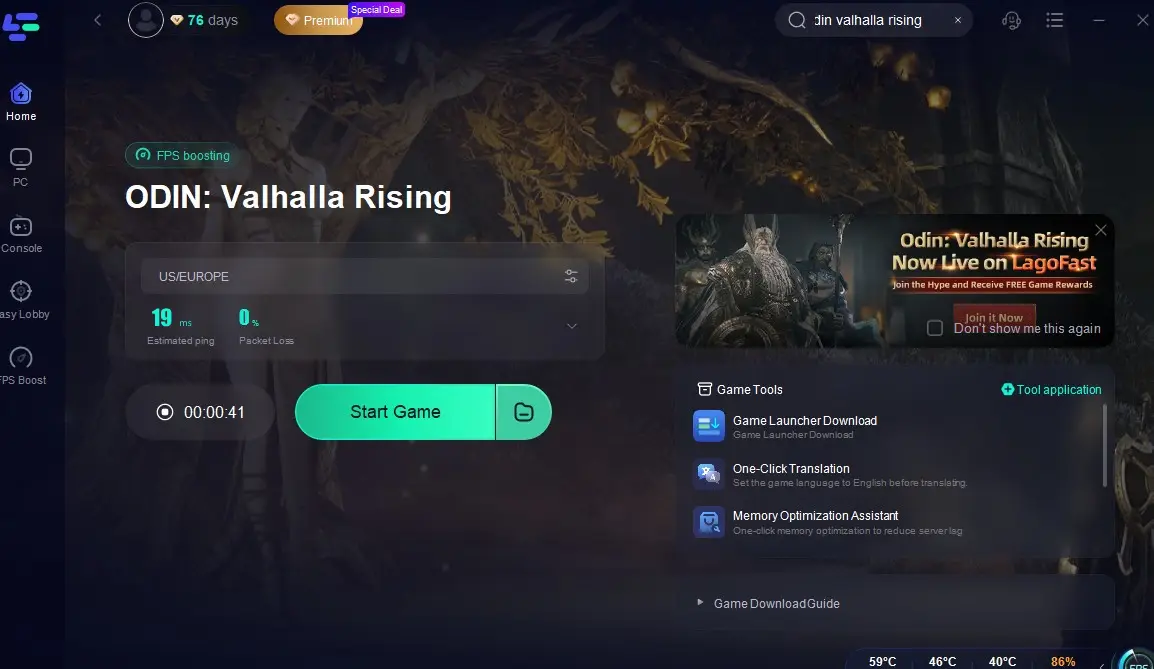
How to use LagoFast Game Booster on Mobile
Step 1: Search and download LagoFast Mobile Booster from the App Store or Google Play.
Or scan the QR code below to start a free trial.

Step 2: Search Odin: Valhalla Rising and click the result.
Step 3: Choose the Server you like, then click the Boost button.
Step 4: After completing the above network optimization settings, the FPS drops issue will be easily resolved.
Implementing LagoFast Game Booster can significantly improve your in-game experience, allowing you to fully immerse yourself in the epic battles of Valhalla.
Part 5: FAQs
1. Why does Odin: Valhalla Rising get stuck on the loading screen?
Common causes include insufficient system resources, corrupted game files, background applications, and network connectivity issues.
2. How can I check if my PC meets the system requirements?
You can check your system specifications by right-clicking on This PC and selecting Properties. Compare them with the game’s requirements.
3. What should I do if the game still doesn’t load after verifying game files?
If verifying game files doesn’t resolve the issue, try closing background applications and adjusting graphics settings.
4. Can using LagoFast really help with loading issues?
Yes, LagoFast can optimize your network and system performance, reducing loading times and improving overall stability.
5. Is it necessary to reinstall the game if it keeps getting stuck on the loading screen?
Reinstalling the game can resolve persistent issues caused by corrupted files, but it should be a last resort after trying other solutions.
Conclusion
Getting stuck on the loading screen in Odin: Valhalla Rising can be a frustrating experience, but understanding the potential causes and knowing how to fix them can help you quickly return to the action. By checking system requirements, updating drivers, and utilizing tools like LagoFast, players can enhance their gaming experience and reduce technical issues. As you prepare to embark on your journey through the beautiful and challenging world of Valhalla, addressing these concerns will allow you to enjoy every moment without interruption.
Boost Your Game with LagoFast for Epic Speed
Play harder, faster. LagoFast game booster eliminates stutter and lags on PC, mobile, or Mac—win every match!
Quickly Reduce Game Lag and Ping!
Boost FPS for Smoother Gameplay!