
As the excitement builds for Odin: Valhalla Rising, an open-world MMORPG that immerses players in the rich tapestry of Nordic mythology, many gamers are eager to dive into its epic battles and expansive landscapes. However, like any newly launched game, players may encounter technical issues, including crashing. These crashes can disrupt gameplay, leading to frustration and lost progress. In this article, we will explore the reasons behind these crashing issues and provide practical solutions to help you enjoy a smoother gaming experience.

- ✅ Reduce Lag and High Ping.
- ✅ Boost FPS at the Same Time.
- ✅ Support 2000+ Popular Online Games.
- ✅ Provide servers in 60+ ountries and 150+ Cities.
Part 2: Understanding the Crashing Issues
Part 3: How to Fix Odin: Valhalla Rising Crashing
Part 4: How to Fix Odin: Valhalla Rising Error 0xE019101A?
Part 5: How to Fix Odin: Valhalla Rising Constant Crashes
Part 6: How to Enhance Odin: Valhalla Rising Gaming Experience By Using LagoFast Game Booster
Part 1: Introduction
Odin: Valhalla Rising is an open-world MMORPG that immerses players in the rich tapestry of Norse mythology. Developed by Lionheart Studio and published by Kakao Games, this title offers expansive realms and intense battles. However, some players have reported crashing issues that disrupt gameplay. This guide aims to address these problems and provide solutions to enhance your gaming experience.
Part 2: Understanding the Crashing Issues
Crashes in Odin: Valhalla Rising can occur due to various reasons:
- Hardware Limitations: Insufficient RAM or outdated graphics cards may struggle to handle the game's demands.
- Software Conflicts: Background applications or outdated drivers can interfere with game performance.
- Network Instability: Unstable internet connections can lead to disconnections or crashes during online play.
- Corrupted Game Files: Incomplete or corrupted installations can cause the game to crash unexpectedly.
Part 3: How to Fix Odin: Valhalla Rising Crashing
To address these issues, consider the following steps:
- Update Graphics Drivers: Ensure your GPU drivers are up-to-date. For NVIDIA, install the latest Game Ready Driver; for AMD, use the latest Adrenalin Edition.
- Close Background Applications: Terminate unnecessary programs running in the background to free up system resources.
- Verify Game Files: Use the game launcher or platform (e.g., Steam) to verify the integrity of game files, repairing any corrupted data.
- Adjust In-Game Settings: Lower graphics settings such as texture quality, shadow quality, and resolution to reduce the strain on your system.
- Run as Administrator: Right-click the game executable and select "Run as administrator" to ensure it has the necessary permissions.
Part 4: How to Fix Odin: Valhalla Rising Error 0xE019101A?
Some players have reported encountering "Error 0xE019101A" during login to Odin: Valhalla Rising Global, along with the prompt shown in the following image. This issue may be caused by a virus infection on the player’s device or running unrelated programs while the game is active. Players can attempt the following solutions to resolve the issue:
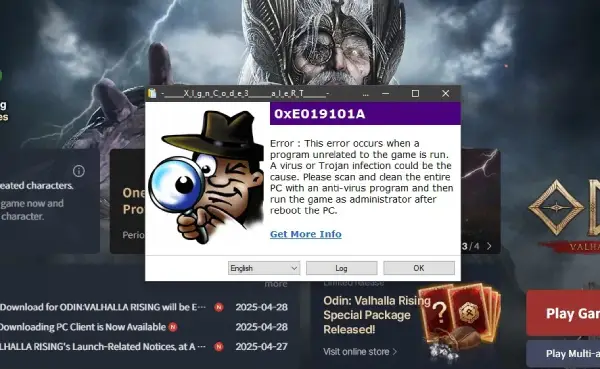
1. Scan for Malware/Viruses
Perform a full system virus scan using trusted antivirus software to rule out malicious activity.
2. Close Background Programs
Terminate unnecessary applications (e.g., third-party tools, VPNs, or overlays) that might interfere with the game.
3. Repair Game Files
Verify the integrity of game files via your platform (Steam/Epic/console) or reinstall the game if corruption is detected.
4. Uninstall Programs That Pose Security Risks
If programs like AnyDesk are flagged as a cheating program during runtime, triggering Error 0xE019101A, uninstalling these programs can help resolve the issue and allow you to log back into Odin: Valhalla smoothly to continue playing.
Part 5: How to Fix Odin: Valhalla Rising Constant Crashes
For persistent crashing issues:
- Reinstall the Game: Uninstall and reinstall Odin: Valhalla Rising to ensure a clean installation.
- Check for Overheating: Monitor your system's temperatures; overheating can cause crashes. Ensure proper ventilation and consider cleaning your hardware.
- Disable Overlays: Turn off overlays from applications like Discord or GeForce Experience, as they can interfere with the game.
- Update Operating System: Ensure your OS is updated with the latest patches and updates.
Part 6: How to Enhance Odin: Valhalla Rising Gaming Experience By Using LagoFast Game Booster
LagoFast Game Booster is designed to optimize gaming performance by reducing lag and improving stability. Here's how it can help:
Benefits of LagoFast Game Booster:
- Reduced Lag: Minimizes latency issues, ensuring real-time responsiveness during combat.
- Stable Connection: Provides a consistent network connection, preventing disconnections during crucial moments.
- Optimized Performance: Enhances system performance, allowing for smoother graphics and faster load times.
How to use LagoFast on PC
Step 1: Click the Free Trial button to download and install LagoFast Free Trial.
Step 2: Open the application and select Odin: Valhalla Rising from the list of supported games.
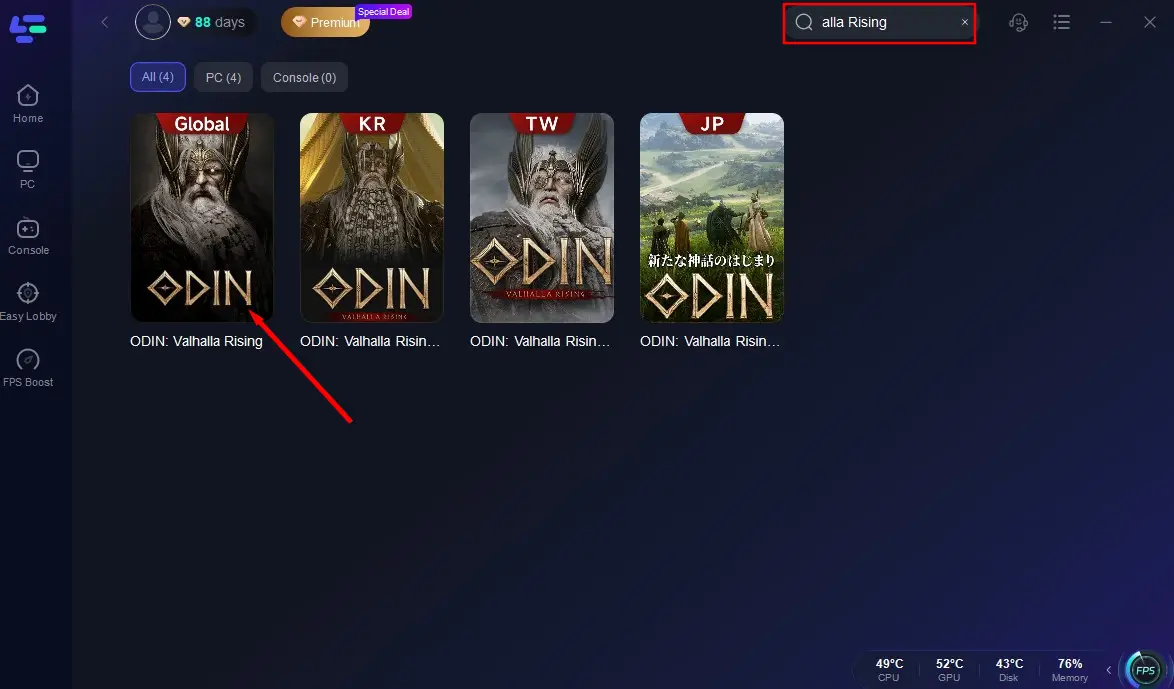
Step 3: Choose the optimal server based on your location and desired performance.
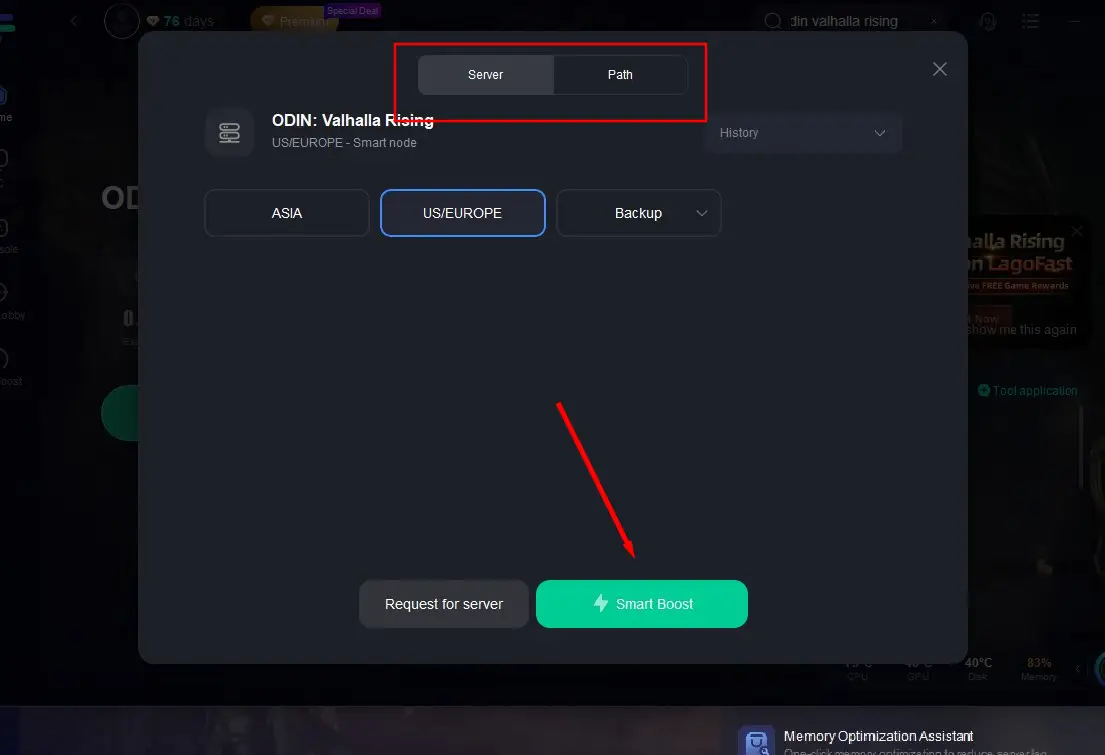
Step 4: Once optimization is complete, launch "Odin: Valhalla Rising" and enjoy an enhanced gaming experience.
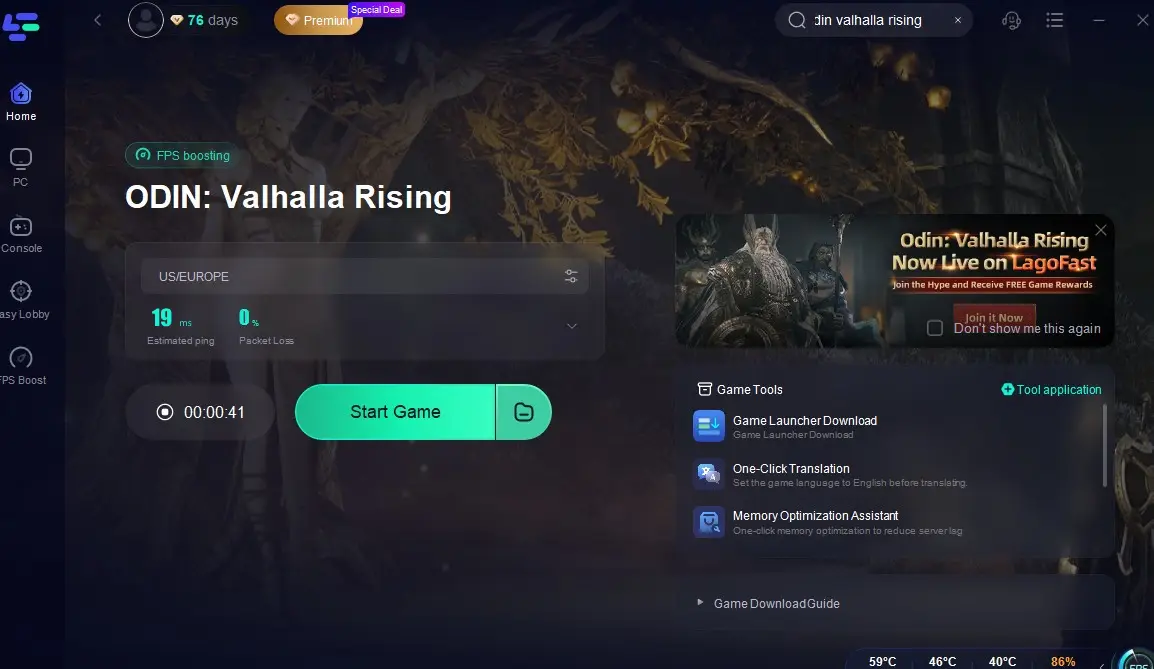
How to Fix Odin: Valhalla Rising UE4 Crash:
Step 1. Go to Odin: Valhalla Rising game tools in LagoFast. Scroll down and find the Fix UE4 Crash tool.
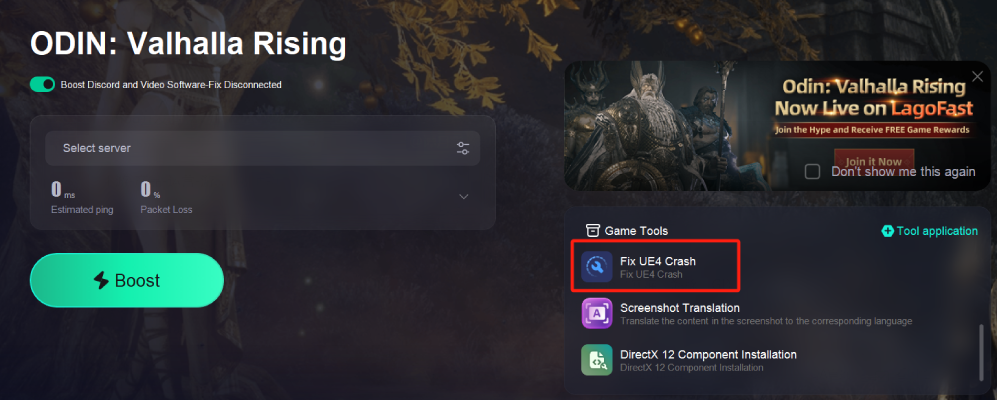
Step 2. Activate smart boost and click the tool. Then click "Repair".
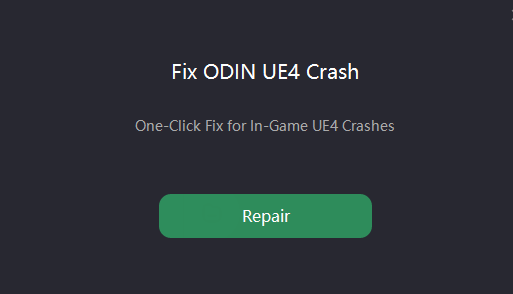
This tool is a repair method provided by players in the official discord group of Odin: Valhalla Rising. Most players reported that it is useful. You can give it a try.
How to use LagoFast Game Booster on Mobile
Step 1: Search and download LagoFast Mobile Booster from the App Store or Google Play. Or scan the QR code below to start a free trial.

Step 2: Search Odin: Valhalla Rising and click the result.
Step 3: Choose the Server you like, then click the Boost button.
Step 4: After completing the above network optimization settings, the FPS drops issue will be easily resolved.
Implementing LagoFast Game Booster can significantly improve your in-game experience, allowing you to fully immerse yourself in the epic battles of Valhalla.
Part 7: FAQs
Q1: Why does Odin: Valhalla Rising crash on startup?
A1: This could be due to outdated drivers, corrupted game files, or software conflicts. Ensure all drivers are updated and verify the integrity of game files.
Q2: Can antivirus software cause the game to crash?
A2: Yes, some antivirus programs may mistakenly flag game files. Consider adding the game to your antivirus's exception list.
Q3: Does LagoFast support mobile versions of the game?
A3: Yes, LagoFast offers optimization for both PC and mobile platforms, enhancing performance across devices.
Q4: Will lowering graphics settings improve stability?
A4: Lowering settings can reduce the load on your system, potentially improving stability and reducing crashes.
Conclusion
Experiencing crashing issues in Odin: Valhalla Rising can be frustrating, but understanding the potential causes and solutions can help you get back to enjoying the game. By ensuring your system meets the requirements, updating drivers, and utilizing tools like LagoFast, you can create a smoother gaming experience. Whether you’re exploring the vast landscapes of Valhalla or engaging in epic battles, overcoming technical hurdles will allow you to fully immerse yourself in the enchanting world of Nordic mythology.
Boost Your Game with LagoFast for Epic Speed
Play harder, faster. LagoFast game booster eliminates stutter and lags on PC, mobile, or Mac—win every match!
Quickly Reduce Game Lag and Ping!
Boost FPS for Smoother Gameplay!