
Nioh 3 is one of the most anticipated action RPGs of the year, promising fast-paced combat, deep builds, and immersive world exploration. However, like many modern PC titles—especially early builds, demos, or patch cycles—some players experience crashing, freezing, or performance stutters. These problems can significantly disrupt gameplay, whether you’re just starting or deep into a boss encounter.
In this guide, we’ll walk you through the common causes, startup crash fixes, how to enhance overall stability, and advanced tips, including how tools like LagoFast Game Booster can improve your experience.

- ✅ Reduce Lag and High Ping.
✅ Boost FPS at the Same Time.
✅ Support 2000+ Popular Online Games.
✅ Change Server without Latency.
✅ Boost Game Loading Speed.
Part 1: Introduction to Nioh 3 Crashing Issues
Part 2: Common Causes of Nioh 3 Freezing and Crashing
Part 3: How to Resolve Nioh 3 Crashing on Startup
Part 4: Boosting Your Nioh 3 Experience with LagoFast Game Booster
Part 1: Introduction to Nioh 3 Crashing Issues
Crashes and freezes in Nioh 3 can appear at different times—during launch, at specific in-game moments, or after updates. A “crash” usually refers to the game closing by itself or reporting an error, while a “freeze” means the game stops responding even though audio or visuals may still be playing briefly.
Many of these problems are not unique to Nioh 3 but stem from general PC compatibility issues, such as corrupted files, outdated drivers, or conflicting software running alongside the game. Understanding these points will help you troubleshoot more effectively and enjoy smoother gameplay.
Part 2: Common Causes of Nioh 3 Freezing and Crashing
Before fixing anything, it’s vital to recognize the most frequent reasons behind crashes or freezes in action-oriented PC games like Nioh 3:
1. Outdated or Corrupted Drivers
Most crashes are linked to outdated GPU drivers, which fail to handle modern rendering pipelines properly. Keeping graphics drivers up to date is critical for stability.
2. Corrupted Game Files
Missing or corrupted game files can lead to unexpected exits or freezes. This often happens after interrupted updates or installation issues.
3. Background Applications
Other programs—including overlays, browsers, or resource-heavy apps—can interfere with real-time demanding games, causing lockups or crashes.
4. Incompatible System Components
DirectX, Visual C++ Redistributables, or outdated system libraries can also create unstable environments for Nioh 3.
5. Overheating and Resource Limits
High CPU or GPU temperatures and RAM bottlenecks could cause abrupt freezes or shutdowns while playing.
6. Recent Updates or Patch Bugs
Sometimes updates themselves introduce instability, which later get patched by developers based on feedback—this has been observed in past Nioh titles.
Part 3: How to Resolve Nioh 3 Crashing on Startup
If Nioh 3 won’t start or crashes immediately after launching, try the following best-practice solutions one by one:
1. Update Graphics Drivers
Ensure you are using the latest drivers directly from NVIDIA, AMD, or Intel. Outdated drivers are one of the leading causes of crashes and performance issues in modern games.
2. Run as Administrator
Right-click the Nioh 3 executable and select Run as administrator. This ensures the game has full permissions to access necessary system resources.
3. Verify Game Files Integrity (Steam)
Corrupted files often lead to crashes. In Steam:
- Right-click Nioh 3 in your Library
- Go to Properties
- Navigate to Local Files
- Click Verify integrity of game files
This tool will re-download missing or corrupted assets.
4. Update DirectX and Visual C++ Packages
Install the latest DirectX and Visual C++ Redistributables from Microsoft’s official site. These runtime components are often required for the game to launch.
5. Disable Overlays and Background Apps
Steam overlay, recording software (like OBS), and communication overlays (Discord) can cause compatibility issues. Turning them off can resolve a surprising number of startup crashes.
6. Change Installation Location
If your game is installed on a problematic drive (bad sectors) or low-space partition, consider reinstalling Nioh 3 to a different SSD or storage path.
7. Perform a Clean Boot
Performing a clean boot minimizes conflicting background processes that may interfere with game startup.
8. Reinstall the Game
If all else fails, a full reinstall often resolves persistent startup crashes by clearing out corrupt or misconfigured files.
Part 4: Boosting Your Nioh 3 Experience with LagoFast Game Booster
Crashes and freezes aren’t just about software issues. Sometimes optimizing how your PC handles gaming can make a big difference—even if the core game is installed correctly. LagoFast (LagoFast Game Booster—Get No Lag and Lower Ping) is a performance and network tool that can help in several ways:
How to Use LagoFast on PC
Step 1: Begin by clicking the Free Trial button to download and install the LagoFast Free Trial.
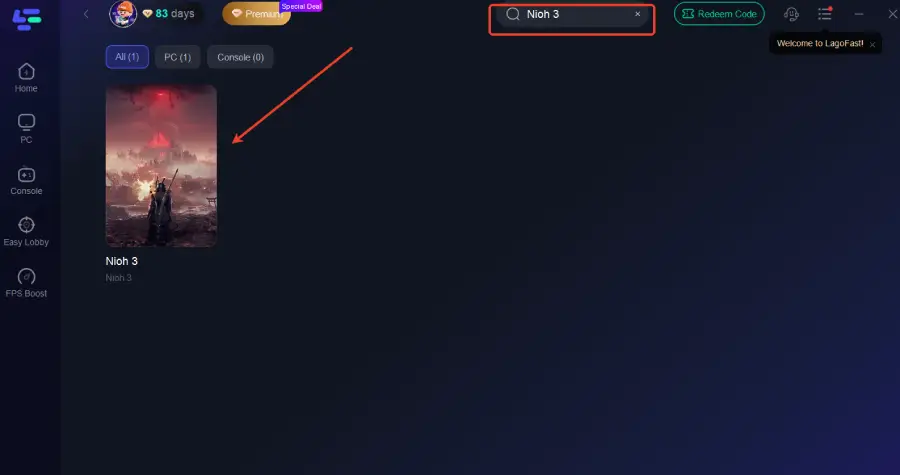
Step 2: Open LagoFast and search for 'Nioh 3.'
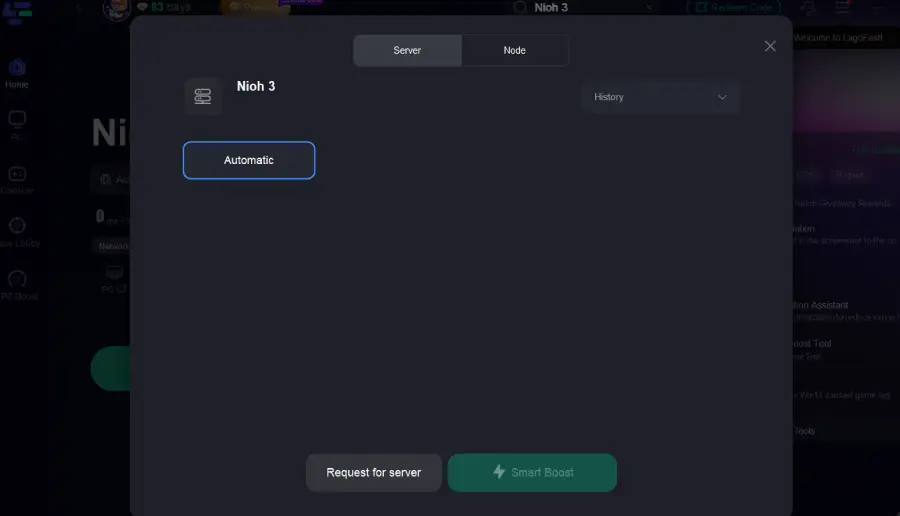
Step 3: Choose the server closest to your location for optimal performance.
Step 4: Click on 'Smart Boost' to optimize your network route and system settings.
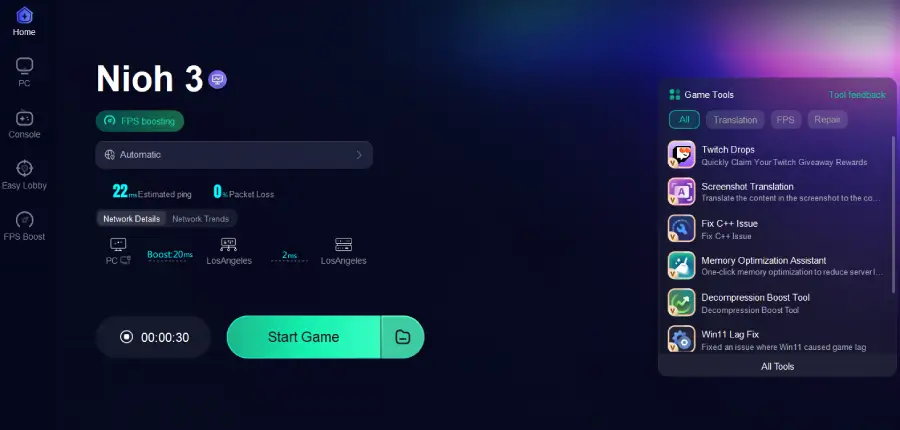
With this optimized setup, you should see fewer freezes, more consistent frame rates, and fewer unexpected crashes caused by network or resource issues.
Part 5: FAQs
Q1: Why does Nioh 3 keep crashing randomly during gameplay?
Random crashes are most often caused by outdated drivers, game file corruption, background conflicts, or system resource limits. Updating drivers and verifying game files often solves these issues.
Q2: Can overheating cause Nioh 3 to freeze?
Yes—CPU or GPU overheating can trigger freezes or forced shutdowns. Check your temperatures with apps like MSI Afterburner and improve cooling if necessary.
Q3: Should I update Windows for stability?
Yes. Keeping Windows up to date can resolve compatibility issues that affect games, including libraries like DirectX and security protocols.
Q4: Will verifying files erase my game progress?
No. This process only checks integrity and fixes missing or corrupted files; your save data will remain intact.
Q5: Is reinstalling Steam necessary?
Only if other fixes fail. Reinstalling Steam removes and rebuilds the launcher’s local configuration, which can fix deeper launch issues.
Conclusion
Crashes and freezes in Nioh 3 can be frustrating, but in most cases they’re solvable with a bit of troubleshooting. Start with core fixes like updating drivers, verifying game files, and disabling overlays. For persistent issues, advanced options like reinstalling the game or performing a clean boot can help. Utilizing tools like LagoFast Game Booster also enhances game stability and performance beyond basic fixes.
With a proper setup and careful optimization, you’ll minimize interruptions and enjoy Nioh 3’s challenging combat and rich environments without unnecessary technical disruption.

Boost Your Game with LagoFast for Epic Speed
Play harder, faster. LagoFast game booster eliminates stutter and lags on PC, mobile, or Mac—win every match!
Quickly Reduce Game Lag and Ping!
Boost FPS for Smoother Gameplay!