
Whether you’re playing Nioh 3 on PC or PS5, smooth gameplay is crucial for this fast-paced action RPG. On PC, the game targets 1080p/60 fps on recommended hardware, while PS5 performance mode aims for a stable 60 fps. Yet, many players experience Nioh 3 low FPS, stutters, or sudden drops during combat.
In this guide, we’ll explain why FPS drops happen on both PC and PS5, what a good FPS target looks like, and how to fix performance issues. You’ll learn how to get more FPS in Nioh 3 using tools like LagoFast Game Booster, console boosters, and practical system tweaks.

- ✅ Reduce Lag and High Ping.
✅ Boost FPS at the Same Time.
✅ Support 2000+ Popular Online Games.
✅ Change Server without Latency.
✅ Boost Game Loading Speed.
Part 1: Why Has My FPS Suddenly Dropped in Nioh 3
Part 2: What Is a Good FPS Target for Nioh 3
Part 3: LagoFast Game Booster – Nioh 3 Performance Fix
Part 4: Other Practical Solutions for PC to Boost FPS
Part 5: Other Practical Solutions for PS5 to Fix FPS Drops
Part 1: Why Has My FPS Suddenly Dropped in Nioh 3
PC Causes of Nioh 3 Low FPS
Even on systems that meet recommended specs, sudden FPS drops can occur due to:
- Hardware bottlenecks – CPU, GPU, or RAM might be maxed out during intense battles.
- Background apps stealing resources – Overlays, browsers, and streaming software can reduce FPS.
- Graphics settings too high – Shadows, anti-aliasing, and effects can push your GPU beyond its limit.
- Thermal throttling – Overheating reduces performance automatically.
- Driver or Windows issues – Outdated drivers or Windows updates may cause FPS instability.
PS5 Causes of Nioh 3 FPS Drops
On PS5, performance dips often result from:
- Heavy graphical scenes that challenge the console’s GPU.
- Asset streaming delays during large open areas.
- Performance vs quality mode selection – quality mode may drop below 60 fps.
- Console overheating in older PS5 models.
- Background system processes or game updates affecting frame stability.
Part 2: What Is a Good FPS Target for Nioh 3
PC FPS Target: How to Get More FPS in Nioh 3
- Stable 60 fps at 1080p is realistic on recommended hardware.
- Higher resolutions or ultra settings require stronger GPUs and CPUs.
PS5 FPS Target: Is Nioh 3 60 FPS?
- Stable 60 fps is the goal in performance mode.
- Nioh 3 does not currently support 120 fps, unlike some PS5 games.
- For comparison, Nioh 2 supports 120 FPS, but Nioh 3 prioritizes smooth 60 fps gameplay.
Part 3: LagoFast Game Booster – Nioh 3 Performance Fix
PC LagoFast Game Booster: How to Fix Low FPS in Nioh 3
The LagoFast Game Booster can stabilize FPS by:
- Optimizing CPU and GPU usage in real time
- Reducing background resource usage
- Improving network stability for co-op and online gameplay
Step 1: Click the Free Trial button to download and install LagoFast.
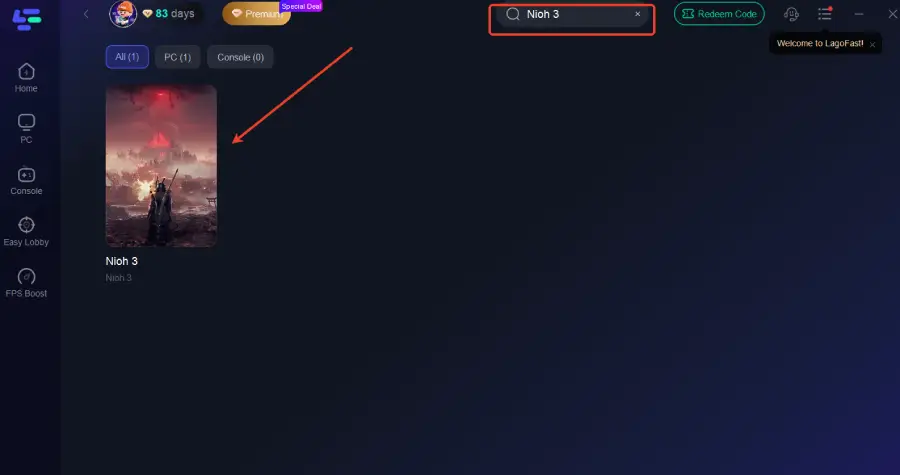
Step 2: After installation, search "Nioh 3" in the search bar and select the game.
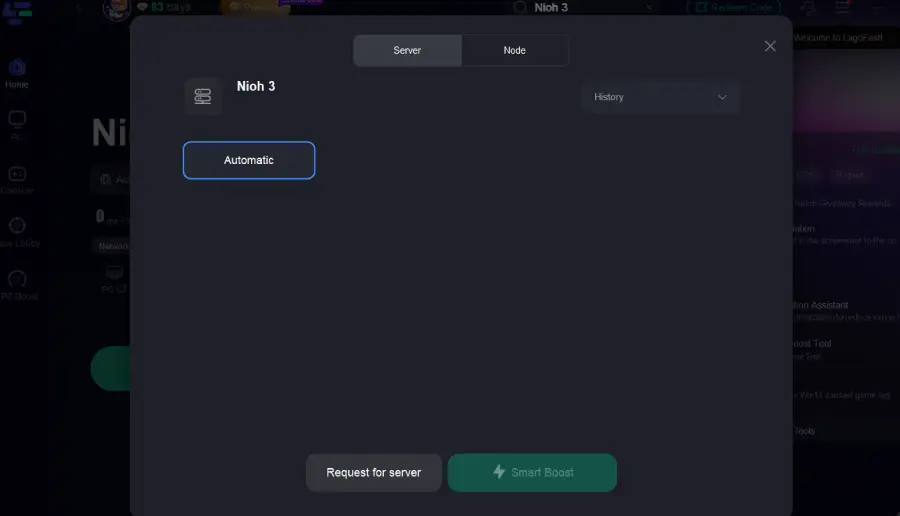
Step 3: Choose your preferred server node and click "Smart Boost" to start optimizing.
Step 4: Launch your game and enjoy smooth, optimized gameplay with lower ping and no stutter.
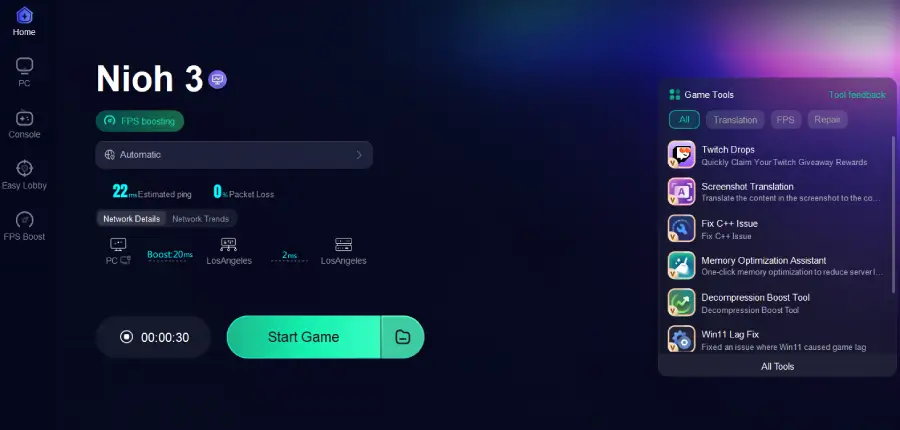
Many players report smoother frames and reduced stuttering after using LagoFast.
PS5 LagoFast Box: Fix Nioh 3 FPS Drops on Console
The LagoFast Box helps PS5 players by:
- Optimizing network traffic
- Reducing latency-related stutter
- Indirectly improving perceived FPS stability
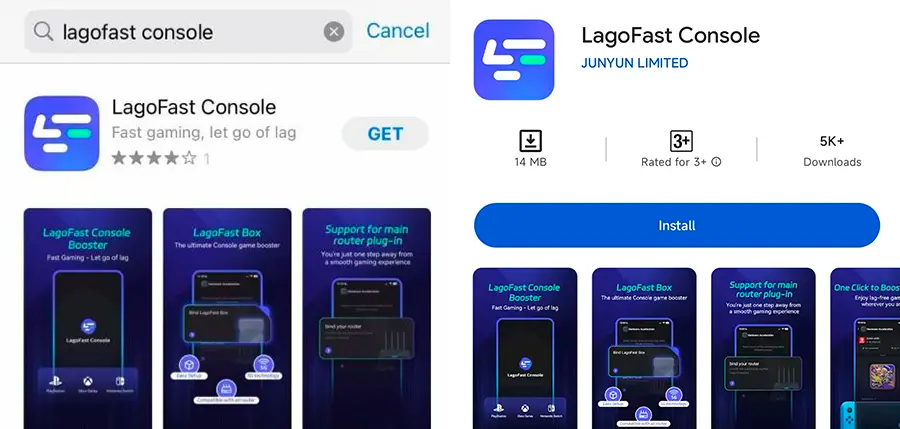
Step 1: Download the LagoFast Console App on your phone to control the LagoFast Box.
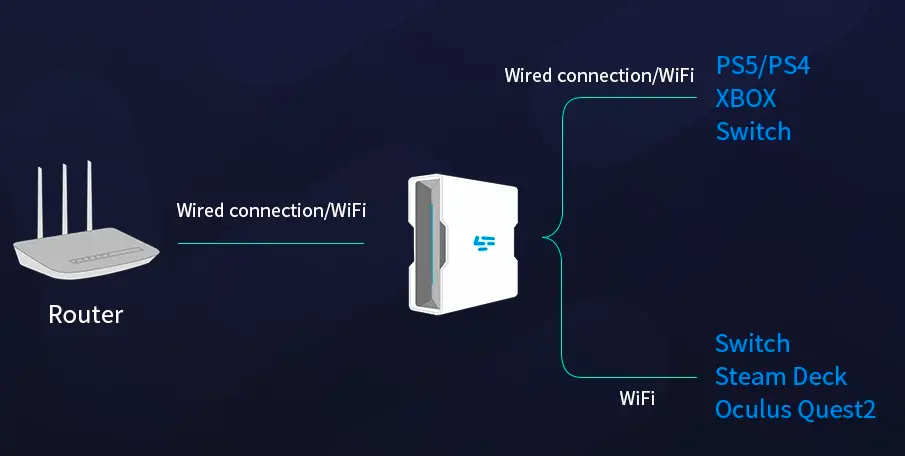
Step 2: Establish a connection between your LagoFast Box, router, and console, choosing between a wired or wireless connection.
Step 3: Launch the LagoFast Console App and boost Nioh 3. Once you have completed the binding process with the LagoFast Box, proceed to boost this game within the LagoFast Console App.
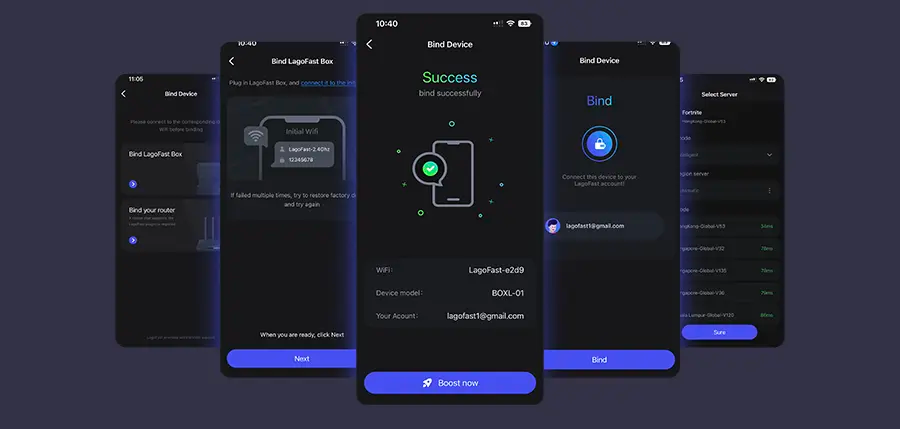
While it doesn’t directly increase FPS, smoother online performance reduces frame drops during multiplayer combat.
Part 4: Other Practical Solutions for PC to Boost FPS
Update Drivers and Game Patches for Nioh 3 Performance Fix
Keeping GPU drivers and game patches up to date ensures bug fixes and FPS optimizations.
Lower In-Game Graphics Settings to Improve FPS
Reducing shadows, anti-aliasing, ambient occlusion, and high-res textures can significantly boost FPS without hurting visuals too much.
Use Resolution Scaling and Performance Mode
Dynamic resolution scaling maintains 60 fps during heavy scenes. Enabling Windows performance mode helps maximize CPU/GPU output.
Close Background Apps and Set Process Priority
- Disable Discord, overlays, and browsers.
- Use Task Manager to set Nioh 3 priority to High.
Optimize Storage and Cooling
- Install the game on an SSD to reduce loading stutters.
- Ensure proper cooling to avoid thermal throttling.
Advanced Options: Disable Windows Features and Mild Overclocking
- Turn off game DVR, background indexing, and unnecessary notifications.
- Mild GPU/CPU overclocking can improve FPS if temperatures are safe.
Part 5: Other Practical Solutions for PS5 to Fix FPS Drops
Use Performance Mode on PS5 for Stable FPS
Always select performance mode instead of quality mode to target a stable 60 fps.
Enable 120Hz Output Even if Nioh 3 Runs at 60 FPS
This improves input response and prepares your setup for future games.
Clear Cache, Manage Storage, and Rebuild Database
- Restart PS5 regularly to free memory.
- Keep at least 20% free storage to maintain smooth asset streaming.
- Use the safe mode rebuild database feature for overall performance.
Keep Firmware Updated and Optimize Console Environment
- Install system updates to fix potential performance bugs.
- Keep the console ventilated to prevent thermal throttling.
- Avoid large downloads while playing to prevent FPS dips.
Conclusion
Experiencing Nioh 3 FPS Drops or sudden lag can be frustrating, but most issues are solvable. On PC, using LagoFast Game Booster along with driver updates, graphics tweaks, and system optimization can restore smooth 60 fps gameplay. On PS5, LagoFast Box, performance mode, and regular maintenance help maintain FPS stability.
If your FPS has suddenly dropped, start with easy fixes like lowering settings and closing apps, then move to boosters like LagoFast for the best results. With the right setup, Nioh 3 low FPS will be resolved, letting you enjoy responsive combat and smoother gameplay.
Boost Your Game with LagoFast for Epic Speed
Play harder, faster. LagoFast game booster eliminates stutter and lags on PC, mobile, or Mac—win every match!
Quickly Reduce Game Lag and Ping!
Boost FPS for Smoother Gameplay!