
Neverness to Everness is shaping up to be one of the most visually ambitious open-world action RPGs, powered by Unreal Engine 5 and packed with fast-paced combat, vehicle traversal, and online elements. However, many players are already reporting Neverness to Everness lag, stuttering, and high ping issues on both PC and mobile after the beta testing. Whether it’s delayed inputs, rubber-banding, or sudden frame drops, these connection problems can seriously break immersion. This article covers why Neverness to Everness high ping happens and how to fix Neverness to Everness lagging effectively.

- ✅ Reduce Lag and High Ping.
✅ Boost FPS at the Same Time.
✅ Support 2000+ Popular Online Games.
✅ Change Server without Latency.
✅ Boost Game Loading Speed.
Part 1: Why is Neverness to Everness Lagging and Having High Ping?
Part 2: How to Fix Neverness to Everness Lagging and High Ping on PC and Mobile?
Part 1: Why is Neverness to Everness Lagging and Having High Ping?
Neverness to Everness is a technically demanding game that combines an open world, multiplayer features, real-time combat, and detailed city environments. Lag and high ping usually come from a mix of network instability, server distance, device limitations, and background interference. Because Neverness to Everness runs across multiple platforms, the causes can differ depending on whether you’re playing on PC or mobile.

Common Causes on PC:
On the PC side, the issues usually stem from a tug-of-war between high-fidelity settings and system resources.
- Outdated Graphics Drivers: UE5 games rely heavily on the latest shader optimizations provided by GPU manufacturers.
- Background Resource Hogs: Applications like Chrome or high-end recording software can starve Neverness to Everness of the CPU cycles it needs.
- Network Congestion: Using standard Wi-Fi instead of a stable line often results in Neverness to Everness high ping.
- Suboptimal Power Settings: Windows may throttle your hardware to save energy, causing frame drops.
Common Causes on Mobile
Mobile players face unique challenges due to the compact nature of smartphone hardware.
- Thermal Throttling: Intense rendering causes the phone to heat up, forcing the CPU to slow down and creating lag.
- Signal Fluctuations: Switching between 5G and Wi-Fi can cause packet loss and massive ping spikes.
- RAM Management: Background apps on Android and iOS often compete for the 6GB+ RAM required by Neverness to Everness.
- Battery Saver Mode: Most mobile OS platforms limit GPU performance when the battery drops, leading to stuttering.
Part 2: How to Fix Neverness to Everness Lagging and High Ping on PC and Mobile?
All-in-One Solution: LagoFast Game Booster
If you want a definitive Neverness to Everness lag fix that works across all platforms, LagoFast is the answer. As an all-in-one game booster, LagoFast is specifically engineered to handle the complex network demands of open-world gacha titles like Neverness to Everness. It functions as both a Neverness to Everness ping reducer and an FPS optimizer, ensuring that your connection takes the fastest path to the game servers while your hardware stays focused on performance.
Key Features of LagoFast:
- Multipath Connection: Uses unique smart routing technology to find the most stable path, avoiding congested nodes that cause high ping.
- Real-Time Optimization: Dynamically adjusts your connection to prevent packet loss and sudden "teleporting" in-game.
- One-Click FPS Boost: Automatically optimizes your PC or mobile system settings to maximize frame rates and reduce stuttering.
- Cross-Platform Support: Seamlessly works on PC, Android, iOS, and even consoles like the PS5.
- Global Server Network: With servers in over 60 countries, you can always connect to the closest Neverness to Everness node.
Compared to traditional fixes, LagoFast delivers consistent results without sacrificing speed or stability.
Tutorial To Use LagoFast To Fix Neverness to Everness Lag and High Ping:
Step 1: Click the Free Trial button to download and install LagoFast.
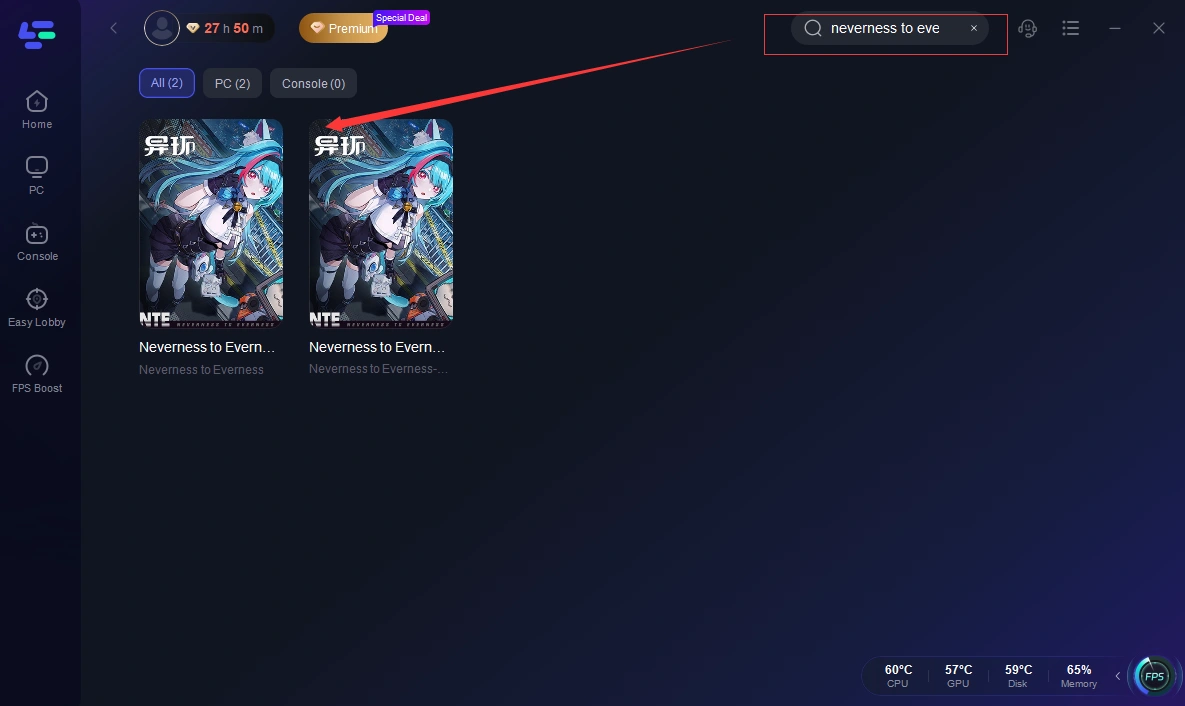
Step 2: Open LagoFast, then click the PC button on the left and search Neverness to Everness in the search bar, and click it after it appears.
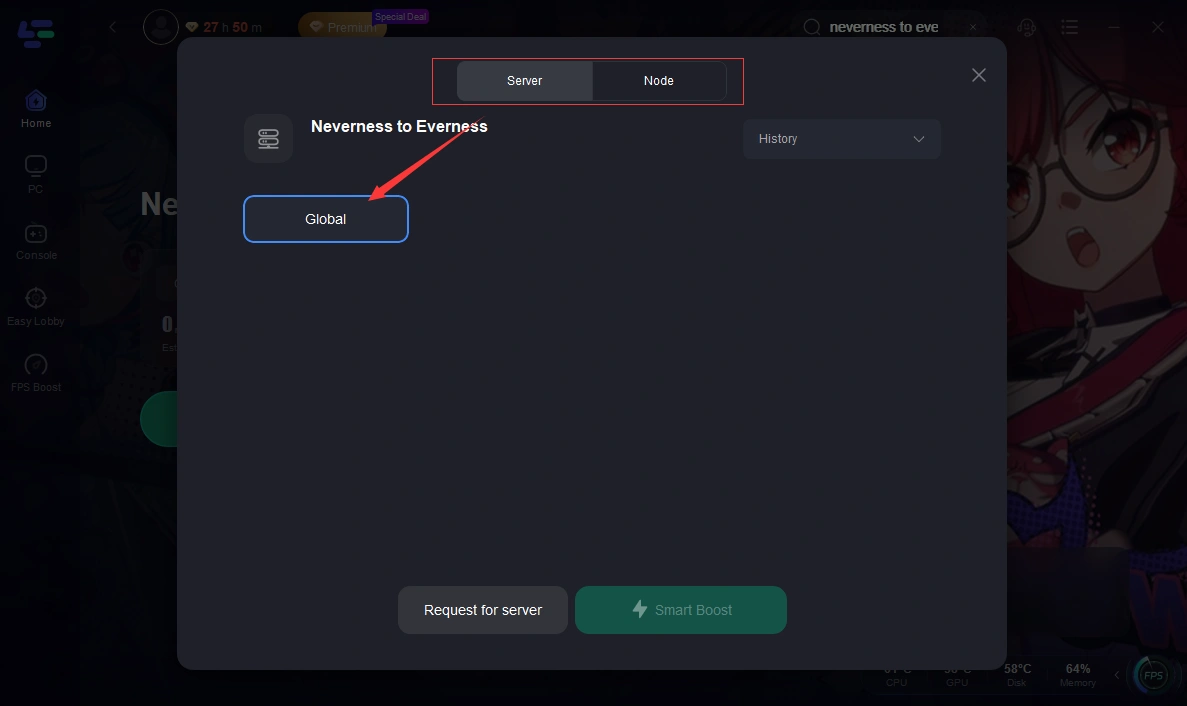
Step 3: Click on “Server” to change to a better server that ensures a better gaming experience, then click on “Smart Boost” to fix lag & high ping issues.
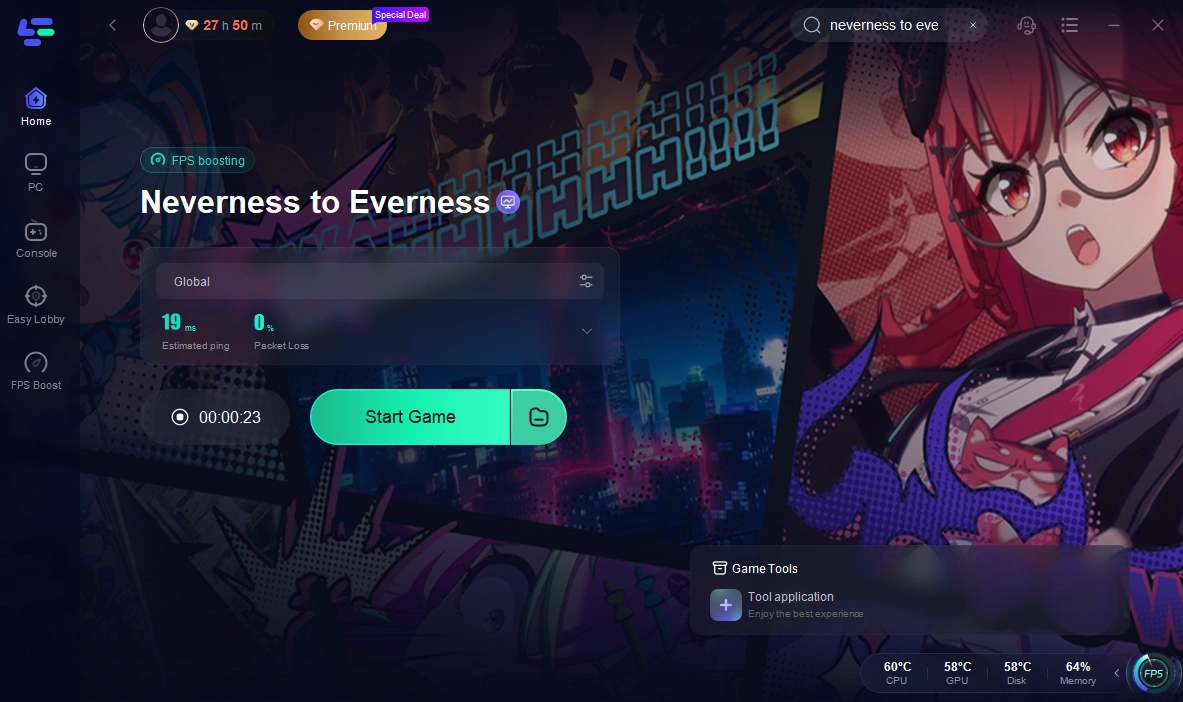
Step 4: Check the specific game ping, packet loss, and multiple path connections on the right side. Finally, click “Start Game” to play the game.
Tutorial: Use the LagoFast Mobile to Enjoy a Smooth Mobile Gaming Experience:
Step 1: Search “LagoFast Mobile booster” in the Google App Store or Apple App Store. Alternatively, click here to download the APK File.
Step 2: Click the “Download” button, then install and launch “LagoFast Mobile Booster.”
Step 3: Start Neverness to Everness, then switch to LagoFast Mobile and search for it.
Step 4. Select and click Neverness to Everness in the interface.
Step 5: Enter the server selection interface, where you can change to a stable server, then click the “Boost” button to fix lag, high ping, and enhance the gaming experience
Step 6: Finally, go back to Neverness to Everness and start playing it without any lag.
PC Solution 1: Update Graphics Drivers
Your GPU needs the latest instructions to render complex lighting.
Step 1: Identify your GPU (NVIDIA, AMD, or Intel).
Step 2: Visit the official manufacturer’s website.
Step 3: Download the latest "Game Ready" driver.
Step 4: Run the installer and select "Clean Install" if possible.
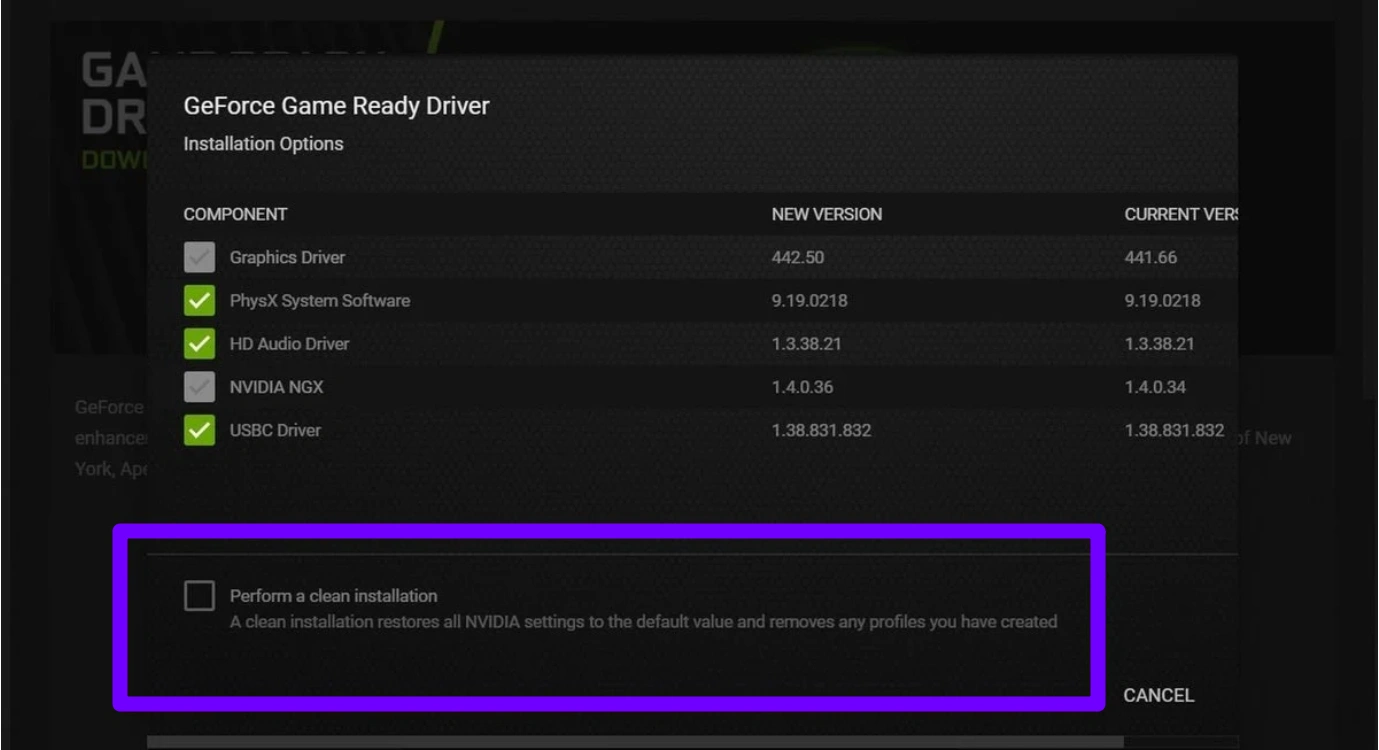
Step 5: Restart your PC and launch Neverness to Everness.
PC Solution 2: Change DNS Settings
Standard ISP DNS servers are often slow and contribute to Neverness to Everness high ping.
Step 1: Open "Control Panel" and go to "Network and Sharing Center."
Step 2: Click "Change adapter settings."
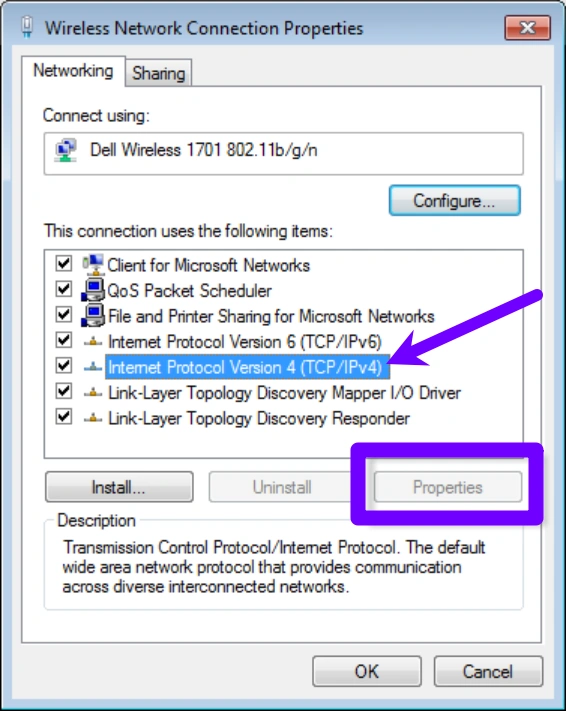
Step 3: Right-click your connection and select "Properties."
Step 4: Select "Internet Protocol Version 4 (TCP/IPv4)" and click Properties.
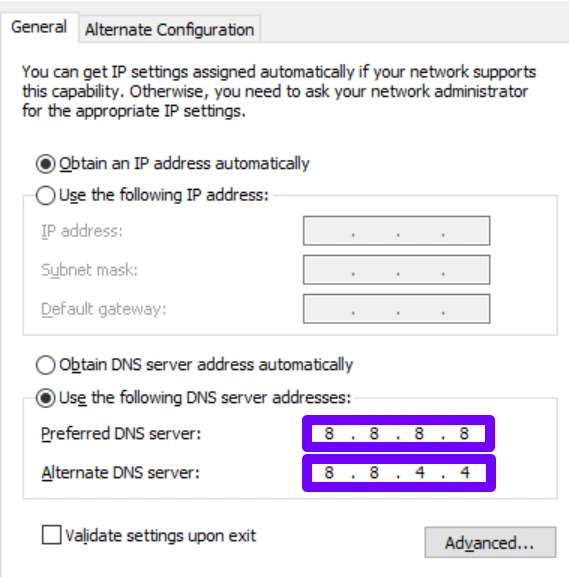
Step 5: Enter 8.8.8.8 (Primary) and 8.8.4.4 (Secondary) for Google DNS.
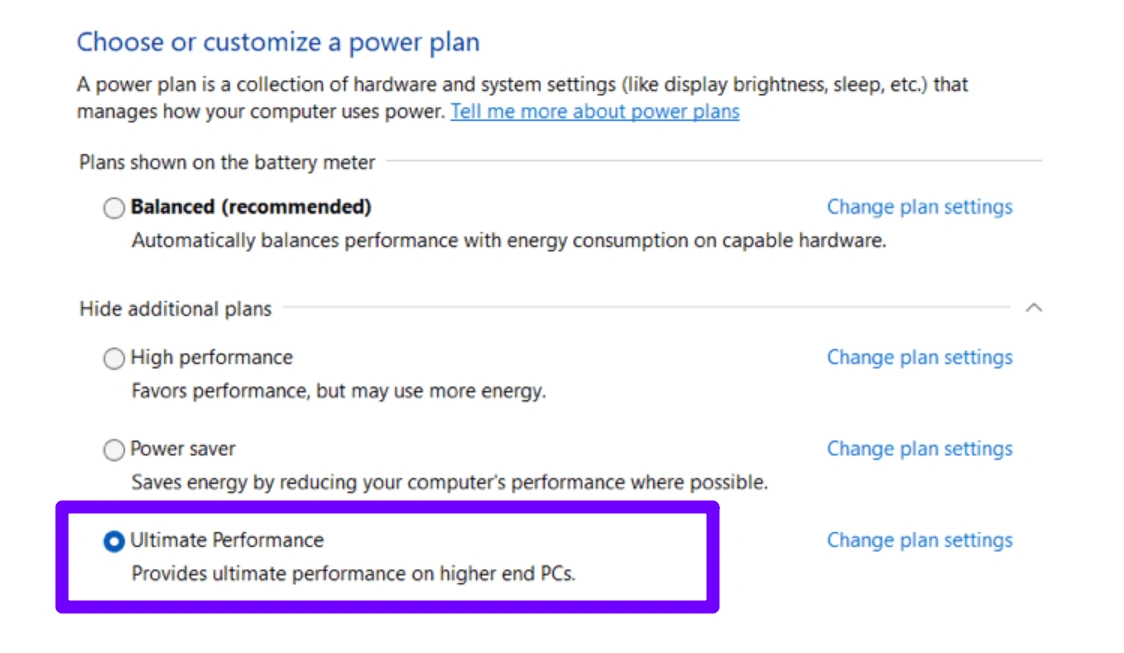
PC Solution 3: Set Windows Power Plan to "High Performance"
Windows often limits your CPU speed, which acts as a hidden cause of Neverness to Everness lag.
Step 1: Type "Choose a power plan" in the Windows search bar.
Step 2: Click on "Additional power settings."
Step 3: Select the "High Performance" or "Ultimate Performance" circle.
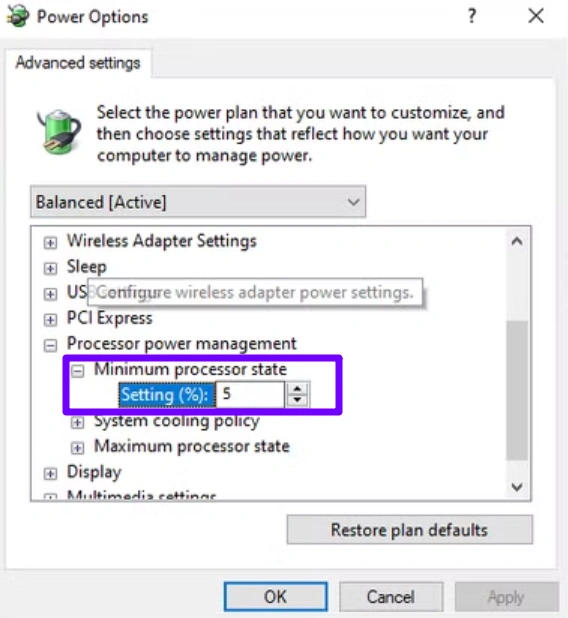
Step 4: Go to "Change plan settings" and select "Advanced power settings."
Step 5: Ensure "Minimum processor state" is set to 100%.
PC Solution 4: Verify Game Files
Corrupted data can cause the game to stutter while trying to load assets.
Step 1: Open the Neverness to Everness Launcher or your game platform.
Step 2: Go to the game settings or library entry.
Step 3: Select "Verify" or "Repair."
Step 4: Wait for the system to scan and redownload missing files.
Step 5: Launch the game to check if the stuttering persists.
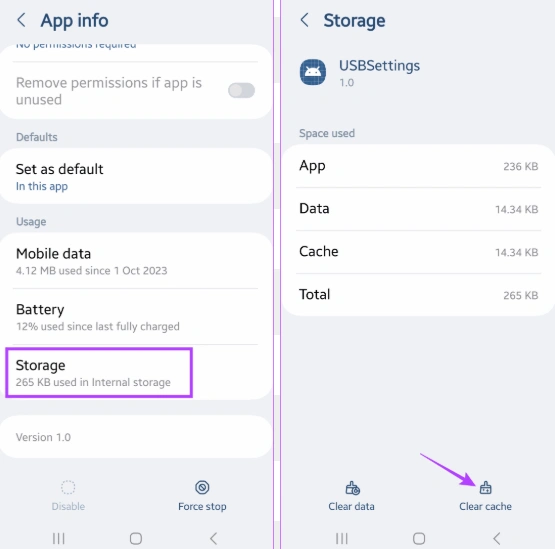
Mobile Solution 1: Clear Cache and Background Apps
Excessive data in the cache can slow down the game's ability to fetch new assets.
Step 1: Open your phone "Settings."
Step 2: Navigate to "Apps" or "App Management."
Step 3: Find "Neverness to Everness" in the list.
Step 4: Tap "Storage" and select "Clear Cache" (do not clear data).
Step 5: Close all other open apps before restarting the game.
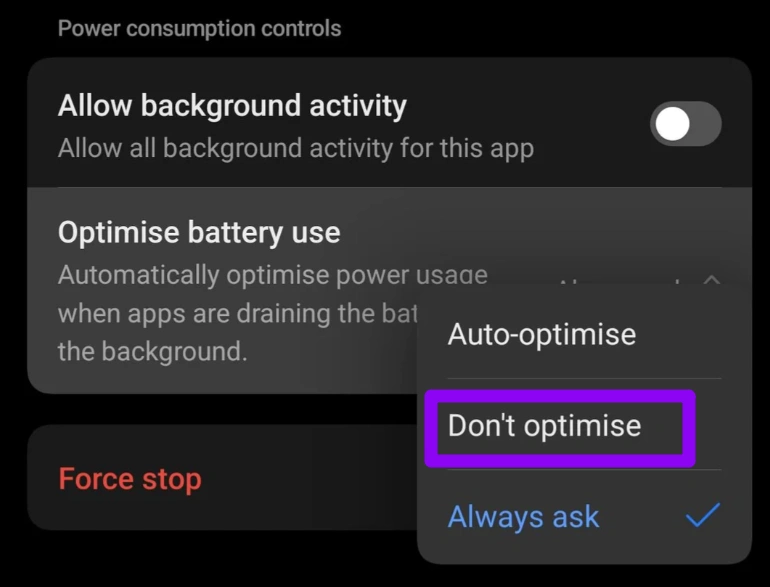
Mobile Solution 2: Disable Battery Optimization
Your phone may be "starving" Neverness to Everness of power to preserve the battery.
Step 1: Go to "Settings" and select "Battery."
Step 2: Find "App Battery Management" or "Optimized Battery Usage."
Step 3: Locate Neverness to Everness and set it to "Don't Optimize" or "Allow Background Activity."
Step 4: Ensure "Lower Power Mode" is turned off in your quick settings.
Step 5: Launch the game and test the stability.
Mobile Solution 3: Use 5GHz Wi-Fi Band
The 2.4GHz band is crowded with interference from other devices, causing Neverness to Everness high ping.
Step 1: Access your Wi-Fi settings.
Step 2: Look for your network name with a "-5G" suffix.
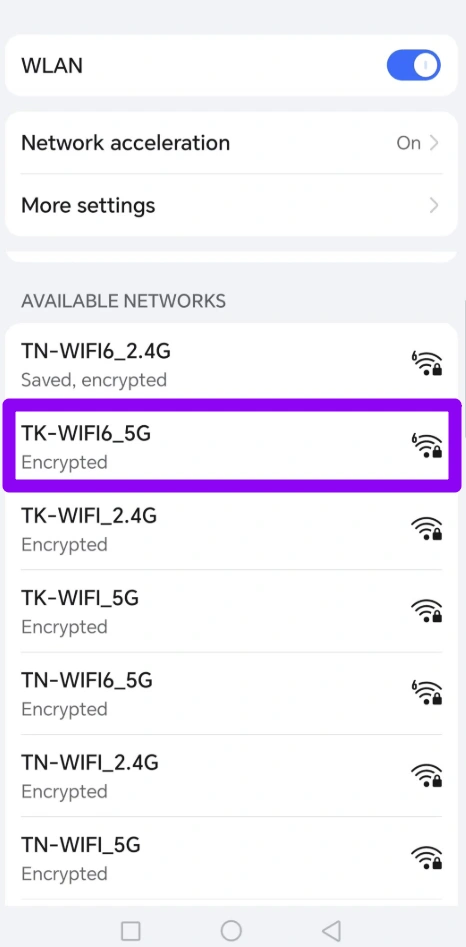
Step 3: Connect to this band if your router supports it.
Step 4: Stay in the same room as the router for the best signal.
Step 5: Disable "Bluetooth" as it can interfere with some mobile Wi-Fi antennas.
Mobile Solution 4: Adjust In-Game Graphic Presets
Sometimes the simplest Neverness to Everness lag fix is just lowering the load on your mobile GPU.
Step 1: Open Neverness to Everness and go to the "Settings" menu (gear icon).
Step 2: Navigate to the "Graphics" or "Visuals" tab.
Step 3: Set "Resolution" and "Shadow Quality" to Medium or Low.
Step 4: Cap the "Frame Rate" at 30 or 60 to prevent thermal throttling.
Step 5: Turn off "Motion Blur" and "Anti-Aliasing" to free up resources.
Conclusion
Neverness to Everness lag and high ping issues are common due to the game’s demanding engine, online features, and global server structure. While basic tweaks like lowering graphics or switching networks may offer small improvements, they don’t solve the root problem. If you want a stable, long-term fix, LagoFast stands out as the most effective Neverness to Everness lag reducer and ping reducer across PC and mobile. With intelligent routing and one-click optimization, it delivers smoother combat, faster response times, and a noticeably better overall experience in Hethereau.

Boost Your Game with LagoFast for Epic Speed
Play harder, faster. LagoFast game booster eliminates stutter and lags on PC, mobile, or Mac—win every match!
Quickly Reduce Game Lag and Ping!
Boost FPS for Smoother Gameplay!