
Neverness to Everness (NTE) is one of the most anticipated open-world action RPGs of 2026, developed by Hotta Studio and published by Perfect World Games. Built on Unreal Engine 5, it drops players into the sprawling supernatural city of Hethereau, where anomalies, combat, exploration, and unexpected encounters await. The title has seen multiple closed beta and Co-Ex tests on PC, mobile, and console platforms as part of its development journey.
At its core, NTE is an online connected experience—but with all online games, connection issues can emerge, disrupting loading screens, matchmaking, and gameplay continuity. This complete guide breaks down the common connection problems players encounter, how to check server status, why these problems happen, and how to fix them on Steam/PC — plus additional network fixes and enhancements that make your experience smoother.

- ✅ Reduce Lag and High Ping.
✅ Boost FPS at the Same Time.
✅ Support 2000+ Popular Online Games.
✅ Change Server without Latency.
✅ Boost Game Loading Speed.
Part 1: Common Connection Issues in Neverness to Everness
Part 2: How to Check Neverness to Everness server status
Part 3: What Causes Neverness to Everness Connection Issues on PC?
Part 4: How to Fix Neverness to Everness Can’t Connect Online on Steam
Part 5: Enhance Game Experience by Using LagoFast Game Booster
Part 6: Additional Network Fixes for Neverness to Everness Connection Errors
Part 1: Common Connection Issues in Neverness to Everness
In Neverness to Everness, online issues can disrupt your adventure in a few specific ways. Here are the most common problems you might encounter.
Server Timeout or Login Failure
You may be unable to enter the world, facing a persistent loading screen or an error stating the connection has timed out before the game even begins.
Sudden Disconnection During Play
While exploring or in a mission, the connection can drop unexpectedly. This often returns you to the main menu and may result in lost progress.
Matchmaking or Co-op Joining Errors
Attempts to team up with other players can fail. This usually indicates a breakdown in communication between your game and the matchmaking servers.
In-Game Lag and Desync
Even with a connection, high latency can cause problems like rubberbanding (where your character snaps back), delayed skill activation, or general stuttering during movement and combat.
These connectivity challenges are especially common in ambitious online titles like Neverness to Everness during its early phases. The game's large, dynamic world requires constant real-time synchronization of player positions, events, and AI, which places significant demands on both the servers and your network.
Part 2: How to Check Neverness to Everness server status
Before troubleshooting your own setup, first check if the problem is on the game's end. Here’s how to quickly identify a server-side issue.
Check Official Sources
Visit the official Neverness to Everness website and follow its social media channels. During tests like the current “Co-Ex Test,” the team posts maintenance schedules and server status updates there first.
Monitor Player Communities
Look at the game’s official Discord, subreddit, or community forums. If multiple players are reporting the same login failures or disconnections at the same time, the issue is likely server-related.
Use Third-Party Status Tools
While NTE may not have a live status page, sites like Downdetector can show a spike in problem reports. A sudden increase in reports often indicates a wider server outage rather than a local issue.
Checking these sources can save you time. If the servers are down, no amount of local troubleshooting will help until the developers resolve it.
Part 3: What Causes Neverness to Everness Connection Issues on PC?
Connection issues in Neverness to Everness can arise from several sources, particularly during its testing phase. Here are the most likely causes.
1. Server Load During Testing
The game is currently in closed testing (like the Co-Ex Test from February 6–20, 2026). These periods often experience server strain, leading to timeouts or disconnections as traffic spikes and adjustments are made.
2. Local Network Problems
An unstable home network—due to Wi-Fi interference, router congestion, or ISP slowdowns—can delay or lose data packets. This results in lag, rubberbanding, or sudden drops from the game.
3. Firewall or Antivirus Interference
Security software, including Windows Firewall, may incorrectly block the game’s connection to its servers, preventing a stable login or causing mid-session disconnects.
4. Outdated Game or System Software
Running an old version of the game client, or outdated network/windows drivers, can create compatibility issues that disrupt the initial connection handshake with the servers.
5. ISP Routing or Peering Issues
Sometimes the data route between your Internet provider and the game's servers is inefficient, especially during peak hours. This can cause persistently high ping or unstable connections, even with a strong local signal.
Understanding which factor is affecting you allows for a focused fix, saving time and effort.
Part 4: How to Fix Neverness to Everness Can’t Connect Online on Steam
If you're unable to connect to Neverness to Everness on Steam, follow these steps in order to resolve most common PC-related issues.
1. Update the Game
First, ensure the game is fully updated in your Steam library. During tests like the Co-Ex Test, frequent patches are released that are essential for connectivity.
2. Run Steam as Administrator
Right-click the Steam shortcut and select "Run as administrator." This grants necessary network permissions that can resolve connection blocks.
3. Verify Game File Integrity
In Steam, right-click the game, go to Properties > Installed Files, and select "Verify integrity of game files." This replaces missing or corrupted files that may prevent connecting.
4. Adjust Firewall and Antivirus
Add exceptions in Windows Firewall and your security software for the Neverness to Everness executable and Steam. These programs sometimes mistakenly block the game's network access.
5. Reset Your Local Network
Open Command Prompt as administrator and run:
text
ipconfig /flushdns
netsh winsock reset
Then restart your PC. This clears outdated network data that can interfere with connections.
6. Switch to a Wired Connection
If possible, connect directly to your router with an Ethernet cable. Wired connections are far more stable for online gaming than Wi-Fi.
7. Change Your DNS Servers
In your network settings, switch to a public DNS like Google (8.8.8.8, 8.8.4.4) or Cloudflare (1.1.1.1). This can bypass slow or unreliable DNS from your ISP.
Applying these steps sequentially addresses the majority of connection failures on Steam, from simple patches to deeper network configuration issues.
Part 5: Enhance Game Experience by Using LagoFast Game Booster
Online games like NTE aren’t just about hardware capability — they rely on good network routing and stable connections. One way to enhance your gameplay stability and connection performance is by using a dedicated game network optimizer like LagoFast(LagoFast Game Booster - Get No Lag and Lower Ping) Game Booster.
Here’s how LagoFast can help:
- Low-latency routing: Optimizes the path between your PC and NTE servers, reducing lag and packet loss.
- Network prioritization: Gives your game higher priority over other background traffic.
- Cross-platform support: Works on PC and, for mobile play, via the LagoFast mobile booster.
How to use LagoFast Game Booster on PC
1. Download and install LagoFast from the official website.
2. Open LagoFast and search for Neverness to Everness in the Game Library.
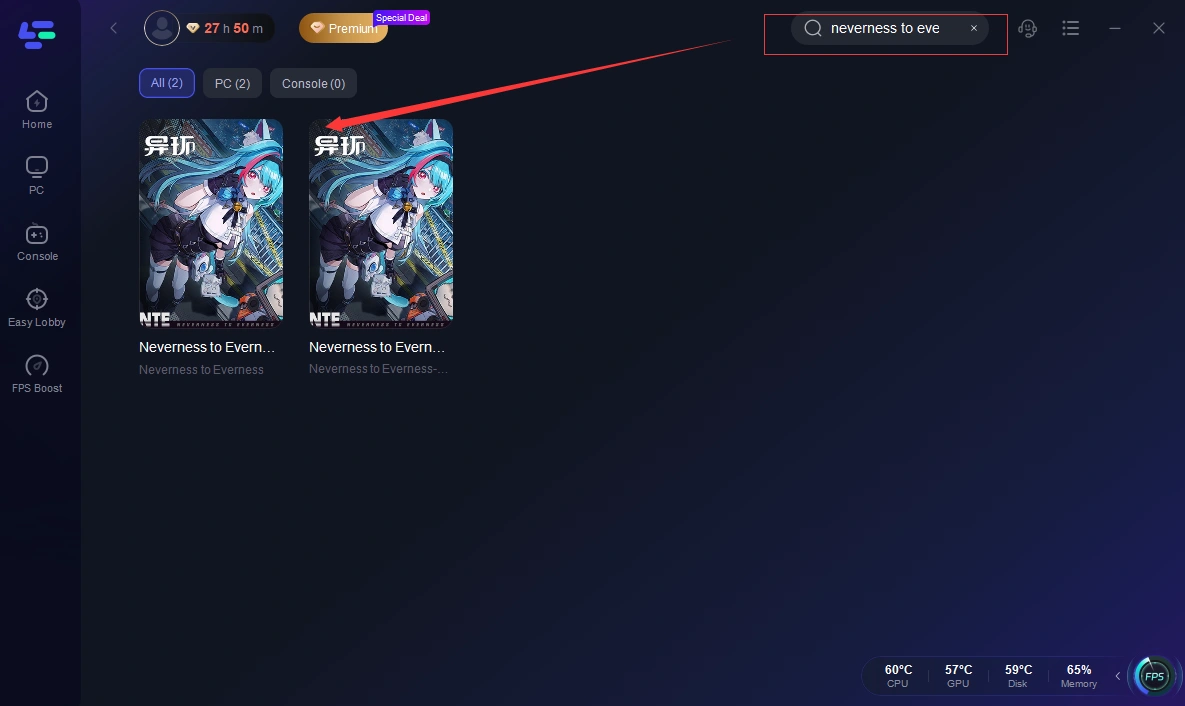
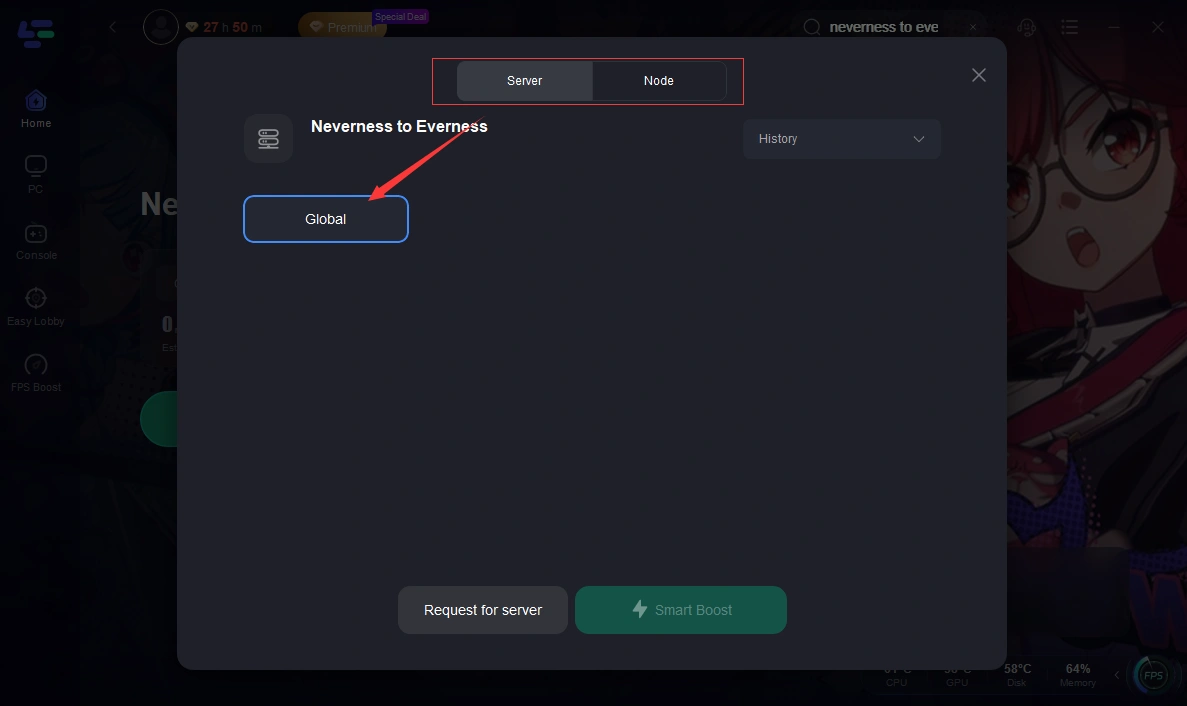
3. Choose your preferred server region — LagoFast automatically lists the lowest-ping nodes first.
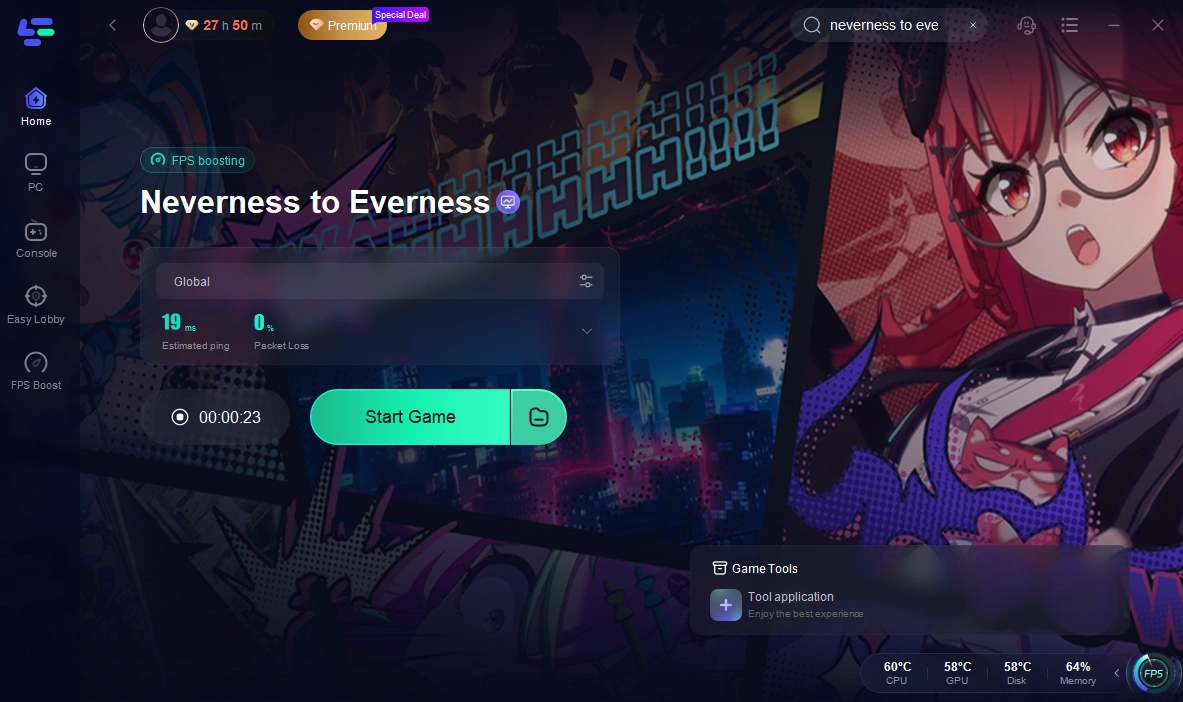
4. Launch NTE through LagoFast to enjoy smoother connectivity and reduced lag.
How to use LagoFast Game Booster on Mobile
Step 1: Search and download LagoFast Mobile Booster from the App Store or Google Play.Or scan the QR code below to start a free trial.

Step 2: Launch LagoFast Mobile Booster, then search Neverness to Everness in LagoFast Mobile Booster.
Step 3: Choose the Server and Routes you like, then click the Boost button.
Step 4: After completing the above network optimization settings, the FPS drops issue will be easily resolved.
Part 6: Additional Network Fixes for Neverness to Everness Connection Errors
If basic troubleshooting hasn't fixed your connection problems in Neverness to Everness, these advanced network adjustments can help.
1. Enable QoS on Your Router
Access your router settings and enable Quality of Service (QoS). This feature prioritizes gaming traffic over other activities like streaming or downloads, which can reduce lag and stabilize your connection.
2. Forward Gaming Ports
While NTE’s specific ports aren't yet listed, forwarding common gaming ports (both TCP and UDP) in your router can improve connectivity. Refer to your router’s manual for instructions.
3. Test with a Mobile Hotspot
Temporarily connect your PC to a mobile hotspot. If the game runs smoothly, the issue likely lies with your home internet connection or ISP.
4. Update Your Router's Firmware
An outdated router can cause performance issues. Check the manufacturer’s website for firmware updates, as these often include stability and security improvements.
These steps address deeper network-level issues that standard fixes may miss, helping to resolve persistent online problems.
Part 7: FAQs
Q1: Why can’t I connect even though the servers should be up?
This is often a local network configuration issue — firewall blocks, DNS cache problems, or router interference can stop connections even when servers are online.
Q2: Are there known region restrictions?
Currently, some players note regional variance in access and server priority — especially during test phases. Official regional announcements (e.g., from Perfect World or NTE channels) indicate global test timing but not specific launch servers per region.
Q3: Does progress in Co-Ex tests carry over?
No — beta and test progress typically gets wiped at the conclusion of tests, as stated in official beta messaging.
Q4: Is a wired connection better than Wi-Fi for NTE?
Yes — wired connections are generally more stable and less prone to packet loss, which improves real-time gameplay reliability.
Q5: Will connection issues be fixed at launch?
Game servers and infrastructure are commonly scaled up for full launches after beta phases. Many connection problems during testing are normal and tend to improve over time with patches and server scaling.
Conclusion
Connection problems in Neverness to Everness are often due to network instability, server load during tests, or local setup issues—each of which can be resolved. Start by verifying server status, then optimize your PC and network settings. For persistent issues, a tool like LagoFast Game Booster can enhance routing and prioritize game traffic for a more stable connection.
Whether you're participating in early testing or waiting for the full release, a reliable connection keeps you engaged in the world of Hethereau without interruption. Prepare your setup, fine-tune your settings, and dive in.
Boost Your Game with LagoFast for Epic Speed
Play harder, faster. LagoFast game booster eliminates stutter and lags on PC, mobile, or Mac—win every match!
Quickly Reduce Game Lag and Ping!
Boost FPS for Smoother Gameplay!