
NBA 2K26 is set to be one of the biggest sports games of 2025, but like many major releases, players are already concerned about game stability. From sudden crash-to-desktop issues on PC to console freezes mid-game, these interruptions can ruin the basketball experience. This article explores why the game crashes and provides proven fixes to keep you on the court.

Part 1: Why Does NBA 2K26 Crash?
Part 2: All-in-one Solution to Fix NBA 2K26 Crashing — PC & Console
Part 3: Fix NBA 2K26 Crashing — PC Solutions
Part 4: Fix NBA 2K26 Crashing — Console Solutions
Part 1: Why Does NBA 2K26 Crash?
Even though NBA 2K26 is built with next-gen optimizations, there are multiple factors that can cause unexpected crashes. Here are the key reasons:
- Outdated Graphics Drivers: Missing or incompatible GPU drivers often cause instability.
- Corrupted Game Files: Damaged or missing installation files can trigger sudden shutdowns.
- Overheating Hardware: Long gaming sessions push GPUs and CPUs to thermal limits, leading to automatic game closures.
- Insufficient System Resources: Running NBA 2K26 on low-spec PCs or with limited RAM/VRAM may cause freezes and desktop crashes.
- Background Applications: Apps like Discord overlays, web browsers, or antivirus software may interfere with the game engine.
- Console Firmware Issues: Outdated system software on PlayStation, Xbox, or Switch can lead to instability.
- Network Conflicts: Online connectivity errors sometimes appear as crashes or forced restarts.
- Overclocking or Mods: Hardware tweaks or unofficial modifications often destabilize gameplay.
Part 2: All-in-one Solution to Fix NBA 2K26 Crashing — PC & Console
One effective way to reduce NBA 2K26 crashing and improve stability is LagoFast, a game booster designed for cross-device performance. Unlike other tools, LagoFast supports PC, PlayStation, Xbox, and Switch, giving players a universal solution. Its key features include:
- Cross-Device Optimization – Works seamlessly across consoles and PC.
- Lag Reduction – Minimizes latency and stabilizes gameplay.
- Smart Routing – Uses advanced network paths to prevent sudden disconnections.
- Easy-to-Use Interface – Quick setup for both beginners and pros.
- Crash Prevention – Reduces performance spikes that often trigger crashes.
With LagoFast, players can maintain smooth gameplay and avoid unexpected crashes across platforms.
Tutorial To Use LagoFast To Fix NBA 2K26 Crashing on PC:
Step 1: Download LagoFast by clicking the Download button below and activate the free trial.
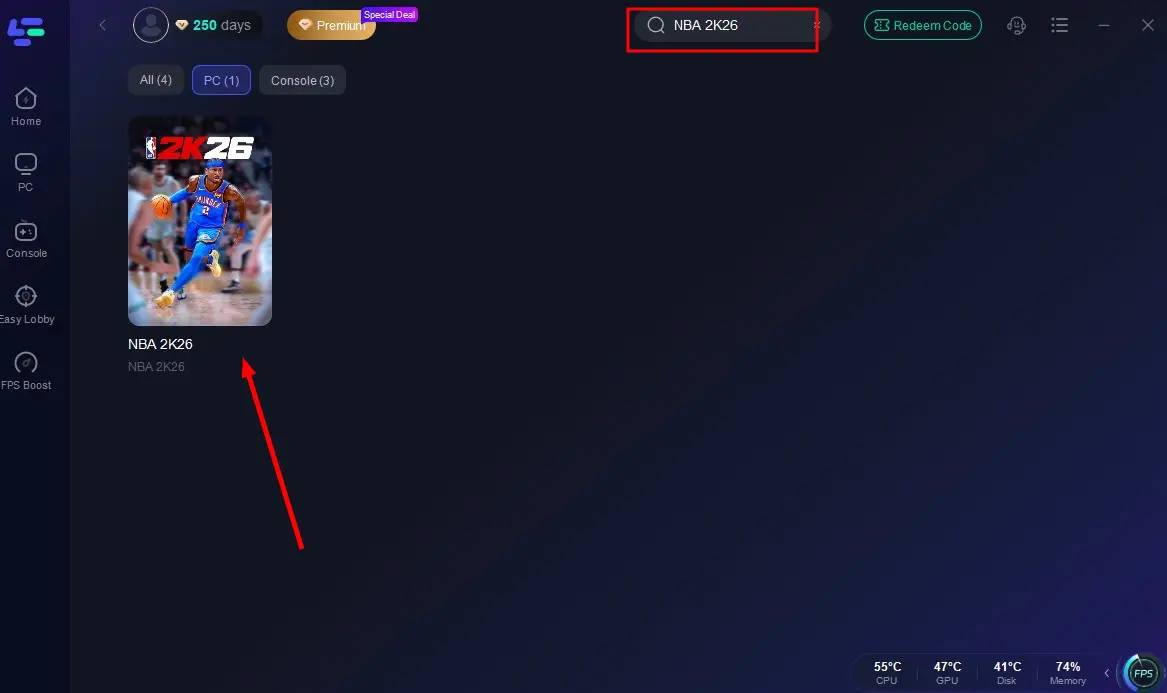
Step 2: Launch LagoFast and search for NBA 2K26 in the search bar.
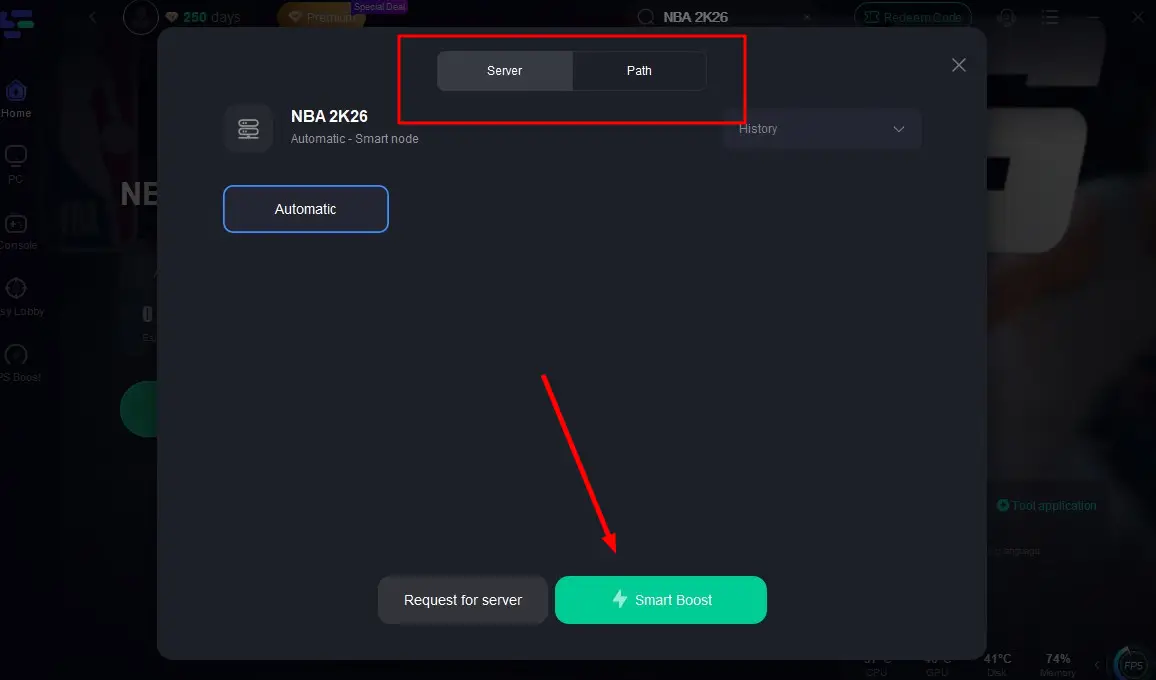
Step 3: Select the server with the best connection and choose the optimal Node. Click "Smart Boost" to start optimizing your connection.
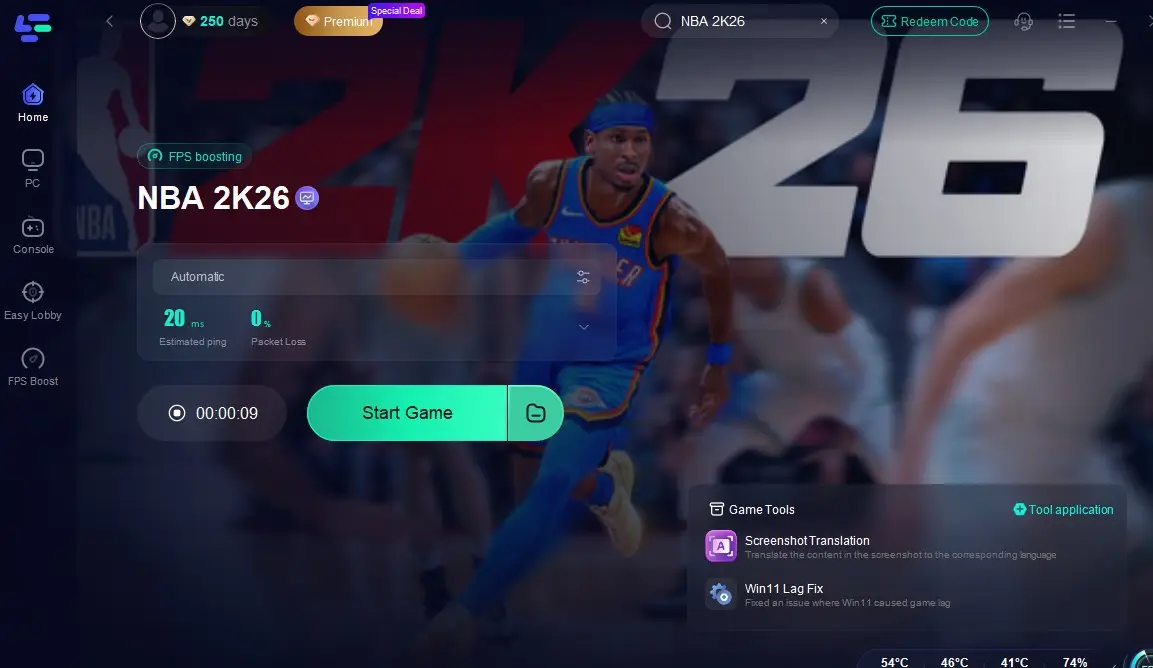
Step 4: Check real-time stats such as ping, packet loss, and network performance, then click the "Start Game" to play NBA 2K26 without any lag!
Tutorial to use LagoFast Box to Fix NBA 2K26 Crashing Issues:
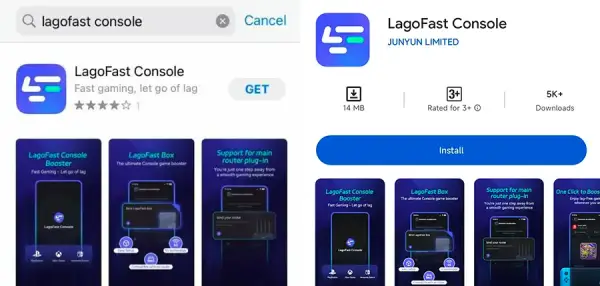
Step 1: Download the LagoFast Console App on your phone to control the LagoFast Box.
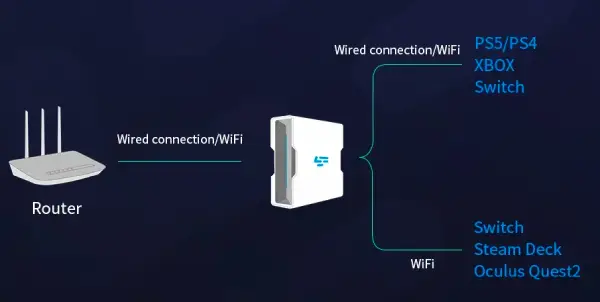
Step 2: Establish a connection between your LagoFast Box, router, and console, choosing between a wired or wireless connection.
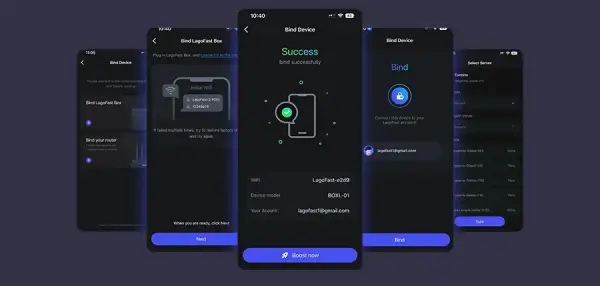
Step 3: Launch the LagoFast Console App and boost NBA 2K26. Once you have completed the binding process with the LagoFast Box, proceed to boost this game within the LagoFast Console App.
Part 3: Fix NBA 2K26 Crashing — PC Solutions
Solution 1: Update Graphics Drivers
Outdated GPU drivers are the leading cause of NBA 2K26 crash-to-desktop errors.
Step 1: Identify your GPU (NVIDIA, AMD, or Intel).
Step 2: Visit the official driver website for your GPU brand.
Step 3: Download the latest version compatible with your operating system.
Step 4: Install the update, ensuring you choose the "clean installation" option if available.
Step 5: Restart your PC to apply changes.
Step 6: Relaunch NBA 2K26 to check if stability improves.
Solution 2: Verify Integrity of Game Files (Steam/Launcher)
Corrupt or missing files often cause NBA 2K26 to crash.
Step 1: Open Steam or the game launcher you used to install NBA 2K26.
Step 2: Navigate to your Library and right-click on NBA 2K26.
Step 3: Select Properties.
Step 4: Choose Installed Files and click Verify integrity of game files.
Step 5: Wait as the launcher scans and repairs corrupted data.
Step 6: Restart your PC and try running the game again.
Solution 3: Adjust Graphics Settings
Overloaded hardware can cause sudden crashes.
Step 1: Launch NBA 2K26 and enter Settings.
Step 2: Lower the resolution to match your monitor’s native level.
Step 3: Disable demanding options like Ray Tracing, Motion Blur, and High-Quality Shadows.
Step 4: Reduce Anti-Aliasing from High to Medium or Low.
Step 5: Cap FPS at 60 to reduce strain on your system.
Step 6: Save settings and restart the game.
Solution 4: Disable Background Applications
Third-party apps may interfere with NBA 2K26.
Step 1: Press Ctrl + Shift + Esc to open Task Manager.
Step 2: Check for heavy apps like Discord overlays, streaming software, or web browsers.
Step 3: Right-click and select End Task for unnecessary programs.
Step 4: Disable startup apps via Task Manager’s Startup tab.
Step 5: Temporarily turn off antivirus if it conflicts with the game.
Step 6: Relaunch NBA 2K26 with minimal background activity.
Part 4: Fix NBA 2K26 Crashing — Console Solutions

Solution 1: Clear Cache on PlayStation
Cache buildup can trigger freezing and crashes.
Step 1: Power off your PlayStation completely.
Step 2: Unplug the power cable from the back.
Step 3: Wait at least 30 seconds.
Step 4: Reconnect the cable.
Step 5: Power on the console.
Step 6: Launch NBA 2K26 to see if performance improves.
Solution 2: Rebuild Database on PlayStation
Corrupted data can destabilize games.
Step 1: Turn off your PlayStation.
Step 2: Hold the power button until you hear two beeps (Safe Mode).
Step 3: Connect your controller via USB.
Step 4: Select Rebuild Database from the menu.
Step 5: Wait as the process reorganizes system files.
Step 6: Restart and relaunch NBA 2K26.
Solution 3: Clear Local Save Data on Xbox
Save data corruption is another common crash trigger.
Step 1: Go to Settings on your console.
Step 2: Navigate to Storage or Data Management.
Step 3: Select NBA 2K26 from the game list.
Step 4: Choose Clear local save data or Delete corrupted data.
Step 5: Resync with cloud saves if available.
Step 6: Restart your console and reopen NBA 2K26.
Conclusion
NBA 2K26 promises to deliver an incredible basketball simulation experience across PC, PlayStation, Xbox, and Switch. However, technical issues like random crashing can disrupt gameplay. By applying the right fixes, whether updating drivers on PC, clearing cache on consoles, or using LagoFast for cross-device optimization, players can greatly reduce crashes and enjoy a smooth gaming experience. Preparing your system before launch ensures NBA 2K26 runs at its full potential, letting you focus on the court rather than technical setbacks.
Boost Your Game with LagoFast for Epic Speed
Play harder, faster. LagoFast game booster eliminates stutter and lags on PC, mobile, or Mac—win every match!
Quickly Reduce Game Lag and Ping!
Boost FPS for Smoother Gameplay!