
If you're dealing with Meccha Chameleon outfit preset not working, the issue is often tied to how the preset was saved, imported, or loaded. As a result, switching outfits may stop working even though the preset file is still there.
Some of the most common issues include:
- Meccha Chameleon hotkey not working
- Meccha Chameleon saved outfit missing
- Meccha Chameleon import outfit not working
- Meccha Chameleon paint preset not applying
Most of these problems can be resolved by checking your preset settings, file location, or hotkey configuration. This guide covers the most common causes and shows you how to fix them step by step.

- ✅ Reduce Lag and High Ping.
✅ Boost FPS at the Same Time.
✅ Support 2000+ Popular Online Games.
✅ Change Server without Latency.
✅ Boost Game Loading Speed.
Why Your Meccha Chameleon Outfit Preset Is Not Working
Fix 1: Check If the Outfit Was Saved Correctly
Fix 2: Check the Preset File Location
Fix 4: Reimport the Paint Preset
Fix 5: Restart the Game and Tool
LagoFast - Best Meccha Chameleon One-Click Outfit Tool
Why Your Meccha Chameleon Outfit Preset Is Not Working
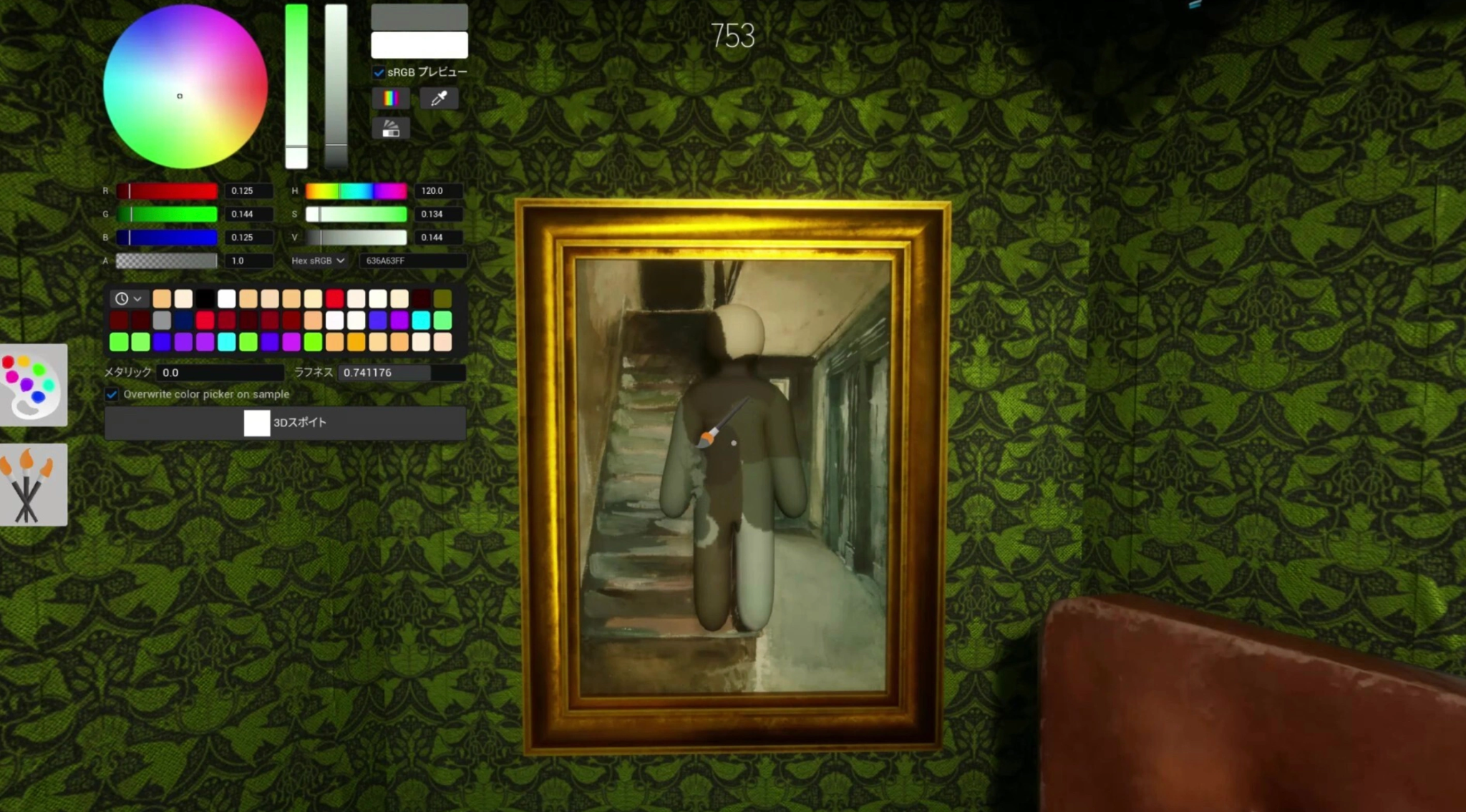
Most Meccha Chameleon preset issues usually come from setup mistakes or loading conflicts rather than broken features.
These problems are often related to how the preset was saved, where it is stored, or how the game is reading it.
The preset was not saved correctly
If the save didn’t fully complete, the game simply has nothing usable to load later. This is when you’ll see things like missing outfits or switches that do nothing at all.
In most cases, this leads to:
- Saved outfit missing
- One-click outfit not responding
- Quick outfit switch not working
Before moving on, always double-check that the preset actually appears in your saved list after creating it.
The file is in the wrong folder
Another common cause of Meccha Chameleon outfit file not found is simply a wrong directory . The preset might exist on your device, butif it’s not in the correct preset folder, the game or tool may not be able to detect it properly.
This usually happens when:
- The file is manually moved to the wrong location
- The import path doesn’t match the tool’s preset directory
- The folder isn’t being scanned properly
The hotkey conflicts with another key
If your Meccha Chameleon hotkey not working issue only happens during gameplay, the keybind is likely being intercepted somewhere else.
Typical conflicts come from:
- Overlay tools running in the background
- Screenshot or recording software
- Keyboard macro or remap tools
- Existing in-game controls using the same key
When this happens, the input never reaches Meccha Chameleon, so nothing triggers.
The game or tool needs to be restarted
Sometimes everything is set up correctly, but the system hasn’t refreshed yet.
A full restart usually fixes this because ithelps refresh the game state, which can make missing or unresponsive presets appear again.
Fix 1: Check If the Outfit Was Saved Correctly
Start with the most basic check — whether the preset actually exists in the first place. A lot of “not working” cases come down to a save that didn’t fully register.
Do this first:
- Save the outfit again
- Use a clear, unique name
- Wait for the save confirmation to finish
- Check if it shows up in your preset list
If Meccha Chameleon saved outfit missing still happens, don’t keep overwriting the same slot. Create a completely new preset to rule out corrupted data.
Fix 2: Check the Preset File Location
If you're dealing with Meccha Chameleon import outfit not working or the preset folder not showing, the file is usually just not where the game expects it to be.
Go through this checklist:
- Confirm the preset file actually exists
- Make sure it’s in a supported format
- Place it inside the correct Presets directory
- Check folder permissions (read/write access)
If something still doesn’t appear:
- Move the file back into the correct folder
- Refresh the preset list
- Try importing it again
Most “file not found” cases are just wrong folder placement.
Fix 3: Rebind the Hotkey
When Meccha Chameleon quick outfit switch not working, the problem is often a key conflict rather than the tool itself.
Try resetting it step by step:
- Open hotkey settings
- Assign a new key or combo
- Avoid keys already used by the game
- Save the changes
- Test it in gameplay (not menus only)
If it still doesn’t respond, temporarily turn off overlay apps or macro tools — they often steal input without showing it.
Fix 4: Reimport the Paint Preset
Sometimes the outfit loads fine, but the visuals don’t match. That’s usually a Meccha Chameleon paint preset not applying issue.
Fix it like this:
- Remove the current paint preset
- Import it again from scratch
- Make sure it matches the correct version
- Apply paint after loading the outfit if required
If there are version differences, the paint may not apply correctly or may behave inconsistently.
Fix 5: Restart the Game and Tool
If nothing else works, a full restart often clears hidden sync issues.
Do a clean restart:
- Close the game completely
- Exit Meccha Chameleon fully
- Reopen both
- Load your preset again
This forces everything to refresh and usually fixes:
- Import failures
- Missing presets
- Hotkey not responding
- One-click outfit issues
LagoFast - Best Meccha Chameleon One-Click Outfit Tool
Players who frequently switch outfits or test different cosmetic setups may find manual preset management a bit time-consuming, especially when dealing with imports or folder navigation.
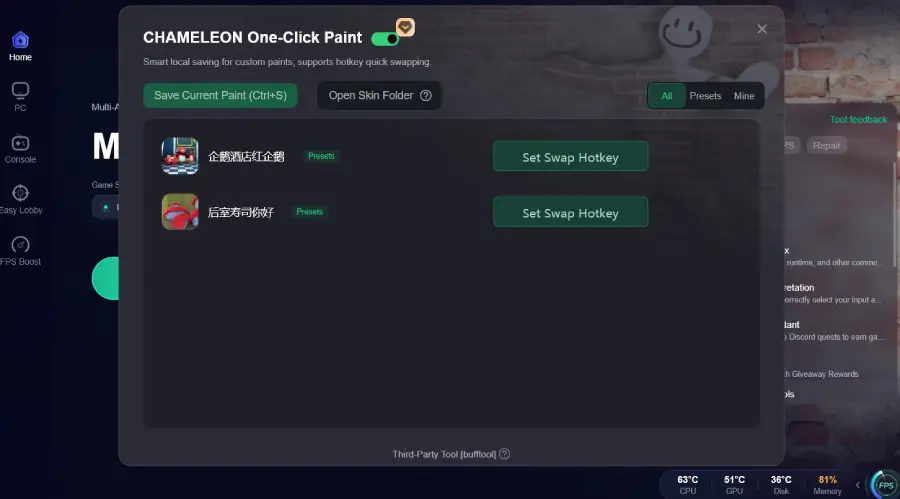
The LagoFast One-Click Paint Tool is already available and designed to simplify outfit management by reducing the need to constantly handle files or in-game menus.
Feature 1: One-Click Paint Save
Capture your current look instantly without rebuilding it from scratch. Instead of redoing sliders or color settings, you can save everything in a single action while staying in the customization screen.
- Save your current paint setup in one click
- Store presets as local files on your PC
- Keep designs backed up and ready for reuse anytime
Feature 2: Instant Hotkey Switching
Switch outfits directly during gameplay with simple key bindings. Once assigned, your saved presets can be triggered instantly without opening menus.
- Bind presets to custom hotkeys
- Switch outfits instantly in real time
- Reduce menu navigation and downtime
Feature 3: Easy Preset Sharing
Sharing custom looks with friends is straightforward and fast. You can quickly access your saved files and send them without extra steps.
- Access local preset files directly from the tool
- Share via Discord or other file transfer tools
- Friends can import with a simple drag-and-drop method
Important Note
This is a non-final demo version and may be updated in future releases, including changes to paint file formats that may not be compatible with this build.
When saving a paint preset, the tool records all brush strokes applied during the current match. During one-click application, these strokes are replayed to recreate the outfit effect, and longer painting sessions may result in longer switching time.
For accurate replication, the character’s pose during application should match the pose used when the paint was originally created.
How to Use LagoFast One-Click Paint tool:
Step 1: Click the Free Trial button to download and install LagoFast.
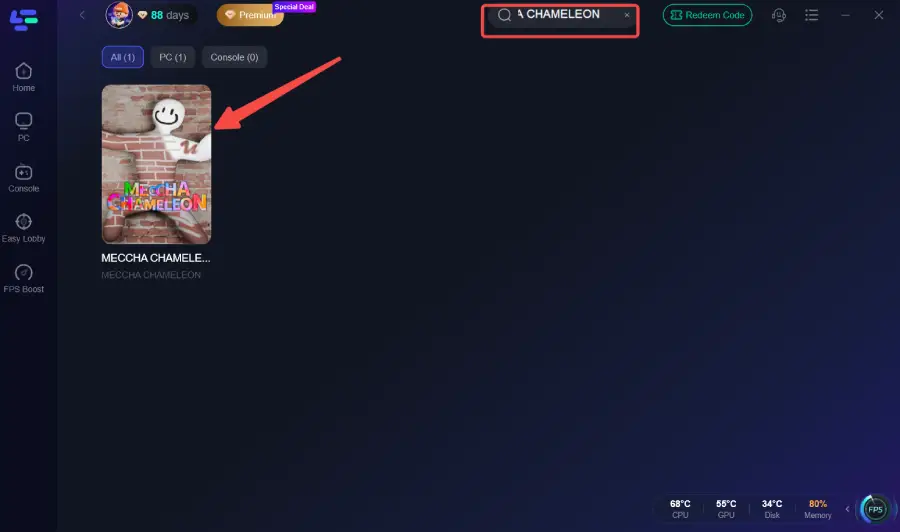
Step 2: After installation, search "Meccha Chameleon" in the search bar and select the game.
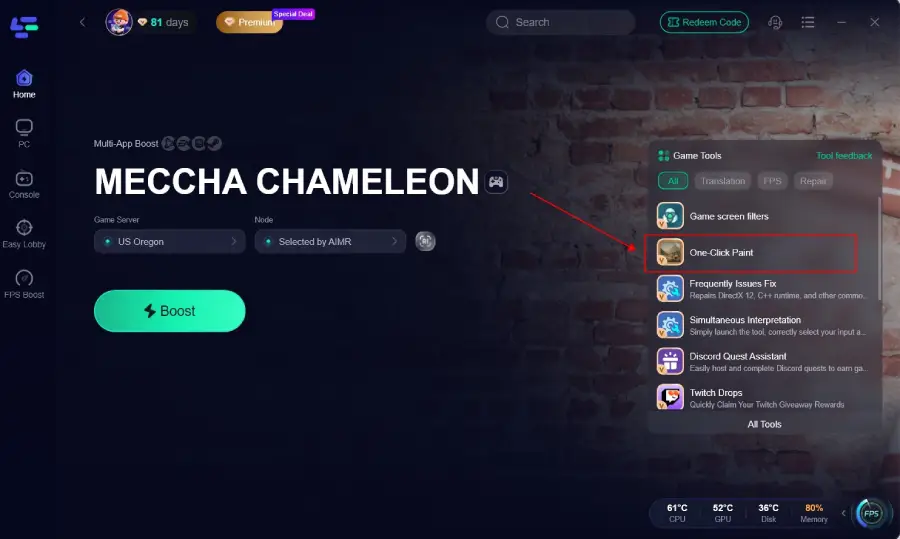
Step 3. Click the One-Click Paint Tool in the Game tool Section.
Step 4. Select the outfit you preset and click the One-Click Enable button to change your outfit.
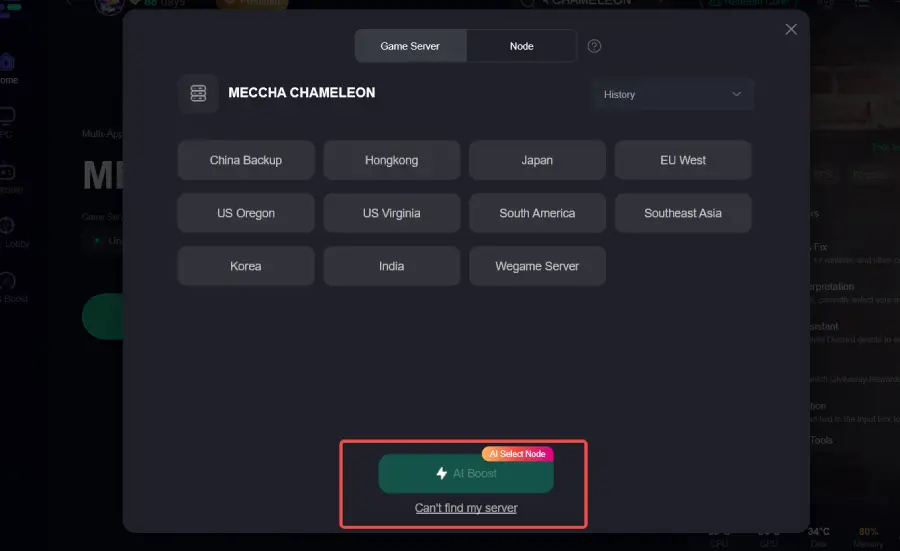
Step 5: Choose your preferred server node and click "Smart Boost" to start optimizing.
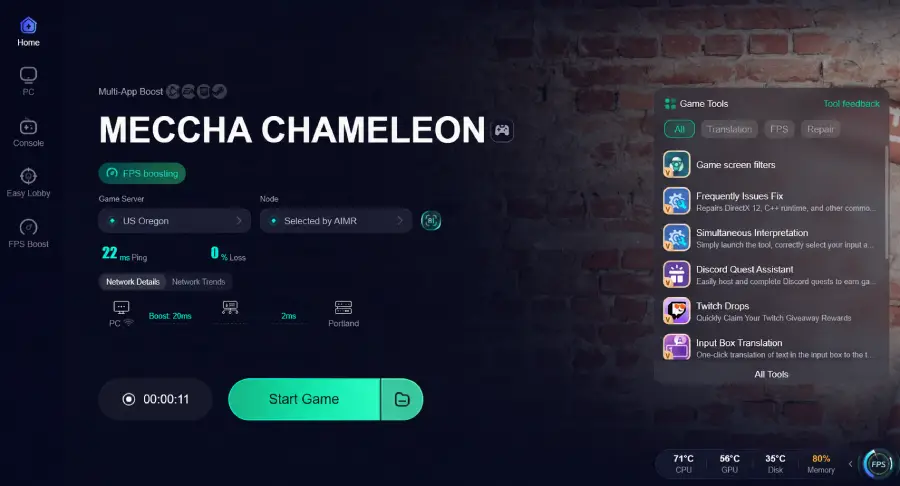
Step 6: Launch your game and enjoy smooth, optimized gameplay with lower ping and packet loss.
FAQ
Why is my saved outfit missing?
Usually caused by an incomplete save or the preset being stored in the wrong folder. Try saving it again and check your preset list.
Why does my hotkey not switch outfits?
Most of the time, another program or in-game control is using the same key. Rebinding the hotkey usually fixes it.
Why is my imported preset not showing?
This is often related to a wrong file location, unsupported format, or the preset list not refreshing. Restarting the game or tool can help.
Why does the wrong paint preset apply?
This can happen when the paint preset doesn’t match the current setup or wasn’t applied correctly. Reapplying it usually resolves the issue.
Final Thought
Most Meccha Chameleon outfit preset issues come from simple setup problems rather than broken features.
Once you identify the cause, most problems can be fixed quickly without trial and error. Following the steps above should help you get your presets working again.
Boost Your Game with LagoFast for Epic Speed
Play harder, faster. LagoFast game booster eliminates stutter and lags on PC, mobile, or Mac—win every match!
Quickly Reduce Game Lag and Ping!
Boost FPS for Smoother Gameplay!