
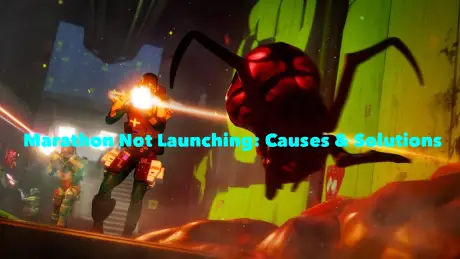
Marathon not launching has been causing frustration for many players in the current testing phase. The game might close before the main menu, freeze during server verification, or return to the desktop without any warning. Most of the time, this isn’t your PC—it's the game struggling with early startup verification. This guide will walk you through the main causes and actionable fixes to get Marathon running again.

- ✅ Reduce Lag and High Ping.
- ✅ Boost FPS at the Same Time.
✅ Support 2000+ Popular Online Games.
✅ Change Server without Latency.
✅ Boost Game Loading Speed.
Part 1: Why Marathon Is Not Launching
Part 2: How to Use LagoFast Fix Marathon Not Launching
Part 3: Step-by-step fixes for Marathon Not Launching
Part 1: Why Marathon Is Not Launching
Marathon requires online authentication as soon as you launch it. If this process fails, the client can close before even showing the main menu. Common reasons Marathon Not Launching occurs include:
1. Login Verification Timeout
Packet loss or network spikes during account authentication can make the login handshake fail, shutting down the game immediately.
2. Corrupted Startup Files
Interrupted downloads or patch errors can damage essential launch files, causing the client to exit as soon as it tries to start.
3. Anti-Cheat Loading Problems
If the anti-cheat system fails due to software conflicts or permission issues, Marathon may close silently without any message.
4. Unstable Network Routing
Even with fast internet, unstable routes to Marathon servers can prevent authentication from completing, resulting in an early shutdown.
Part 2: How to Use LagoFast Fix Marathon Not Launching
If Marathon not launching is happening because of login timeouts or unstable routing, a stable connection can make a big difference. LagoFast helps by optimizing the route to Marathon servers, lowering ping, reducing packet loss, and keeping latency stable so the game can complete its startup verification.
Tutorial to Use LagoFast
Step 1: Click the Free Trial button to download and install LagoFast.
Step 2: After installation, search "Marathon" in the search bar and select the game.
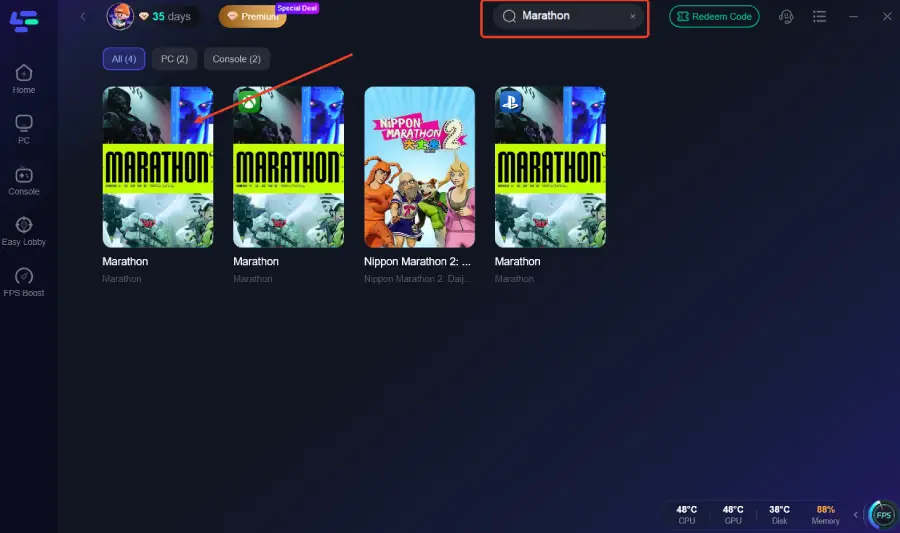
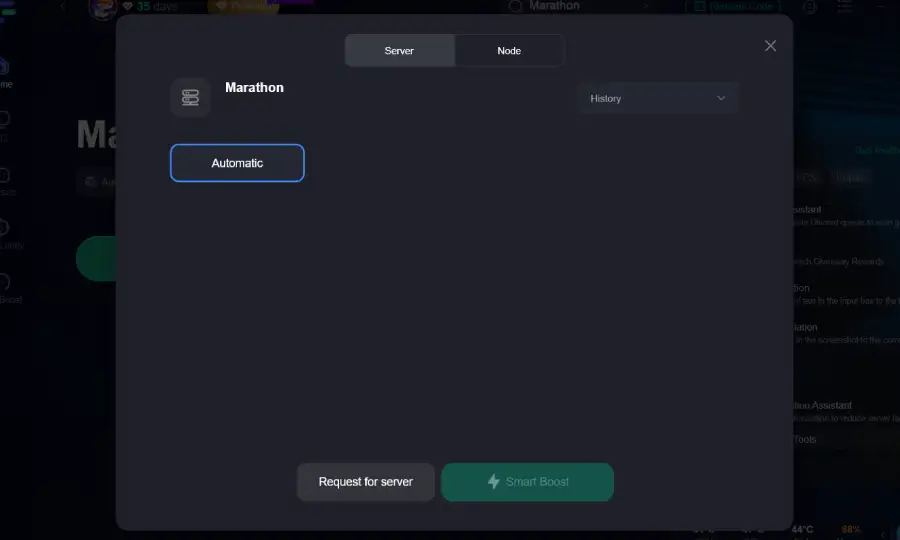
Step 3: Choose your preferred server node and click "Smart Boost" to start optimizing.
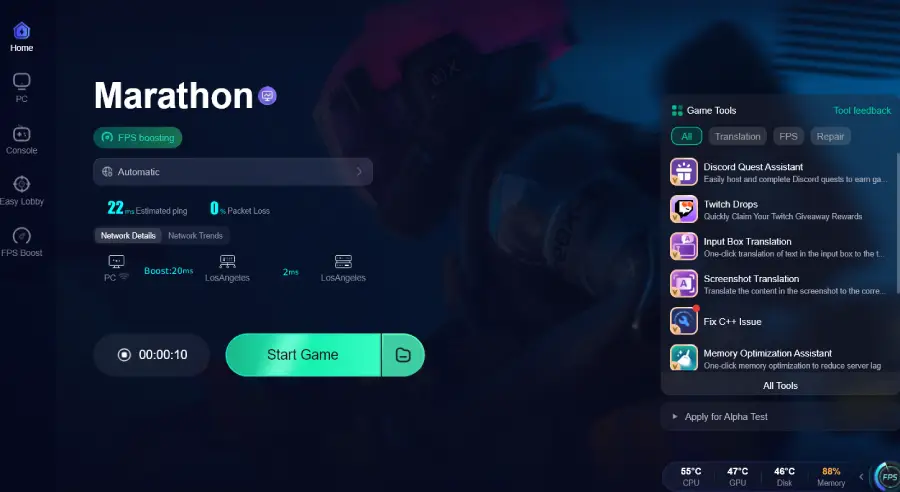
Step 4: Launch your game and enjoy smooth, optimized gameplay with lower ping and no stutter.
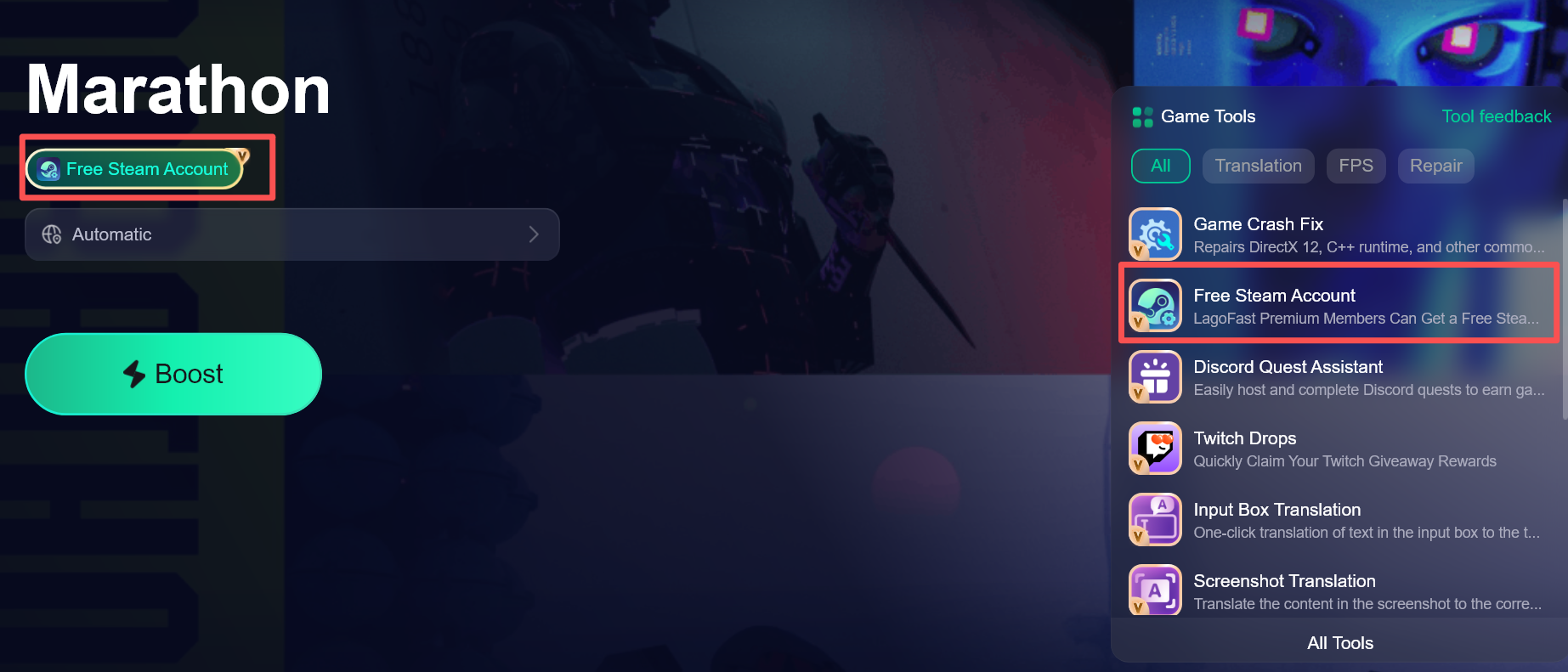
For Russian players, LagoFast also includes a built-in tool to create a trial Steam account. Paid users can create a Turkish Steam account directly inside the app if Marathon isn’t visible in their local store.
Part 3: Step-by-step fixes for Marathon Not Launching
Follow these fixes in order; each targets a common startup problem. Most players get Marathon running within the first few steps:
1. Verify Game Files
Use your platform launcher to check file integrity. This automatically replaces corrupted or missing startup files.
2. Run as Administrator
Right-click the Marathon executable and select "Run as Administrator" to avoid permission conflicts with anti-cheat.
3. Disable Background Overlays
Turn off Discord overlay, GPU overlays, and monitoring tools. Conflicting overlays can prevent Marathon from initializing.
4. Restart Your Network
Power cycle your router and modem, then wait a few minutes before reconnecting. This can fix login timeouts and unstable routing issues.
5. Repair Anti-Cheat
Run the anti-cheat repair tool in the Marathon folder to fix initialization problems that can cause silent shutdowns.
Conclusion
Most Marathon Not Launching issues happen during startup, not because of your hardware. By checking your files, running as administrator, stabilizing your network, and repairing the anti-cheat, you can usually get the game running without frustration. After these steps, you should be able to jump back into matches smoothly.
Boost Your Game with LagoFast for Epic Speed
Play harder, faster. LagoFast game booster eliminates stutter and lags on PC, mobile, or Mac—win every match!
Quickly Reduce Game Lag and Ping!
Boost FPS for Smoother Gameplay!