
If your Marathon Mouse is not working, you are probably dealing with either a connection failure, driver conflict, battery issue, or operating system glitch. In most cases, the problem is not hardware failure but configuration, interference, or outdated software. This guide walks you through the exact diagnostic process to identify the root cause and fix it efficiently without wasting time on guesswork.

- ✅ Reduce Lag and High Ping.
- ✅ Boost FPS at the Same Time.
✅ Support 2000+ Popular Online Games.
✅ Change Server without Latency.
✅ Boost Game Loading Speed.
Part 1: What Is the Marathon Mouse?
Part 2: Check the Obvious First: Power and Battery Issues
Part 3: USB Receiver Not Recognized
Part 4: Driver or Software Conflicts
Part 5: Wireless Interference Problems
Part 6: Mouse Works but Cursor Does Not Move Properly
Part 7: Marathon Mouse Not Working After Windows Update
Part 8: When the Mouse Is Physically Damaged
Part 9: How to Reconnect or Re-Pair the Marathon Mouse
Part 10: Fix Mouse Lag and Connectivity Issues with LagoFast
Part 1: What Is the Marathon Mouse?
The Marathon Mouse usually refers to the Logitech Marathon series, most commonly the Logitech M705 Marathon Mouse. It is known for long battery life, wireless connectivity via USB receiver, and compatibility with Windows and macOS systems.
Because it relies on wireless transmission and software drivers, failures typically fall into four technical categories:
- Power delivery problems
- USB receiver detection issues
- Driver or firmware conflicts
- OS-level permission or update problems
Let’s isolate each one systematically.
Part 2: Check the Obvious First: Power and Battery Issues
Even though the Marathon Mouse is marketed for multi-year battery life, battery degradation still happens.
What to Do
- Remove the battery and reinsert it firmly.
- Replace with a brand-new AA battery, not one that has been sitting in a drawer.
- Check for corrosion inside the battery compartment.
- Make sure the power switch underneath the mouse is turned on.
If the LED does not light up or blink when switched on, you are likely dealing with a power circuit issue or dead battery. If the light turns on but the cursor does not move, continue to the next section.
Part 3: USB Receiver Not Recognized
The Marathon Mouse connects through a small USB receiver (Logitech Unifying Receiver). If your computer does not detect it, the mouse will not function.
Quick Diagnostics
- Plug the receiver into a different USB port.
- Avoid USB hubs and connect directly to the motherboard port.
- Test the receiver on another computer.
- Restart your system with the receiver plugged in.
If the mouse works on another computer, the issue is your operating system, not the mouse itself.
If it does not work anywhere, the receiver may be faulty.
Part 4: Driver or Software Conflicts
Driver corruption is a common cause of a Marathon Mouse not working after system updates.
On Windows
- Open Device Manager.
- Expand “Mice and other pointing devices.”
- Right-click and uninstall the device.
- Restart your PC to force driver reinstallation.
You can also install or update Logitech Options software from the official source to ensure compatibility.
On macOS
- Go to System Settings → Privacy & Security.
- Check Input Monitoring permissions.
- Remove and reconnect the receiver.
- Restart your Mac.
After major macOS updates, driver permissions sometimes reset, which blocks mouse input.
Part 5: Wireless Interference Problems
Wireless mice operate on 2.4 GHz frequency, which overlaps with WiFi routers, Bluetooth devices, and other electronics.
If your Marathon Mouse is
- Lagging
- Stuttering
- Disconnecting randomly
Then interference is likely.
Solutions
- Move the receiver closer to the mouse.
- Keep it away from WiFi routers.
- Avoid metal surfaces.
- Use a USB extension cable to reposition the receiver.
In high-interference environments such as offices or gaming setups with multiple wireless devices, signal stability can degrade significantly.
Part 6: Mouse Works but Cursor Does Not Move Properly
If clicks work but movement does not, check:
- The optical sensor on the bottom for dust.
- The surface you are using (glass surfaces can cause tracking failure).
- Try using a mouse pad.
Optical tracking depends on surface texture; reflective or transparent surfaces disrupt sensor feedback.
Part 7: Marathon Mouse Not Working After Windows Update
This is one of the most common complaints.
Major Windows updates sometimes:
- Replace drivers with generic ones
- Disable USB root hubs
- Reset device permissions
Fix Procedure
- Open Device Manager.
- Expand Universal Serial Bus controllers.
- Disable power-saving mode on USB Root Hub.
- Reinstall mouse drivers.
If the issue persists, rolling back the last update can confirm whether the update triggered the problem.
Part 8: When the Mouse Is Physically Damaged
If none of the above fixes work, you may be dealing with:
- Worn-out switches
- Internal PCB damage
- Faulty receiver pairing
- Liquid damage
In this case, testing with a different Logitech receiver (if compatible) can help isolate whether the mouse or receiver failed.
Part 9: How to Reconnect or Re-Pair the Marathon Mouse
If pairing was lost:
- Download Logitech Unifying Software.
- Launch the software.
- Insert the receiver.
- Follow on-screen pairing instructions.
Re-pairing often resolves connection drops that look like hardware failure.
When to Replace the Marathon Mouse
Replace the mouse if:
- It fails on multiple devices.
- Battery and receiver are confirmed working.
- Sensor shows no light activity.
- Physical damage is visible.
Given the durability of the Marathon series, most failures are software-related rather than hardware breakdowns.
Part 10: Fix Mouse Lag and Connectivity Issues with LagoFast
If your Marathon Mouse feels delayed, stutters during gameplay, or randomly disconnects while you are in an online match, the issue may not be the mouse itself but unstable network routing. High latency, packet loss, or inconsistent bandwidth can make input response feel broken even when your hardware is perfectly fine. That is where LagoFast comes in, optimizing your network path so your system communicates more smoothly with game servers.
How to Use LagoFast to Improve Stability
1. Download and install LagoFast using the Free Trial option.
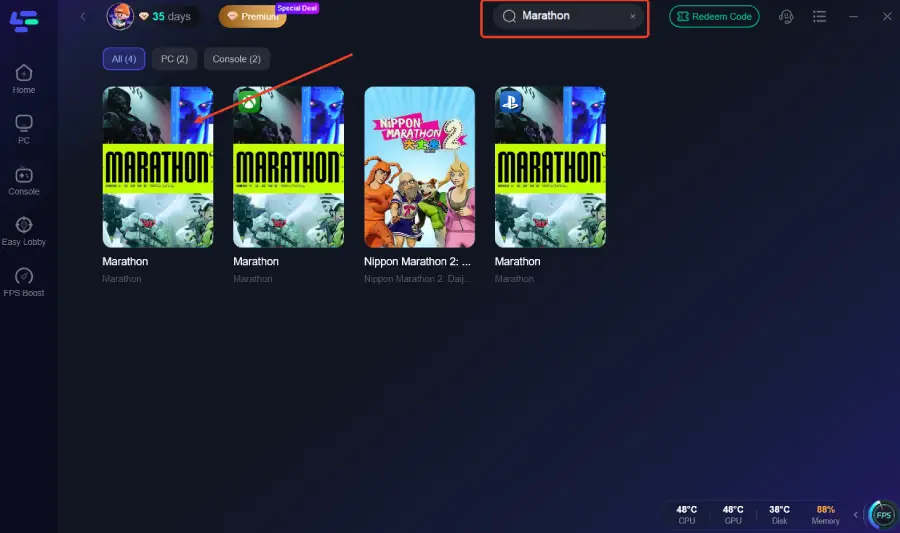
2. Open the app and search for the game you are about to launch.
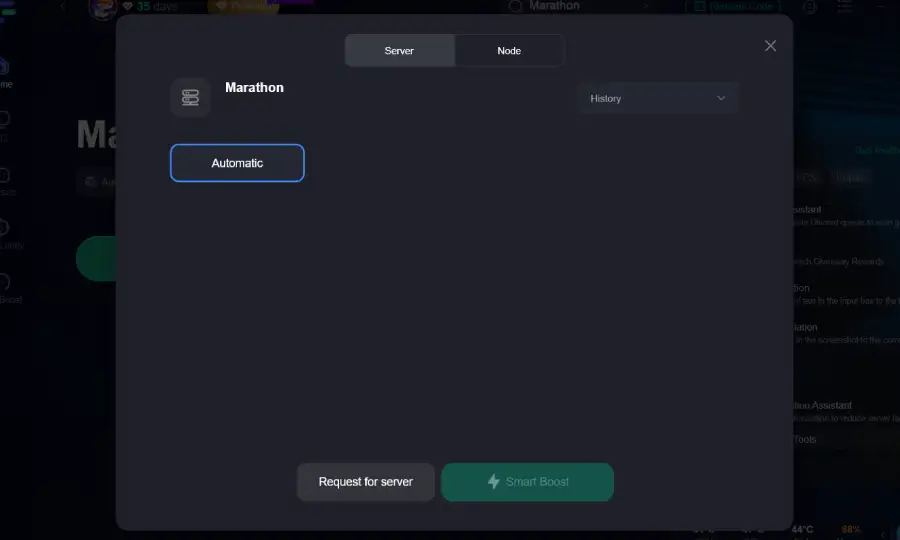
3. Choose a recommended server, then manually select the optimal node for the lowest latency.
4. Activate Smart Boost and monitor real-time ping, packet loss, and network type indicators.
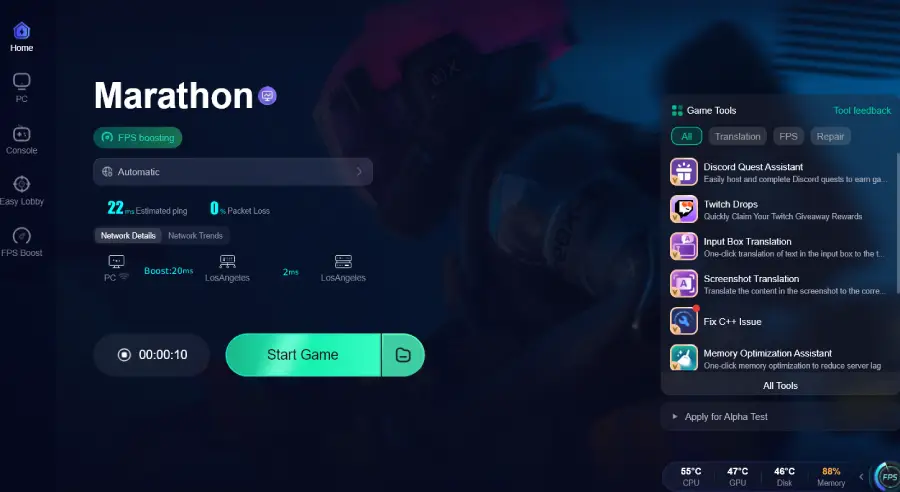
Once enabled, LagoFast automatically optimizes routing to reduce spikes and unstable connections that can affect in-game responsiveness.
Why LagoFast Helps
- Reduces ping fluctuations
- Minimizes packet loss
- Stabilizes network routing
- Provides real-time performance metrics
- Simple one-click optimization
If your mouse issues only happen during online gameplay and not during normal desktop use, network instability is likely amplifying input delay rather than a hardware fault. Using LagoFast ensures your connection remains consistent, which translates into smoother control, fewer interruptions, and a noticeably more responsive experience.
Conclusion
When a Marathon Mouse stops working, the root cause is rarely catastrophic hardware failure and far more often a power, receiver, driver, or interference issue that can be resolved with a systematic approach. By checking battery integrity, verifying USB recognition, reinstalling drivers, eliminating wireless interference, and re-pairing the device in a logical order, you eliminate guesswork and dramatically reduce downtime. Instead of replacing the mouse prematurely, follow the diagnostic sequence outlined above and treat the problem like a technical troubleshooting workflow rather than a random trial-and-error process, because precision always beats panic.

Boost Your Game with LagoFast for Epic Speed
Play harder, faster. LagoFast game booster eliminates stutter and lags on PC, mobile, or Mac—win every match!
Quickly Reduce Game Lag and Ping!
Boost FPS for Smoother Gameplay!