
Experiencing sudden frame rate drops in Marathon can pull you straight out of the immersion, turning a tight firefight into a choppy slideshow. As Bungie's highly anticipated shooter moves through its testing phases, many players—even those with powerful rigs—are reporting inconsistent performance, unexpected stutters, and graphical hiccups. The good news? Most of these issues aren't due to faulty hardware but rather a set of common and fixable performance pitfalls.
This guide breaks down why FPS drops happen in Marathon, identifies the most common performance symptoms, and provides a clear, step-by-step approach to smoothing out your gameplay through settings tweaks, system optimizations, and smart tools.

- ✅ Reduce Lag and High Ping.
- ✅ Boost FPS at the Same Time.
✅ Support 2000+ Popular Online Games.
✅ Change Server without Latency.
✅ Boost Game Loading Speed.
Part 2: Common Performance Issues in Marathon
Part 3: What Causes FPS Drops and Stuttering in Marathon?
Part 4: Best In-Game Settings to Fix Marathon FPS Drops
Part 5: Enhance Game Experience by Using LagoFast Game Booster
Part 6: How to Fix Lags and Stuttering in Marathon During Gameplay
Part 1: Introduction
A frame rate drop is more than just a number dipping on your overlay. It’s a tangible break in fluidity—a smooth 120 FPS sequence suddenly lurching down to 40 or 50 frames during a critical moment. In a tactical shooter like Marathon, this doesn't just feel bad; it directly harms your ability to aim, track targets, and react.
If you're noticing these dips, especially in combat or dense environments, you're not alone. The demands of a modern game—large maps, dynamic lighting, complex AI, and real-time physics—can strain even capable systems, particularly in early builds where optimization is still underway.
Part 2: Common Performance Issues in Marathon
Before you start changing settings, it helps to know what you're looking for. Players typically report a few key problems:
Inconsistent Frame Rates: The game runs fine until you enter a firefight or a detailed area, where the FPS suddenly tanks.
Micro-Stutters and Freezes: Brief, jarring hitches that interrupt smooth motion. These are especially noticeable on high-refresh-rate monitors.
High Hardware Usage with Low Output: Your GPU or CPU is running at near 100%, but the framerate remains disappointingly low, indicating a potential bottleneck or inefficiency.
Overlay and Background App Interference: Third-party tools like Discord, streaming software, or hardware monitors (e.g., MSI Afterburner) can sometimes introduce stutters or conflict with the game.
Part 3: What Causes FPS Drops and Stuttering in Marathon?
Understanding the "why" is crucial for applying the right fix. Here are the primary culprits:
Demanding Graphics Settings
Ultra-level shadows, textures, view distance, and post-processing effects are the usual suspects. They place a heavy, consistent load on your GPU.
CPU or GPU Bottlenecks
If your processor can't keep up with your graphics card (or vice versa), one component will idle while waiting for the other, causing sudden dips in performance.
Resource Competition from Background Apps
Every open browser tab, chat app, or system utility consumes RAM and CPU cycles, stealing resources away from the game.
Thermal Throttling
This is a silent killer of performance. When your CPU or GPU gets too hot, it automatically slows down to prevent damage, leading to major FPS drops during extended play sessions.
Early Build Inefficiencies
As a title in testing, Marathon's game engine and rendering pathways are still being refined. Some performance inconsistency is expected and will improve with future patches.
Part 4: Best In-Game Settings to Fix Marathon FPS Drops
The single most effective way to boost performance is to adjust your in-game settings. You don't need to run everything on low—intelligent tweaks can preserve visual quality while granting massive frame rate gains.
- Resolution and Scaling: This is your biggest lever. Dropping from 4K to 1440p or 1080p will dramatically lighten the GPU's load. If supported, enable DLSS (NVIDIA) or FSR (AMD/All GPUs). These upscaling technologies render the game at a lower resolution and use AI to reconstruct a sharp image, offering huge performance boosts with minimal visual loss.
- Graphics Preset: Start by lowering the overall preset from Ultra to High or Medium. This automatically adjusts a suite of settings to a more balanced level.
- Shadows and Lighting: Set these to Medium or Low. Shadow calculations are extremely demanding and often provide little competitive advantage.
- Anti-Aliasing: Techniques like TAA can be costly. Try switching to FXAA or even disabling it temporarily to see the performance impact.
- Post-Processing Effects: Motion Blur, Bloom, and Depth of Field are purely cinematic. Disable them for clearer visuals and more frames.
- View Distance and Object Detail: Reducing these can alleviate strain on your CPU, as it has to manage fewer objects and draw calls.
- Enable Performance Features: Turn on NVIDIA Reflex or AMD Anti-Lag if available. These technologies reduce system latency, making the game feel more responsive even at the same FPS.
Part 5: Enhance Game Experience by Using LagoFast Game Booster
Sometimes, the issue extends beyond your graphics card. For an online-focused game like Marathon, network stability and system resource management play a key role in perceived smoothness. This is where a tool like LagoFast (LagoFast Game Booster—Get No Lag and Lower Ping) Game Booster can help.
- Optimize network routes to reduce latency and packet jitter, which reduces micro-stutter that feels like FPS drops when synchronization lags.
- Reduce network congestion to prevent mid-match pauses due to delayed server communication.
LagoFast for PC Players
Step 1: Begin by clicking the Free Trial button to download and install the LagoFast Free Trial.
Step 2: Open the booster and add Marathon to your boost list.
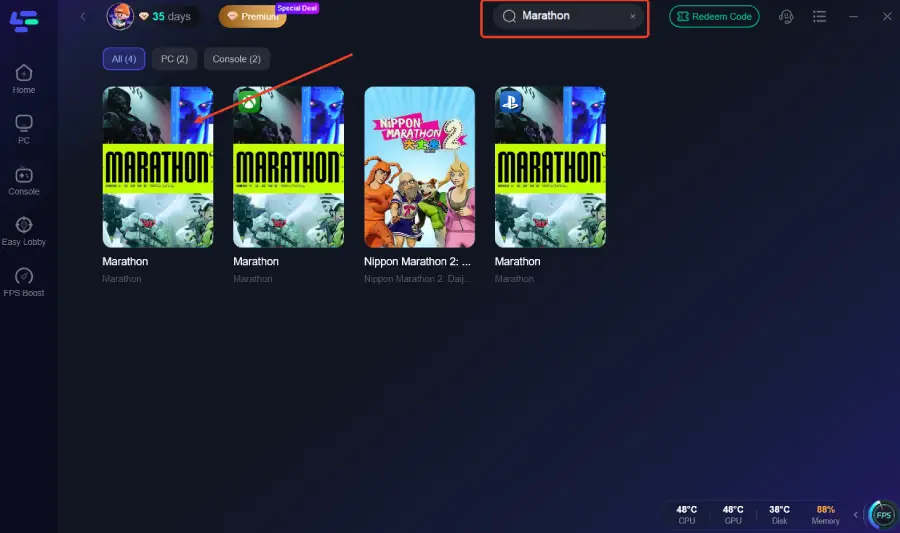
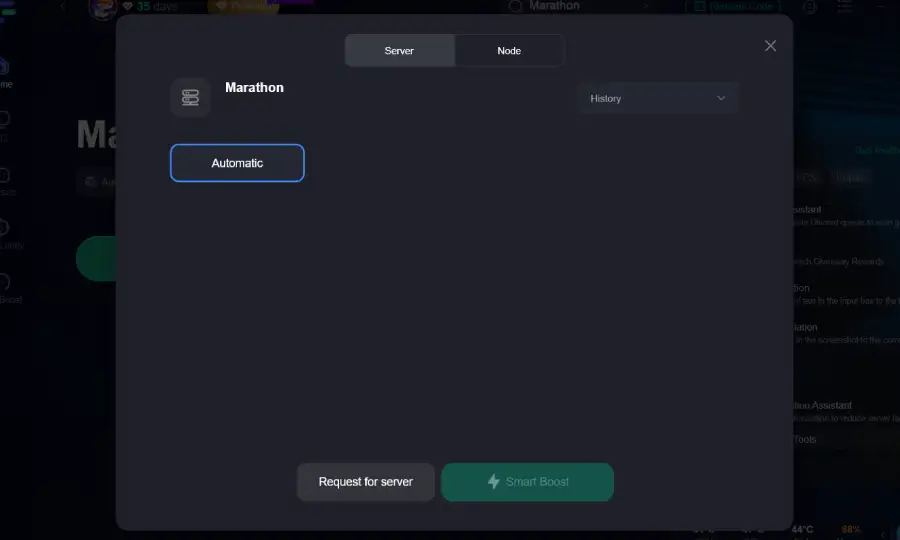
Step 3: Enable Smart Boost—LagoFast optimizes network routing and system resource use, reducing packet loss and stabilizing FPS
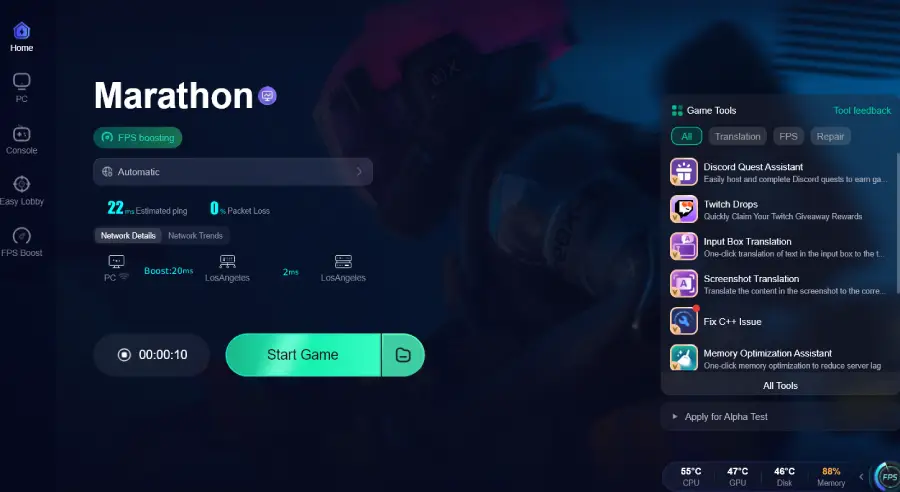
Step 4: Activate the boost and launch the game through LagoFast for optimized resource handling.
Part 6: How to Fix Lags and Stuttering in Marathon During Gameplay
If problems persist, dig a little deeper:
- Perform a Clean Restart: Close and relaunch Marathon every few hours. This clears out potential memory leaks that build up over long sessions.
- Disable All Overlays: Turn off in-game overlays for Discord, Xbox Game Bar, Steam, and hardware monitors before playing.
- Monitor Your Temperatures: Use a tool like HWiNFO to check if your CPU/GPU is thermal throttling. Ensure your PC is well-ventilated and free of dust.
- Verify Game Files: In Steam or your game launcher, use the "Verify Integrity of Game Files" feature to replace any corrupted data.
- Update Everything: Ensure your GPU drivers and Windows OS are updated to the latest stable versions. New drivers often include game-specific performance improvements.
Part 7: FAQs
Q: My PC is high-end. Why do I still get FPS fluctuations?
A: This is often due to thermal throttling, background processes, or the inherent optimization state of an early game build. Even powerful hardware can be held back by these factors.
Q: Will lowering settings always work?
A: In most cases, yes—especially for GPU-bound issues. Lowering shadows, effects, and resolution scaling typically yields the most significant gains.
Q: Should I cap my FPS?
A: Capping your FPS 3-5 frames below your monitor's maximum refresh rate (e.g., 141 FPS on a 144Hz monitor) can help your GPU run cooler and provide a more consistent, tear-free experience than wildly fluctuating, frames.
Q: Can my internet cause FPS drops?
A: Not directly, but network lag can cause rubberbanding and delayed actions that feel like graphical stuttering. Optimizing your connection with a booster can alleviate this.
Q: Are these issues just because the game is in testing?
A: Partly, yes. Performance tuning is a continuous process throughout development. While you can fix many issues now, overall stability and optimization will improve with official updates.
Conclusion
Taming FPS drops in Marathon is about a holistic approach: fine-tuning in-game settings for efficiency, managing your system's resources and temperature, and ensuring a stable network connection. By following this guide, you can transform a stuttering test session into a smooth and responsive tactical experience. Implement these steps, stay updated with patches, and you'll be well-equipped to enjoy Marathon's intense action exactly as it was meant to be played.

Boost Your Game with LagoFast for Epic Speed
Play harder, faster. LagoFast game booster eliminates stutter and lags on PC, mobile, or Mac—win every match!
Quickly Reduce Game Lag and Ping!
Boost FPS for Smoother Gameplay!