

If you’re trying to launch League of Legends and hit the dreaded VAN 1067 error, you’re not alone. Thousands of players in 2025 are reporting the same issue—and it's frustrating. This error is directly tied to Riot’s anti-cheat system, Vanguard, and it can stop you from getting into the game entirely.
Reddit threads are flooded with confused players asking the same thing: “Why can’t I just launch League anymore?” In this guide, we’ll break down what the VAN 1067 error actually is, why it happens, and—most importantly—how to fix it and get back into the Rift.

- What Is VAN 1067 in League of Legends?
- Why Does VAN 1067 Happen?
- How to Fix VAN 1067 in League of Legends (2025 Guide)
- What is Vanguard Error VAN 57 in League of Legends?
- What is Vanguard Error VAN 135 in League of Legends?
- The Best Way to Improve Your League Experience — Use LagoFast
1. What Is VAN 1067 in League of Legends?
VAN 1067 is an error code generated by Riot Vanguard, the anti-cheat software used for both League of Legends and Valorant. The error means Vanguard failed to initialize—which in plain English usually means something in your system is blocking Vanguard or making it crash on startup.
You’ll typically see this error right as you try to open League of Legends, and you’ll be kicked out with a message like:
“We couldn’t install a required dependency”
or
“Something went wrong during installation.”
It’s not a League bug—it’s Vanguard refusing to launch.
2. Why Does VAN 1067 Happen?
There’s no single cause for VAN 1067, but Riot has officially listed it under issues caused by “unusual software” or incompatible drivers. Based on real player reports, the most common reasons include:
Security features like TPM 2.0 or Secure Boot being disabled in BIOS
Unusual or unauthorized third-party software like:
- Dante Controller (Audinate)
- Windows Remote Desktop
- Some VPN or remote-access tools
Corrupted Vanguard service or Riot Client installation
Outdated BIOS or missing system files
What Players Are Saying
One Reddit user shared this fix:
“Turns out this was due to the driver mdnsNSP.dll crashing. This driver is related to Dante Controller. Uninstalling that program fixed the error instantly.”
Another said:
“I removed Windows Remote Desktop completely. Rebooted. Error gone.”
This confirms what Riot hinted at: some programs install low-level drivers that interfere with Vanguard, and Vanguard doesn't like surprises.
3. How to Fix VAN 1067 in League of Legends (2025 Guide)
Step 1: Reboot Your PC
Yes, it sounds obvious, but Riot Support officially recommends it as the first step. Sometimes Vanguard simply doesn’t launch properly and needs a clean boot.
Step 2: Uninstall Conflicting Software
Based on user feedback, uninstall these if you have them:
- Audinate’s Dante Controller
- Windows Remote Desktop
- Any remote-access tools or virtual machines (VMWare, Parsec, etc.)
Step 3: Enable TPM 2.0 and Secure Boot
This is crucial if you're running Windows 11.
- Reboot your PC and enter BIOS (usually F2, Del, or Esc)
- Find “Security” or “Boot” tab
- Enable TPM 2.0 and Secure Boot
- Save and exit
This ensures Vanguard’s integrity check passes on startup.
Step 4: Run System Updates
- Install all Windows updates
- Update your BIOS (check your motherboard’s official site)
- Install or repair Visual C++ Redistributables
Step 5: Reinstall Vanguard
If none of the above works:
- Uninstall Riot Vanguard from Windows Apps
- Restart your PC
- Launch League again—it’ll auto-install Vanguard fresh
Bonus: Check for Background Services
Press Ctrl+Shift+Esc, go to the Startup tab, and disable suspicious entries or tools you don’t recognize.
4. What is Vanguard Error VAN 57 in League of Legends?
VAN 57 means Riot Vanguard is not running or failed to initialize when you launched League of Legends.
What causes it?
- Vanguard was not started automatically when your PC booted.
- Riot Vanguard service was disabled or corrupted.
- You may have manually exited Vanguard before launching the game.
How to fix it:
Restart your PC (this is often enough to restart Vanguard properly).
Make sure Riot Vanguard is set to start automatically:
- Press Windows + R, type services.msc, press Enter.
- Find vgc, right-click → Properties → Set to Automatic → Click Start.
Reinstall Riot Vanguard:
- Uninstall Vanguard via Windows Settings.
- Restart your PC.
- Launch League of Legends again—it will reinstall Vanguard.
5. What is Vanguard Error VAN 135 in League of Legends?
VAN 135 typically means your system is having trouble communicating with Riot’s servers, even though Vanguard is running properly.
What causes it?
- Firewall or antivirus software blocking Vanguard or Riot Client.
- Network instability (e.g., bad DNS, VPN conflict, or ISP throttling).
- Riot’s servers may be temporarily down.
How to fix it:
- Restart your router and PC.
- Add Riot and Vanguard to your firewall and antivirus exceptions.
- Try changing your DNS (e.g., use Google DNS: 8.8.8.8, 8.8.4.4).
- Temporarily disable your VPN or switch servers.
- Check Riot’s server status: https://status.riotgames.com/
6. The Best Way to Improve Your League Experience — Use LagoFast
Even if you fix VAN 1067, your League experience can still suffer from lag spikes, high ping, or rubber-banding—especially if you're playing from a region far from Riot’s servers.
That’s where LagoFast Game Booster comes in.
What LagoFast Does:
- Optimizes routing to League servers automatically
- Reduces ping and packet loss
- Stabilizes connection—even through throttled ISPs or weak Wi-Fi
- Works well with Vanguard, it's not a traditional VPN
Many League players have found LagoFast helpful for smoother gameplay, especially when running into inconsistent connections during Ranked.
“LagoFast gave me a 30ms drop in ping and fixed my stutters completely.” – Player review
1. Download LagoFast and sign in
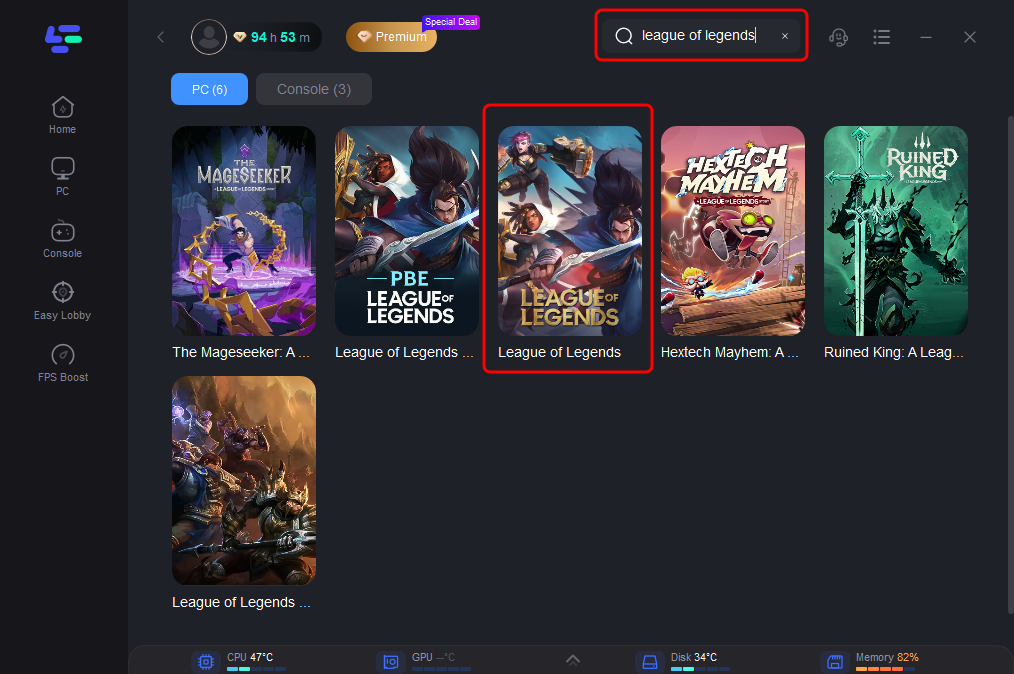
2. Search "League of Legends" and click boost
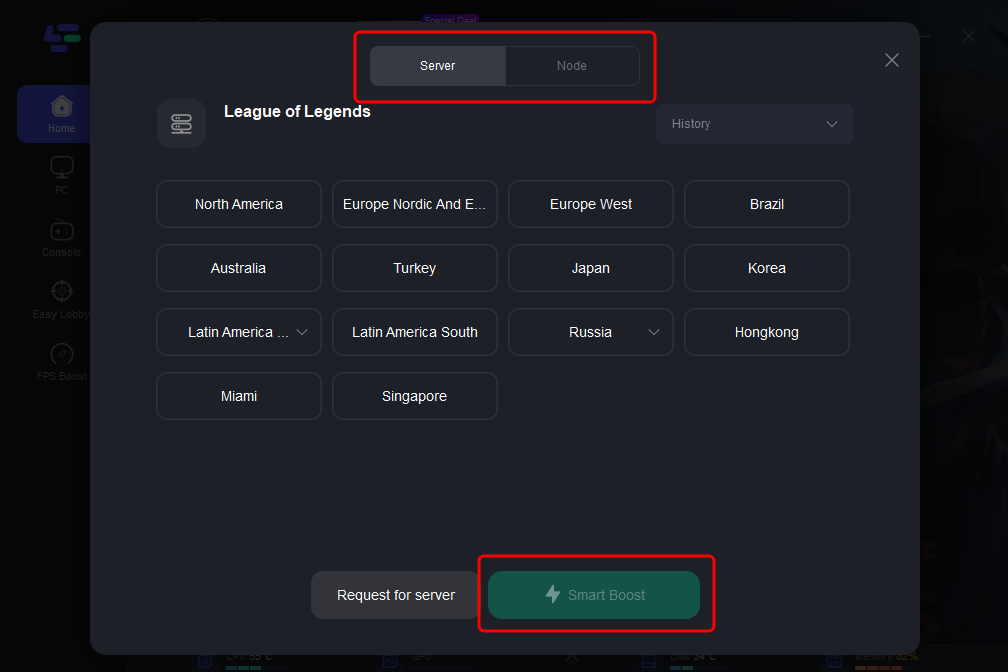
3. Choose the server and the node you want for league of legends
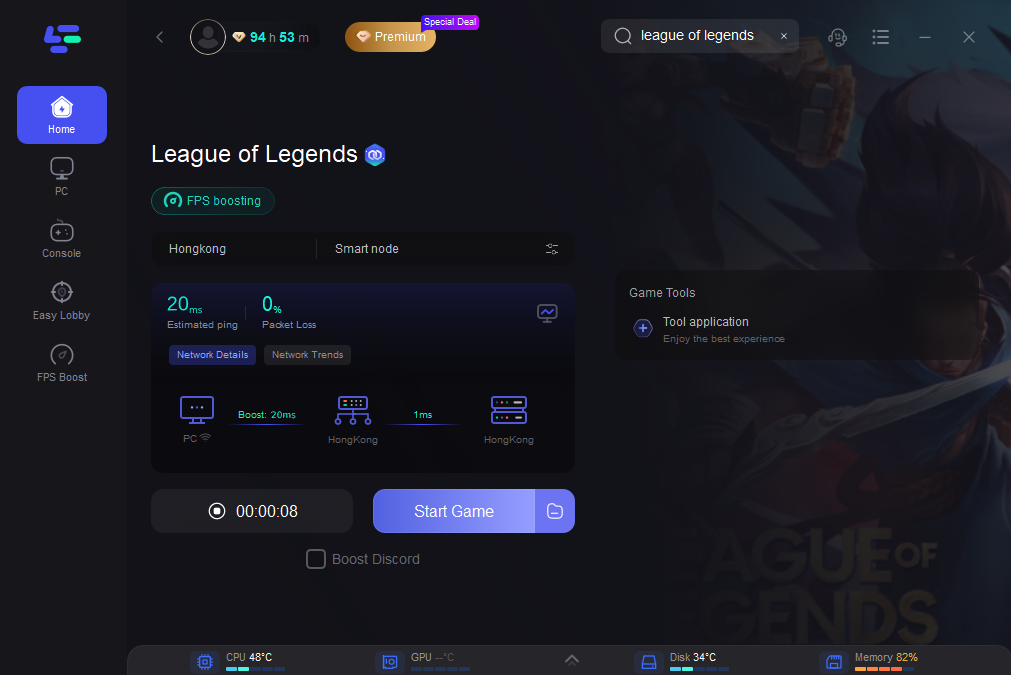
4. Click on the smart boost option to initiate the League of Legends boosting process. From there, you'll be able to monitor real-time ping and packet loss directly on the boosting page.
Conclusion
VAN 1067 is annoying—but fixable. Whether it’s rogue software like Dante Controller, disabled TPM 2.0, or a broken Vanguard install, there’s a solution that will get you back in the game.
Just follow the steps, clean your system, and if you want that extra edge in connection quality, LagoFast is a smart addition to your setup.
See you on the Rift—minus the error popups.
Boost Your Game with LagoFast for Epic Speed
Play harder, faster. LagoFast game booster eliminates stutter and lags on PC, mobile, or Mac—win every match!
Quickly Reduce Game Lag and Ping!
Boost FPS for Smoother Gameplay!