
League of Legends is one of the most played games in the world, but even the best titles aren't immune to frustrating bugs and technical issues. Whether you're facing a login problem, in-game crash, or installation error, encountering a League of Legends error can completely disrupt your gaming experience.
In this comprehensive guide, we'll explore what causes common League of Legends errors and provide step-by-step solutions to fix each of them. From authorization issues to Vanguard conflicts, VAN codes to Wild Rift mobile problems—we’ve got you covered. We’ll also highlight how tools like LagoFast can improve connectivity and help resolve persistent errors faster.
Vietnamese version: Hướng dẫn đầy đủ để sửa mọi lỗi League of Legends

- ✅ Reduce Lag and High Ping.
- ✅ Boost FPS at the Same Time.
- ✅ Support 2000+ Popular Online Games.
- ✅ Support Easy Lobby in all Cod Games without Lag
Part 1: What Causes League of Legends Errors?
Part 2: Common League of Legends Errors and How to Fix Them
Part 1: What Causes League of Legends Errors?
Understanding the source of the problem is the first step in troubleshooting effectively. The most common League of Legends error messages can be traced back to these causes:
1. Network Issues
Lag, packet loss, or DNS problems can cause failed login attempts, disconnections, or update failures. Riot’s servers are sensitive to inconsistent connections, and any disruption between your PC and the server can trigger an error.
2. Riot Vanguard Conflicts
Since Riot Vanguard is deeply embedded in the system to ensure anti-cheat functionality, it may conflict with your firewall, BIOS settings (like TPM and Secure Boot), or antivirus software.
3. Software Corruption
Corrupted game files, failed updates, or missing Windows libraries can prevent the game from launching or running correctly.
4. Incompatible System Settings
Graphics driver issues, outdated OS versions, or incompatible BIOS configurations can cause game crashes, black screens, or graphical glitches.
Part 2: Complete List of League of Legends Errors & How to Fix Them
Let’s explore the most frequently reported League of Legends errors, their root causes, and a step-by-step breakdown of how to fix them.
League of Legends Authorization Error
Cause:
This error occurs when the Riot Client cannot authenticate your login session with Riot’s servers, often due to expired credentials or server-side downtime.
Fix:
Step 1. Restart the Riot Client completely. Right-click the system tray icon and select "Exit."
Step 2. Run the client as Administrator.
Step 3. Clear your DNS cache: ipconfig /flushdns
Step 4. Disable any third-party software.
Step 5. Reset your router or switch to Ethernet if you're on Wi-Fi.
An Unexpected Authorization Error League of Legends
Cause:
After an update, the Riot Client may retain corrupted login sessions, which results in this error.
Fix:
Step 1. Navigate to the Riot Client’s config folder: C:\Riot Games\Riot Client\Config
Step 2. Delete the .lockfile.
Step 3. Restart your PC and launch the game again.
Step 4. If that fails, reinstall the Riot Client from scratch.
Vanguard League of Legends Error
Cause:
Issues with Riot Vanguard usually occur when it fails to launch properly or conflicts with other system drivers or software.
Fix:
Step 1. Uninstall Vanguard from Control Panel.
Step 2. Restart your PC and re-launch the Riot Client. It will automatically reinstall Vanguard.
Step 3. Ensure Secure Boot and TPM 2.0 are enabled via BIOS.
Step 4. Whitelist Vanguard in your antivirus settings.
League of Legends Error VAN 57
Cause:
Indicates that Vanguard is either not running or blocked by another service.
Fix:
Step 1. Open services.msc, locate VGC, right-click, and set it to Automatic.
Step 2. Start the service if it’s stopped.
Step 3. Reboot and try launching LoL again.
Step 4. Reinstall Vanguard if necessary.
League of Legends Wild Rift Error
Cause:
Common in mobile versions, caused by poor network, app conflicts, or device compatibility.
Fix:
Step 1. Clear cache from App Settings, select Storage, click Clear Cache/Data.
Step 2. Ensure your device has enough storage (at least 4GB free).
Step 3. Reconnect using mobile data instead of Wi-Fi.
Step 4. Reinstall the game if the issue persists.
Error VAN 1067 League of Legends
Cause:
Occurs when the required system settings for Vanguard’s operation (Secure Boot, TPM) are not enabled.
Fix:
Step 1. Enter BIOS.
Step 2. Enable Secure Boot and TPM (2.0).
Step 3. Save settings and reboot.
Step 4. Reinstall Vanguard and relaunch the Riot Client.
Error VAN 81 League of Legends
Cause:
A network-related Vanguard error, usually triggered by firewall or startup problems.
Fix:
Step 1. Allow Vanguard and LoL through Windows Firewall.
Step 2. Temporarily disable third-party antivirus.
Step 3. Open services.msc and make sure VGC is running.
Step 4. Restart your system.
League of Legends Installation Errors
Cause:
Corrupted downloads or unstable network connections can interrupt installation.
Fix:
Step 1. Use the official Riot uninstaller tool.
Step 2. Reinstall from leagueoflegends.com.
Step 3. Temporarily disable antivirus during installation.
Step 4. Use LagoFast to ensure consistent download speeds and reduced packet loss.
Tips: LagoFast offers real-time route optimization, helping players avoid corrupted install files caused by lost packets or jittery connections.
Follow the tutorial to use LagoFast to keep a stable connection issue:
Step 1: Click the Free Trial button to download and install LagoFast.
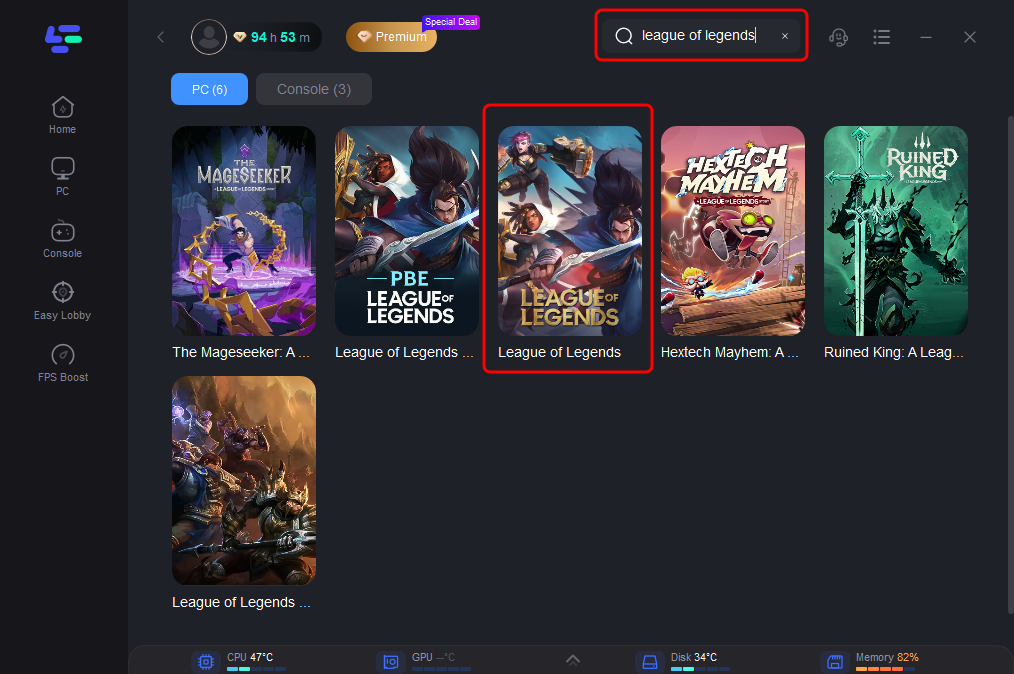
Step 2: Open LagoFast then click the PC button on the left and search League of Legends in the search bar, click it after appearing.
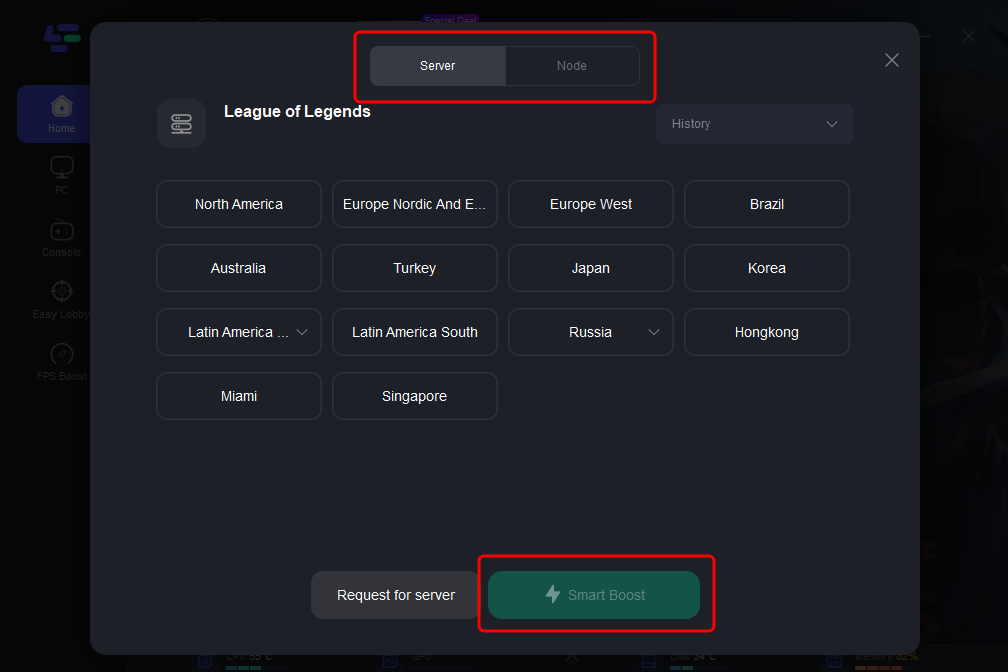
Step 3: Click on “Server” to change to a stable server that can enhance the gaming experience, then click on “Smart Boost”.
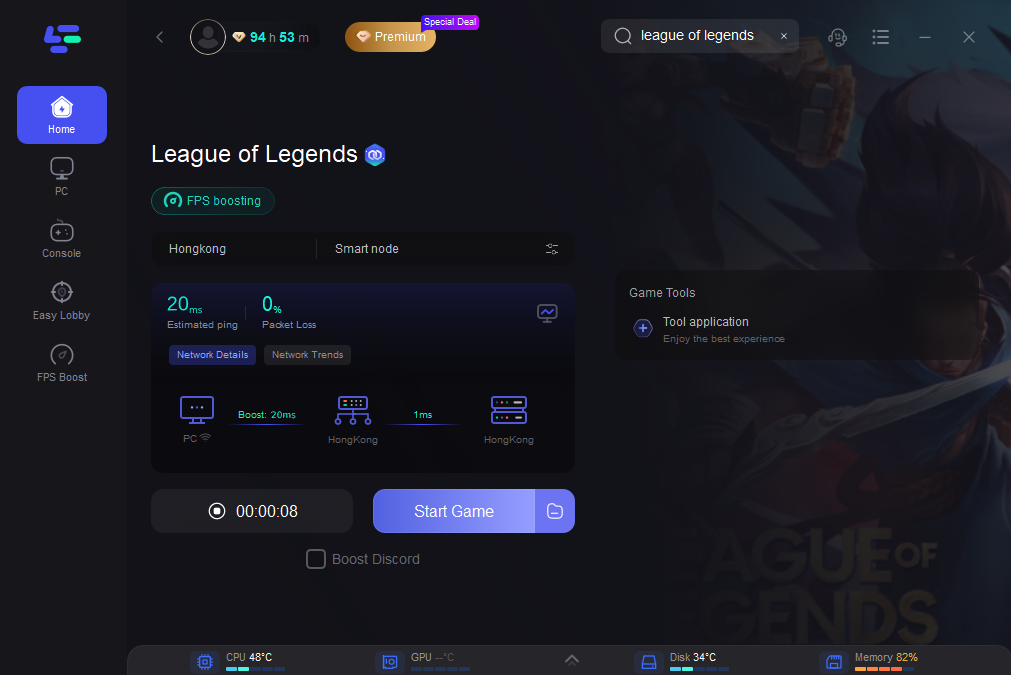
Step 4: Check the specific game ping, packet loss, and multiple path connection on the right side. Finally, click the “Start Game” to play the game.
League of Legends Graphics Device Error
Cause:
Occurs when the GPU fails to initialize the game renderer. Often due to outdated drivers or overclocking.
Fix:
Step 1. Update your GPU driver:
- NVIDIA: GeForce Experience
- AMD: Radeon Software
Step 2. Turn off GPU overclocking software (MSI Afterburner, etc.)
Step 3. Lower in-game settings manually via game.cfg.
League of Legends Wild Rift Error 100018
Cause:
Region restriction or outdated data files on mobile.
Fix:
Step 1. Clear the app cache.
Step 2. Use a VPN like LagoFast if the game isn’t supported in your region.
Step 3. Reinstall the game via Play Store/App Store.
Step 4. Use LagoFast’s mobile support to improve connection if lag persists.
Error Code 9S 6U League of Legends
Cause:
A server-related error caused by high ping or unstable packet delivery.
Fix:
Step 1. Use a wired connection instead of Wi-Fi.
Step 2. Use Google DNS:
- 8.8.8.8
- 8.8.4.4
Step 3. Install LagoFast to reduce ping and eliminate packet loss during matches.
Vanguard Error 128 League of Legends
Cause:
The system fails to load Vanguard due to corrupted startup or outdated dependencies.
Fix:
Step 1. Fully uninstall Vanguard.
Step 2. Run Windows Update to install the latest .NET frameworks and system files.
Step 3. Reinstall Vanguard from the Riot Client.
League of Legends Error 0xc0000142
Cause:
Missing or incompatible system DLLs or Microsoft Redistributables.
Fix:
Step 1. Install or repair all Visual C++ Redistributables (2010–2022).
Step 2. Open CMD (Admin) and run: sfc /scannow
Step 3. Reboot and try launching LoL again.
Conclusion
With so many potential error codes and bugs, it's no surprise that League of Legends can be a headache for players, but with the right tools and troubleshooting steps, you can resolve these issues quickly and get back into the action. To avoid future problems, make sure to keep your operating system and drivers up to date, use a reliable internet connection, run League and the Riot Client as Administrator, enable Secure Boot and TPM if you're using Vanguard, and consider using LagoFast to stabilize your ping, improve installation reliability, and boost in-game FPS.
Boost Your Game with LagoFast for Epic Speed
Play harder, faster. LagoFast game booster eliminates stutter and lags on PC, mobile, or Mac—win every match!
Quickly Reduce Game Lag and Ping!
Boost FPS for Smoother Gameplay!