
Many League of Legends players still face the same frustrating issue in 2025: the installer crashes or throws the vague message “Something went wrong during installation.” From new players to seasoned fans reinstalling the game, forums are full of similar complaints. Thankfully, years of user feedback — going all the way back to 2015 — have revealed effective workarounds that still apply today.
Let’s walk through the real reasons behind this issue and how to fix it using updated 2025 methods.
- Why Can’t I Install League of Legends in 2025?
- League of Legends Is Currently Undergoing Maintenance?
- League of Legends “We Couldn't Install a Required Dependency”
- How to Fix It?
1. Why Can’t I Install League of Legends in 2025?
When your LoL installer fails with “Unable to install” or “Something went wrong during installation,” it’s often due to basic system-level blocks or misconfigurations. Based on community feedback and Riot Games advice, here are the main culprits:
1. You’re Running the Installer from the Wrong Location
The most common fix shared by users is to move the installer directly to the root of drive C (C:\) — not the Desktop or Downloads folder.
Tip: Don’t place it inside any folder with Cyrillic or special characters.
2. Your Folder Name Contains Non-Latin Characters
Installation fails if the game or folder name includes non-Latin letters
Rename all folders in the installation path using only A-Z characters.
3. User Account Control (UAC) Is Blocking the Installer
Windows' UAC setting often prevents installation silently.
Lower UAC to the bottom:
Go to Control Panel > User Accounts > Change UAC Settings, and move the slider to “Never notify”, then restart your PC.
4. You’re Missing Admin Privileges
Right-click the installer file and choose “Run as administrator” every time.
ctors can interrupt Riot Client setup or corrupt the game files before the installation even begins.
2. League of Legends Is Currently Undergoing Maintenance?
Sometimes the installation problem isn't on your side. If Riot’s servers are undergoing maintenance, the client might fail to fetch files, resulting in a failed install or crash. In these cases:
- Check Riot’s official status page: https://status.riotgames.com/
- Wait 1–2 hours and try again
- Avoid installing during patch deployment windows (usually early mornings or Tuesdays)
3. League of Legends “We Couldn't Install a Required Dependency”
This newer error has become more common in 2025, especially on fresh Windows installations or laptops missing system libraries. It means the installer failed to download or install one of the required background components, often due to:
Missing Microsoft Libraries
Riot Client depends on certain packages like:
- Microsoft Visual C++ Redistributables (2010–2022)
- .NET Framework (especially 4.8 and 6.0+)
Fix: Manually download and install the following:
- Microsoft Visual C++ Redistributables
- .NET Runtime
Antivirus or Firewall Blocking the Dependency
Some antivirus software (especially third-party ones like Avast or Kaspersky) may block these components silently.
Fix:
- Temporarily disable antivirus
- Add RiotClientServices.exe and LeagueInstaller.exe to the firewall whitelist
Corrupted or Incomplete Installer
If your installer was corrupted during download, it might fail to unpack dependencies.
Fix:
- Delete the file and re-download from leagueoflegends.com
- Run it from C:\ as administrator
4. How to Fix It?
Players in 2015 faced similar problems — and many solutions still work today. Below are tried-and-true fixes:
1. Move the Installer to Drive C
- Place the installer directly in C:\, not on the desktop or downloads folder.
- Right-click > Run as administrator
2. Rename Install Folder Using Latin Letters Only
- Ensure that all folders in the installation path use Latin characters (A-Z).
- Avoid using non-English or Cyrillic letters like "Лига" or "Игры".
3. Disable User Account Control (UAC)
- Go to Control Panel > User Accounts > Change UAC Settings
- Slide the bar to the bottom: “Never Notify”
- Restart your PC and retry installation.
4. Temporarily Turn Off Windows Firewall
- Go to Control Panel > System and Security > Windows Firewall
- Click “Turn Windows Firewall on or off”
- Disable it for both private and public networks (temporarily)
5. Run Compatibility Troubleshooter
- Right-click on the installer file
- Select “Troubleshoot compatibility”
- Let Windows choose the best settings and test the app
6. Update Windows
- Search “Windows Update” in the Start menu
- Install all pending updates and restart your PC
5. Enhance Your Gaming Experience with LagoFast
Beyond fixing installation issues, optimizing your gaming experience is key—and LagoFast can help. As a dedicated game accelerator, LagoFast reduces latency, stabilizes connections, and minimizes packet loss, ensuring smoother matches in League of Legends.
It works by routing your game traffic through dedicated servers, bypassing network congestion. Simply launch LagoFast, select League of Legends from its game library, and click "Boost" to enjoy lower ping, especially useful for players with unstable internet or high-distance server connections.
Plus, LagoFast often includes features like one-click game repair tools, which can automatically detect and fix minor client or file issues—complementing the installation fixes above to keep your LoL experience seamless.
1. Download LagoFast and sign in
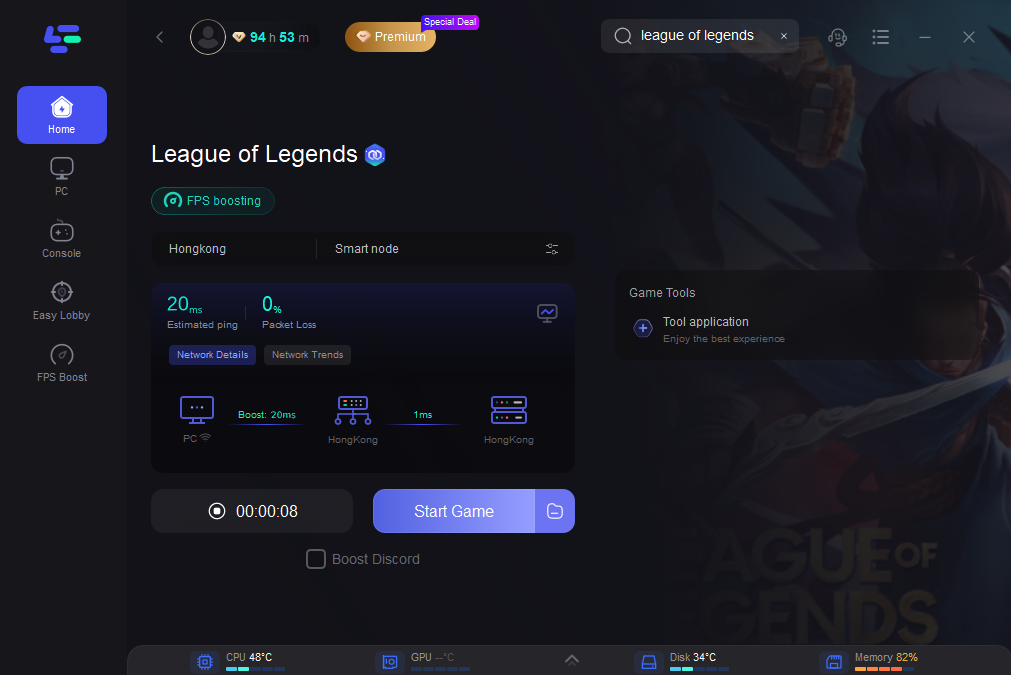
2. Search "League of Legends" and click boost
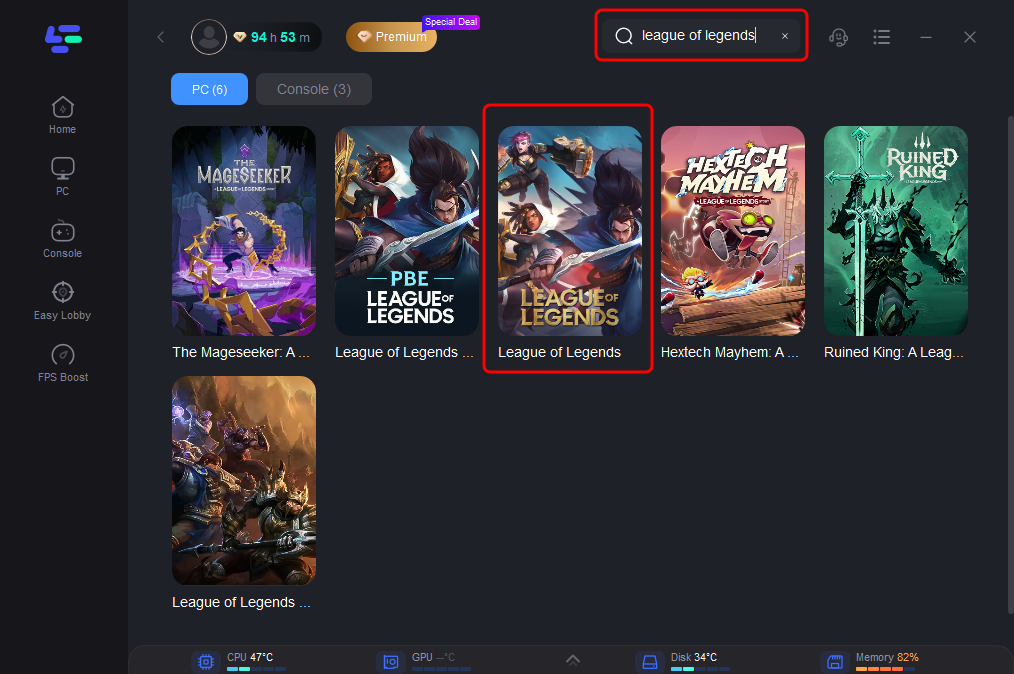
3. Choose the server and the node you want for league of legends
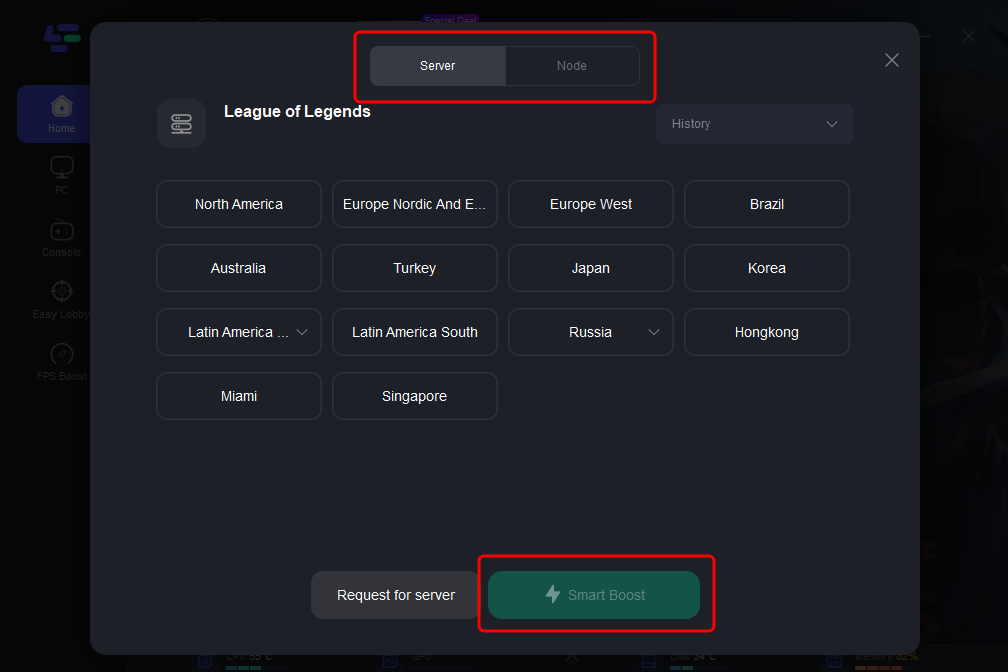
4. Click on the smart boost option to initiate the League of Legends boosting process. From there, you'll be able to monitor real-time ping and packet loss directly on the boosting page.
Final Thoughts
If League of Legends cannot be installed, don’t panic — it’s a common and fixable issue. Whether it’s due to UAC settings, firewall blocks, or Riot server maintenance, most problems can be resolved with a few tweaks. If all else fails, contacting Riot Support with your logs is your best next step.

Boost Your Game with LagoFast for Epic Speed
Play harder, faster. LagoFast game booster eliminates stutter and lags on PC, mobile, or Mac—win every match!
Quickly Reduce Game Lag and Ping!
Boost FPS for Smoother Gameplay!