
The exciting news is official! The highly anticipated licensed version of Rust is set to explode onto PC and mobile, with a full launch on September 19, 2025. The road to this brutal survival world is opening soon: PC early access recruitment kicks off in July 2025, followed by mobile test recruitment in August. As this new era for Rust dawns, one thing is more critical than ever: performance. We all know the brutal reality—that single, fatal half-second stutter in a firefight that sends you straight to the death screen. This guide is your complete battle plan to escape that trap and dominate. Here’s how to increase Rust FPS 2025 and win, whether on PC or mobile.
Part 1: How many FPS is good for Rust?
Part 3: How to increase FPS in Rust
Part 4: Rust best settings for FPS
Part 1: How many FPS is good for Rust?
Before you start optimizing, you need to know what you're aiming for. Understanding what constitutes a good FPS level is the first step to a better experience. How many FPS is good for Rust?
- Below 45 FPS: The danger zone. The game feels sluggish, aiming is difficult, and you are at a clear disadvantage.
- 60 FPS: The gold standard. Gameplay is fluid, responsive, and enjoyable. This should be your target for a great experience on both PC and mobile.
- 100+ FPS (PC): The competitive edge. On a high-refresh-rate monitor, this level of smoothness provides a tangible advantage in reaction time and tracking targets.
And what max FPS Rust is? The FPS limit in Rust depends on your platform:
- On PC: The game is not hard-capped; the limit is your hardware. Your theoretical max framerate is determined solely by how powerful your rig is.
- On Mobile: It will likely be capped in the settings to match your screen's refresh rate (e.g., 60Hz, 90Hz, or 120Hz).
Part 2: Why Rust FPS Drops?
To increase FPS in Rust, you must first understand its root causes. Rust is a beautiful, complex, and demanding beast. If it's running poorly, one of these culprits is likely to blame.
- The Machine itself: hardware hurdles. On PC, an aging graphics card or CPU simply can't keep up with Rust's massive world, complex bases, and 100+ player chaos. On mobile, older phone models will struggle similarly. Insufficient RAM (less than 16GB on PC is a common pain point) is another major bottleneck, forcing your system to slow down dramatically.
- The ghost in the machine: software & settings. You could have a monster rig that runs like a slug. Why? Outdated graphics drivers, unoptimized Windows settings, or—most commonly—in-game graphics settings that are cranked way too high for your hardware. Background apps chewing up resources are silent performance killers, too.
- Running too hot: thermal throttling. This is the number one enemy of mobile gamers and laptop users. When your device gets hot, it deliberately slows itself down to prevent damage. That sudden, massive frame drop in the middle of a fight? That's probably your device hitting the thermal brakes.
Part 3: How to increase FPS in Rust
While manual tweaks help, the smartest, fastest fix is using a professional game optimization tool like LagoFast. It's engineered to solve the two biggest performance killers from the ground up: network instability and system bottlenecks.
Why is it so effective? LagoFast wages a two-front war on poor performance:
- Network fixer: Think of it like a genius GPS for your game data. It finds the fastest, cleanest path to Rust's servers and instantly reroutes around traffic jams. Result for you? A rock-solid connection with way less ping and zero rage-inducing lag spikes.
- PC turbo button (FPS Boost): Seriously, just one click. LagoFast digs deep – tweaking CPU/GPU settings, putting Rust at the front of the line for resources, and killing off background distractions. Your frames? They thank you.
How to Use LagoFast on PC:
Step 1: Click the Free Trial button to download and install LagoFast.
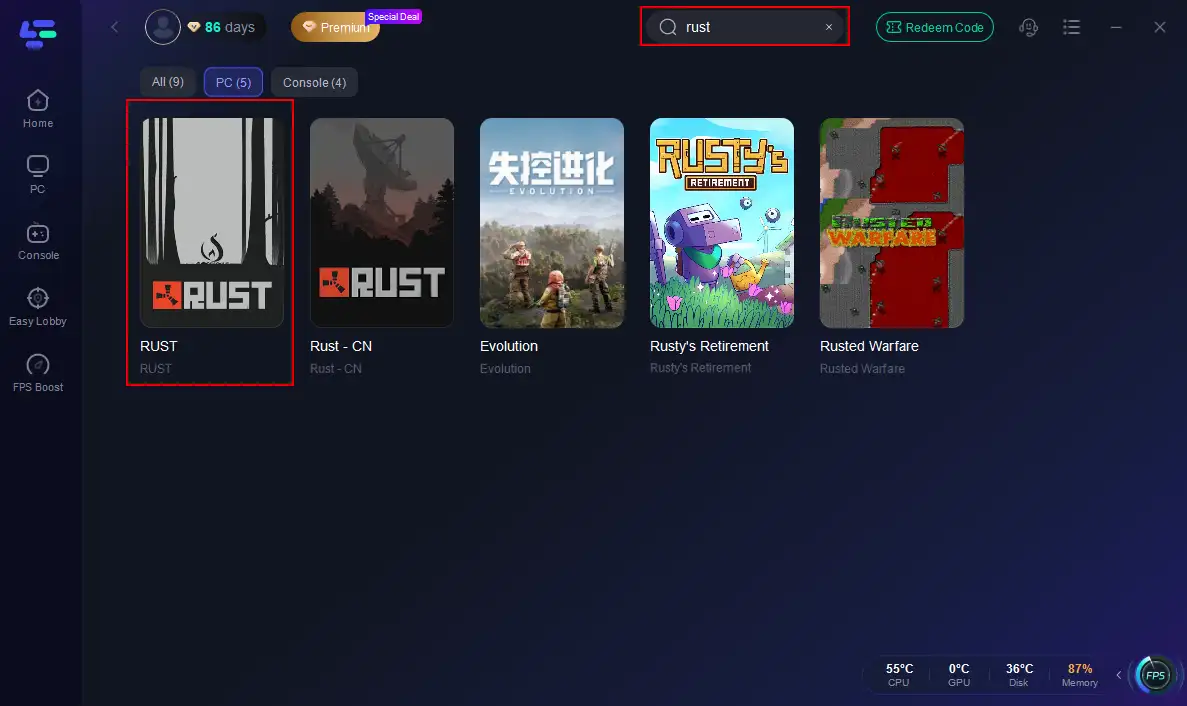
Step 2: Open LagoFast, then click the PC button on the left and search for Rust in the search bar, and click it after it appears.
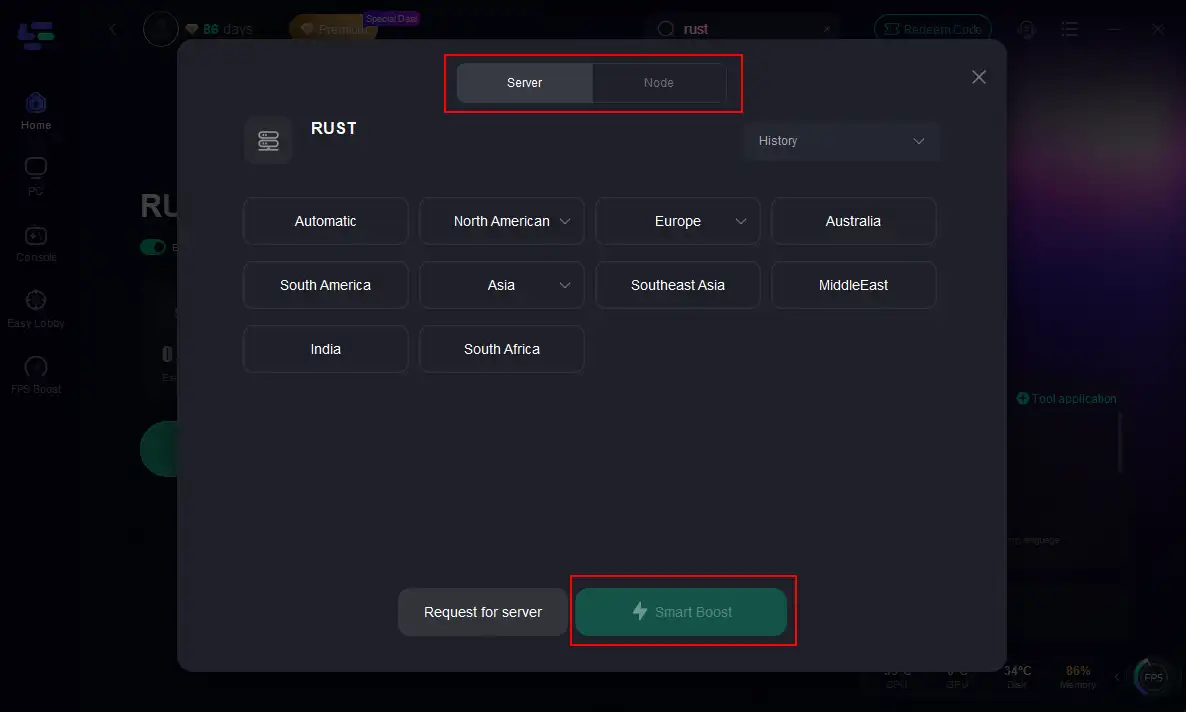
Step 3: Click on “Server” to change to a better server that maximizes the gaming experience, then click on “Smart Boost”.
Step 4: Check the specific game ping, packet loss, and multiple path connections on the right side. Finally, click the “Start Game” to play Rust.
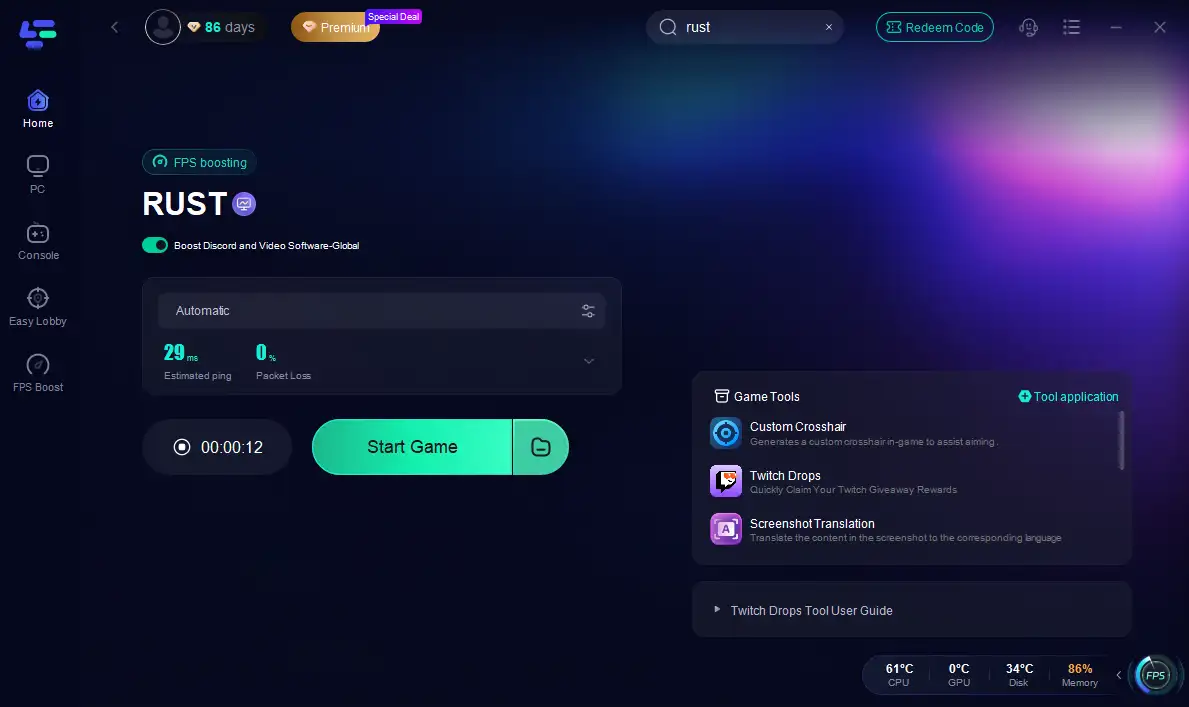
Unleashing LagoFast for Rust on Mobile:
Step 1: Click here to download the APK File of LagoFast mobile.
Step 2. Search for your game and select it.
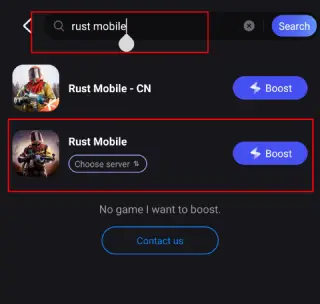
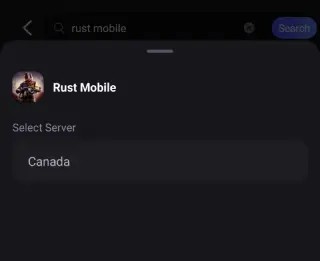
Step 3. Pick the server that suits you best.
Step 4. Tap Boost, and LagoFast will display real-time ping and packet loss stats.
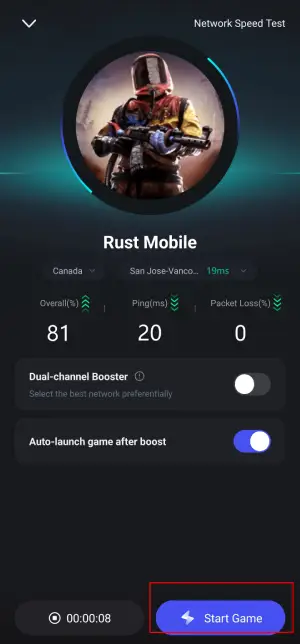
The same power is coming to your pocket. For Rust simply download the LagoFast Mobile Booster from your app store, search for the game, and tap "Boost." It will stabilize your mobile network, ensuring your WiFi or cellular data gives you the lowest possible ping for those crucial on-the-go raids.
Part 4: Rust best settings for FPS
With LagoFast as your primary weapon, support it with these manual tactics to squeeze out every last frame.
For PC Players
1. Tame Rust's Graphics Menu
- Graphics & shadow quality: These are the biggest FPS hogs. Drop Graphics Quality to 1 or 2 and set Shadows to low or, ideally, off completely.
- Water & reflections: Beautiful, but costly. Set Water Quality and Water Reflections to 0 or 1.
- Draw distance: A lower value (around 1500) will drastically improve performance, especially in open fields.
- Max gibs: Set this to 0. You won't see cool debris when things break, but your FPS will thank you.
2. Give Your Graphics Card a Fresh Brain
Your GPU's drivers are its operating system. Keeping them updated is non-negotiable. Head to the NVIDIA or AMD website and grab the latest "Game Ready" drivers.
3. Tell PC to Prioritize Gaming
- Game mode: Search for "Game Mode settings" in Windows and make sure it's on.
- Power plan: In your Control Panel's Power Options, switch from "Balanced" to "High Performance."
4. Silence the Background Noise
Before you launch Rust, press Ctrl+Shift+Esc to open Task Manager. Close everything that isn't essential for your gaming session (Chrome tabs, Spotify, etc.) to free up CPU and RAM.
For Mobile Players
1. Master the Mobile Settings
- Graphics/Frame rate: Go with smooth or low for graphics, and crank the Frame Rate up to the max—aim for 60 or higher. A rock-solid 60 FPS feels way better than stuttering 'HD' graphics at 30.
- Disable the eye candy: Turn off shadows, anti-aliasing, and any extra "effects" options. These are luxuries you can't afford when performance is on the line.
2. Give Your Phone a Pre-Game Tune-Up
- Go solo: Close every single other app. Social media, browsers, music—shut them all down.
- Engage performance mode: Nearly all modern Android phones have a "Game Mode" or "High Performance Mode" in their settings. Activate it.
- Clear the decks: A phone with full storage is a slow phone. Make sure you have plenty of free space.
3. Keep a Cool Head and a Cool Phone
Heat is the arch-nemesis of mobile FPS.
- Ditch the case: Your stylish phone case is also a very effective insulator. Take it off to let heat escape.
- Don't charge and play: Charging generates significant heat. Play on a full battery whenever possible.
- Invest in a cooler: If you're serious about mobile gaming, a clip-on semiconductor phone cooler is a game-changer. It actively pulls heat away, preventing thermal throttling.
Conclusion
With Rust bringing the brutal survival experience to a massive new audience on PC and mobile, performance is the one resource you can't afford to run out of. You can fight your hardware, wrestle with settings, and hope for the best. Or you can arm yourself with the right tool for the job. By combining smart manual tweaks with the sheer power of LagoFast, you're not just playing the game; you're mastering your experience.

Boost Your Game with LagoFast for Epic Speed
Play harder, faster. LagoFast game booster eliminates stutter and lags on PC, mobile, or Mac—win every match!
Quickly Reduce Game Lag and Ping!
Boost FPS for Smoother Gameplay!