
The launch period of Hytale has brought excitement for many players, but it has also introduced frustrating technical problems that prevent smooth installation. One of the most common issues players encounter is the Hytale download getting stuck during installation, often accompanied by cryptic error messages that stop progress entirely. For players eager to jump in, being blocked at the download stage can feel worse than an in-game crash. The good news is that this problem is not permanent, and in most cases, it is caused by server load, network instability, or launcher-related conflicts rather than your hardware. This article explains what the Hytale download stuck error really means, why it happens, and how to fix game installation errors and stuck download issues using proven methods.

- ✅ Reduce Lag and High Ping.
✅ Boost FPS at the Same Time.
✅ Support 2000+ Popular Online Games.
✅ Change Server without Latency.
✅ Boost Game Loading Speed.
Part 1: What is Hytale Download Stuck Error and Why Does It Happen
Part 2: How to Fix Hytale Download Stuck Error - 100% Work?
Part 3: Bonus Tips: How to Fix “This Account Hasn’t Purchased the Game Yet”
Part 1: What is Hytale Download Stuck Error and Why Does It Happen
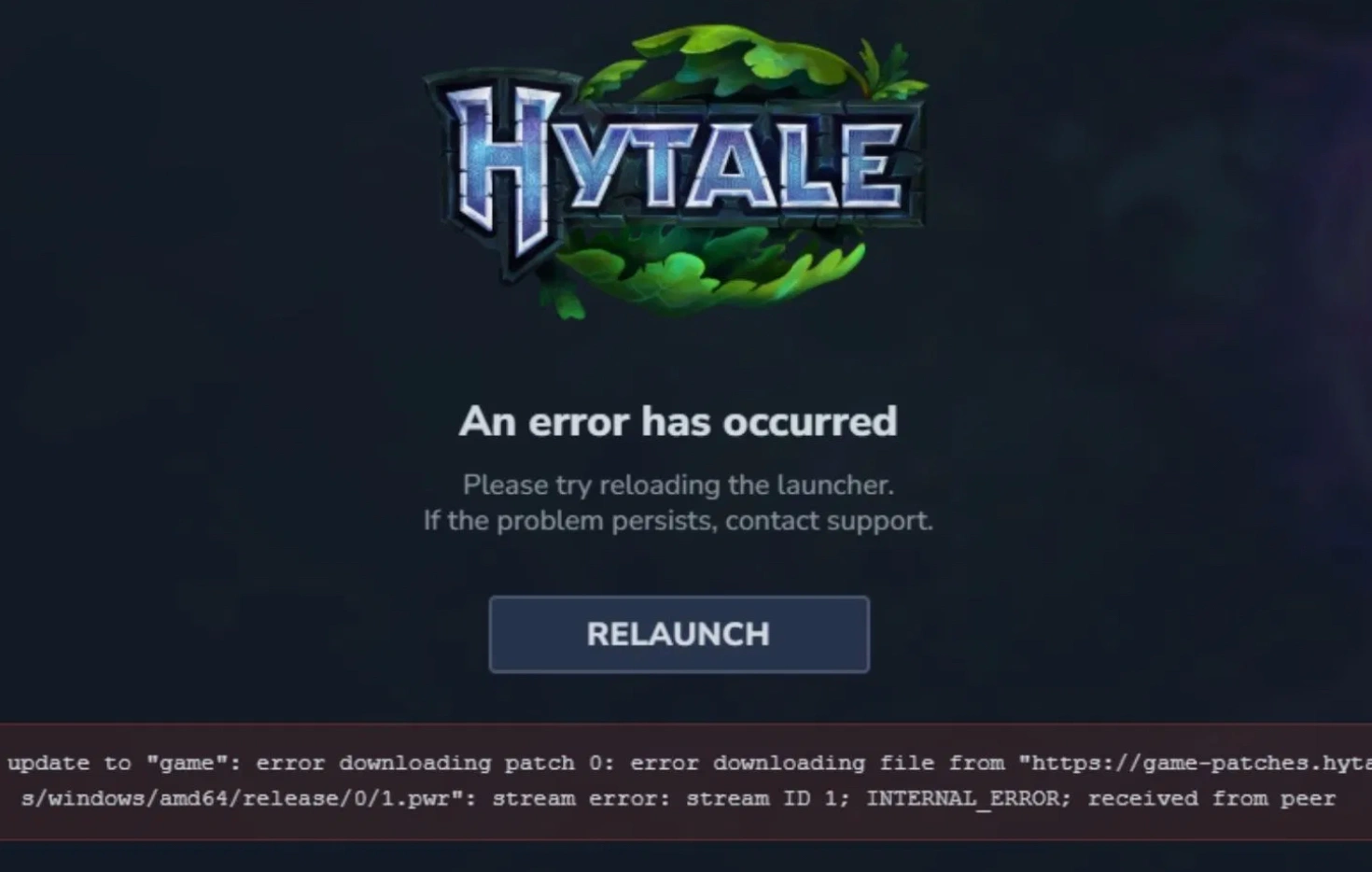
The Hytale download stuck error occurs when the game launcher fails to complete an update or download required patch files. Instead of progressing normally, the installation freezes or repeatedly retries until it fails. Many players see the following error message during installation:
Error applying update to “game”: error downloading patch 0: error downloading file from https://game-patches.hytale.com/patches/windows/amd64/release/0/1.pwr
: stream error: stream ID 1; INTERNAL_ERROR; received from peer
This message indicates that the launcher cannot retrieve patch data from the official server, even though the game files themselves may already be partially downloaded.
Common reasons this error appears:
- Heavy server traffic during launch windows, especially when thousands of players download at the same time
- Network packet loss or unstable routing between your ISP and Hytale patch servers
- Regional download nodes being overloaded or temporarily unavailable
- Antivirus or firewall software interrupting patch verification
- Corrupted temporary files inside the Hytale launcher cache
Part 2: How to Fix Hytale Download Stuck Error—100% Work?
Below are practical solutions that players have successfully used to fix errors applying updates to error downloading patch 0.
Use LagoFast One Click Download Tool and Game Booster—Recommended
LagoFast offers a stable way to bypass launcher download instability by optimizing routes and providing a One-Click Download Tool that simplifies the installation process without repeated verification failures.
Steps to download and play Hytale using LagoFast:
Step 1. Download and install LagoFast on your PC
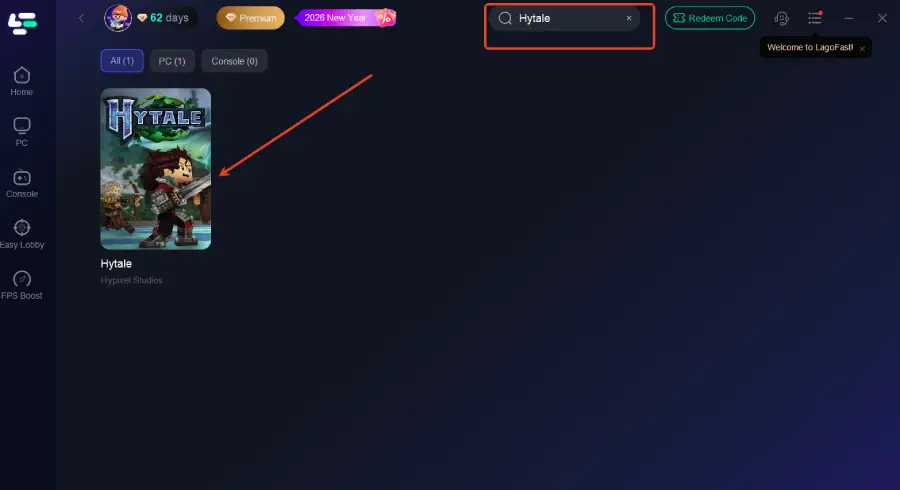
Step 2. Open LagoFast and search for Hytale
Step 3. Use the One-Click Download Tool to download the launcher or game files
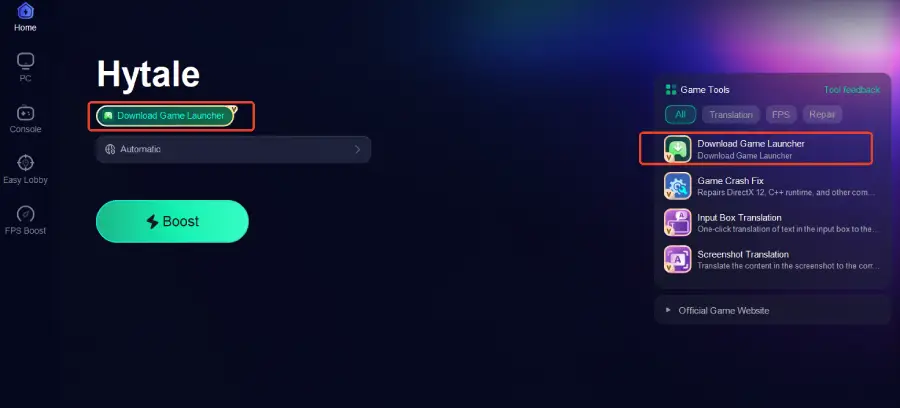
Step 4. Complete the installation process
Step 5. Click Smart Boost to enable LagoFast’s game acceleration before launching Hytale
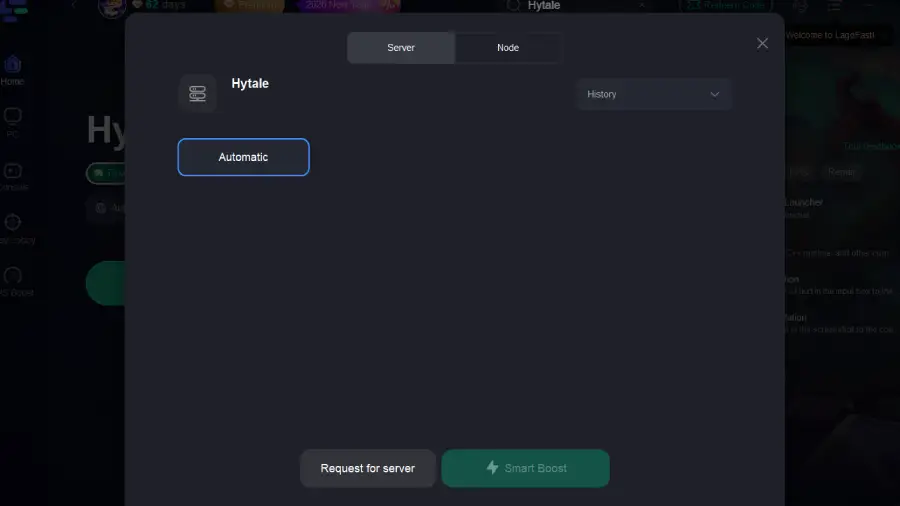
Step 6. Start the game with a more stable and optimized connection
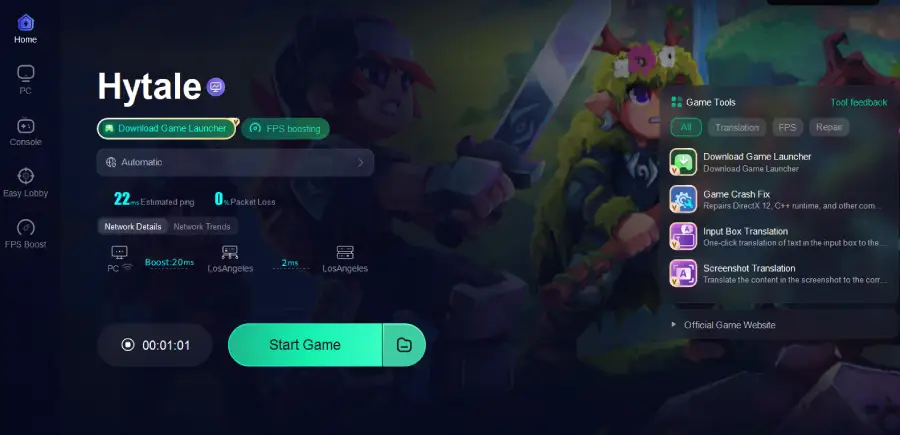
LagoFast not only helps fix game installation errors and stuck download problems but also improves in-game latency by selecting optimized network paths, which is especially helpful during early access periods.
Download and Reinstall the Hytale Launcher Manually
Sometimes the launcher itself becomes corrupted during the initial download attempt, causing repeated patch failures.
Step 1. Fully close the Hytale launcher and any background processes
Step 2. Uninstall the Hytale launcher from your system
Step 3. Navigate to the official Hytale website and download the latest launcher version
Step 4. Install the launcher as administrator
Step 5. Restart your PC before launching the installer again
This clears incomplete patch data and ensures the launcher starts with a clean state.
Retry Download During Off-Peak Hours
Because server overload is one of the main causes of error applying update to error downloading patch error 0, timing can make a significant difference.
Step 1. Close the launcher completely
Step 2. Wait for a time when regional traffic is lower, such as late night or early morning
Step 3. Reopen the launcher and click Relaunch or Resume Download
Step 4. Allow the download to continue without interruption
The Hytale launcher retains progress between attempts, so restarting does not reset the entire download.
Change DNS Settings to Prevent Patch Download Failure
DNS resolution problems can interrupt file requests during the update process, causing the Hytale download to get stuck during installation or trigger an error applying the update message.
Step 1. Open your network settings on Windows and access the active connection properties.
Step 2. Select Internet Protocol Version 4 and enter a public DNS such as 8.8.8.8 and 8.8.4.4.
Step 3. Save the settings and restart your network connection.
Step 4. Fully close the Hytale launcher and reopen it.
Step 5. Resume or restart the download and monitor whether the patch progresses normally.
This method helps resolve cases where the error applying update to error downloading patch error 0 is caused by failed domain lookups or unstable ISP DNS servers rather than download speed issues.
Part 3: Bonus Tips: How to Fix “This Account Hasn’t Purchased the Game Yet”
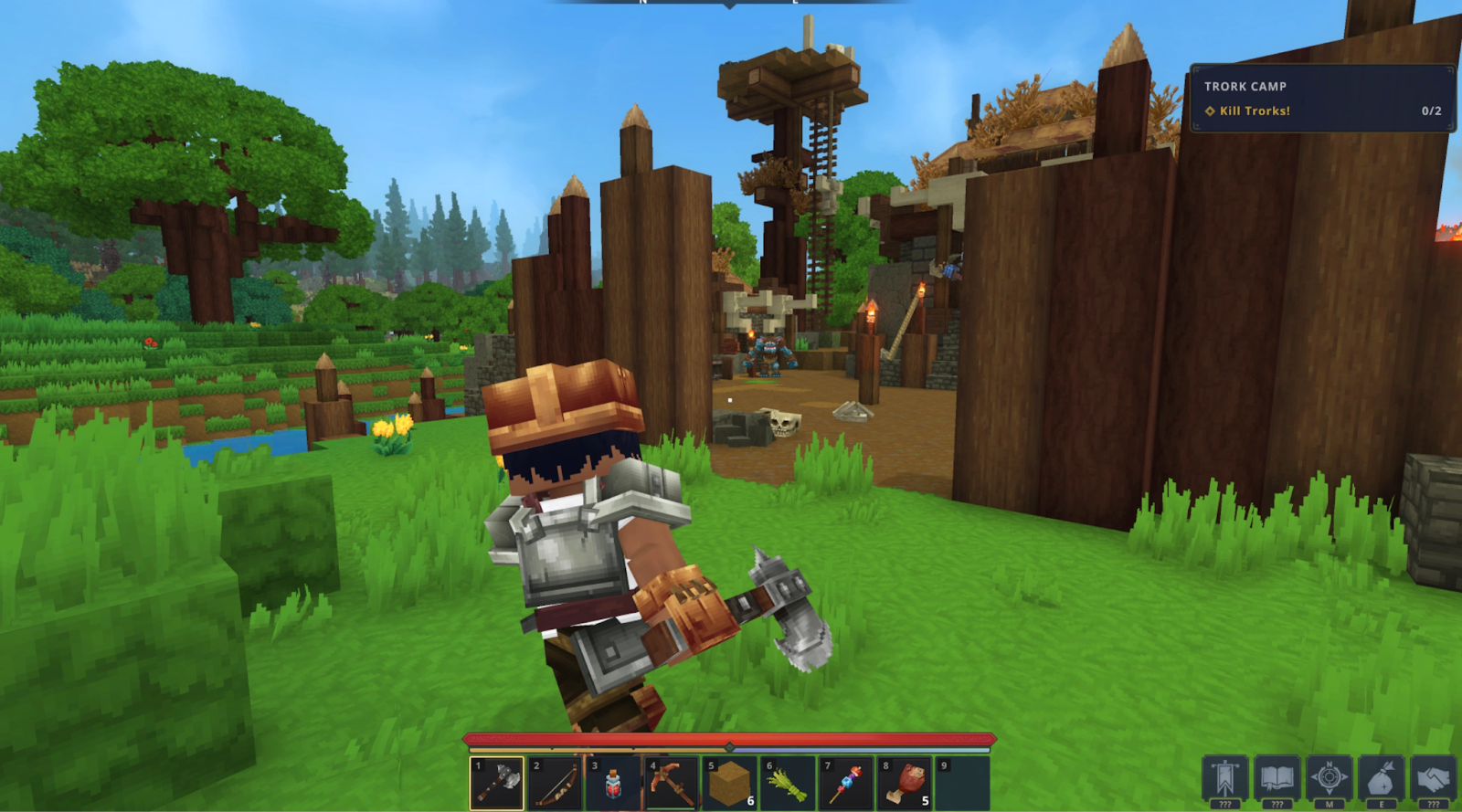
Another issue some players encounter after fixing the download is a message stating that the account has not purchased the game yet. This usually appears when authentication data fails to sync properly with the Hytale account system or when early access verification has not completed. This error does not mean your account is broken. In most cases, it simply means your account does not yet have a valid purchase record linked to the launcher session.
Solutions:
Step 1. Log into your Hytale account via the official website
Step 2. Confirm your account status and purchase eligibility
Step 3. If required, pre-purchase Hytale at store.hytale.com
Step 4. Log out of the launcher and sign back in
Step 5. Restart the launcher to refresh account verification
Once the purchase status is confirmed, the launcher should allow full access without further errors.
Conclusion
The Hytale download stuck error is usually caused by server congestion or unstable connections, not your PC. If you keep seeing errors applying update or patch 0 issues, using LagoFast is the fastest solution, helping you download the game smoothly while also boosting connection stability and in-game performance so you can start playing without delays.
Boost Your Game with LagoFast for Epic Speed
Play harder, faster. LagoFast game booster eliminates stutter and lags on PC, mobile, or Mac—win every match!
Quickly Reduce Game Lag and Ping!
Boost FPS for Smoother Gameplay!