

Hytale is one of the most exciting sandbox adventure games available today. While joining public servers is easy, they often come with strict rules, performance issues, or limited customization. That can quickly take the fun out of an otherwise creative game.
Hosting your own Hytale dedicated server gives you complete control over your world. This guide walks you through everything you need to know—from downloading server files and setting up your server to finding reliable Hytale server lists—so you can play exactly how you want, with who you want.

- ✅ Reduce Lag and High Ping.
✅ Boost FPS at the Same Time.
✅ Support 2000+ Popular Online Games.
✅ Change Server without Latency.
✅ Boost Game Loading Speed.
Part 2: What Is Hytale Dedicated Server
Part 3: Why Do You Need a Hytale Server
Part 4: How to Set Up a Hytale Server
Part 5: Hytale Dedicated Server List
Part 6: Enhance Your Hytale Experience with LagoFast
Part 1: What Is Hytale
Hytale is a block-based sandbox RPG with procedurally generated worlds. Players can build, explore, fight monsters, and complete quests solo or with friends. It’s often compared to Minecraft, but with deeper combat systems and more gameplay depth.
What makes Hytale stand out is its strong focus on customization. With built-in support for mods, scripts, and gameplay tweaks, Hytale is perfect for private servers and community-driven worlds.
Related Article: How to Download Hytale on PC & Fix Launcher Issues?
Part 2: What Is Hytale Dedicated Server
A Hytale dedicated server is a standalone server that runs independently of your game client and stays online 24/7. Unlike public servers, it gives you full administrative control:
- Choose who can join your world
- Set player limits and server rules
- Customize maps, creatures, and in-game events
Think of it as your personal Hytale playground—you’re the admin, you set the rules, and you decide how the adventure unfolds.
Part 3: Why Do You Need a Hytale Server
Public servers can be frustrating—laggy gameplay, random rules, and unpredictable players can ruin the fun. Hosting your own Hytale server gives you full control and solves these problems:
- Play your way: Adjust rules, spawn rates, and game modes to suit your style.
- Stable performance: No lag from overcrowded servers.
- Secure access: Only friends you invite can join.
- Customization: Add mods or plugins to make the game truly yours.
In short, if you want more fun, freedom, and control, running your own server is the way to go.
Part 4: How to Set Up a Hytale Server
Setting up a Hytale server isn’t complicated, but getting the basics right will save you a lot of trouble later. Below is the full setup process, based on the official Hytale Server Manual, explained in a player-friendly way.
Download Hytale Server Files
Before you can run a server, you need the official server files. There are two common ways to get them, depending on your use case.
Option 1: Copy Files from the Hytale Launcher
Best for: Local testing or short-term setups
You can locate the server files inside your Hytale launcher directory:
- Windows: %appdata%\Hytale\install\release\package\game\latest
- Linux: $XDG_DATA_HOME/Hytale/install/release/package/game/latest
- macOS: ~/Application Support/Hytale/install/release/package/game/latest
Copy the Server folder and Assets.zip into your server directory.
This method works, but manual updates can become inconvenient over time.
Option 2: Hytale Downloader CLI
Best for: Public or long-term servers
The Hytale Downloader CLI is an official command-line tool that uses OAuth authentication to download the latest server and asset files. It’s designed for production use and makes updates easier and more reliable.
Server Setup Requirements
Before anything else, make sure your system is ready.
A Hytale dedicated server can run on most modern machines, as long as you have:
- At least 4GB of RAM
- Java 25 installed
- Support for x64 or arm64 architecture
Performance depends heavily on how your server is used:
- CPU usage increases with high player counts or many active entities (NPCs, mobs).
- RAM usage grows when players explore different areas or use a high view distance.
Without special monitoring tools, it can be hard to know the perfect RAM allocation. Start small and adjust as needed using Java’s -Xmx parameter. If RAM is too low, you’ll often notice higher CPU usage caused by garbage collection.
Install Java 25
Hytale currently recommends Java 25 (via Adoptium) for dedicated servers. Requirements may change as the game continues development.
After installing Java, confirm everything works by running:
java --version
If Java 25 is installed correctly, version information will be displayed in the terminal.
Part 5: Hytale Dedicated Server List
Not ready to host your own server? A Hytale dedicated server list is your shortcut to multiplayer fun. These lists show active servers you can join instantly, sorted by player count, map size, and game mode.
How to Browse a Hytale Dedicated Server List
- Search for active servers using official or community-maintained lists.
- Filter by server rules, population, and game type.
- Bookmark your favorites to quickly jump in next time.
Recommended Third-Party Server Lists (HytaleHosting, SurvivalServers)
- HytaleHosting.net: Provides a curated list of active servers and hosting services.
- SurvivalServers.com: Offers server rentals and public lists for immediate gameplay.
Using these lists ensures you can always find stable, active servers without setting up your own.
Part 6: Enhance Your Hytale Experience with LagoFast
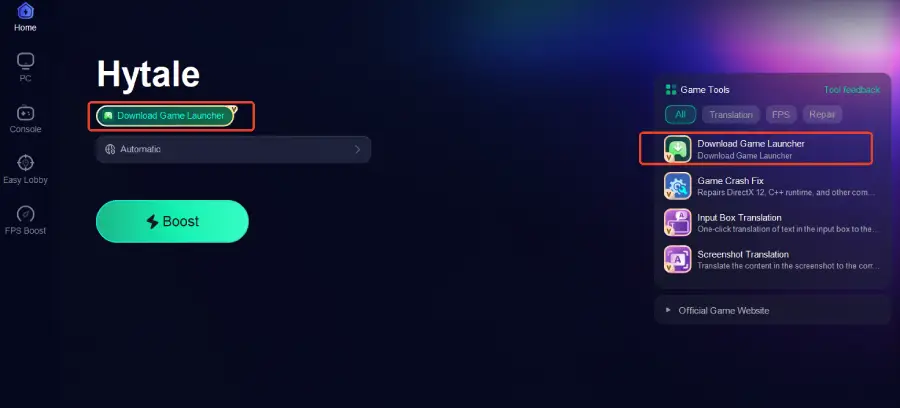
Even with a Hytale dedicated server or a solid public server, lag and slow downloads can still hurt your experience. LagoFast helps optimize your network connection to reduce latency and improve stability, and its Download Game Launcher tool makes downloading and updating the Hytale launcher faster and more reliable. Combined with a dedicated server or a trusted server from a Hytale dedicated server list, LagoFast helps ensure smoother gameplay from setup to playtime.
Tutorial to Use LagoFast to Get the Best Hytale Experience on PC:
Step 1: Click the Free Trial button to download and install LagoFast.
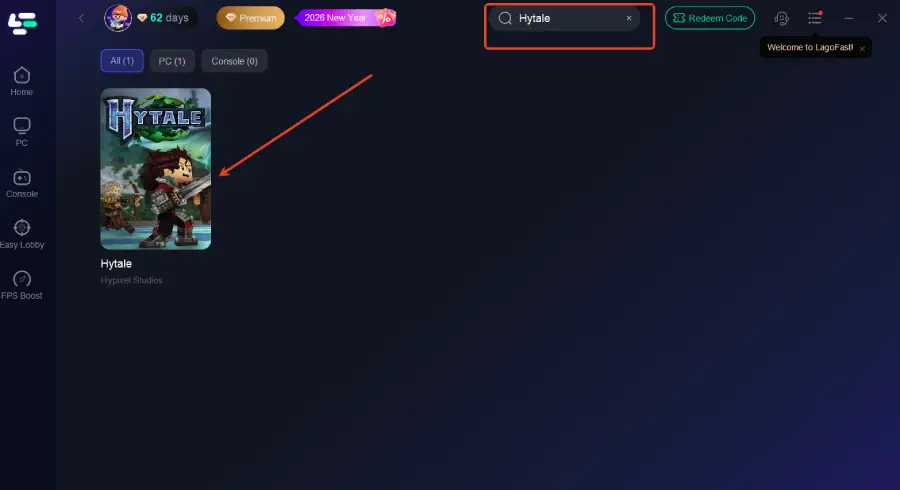
Step 2: After installation, search "Hytale" in the search bar and select the game.
Step 3: Click the Download Game Launcher tool on the right to start downloading
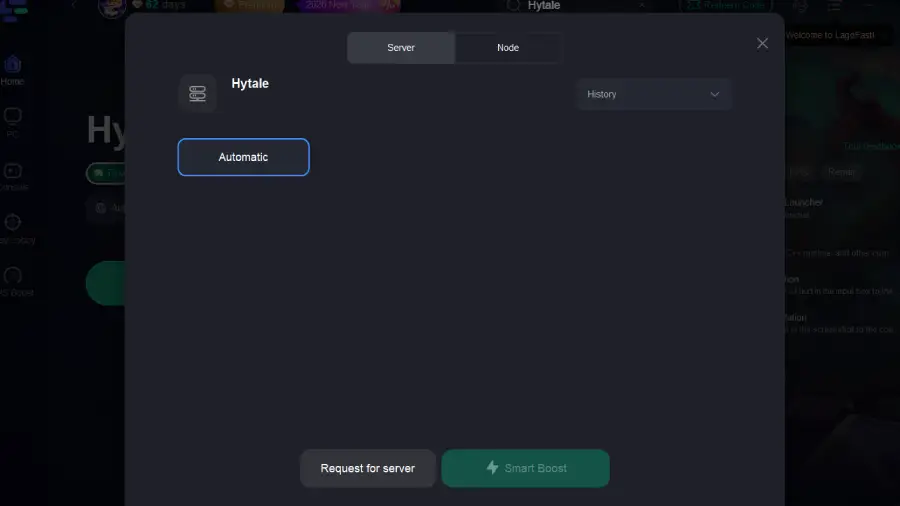
Step 4: Choose your preferred server node and click "Smart Boost" to start optimizing.
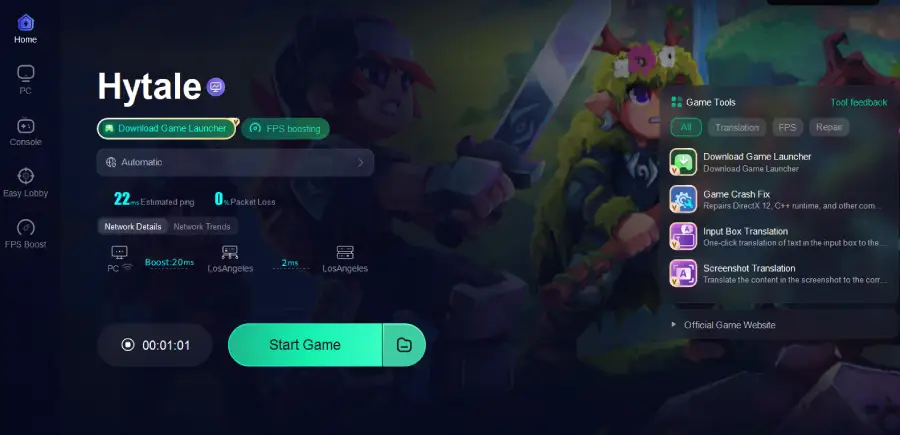
Step 5: Launch your game and enjoy smooth, optimized gameplay with lower ping and no stutter.
Conclusion
Running your own Hytale dedicated server gives you complete control, better performance, and endless customization. Whether you host a server yourself or join one from a trusted server list, combining the right setup with tools like LagoFast ensures a smoother, more enjoyable experience.
Now you’re ready to build your world, invite your friends, and enjoy Hytale on your own terms.

Boost Your Game with LagoFast for Epic Speed
Play harder, faster. LagoFast game booster eliminates stutter and lags on PC, mobile, or Mac—win every match!
Quickly Reduce Game Lag and Ping!
Boost FPS for Smoother Gameplay!