

If you are experiencing Hytale connection issues, you are not alone. As excitement grows around Hytale, many players report login errors, server timeouts, and unstable connections during testing phases and community-hosted sessions. One common problem is “Hytale failed to connect to server,” which can be frustrating but is usually solvable. This guide breaks down the most frequent connection issues, explains why they happen, and offers practical steps to help you stay connected and enjoy a smoother gameplay experience.

- ✅ Reduce Lag and High Ping.
✅ Boost FPS at the Same Time.
✅ Support 2000+ Popular Online Games.
✅ Change Server without Latency.
✅ Boost Game Loading Speed.
Part 1: Common Hytale Connection Issues
Part 2: What Causes Hytale Connection Issues?
Part 3: How to Fix Hytale Connection Issues
Part 4: Are Hytale Connection Issues Normal?
Part 5: When Connection Issues Are Not Your Fault
Part 6: Use LagoFast to Fix Hytale Connection Issues
Part 1: Common Hytale Connection Issues
Before jumping into fixes, it helps to understand what kind of problem you are dealing with. Most Hytale connection issues fall into one of the following categories:
Hytale Failed to Connect to Server
This happens when the game cannot reach the target server. Causes include server downtime, overloaded test servers, or incorrect server addresses.
High Ping or Lag Spikes
Players may connect successfully but experience rubber-banding, delayed actions, or disconnections. This is typically tied to network latency or routing instability.
Authentication or Login Errors
These occur when the client cannot verify your account session. During early access periods, authentication servers are often under heavy load.
Random Disconnects
If Hytale disconnects you mid-session, the issue is often related to unstable internet connections, firewall interference, or background applications consuming bandwidth.
Related Article: How to Download Hytale on PC & Fix Launcher Issues?
Part 2: What Causes Hytale Connection Issues?
Hytale is still evolving, and its infrastructure reflects that. The most common causes include:
- Server-side instability during alpha or beta testing phases
- High player concurrency overwhelming available servers
- ISP routing issues or regional network congestion
- Firewall or antivirus software blocking game traffic
- Outdated network drivers or operating system conflicts
- Mass server disconnection errors after game launch
Part 3: How to Fix Hytale Connection Issues
Here is a practical, step-by-step checklist that resolves the majority of connection problems.
1. Check Hytale Server Status
Before changing anything locally, confirm whether Hytale servers are online. Community Discords and official announcements are usually faster than waiting and hoping.
2. Restart Your Network
Power-cycle your modem and router. This refreshes your IP route and clears temporary network congestion. Yes, it is basic. Yes, it works more often than people want to admit.
3. Use a Wired Connection
Wi-Fi instability is a major cause of random disconnects. If possible, switch to Ethernet to reduce packet loss and latency spikes.
4. Allow Hytale Through Firewall and Antivirus
Ensure Hytale is whitelisted in:
- Windows Defender Firewall
- Third-party antivirus software
Blocked ports are a silent killer of stable connections.
5. Close Background Applications
Streaming, cloud backups, and “helpful” system updaters can quietly eat bandwidth. Shut them down before launching the game.
6. Update Network Drivers
Outdated drivers can cause packet loss and handshake failures. Update your network adapter drivers directly from the manufacturer, not just via OS auto-update.
7. Avoid VPNs Unless Necessary
VPNs often increase latency and can trigger server security flags. Disable them unless you are explicitly testing regional routing.
8. Synchronize Your System Clock
If you are experiencing persistent “Hytale failed to connect to server” errors, check your system time. Hytale’s authentication servers rely on accurate time settings, and an incorrect system clock can trigger mass disconnection errors.
Part 4: Are Hytale Connection Issues Normal?
Short answer: yes, for now.
Hytale is not a finished live-service MMO yet. Connection issues are expected during:
- Closed testing phases
- Stress tests
- Community-hosted or modded servers
As server infrastructure matures, these issues should become less frequent. Until then, stability will vary by region and test window.
Part 5: When Connection Issues Are Not Your Fault
If you have stable internet, correct firewall settings, no VPN interference, and updated drivers but still face “Hytale failed to connect to server” errors, the problem is likely server-side. At that point, local troubleshooting is limited—monitor official channels for updates.
Part 6: Use LagoFast to Fix Hytale Connection Issues
For persistent disconnections, high ping, or server connection failures, the problem is often related to routing rather than your own bandwidth. This is where LagoFast’s Fix Server Disconnection tool comes in—it is specifically designed to help players resolve issues when they cannot connect to a Hytale server, ensuring a more stable and reliable connection.
Why LagoFast Helps with Hytale
- Automatically optimizes game routing to reduce latency and packet loss
- Lets you manually select stable servers and nodes instead of relying on luck
- Includes a built-in game launcher download feature, so you can manage game startup directly
- Real-time visibility into ping, packet loss, and network type
How to Use LagoFast
Step 1: Click the Free Trial button to download and install LagoFast.
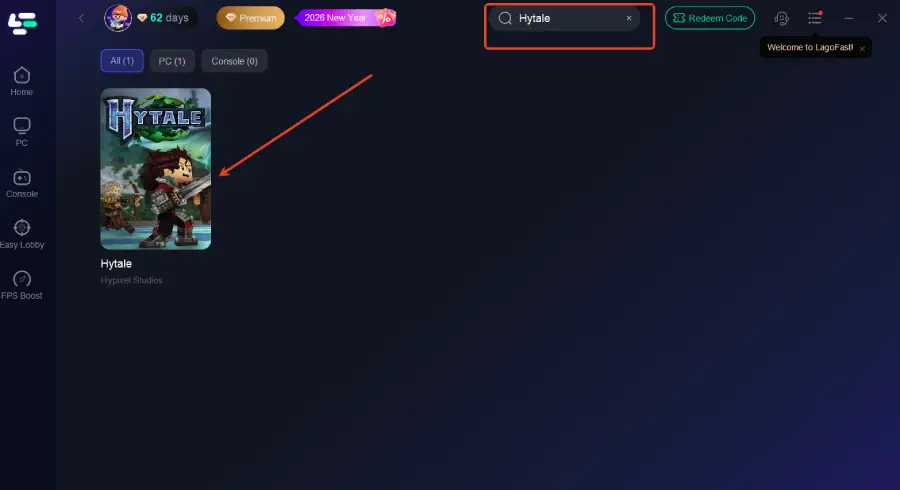
Step 2: After installation, search "Hytale" in the search bar and select the game.
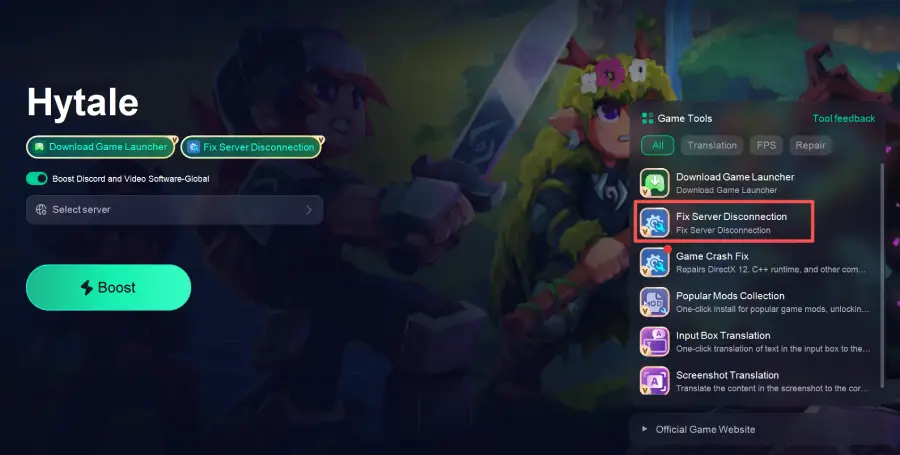
Step 3: Click the Fix Server Disconnection tool on the right.
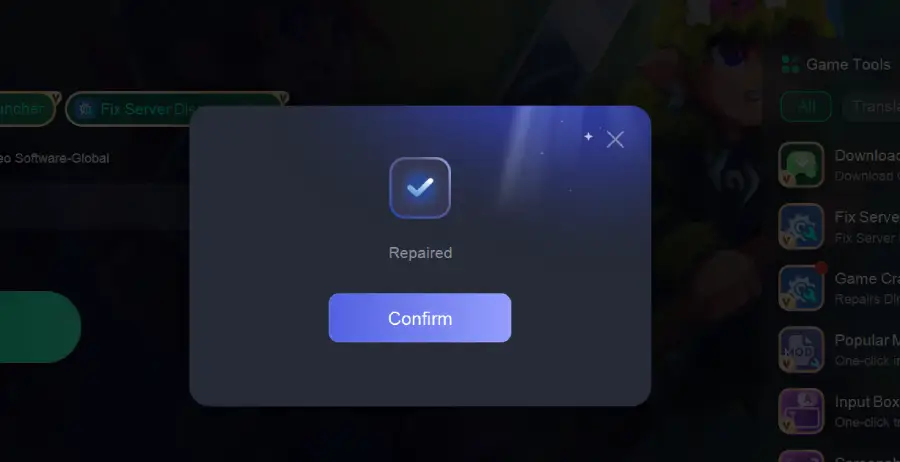
Step 4: Click Confirm to apply the fix.
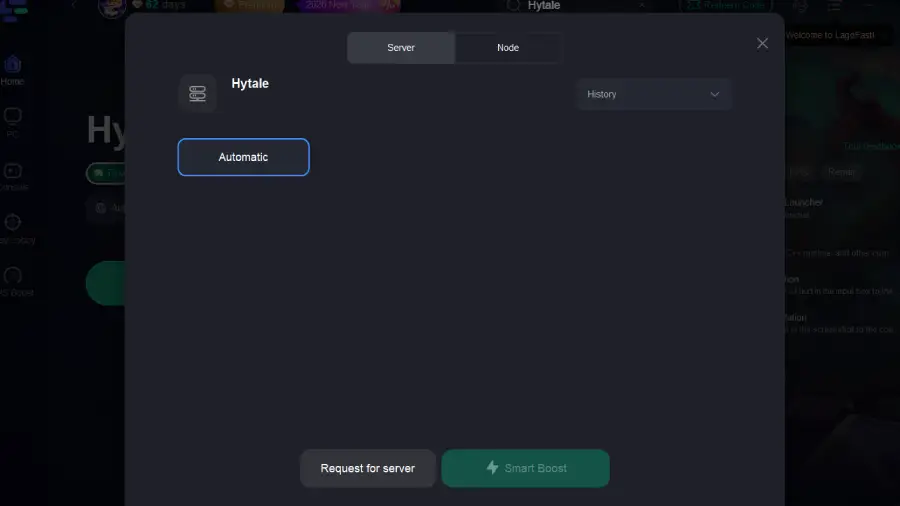
Step 5: Choose your preferred server node and click "Smart Boost" to start optimizing.
Step 6: Launch your game and enjoy smooth, optimized gameplay with lower ping and no stutter.
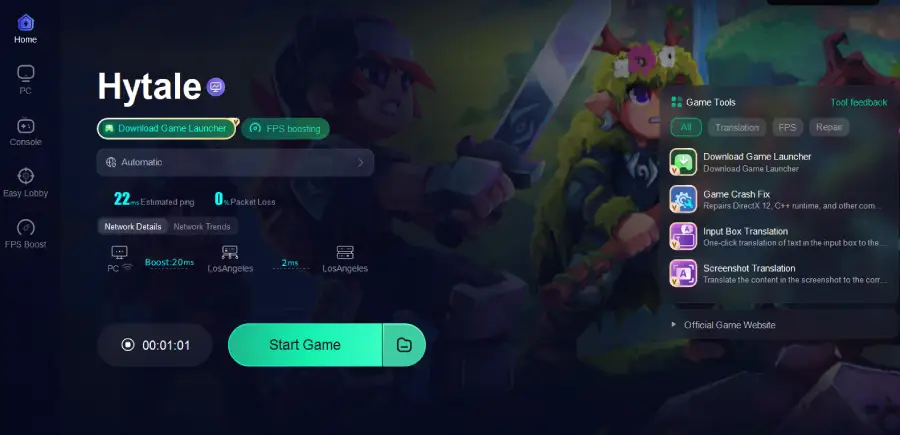
If Hytale keeps disconnecting despite a decent internet connection, the bottleneck is usually routing—not bandwidth. LagoFast gives you control over how your game connects, instead of leaving it to default ISP paths that were never designed for online gaming. It is a practical fix, not a placebo, and for unstable servers, it can be the difference between playing and rage-quitting.
Conclusion
Hytale connection issues can be frustrating, but they are rarely mysterious. Most problems come down to server load, network stability, or overly aggressive security software. Work through the fixes methodically, and you will eliminate the majority of issues without guesswork. As Hytale moves closer to full release, expect connection reliability to improve significantly. Until then, patience—and a wired connection—go a long way.

Boost Your Game with LagoFast for Epic Speed
Play harder, faster. LagoFast game booster eliminates stutter and lags on PC, mobile, or Mac—win every match!
Quickly Reduce Game Lag and Ping!
Boost FPS for Smoother Gameplay!