
Roblox updates bring crucial features, bug fixes, and security improvements. Whether you're on PC, laptop, Huawei, or have no Google access—this step-by-step guide walks you through all possible ways to update Roblox correctly in 2025.
- Who Made the Update in Roblox?
- Why Should You Update Roblox?
- How to Update Roblox on PC (Windows)
- How to Update Roblox on Huawei Phones (Without Google Play)
- How to Update Roblox on Android Tablet
- How to Update Roblox on Laptop (Windows & Mac)
- How to Manually Update Roblox (All Devices)
- How to Update Roblox Without Play Market or Google (For Android & Huawei Users)
- How to Solve Roblox Update Problems (2025 Fixes)
- Optimize Download Speed and Gaming Experience with LagoFast
1. Who Made the Update in Roblox?
All Roblox updates come from Roblox Corporation, the team led by co-founders David Baszucki and the late Erik Cassel. In 2025, they rolled out major improvements through the Creator Roadmap, including updates to Roblox Studio, enhanced safety systems, and new tools for developers, such as mesh API upgrades.
2. Why Should You Update Roblox?
Updating Roblox keeps your game experience fresh and secure. In 2025, updates included better voice chat moderation and tighter parental controls for younger players.
You’ll also get smoother gameplay, bug fixes, and fan-favorite returns—like the legendary “oof” sound that made a comeback to everyone's surprise and joy.
3. How to Update Roblox on PC (Windows)
Method 1: Auto-Update via Browser
- Go to www.roblox.com.
- Log into your account.
- Click on any game and hit the Play button.
- If your client is outdated, Roblox will auto-update and relaunch.
Method 2: Microsoft Store Update
- Open Microsoft Store.
- Click Library on the left menu.
- Find Roblox in the list.
- Click Update if it appears.
Method 3: Manual Reinstallation
- Press Windows + R, type %localappdata%, and hit Enter.
- Find the Roblox folder and delete it.
- Go to Control Panel > Programs and uninstall Roblox.
- Restart your PC.
- Visit roblox.com, log in, and press Play on any game to reinstall.
4. How to Update Roblox on Huawei Phones (Without Google Play)
Huawei devices don’t support Google Play, but you can still update Roblox easily using the AppGallery or by manually installing the APK. Here’s how:
Method 1: Update via Huawei AppGallery
- Open the AppGallery app on your Huawei phone.
- Tap the search bar and type “Roblox”.
- If you already have it installed, you’ll see an “Update” button.
- Tap Update, wait for it to finish, and launch the game.
If Roblox Isn’t Listed or No Update Appears:
Method 2: Install Latest APK Manually
- Open your browser and go to the official Roblox APK page: https://www.roblox.com/apk
- Download the latest APK version.
- Go to Settings > Security > More Settings (or Apps & Permissions).
- Tap Install unknown apps, then choose your browser or file manager and allow permissions.
- Locate the downloaded APK file (usually in the Downloads folder).
- Tap it and follow the prompts to install Roblox.
- Once installed, open the app—Roblox will be updated to the latest version.
5. How to Update Roblox on Android Tablet
Method 1: Via Google Play
- Open Google Play Store.
- Search for Roblox.
- Tap Update.
Method 2: Sideload APK
- Download the APK from roblox.com/apk.
- Enable unknown sources in Settings > Security.
- Open the APK file and install.
- Launch the app.
6. How to Update Roblox on Laptop (Windows & Mac)
For Windows Laptops
You can update Roblox using the browser or Microsoft Store—just like on a desktop PC.
Method 1: Auto-Update via Browser
- Open your browser and go to roblox.com.
- Log into your account.
- Click Play on any game—this will automatically update Roblox if needed.
Method 2: Update via Microsoft Store
- Open the Microsoft Store app.
- Click on Library from the left sidebar.
- Find Roblox and click Update if available.
For MacBooks (macOS)
Roblox on macOS updates automatically when you launch a game. But if the update doesn’t happen:
Manual Update Steps:
- Open Finder > Applications.
- Find and delete the Roblox app by dragging it to the Trash.
- Empty the Trash (optional but recommended).
- Go to roblox.com in your browser.
- Log in, click Play on any game—this will reinstall the latest Roblox version for macOS.
7. How to Manually Update Roblox (All Devices)
If auto-updates aren’t working or you're facing bugs, manually updating Roblox can help. Here's how to do it on any device:
Step-by-Step for Windows PC
- Press Windows + R, type appwiz.cpl, and press Enter to open Programs and Features.
- Find Roblox, right-click, and select Uninstall.
- Press Windows + R again, type %localappdata%, and delete the Roblox folder to clear leftover files.
- Restart your computer.
- Visit roblox.com, log in, and click Play on any game to reinstall the latest version.
Step-by-Step for Android Devices
- Tap and hold the Roblox app icon.
- Tap Uninstall, then confirm.
- Go to Settings > Apps > Roblox > Storage, and clear cache/data if the option is still visible.
- Restart your phone.
- Reinstall Roblox from either:
- Google Play Store, or
- Download the APK directly from roblox.com/apk if Play Store isn't available.
Step-by-Step for iPhone / iPad (iOS)
- Tap and hold the Roblox app until it jiggles.
- Tap the X or Remove App, then confirm deletion.
- Restart your device.
- Open the App Store, search for Roblox, and tap Download to reinstall the latest version.
8. How to Update Roblox Without Play Market or Google (For Android & Huawei Users)
If you don’t have access to Google Play—like on Huawei phones or devices in restricted regions—you can still update Roblox by manually installing the APK. Here's how:
Step-by-Step Guide
- Open your browser on your phone or tablet.
- Go to the official Roblox APK page: https://www.roblox.com/apk
- Tap Download to get the latest Roblox APK file.
- Once the download finishes, open Settings > Security (or Settings > Apps & permissions).
- Tap Install unknown apps or Allow installation from unknown sources.
- Choose your browser (e.g., Chrome or Huawei Browser), and enable the permission.
- Go to your Downloads folder and tap the APK file.
- Tap Install, then wait for the installation to complete.
- Open the Roblox app. It will now be fully updated to the latest version.
9. How to Solve Roblox Update Problems (2025 Fixes)
If Roblox won’t update, throws errors like Code 280, or there’s no update button—don’t worry. Here’s exactly how to fix the most common update issues in 2025.
Fix: Roblox Error Code 280
This error means your Roblox version is outdated or corrupted.
Steps to Fix:
- Close Roblox completely.
- Press Windows + R, type %localappdata%, and hit Enter.
- Find and delete the “Roblox” folder.
- Open Control Panel > Programs > Uninstall a program and remove Roblox.
- Restart your computer.
- Go to roblox.com, log in, and click Play on any game to reinstall.
- The latest version will be installed automatically.
Bonus Tip: Check your date and time settings—an incorrect system clock can trigger error 280.
Fix: Roblox Won’t Update
Method 1: Using Microsoft Store
- Open the Microsoft Store.
- Click Library, find Roblox, and tap Update.
Method 2: Reinstall via Browser (More Reliable)
- Uninstall Roblox through Control Panel > Uninstall a program.
- Go to roblox.com and click Play on any game.
- This will download the latest version automatically.
If Roblox Still Doesn’t Launch After Update:
- Open your Roblox installation folder (usually in Program Files or %localappdata%).
- Double-click RobloxPlayerLauncher.exe to force the update.
Fix: No Update Button Shown
This can happen on both PC and mobile stores.
Steps:
1. Close Roblox or the store completely.
2. Restart your device.
3. On Android:
- Go to Settings > Apps > Roblox > Storage
- Tap Clear Cache (optional: also clear data)
4. Reopen your store and check for updates again.
5. If still missing, uninstall and reinstall Roblox to trigger a fresh install.
Fix: No Google Access (Huawei, China, etc.)
Steps:
- Go to roblox.com/apk on your device’s browser.
- Download the latest APK file.
- Open Settings > Security > Install unknown apps.
- Allow permission for the browser or file manager.
- Open the APK file and install Roblox.
- Launch the app—it will be updated automatically.
10. Optimize Download Speed and Gaming Experience with LagoFast
Even after updating Roblox, slow download speeds during updates or laggy gameplay can ruin the fun. That’s where LagoFast Game Booster comes in—it’s designed to supercharge your Roblox experience by accelerating downloads and stabilizing in-game performance.
How LagoFast Helps with Roblox:
- Faster Update Downloads: LagoFast uses intelligent routing to bypass network congestion, ensuring Roblox updates download at maximum speed. No more waiting hours for patches to finish.
- Reduced In-Game Lag: Whether you’re exploring user-created worlds or competing in multiplayer games, LagoFast lowers ping and minimizes packet loss, making movements and interactions smoother.
- Device Compatibility: Works seamlessly on PC (Windows/Mac), Android (including Huawei devices without Google), and iOS—optimizing both updates and gameplay across platforms.
How to Use LagoFast for Roblox:
Click the "Free Trial" button to download and install LagoFast on your advice
After installation, launch LagoFast. Type "Roblox" in the search bar, and click the game after he appears.
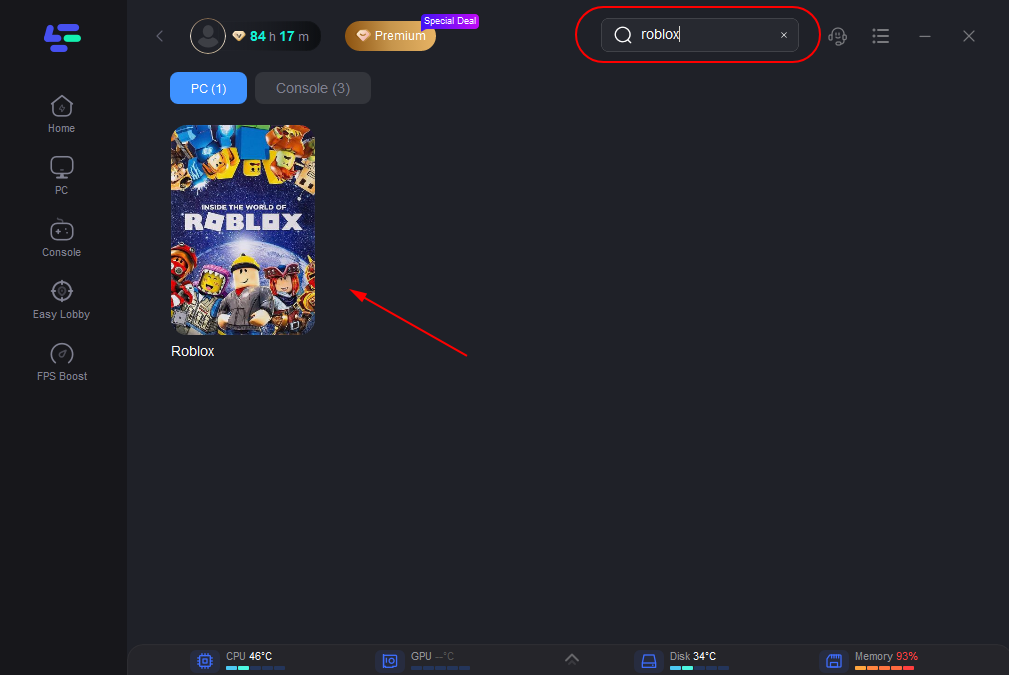
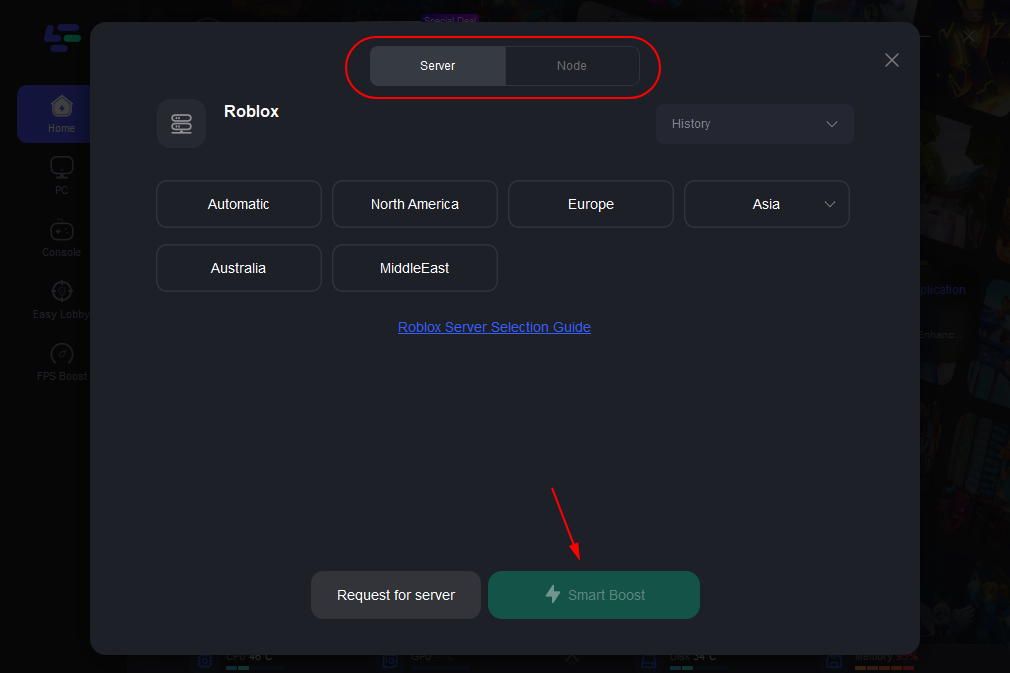
According to your geographic location and needs, choose the best server that allows you to enjoy a better gaming experience, and then click the "Smart Boost" button.
Then check the ping and pocket loss before your Roblox journey.
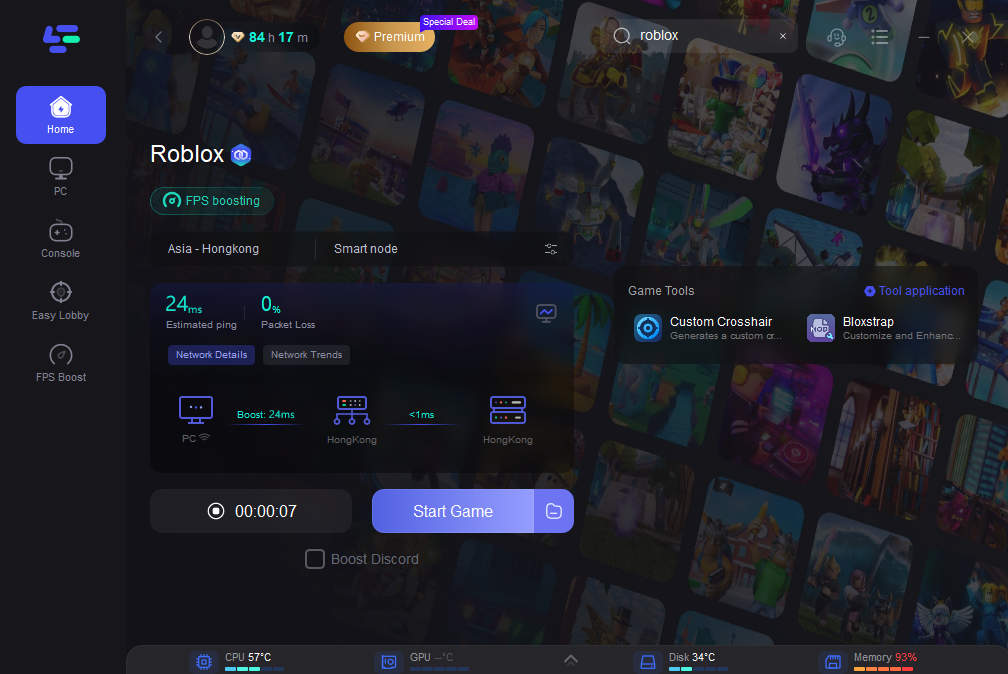
LagoFast’s real-time monitoring also shows your ping, download speed, and packet loss, so you can track improvements and ensure peak performance while playing.
Conclusion
Updating Roblox in 2025 doesn’t have to be a hassle. Whether you're on a PC, tablet, or a phone without Google, there’s always a way to stay current. With this guide, you’re ready to enjoy the latest features, fix annoying errors, and keep your games running smoothly every time.
Boost Your Game with LagoFast for Epic Speed
Play harder, faster. LagoFast game booster eliminates stutter and lags on PC, mobile, or Mac—win every match!
Quickly Reduce Game Lag and Ping!
Boost FPS for Smoother Gameplay!