
If you’re experiencing low FPS or sudden FPS drops in League of Legends, even with high-end PC specs, it can be frustrating. Lag and stuttering can severely affect your gameplay, whether you’re in the middle of an intense team fight or trying to execute a perfect combo. In this article, we’ll explore various causes behind low FPS and FPS drops in League of Legends and provide actionable solutions to help you increase your FPS and improve your overall gaming experience.
Vietnamese Version: Cách tăng FPS trong League of Legends: Hướng dẫn đầy đủ

- ✅ Reduce Lag and High Ping.
- ✅ Boost FPS at the Same Time.
- ✅ Support 2000+ Popular Online Games.
- ✅ Improve Gaming Experience.
Part 1: Common Causes of Low FPS and FPS Drops in League of Legends
Part 2: How to Increase FPS in League of Legends
Part 3: How to Show FPS in League of Legends
Part 4: League FPS Drops with Good PC Specs
Part 5: How to Boost FPS and Reduce Lag with LagoFast
Part 1: Common Causes of Low FPS and FPS Drops in League of Legends
Before we dive into solutions, let’s take a look at the common reasons why League of Legends might experience low FPS or sudden FPS drops:
- Outdated Graphics Drivers: If your graphics card drivers are outdated, it can cause performance issues, including low FPS.
- Background Processes: Running other applications while playing League of Legends can drain system resources and impact performance.
- Inadequate PC Specifications: Even high-end PCs can experience FPS drops if certain settings are not optimized for gaming.
- Server-Side Issues: Sometimes, FPS drops or lag issues are due to server-side problems, not your hardware.
- Power Settings: If your PC is in power-saving mode, it might not be utilizing the full capacity of your hardware.
Part 2: How to Increase FPS in League of Legends
If you’re wondering how to boost your FPS in League of Legends, here are some tips and solutions you can try:
1. Adjust In-Game Settings
How to Do It: Go to Settings > Video in the League of Legends client and adjust the settings for a performance boost.
- Set Graphics Quality to low or medium.
- Turn off V-Sync and Frame Rate Cap.
- Disable Anti-Aliasing and Shadows.
- Set the Resolution to match your monitor’s native resolution or lower it if necessary.
Why It Works: Lowering in-game settings reduces the workload on your system, helping increase FPS.
2. Update Graphics Drivers
- How to Do It: Visit the website of your GPU manufacturer (NVIDIA, AMD, Intel) and download the latest drivers for your graphics card.
- Why It Works: Updated drivers ensure that your system is using the latest performance optimizations, reducing FPS drops.
3. Close Background Applications
- How to Do It: Before launching League of Legends, close unnecessary programs running in the background, especially resource-heavy applications like web browsers or streaming software.
- Why It Works: Closing background applications frees up system resources, allowing League of Legends to run more efficiently.
4. Increase Virtual Memory (Paging File)
- How to Do It: Increase your system’s virtual memory by going to Control Panel > System > Advanced System Settings > Settings > Advanced > Virtual Memory.
- Why It Works: Increasing virtual memory can improve overall system performance, especially when running games that require a lot of resources.
5. Optimize Power Settings
- How to Do It: Go to Control Panel > Power Options and select High Performance mode to ensure your PC uses maximum processing power while gaming.
- Why It Works: Power-saving settings may limit your CPU and GPU performance, leading to FPS drops. High-performance mode ensures your system is working at full capacity.
6. Ensure Proper Cooling
- How to Do It: Make sure your PC is properly ventilated, and your cooling system is working effectively to prevent overheating.
- Why It Works: Overheating can cause your CPU or GPU to throttle performance, leading to FPS drops. Proper cooling ensures your system runs smoothly.
7. Lower Game Resolution
- How to Do It: If you’re using a high resolution, try lowering it to 1080p or even 720p.
- Why It Works: Reducing the resolution decreases the number of pixels your system needs to render, significantly boosting FPS.
8. Check for Background Updates
- How to Do It: Ensure that no system or software updates are running in the background while playing League of Legends.
- Why It Works: Background updates can consume bandwidth and system resources, causing FPS drops.
Part 3: How to Show FPS in League of Legends
Tracking your FPS while playing League of Legends is essential to monitor performance and identify when FPS drops occur. Here’s how to enable FPS display:
How to Do It:
- Go to Settings in the League of Legends client.
- Navigate to the Hotkeys section.
- Under the Display tab, check the box next to Show FPS.
Why It Works: This enables the FPS counter on the screen, allowing you to track performance and make adjustments as needed.
Part 4: League FPS Drops with Good PC Specs
If you’re experiencing FPS drops even with high-end PC specs, consider the following:
- Ensure Full Utilization: Check if your CPU or GPU is being fully utilized while playing. Tools like Task Manager or MSI Afterburner can help monitor hardware usage.
- Thermal Throttling: High-end PCs can still suffer from FPS drops due to overheating. Make sure your cooling system is adequate.
- Check for Bottlenecks: Sometimes, even powerful components can be bottlenecked by other factors, such as an outdated SSD or insufficient RAM.
Part 5: How to Boost FPS and Reduce Lag with LagoFast
If you’re facing lag or low FPS in your game, LagoFast can be a quick and effective solution. With just a few simple steps, you can optimize your connection for smoother gameplay and better performance.
Key Features of LagoFast:
- Cross-Platform Compatibility: Optimizes Odin: Valhalla Rising on PC (Steam), Android, and iOS, ensuring consistent performance across devices .
- Global Server Network: Reduces ping by up to 90% using 300+ global nodes, ideal for cross-region battles .
- FPS Boost: Automatically optimizes CPU/GPU usage to eliminate stuttering during intense combat .
- One-Click Acceleration: Simplifies setup with a user-friendly interface, even on mobile .
Steps to Use LagoFast:
Download LagoFast by clicking on the Free Trial button.
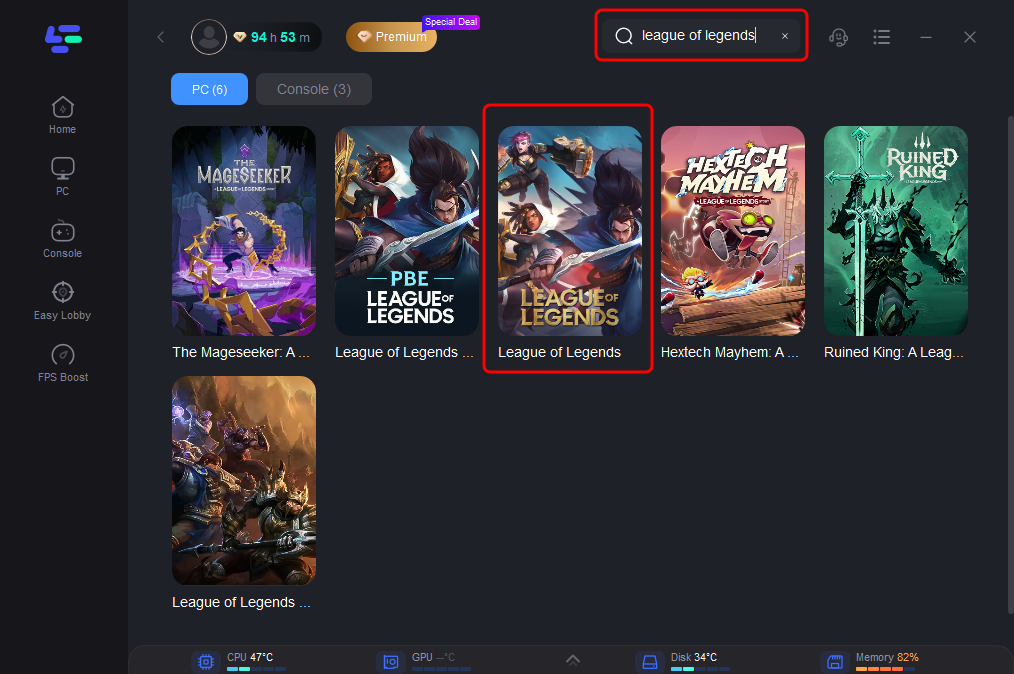
Open LagoFast and search for your game before launching it.
Choose a stable server by selecting Select Server, then pick the optimal Node on the right.
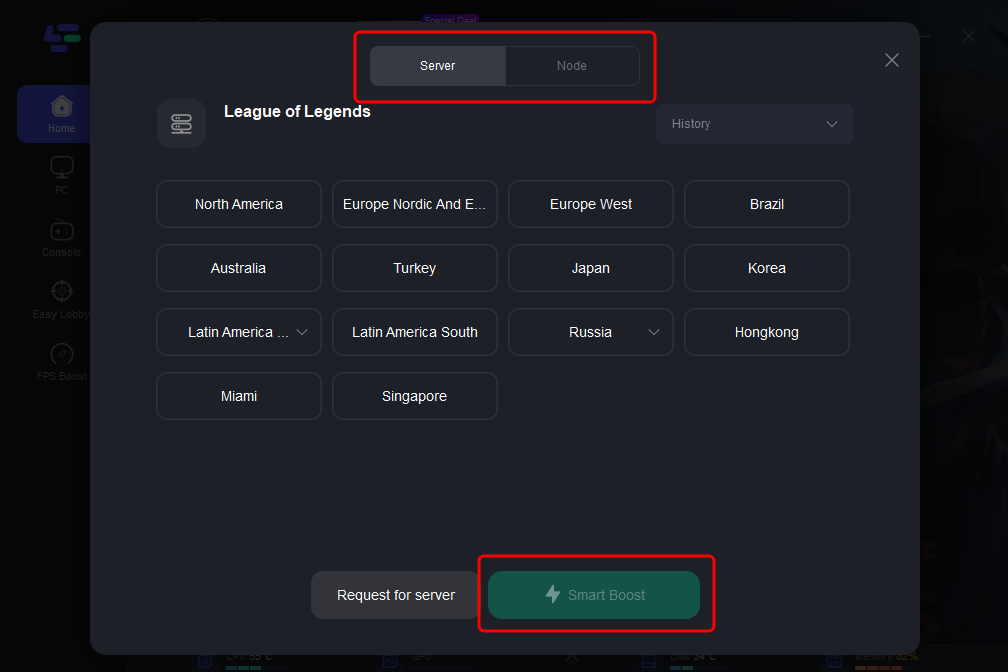
Hit the Smart Boost button to check your ping, packet loss, and network type in real-time.
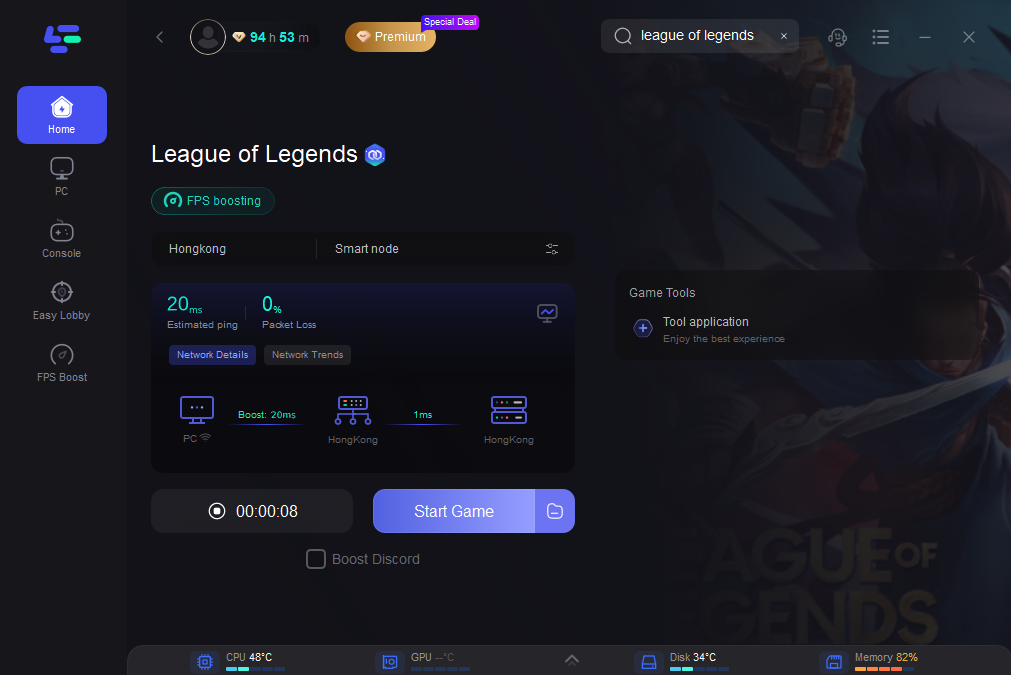
By following these steps, LagoFast ensures you’re connected to the best network, reducing lag and boosting FPS for a seamless gaming experience. LagoFast is a powerful tool for boosting FPS and reducing lag, especially if you’re struggling with performance issues. By following these easy steps, you can optimize your game connection and enjoy smoother gameplay with fewer interruptions.
Conclusion
Low FPS or FPS drops in League of Legends can seriously impact your gameplay, but with these tips, you can optimize your settings and performance for a smoother experience. Whether it’s adjusting in-game settings, updating drivers, or using tools like LagoFast, there are plenty of ways to boost your FPS and fix those frustrating lag spikes. By following these steps, you’ll be well on your way to improving your game performance and enjoying League of Legends without interruptions.
Boost Your Game with LagoFast for Epic Speed
Play harder, faster. LagoFast game booster eliminates stutter and lags on PC, mobile, or Mac—win every match!
Quickly Reduce Game Lag and Ping!
Boost FPS for Smoother Gameplay!