
Call of Duty: Warzone remains one of the most popular battle royale shooters on PC, but many players encounter frustrating crashes tied to DirectX errors. These errors — often described as “DirectX encountered an unrecoverable error”—signal that your system struggled to render graphics properly during gameplay. This crash interrupts your match and kicks you back to the desktop, which can be especially aggravating in competitive environments.
In this guide, we’ll explain what DirectX errors are, why Warzone is particularly prone to them, how to recognize common error messages, and how to fix the problem effectively — including using tools like LagoFast Game Booster to improve system stability and performance. Let’s dive in.
Part 2. What is the DirectX Error in Call of Duty Warzone?
Part 3. Common Symptoms of DirectX Error in Warzone
Part 4. Why Does Warzone Get DirectX Errors So Often?
Part 5. How to Fix DirectX Error in Call of Duty Warzone
Part 1: Introduction
DirectX is a core part of Windows that handles communication between games and your graphics hardware. When this interface fails—due to driver problems, corrupted system files, or overloaded resources—games like Warzone can crash with a DirectX error. These issues are common because Warzone’s massive world and advanced graphics place heavy demand on both GPU drivers and system resources. In other words, the error isn’t random—it’s a symptom of deeper technical stress on your PC.
Part 2: What is the DirectX Error in Call of Duty Warzone?
In Warzone, a DirectX error is a crash triggered when the game’s graphics rendering pipeline fails. DirectX sits between the game and your GPU’s drivers, and if something goes wrong—such as outdated drivers, corrupted DirectX system files, or insufficient GPU resources—it can cause the game to stop rendering and crash.
These errors often occur during intense moments, like loading large maps or complex shaders, because Warzone requires constant real-time rendering and fast communication with your graphics hardware.
Understanding this connection helps you see why the issue isn’t solely “a bug” in the game—it’s also about how your PC talks to Warzone through DirectX.
Part 3: Common Symptoms of DirectX Error in Warzone
Here are the typical ways DirectX problems show up in Warzone:
- “DirectX encountered an unrecoverable error” message during launch or in-game.
- A generic DirectX Error pop-up window.
- DEV ERROR 6068 / 5763 / 6328 codes appear with the crash notice.
- Windows logs DXGI_ERROR_DEVICE_HUNG, indicating the graphics device stopped responding.
- The game abruptly crashes to the desktop without warning.
These symptoms usually appear when the game tries to load complex shaders or large parts of the map and the GPU or driver can’t keep up. Players also report that crashes can occur during intense firefights or when switching between different game modes.
Part 4: Why Does Warzone Get DirectX Errors So Often?
Warzone’s architecture and gameplay mechanics make it especially prone to DirectX-related crashes. The main reasons include:
1. Enormous Maps
Warzone maps are huge and packed with detail. Loading and rendering this environment taxes the GPU and DirectX subsystem more than many other games.
2. Complex Shader Work
Modern graphics — including real-time lighting, shadows, and effects—rely on shaders. These GPU programs are particularly heavy in Warzone, increasing the likelihood of DirectX timeout crashes.
3. High VRAM & Memory Usage
Warzone uses a large amount of both video memory (VRAM) and system memory. If your hardware runs out of space or the system can’t manage resources efficiently, DirectX can fail and crash the game.
4. Frequent Updates
Warzone is updated regularly with new content and patches. Sometimes GPU drivers lag behind game updates, leading to mismatches between what the game expects and what the driver can handle — a common source of DirectX problems.
Because of these combined pressures, many players see DirectX errors even on relatively capable hardware.
Part 5: How to Fix DirectX Error in Call of Duty Warzone
While many DirectX errors involve traditional PC maintenance — updating drivers, repairing game files, or switching DirectX versions—there’s a simpler, more automated option that solves a broad spectrum of instability issues:
Use LagoFast’s Game Crash Fix Tool
LagoFast (LagoFast Booster—Get No Lag and Lower Ping) Game Booster includes a built-in Game Crash Fix utility designed to resolve system-level errors with one click. Here’s what it does:
Detects and repairs corrupted C++ components
DirectX errors often stem from missing or damaged Microsoft Visual C++ libraries — essential components that games rely on. LagoFast automatically scans for and fixes these.
Fixes DirectX, .NET, and DLL-related issues
Many crashes occur because of broken runtime environments or missing system DLL files. Game Crash Fix restores these core components so Warzone can run smoothly.
Improves network stability
Because Warzone is an online shooter, network instability can compound crash problems. LagoFast also optimizes your connection, reducing packet loss and latency spikes — especially helpful in competitive matches.
Steps with LagoFast:
1. Click the Free Trial button to download and install LagoFast Free Trial.
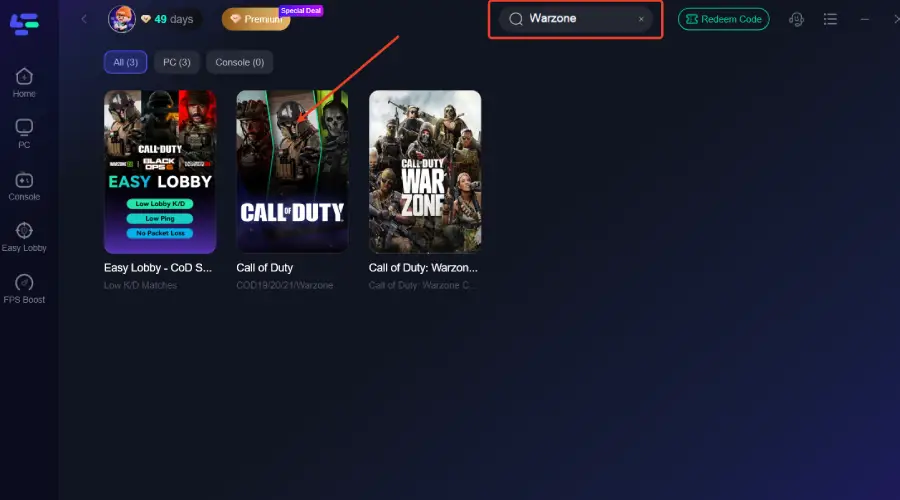
2. Open LagoFast and select Call of Duty Warzone from the game list.
3. Select Game Crash Fix.
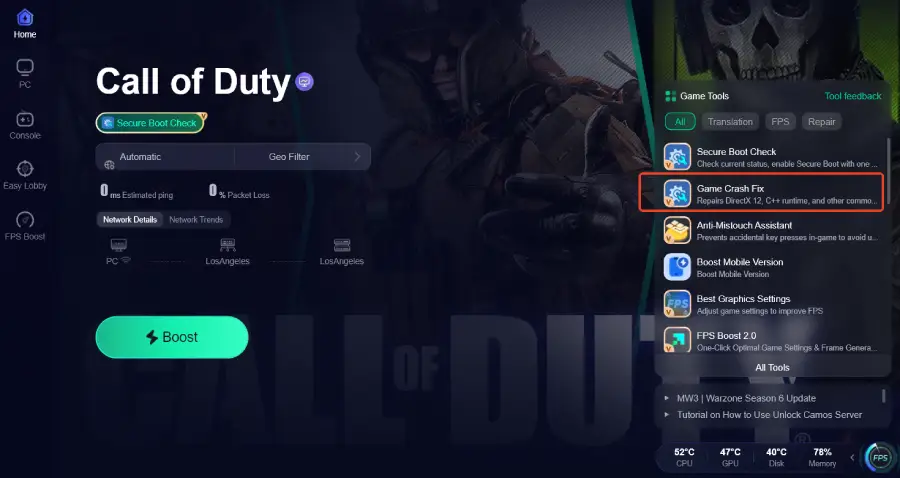
4. Click Start to scan and automatically repair issues—including DirectX rentals, outdated runtimes, and corrupted libraries.
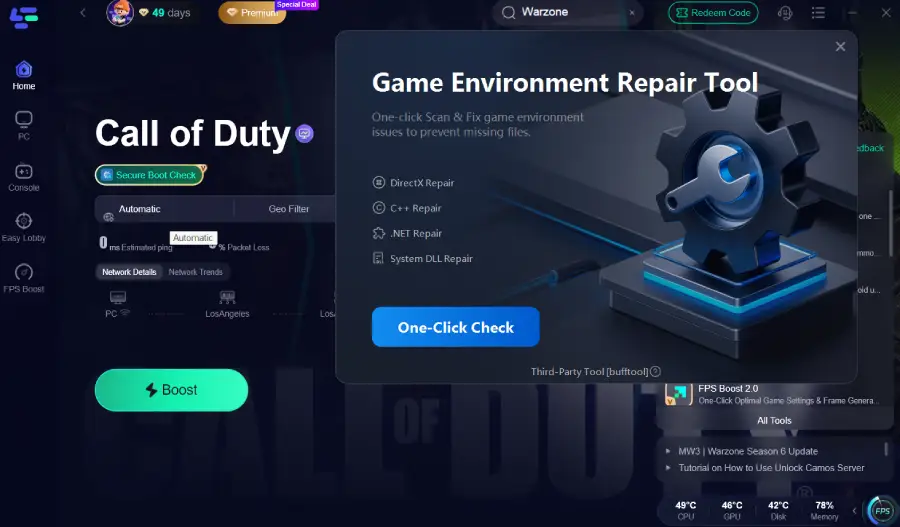
Once completed, reboot your PC and launch Warzone again. Many players find this simple step solves crashes they couldn’t fix through manual troubleshooting alone.
Part 6: FAQs
Q. Does updating my graphics drivers help with DirectX errors?
Yes. Many DirectX issues are caused by outdated GPU drivers, so keeping them current is essential. You can update via NVIDIA GeForce Experience, AMD Adrenalin Software, or Intel’s driver utility.
Q. What is the difference between DirectX 11 and DirectX 12 modes?
Warzone currently runs on DirectX 12 by default, but sometimes forcing the game to run in DirectX 11 mode reduces compatibility issues with older drivers or hardware. This can sometimes stop DirectX crashes.
Q. Will reinstalling Warzone fix DirectX errors?
Reinstalling can help if game files are corrupted, but it’s a time-consuming solution. Tools like LagoFast Game Crash Fix usually fix these issues without requiring a full reinstall.
Q. Are DirectX errors hardware-related?
Sometimes. If your GPU is defective, overheated, or unstable (e.g., due to overclocking), DirectX errors can occur. Ensuring your hardware is stable and cooled properly helps reduce crashes.
Q. Does network optimization really help with DirectX errors?
Indirectly. While network issues don’t cause DirectX errors, unstable connections or packet loss can worsen gameplay performance and lead to additional strain on your system. Tools like LagoFast help reduce lag and packet loss alongside system fixes.
Conclusion
DirectX errors in Call of Duty: Warzone are common, but they aren’t undefeatable. Most crashes result from outdated drivers, corrupted system libraries, or the immense visual and resource demands Warzone places on your system. While traditional troubleshooting — updating drivers, verifying game files, and changing DirectX modes — can help, LagoFast’s Game Crash Fix tool offers an automated, one-click way to resolve the most persistent system-level issues and improve network performance for online play.
With the right approach, you can eliminate crashes, enjoy smoother gameplay, and stay focused on victory rather than technical interruptions.

Boost Your Game with LagoFast for Epic Speed
Play harder, faster. LagoFast game booster eliminates stutter and lags on PC, mobile, or Mac—win every match!
Quickly Reduce Game Lag and Ping!
Boost FPS for Smoother Gameplay!