
In recent years, more and more modern games—like Battlefield 6—require players to have Secure Boot enabled on their systems. This security feature isn’t just about protecting your PC; it’s also essential for ensuring compatibility and smooth performance in certain online games.
If you’re confused about how to enable Secure Boot on your PC, how to turn on Secure Boot in BIOS, or why some titles demand it, you’ve come to the right place.
In this guide, we’ll explain why games need Secure Boot, how to check if it’s enabled, how to enable it in Windows 10 and 11, and what to do if you can’t enable Secure Boot. Plus, we’ll introduce LagoFast, an all-in-one solution that not only helps you check Secure Boot and TPM status but also optimizes your gaming performance by reducing lag and boosting FPS—perfect for Battlefield 6 players.
Part 1: Why Do Some Games Require Secure Boot?
Part 2: How to Check & Enable Secure Boot on Windows 11
Part 1: Why Do Some Games Require Secure Boot?
Before jumping into BIOS settings, it’s helpful to understand why Secure Boot matters in the first place.
Secure Boot is a UEFI-based security feature designed to prevent malicious software from loading during your computer’s startup process. When enabled, it only allows trusted, digitally signed software—such as Windows components or verified game files—to run before the operating system fully loads.
Here’s why games like Battlefield 6 require Secure Boot:
- Anti-cheat protection: Many modern titles, including Battlefield 6, use kernel-level anti-cheat systems that rely on Secure Boot to verify the system’s integrity. Without it, cheats could bypass low-level security layers.
- Fair multiplayer environment: Secure Boot ensures every player runs a verified version of the game, maintaining fair competition.
- System stability: By blocking unauthorized drivers and bootkits, Secure Boot reduces crashes and performance instability.
- Compliance with Windows 11 requirements: Since Windows 11 requires both Secure Boot and TPM 2.0, developers now assume most users meet these requirements.
In short, Secure Boot is not just a security tool—it’s a compatibility requirement for the next generation of PC gaming.
Part 2: How to Check & Enable Secure Boot on Windows 11
Before enabling Secure Boot, it’s smart to check whether it’s already active. Some new PCs come with it enabled by default, while others don’t—especially if you’ve reinstalled Windows or switched boot modes.
All-in-One Solution — LagoFast
If you want a quick, safe, and automatic way to check and manage Secure Boot settings, LagoFast offers the easiest route.
LagoFast is an all-in-one game optimizer that helps players achieve smoother gameplay by:
- Checking system compatibility, including Secure Boot and TPM status
- Reducing lag and ping spikes through advanced network routing
- Boosting FPS via intelligent system optimization
- Offering one-click game acceleration for Battlefield 6, Call of Duty, Valorant, and more
With LagoFast, you don’t need to dive into complex BIOS settings or risk misconfigurations. The software scans your PC, detects whether Secure Boot is enabled, and guides you through any required setup.
Example:
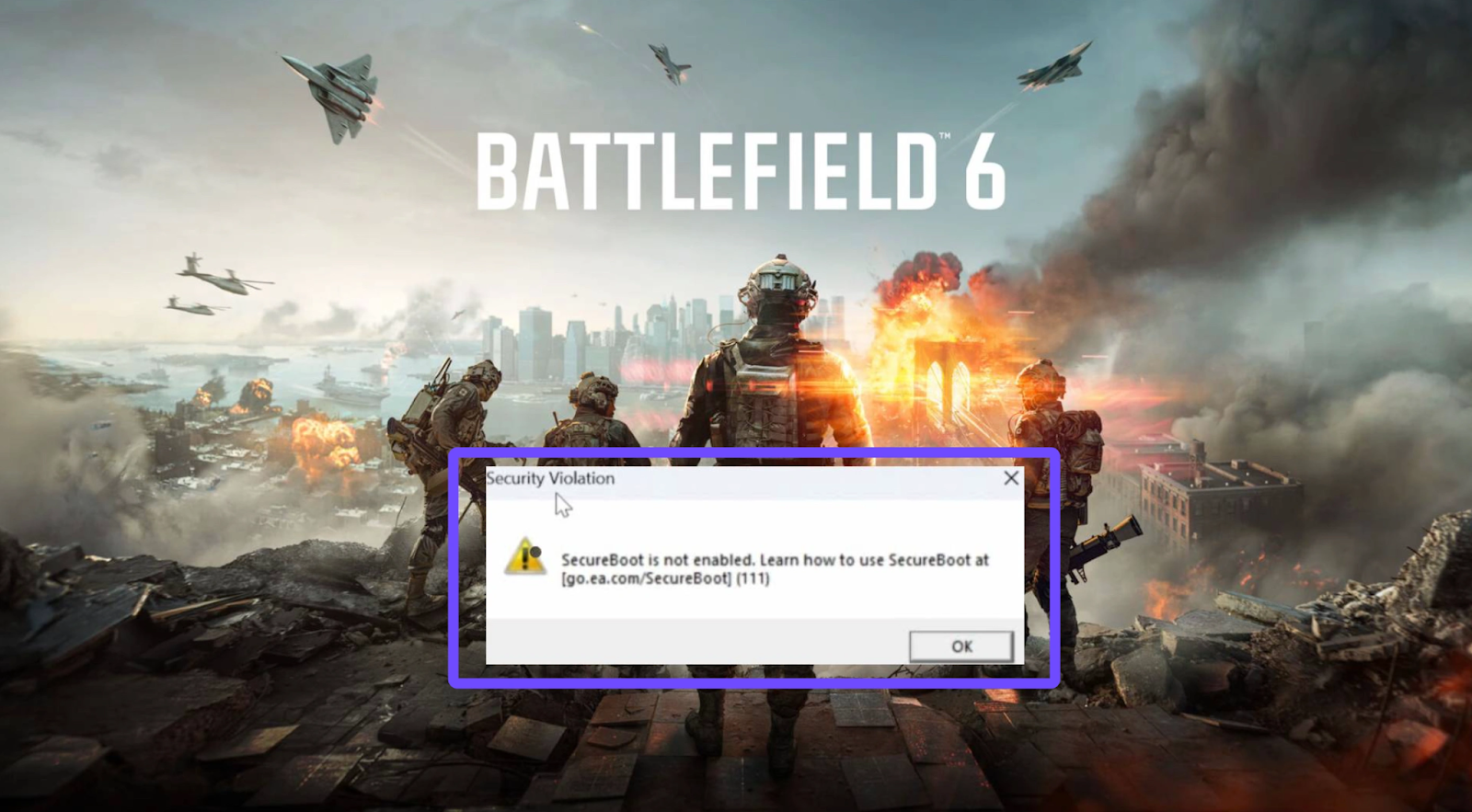
If you’re playing Battlefield 6 and encounter an error related to Secure Boot, LagoFast can analyze your system, confirm whether Secure Boot or TPM is missing, and provide a step-by-step prompt or direct optimization to fix it.
Moreover, once you’re in-game, LagoFast helps reduce ping and lag spikes, providing a stable and optimized connection. Whether you’re trying to reduce latency in competitive matches or boost FPS in crowded maps, LagoFast delivers noticeable improvements.
How to Check & Enable Secure Boot Using LagoFast:
Step 1: Click the Free Trial button to download and install LagoFast.
Step 2: Search Battlefield 6 in the search bar, and click it after it appears.

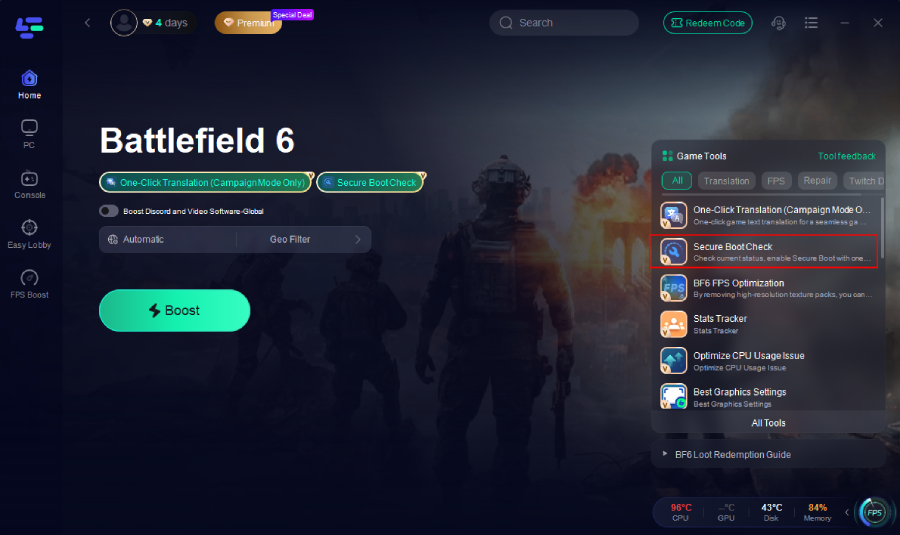
Step 3: Run the Secure Boot check tool.
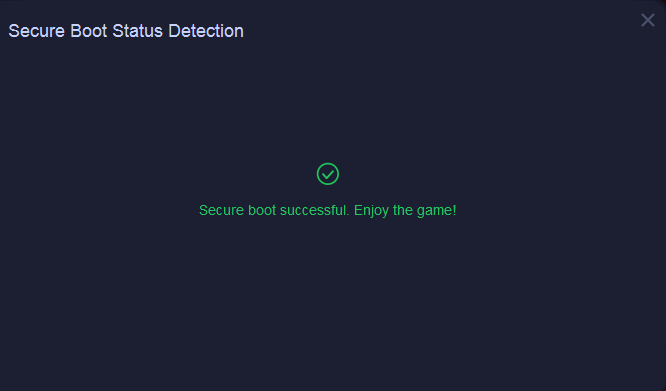
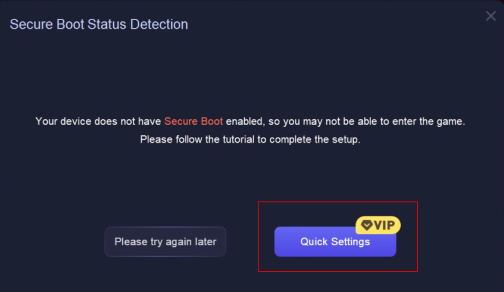
If Secure Boot is already enabled on your PC, the tool will display "Successful".
If not, it will notify you and provide a tutorial. Click “Quick Settings” to proceed.
Step 4: BIOS Settings (Secure Boot)
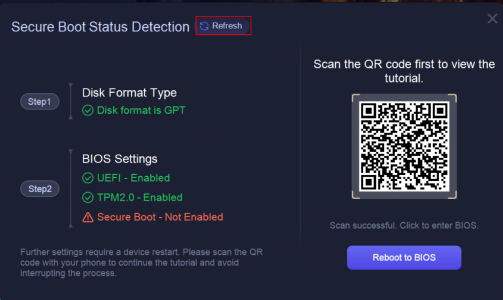
- Check BIOS settings: the tool will display the current status of UEFI, TPM 2.0, and Secure Boot.
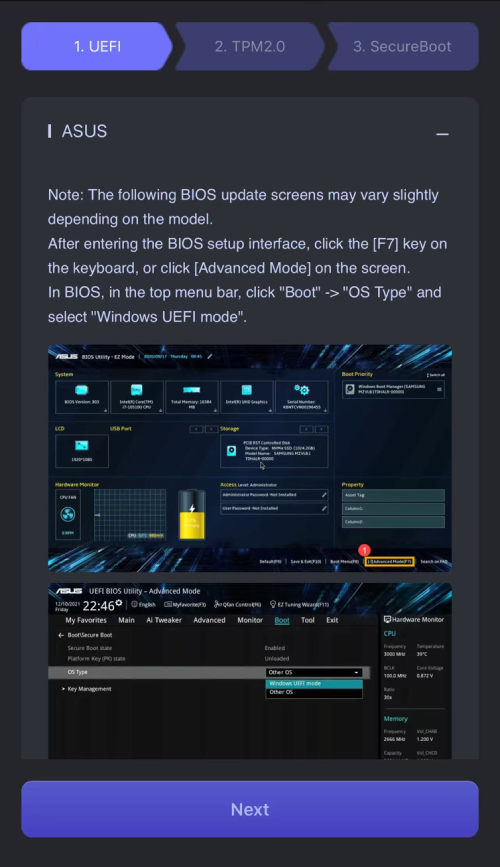
- If Secure Boot is not enabled, scan the QR code to view the model-specific tutorial, then click Reboot to BIOS and follow the instructions to enable it.
- After finishing, return to the tool and click Refresh to recheck the status.
Common Manual Solution
If you prefer to enable Secure Boot manually, follow the steps below. This method takes more time and requires more care than using LagoFast.
Step 1: Check if Secure Boot Is Enabled
Press Windows + R to open the Run box.
Type msinfo32 and press Enter.
In the System Information window, look for Secure Boot State.
- If it says On, you’re good to go.
- If it says Off or Unsupported, continue with the next steps.
Step 2: Enable Secure Boot in BIOS/UEFI
- Restart your PC.
- During startup, press your BIOS key (commonly F2, DEL, or ESC).
- Go to the Boot or Security tab.
- Locate Secure Boot and set it to Enabled.
- Save changes and exit BIOS (usually by pressing F10).
Tip: If Secure Boot is grayed out, your system might be in Legacy (MBR) mode, which doesn’t support it. You’ll need to convert your disk to UEFI (GPT) first.
Step 3: Convert Legacy (MBR) to UEFI (GPT)
- Open Command Prompt as Administrator.
- Run the command:
mbr2gpt /convert /allowfullos - Restart your PC and re-enter BIOS.
- Change Boot Mode from Legacy to UEFI.
- Enable Secure Boot, save, and exit.
Step 4: Verify Secure Boot After Reboot
Once Windows starts, open msinfo32 again. If it shows Secure Boot State: On, you’ve successfully enabled it!
Part 3: Troubleshooting Tips
Sometimes enabling Secure Boot doesn’t go as smoothly as expected. Below are common issues and their solutions.
Secure Boot Can’t Be Enabled
Solution:
- Ensure BIOS is set to UEFI mode.
- Update your BIOS firmware to the latest version.
- Disable CSM (Compatibility Support Module) before enabling Secure Boot.
Platform Key (PK) Not Loaded
If your BIOS shows an error such as “Platform Key not loaded,” Secure Boot may fail because the key database is empty.
Solution:
- In BIOS, look for Load Factory Keys or Install Default Keys.
- Once loaded, enable Secure Boot again.
Boot Failure After Enabling Secure Boot
If Windows doesn’t boot properly after enabling Secure Boot:
- Temporarily disable Secure Boot and boot into Windows.
- Update your drivers and system files.
- Re-enable Secure Boot afterward.
Dual-Boot with Linux
If you have both Windows and Linux installed:
- Ensure your Linux distribution supports Secure Boot.
- Ubuntu and Fedora generally do; custom kernels might not.
- You can manually sign Linux kernels, but for gaming PCs, using Windows exclusively for titles like Battlefield 6 is often simpler.
Part 4: FAQs
Is Secure Boot Enabled by Default?
On newer systems (especially those pre-installed with Windows 11), Secure Boot is usually enabled by default. However, if you upgraded from Windows 10 or installed the OS manually, you might need to turn it on yourself.
Does Secure Boot Slow Down a PC?
No. Secure Boot doesn’t affect system performance—it only works during startup to verify system integrity.
Is Secure Boot the Same as TPM?
No. Secure Boot verifies boot-level integrity, while TPM (Trusted Platform Module) stores encryption keys and provides hardware-level security. Both are required for Windows 11 but serve different purposes.
Can You Play Battlefield 6 Without Secure Boot?
Most likely not. Battlefield 6 and other EA titles use anti-cheat protection that requires Secure Boot. Without it, you may be blocked from online play.
Unable to Enable Secure Boot in BIOS?
If you can’t find the Secure Boot option, update your BIOS or consult your motherboard manual. Some older motherboards may not support it. Alternatively, use LagoFast to check system compatibility and optimize performance while ensuring your setup meets Battlefield 6 requirements.
Conclusion
Enabling Secure Boot on your PC is essential for both security and gaming compatibility with modern titles like Battlefield 6. It ensures your system boots in a trusted environment and supports anti-cheat verification.
For a faster, easier, and safer way to manage Secure Boot, check system status, and optimize gameplay, LagoFast offers a one-click solution to boost FPS, reduce ping, and prepare your PC for peak performance.
By following this guide, you can confidently enable Secure Boot in Windows 10 or 11, fix common issues, and enjoy a smoother gaming experience across all your favorite titles.
Boost Your Game with LagoFast for Epic Speed
Play harder, faster. LagoFast game booster eliminates stutter and lags on PC, mobile, or Mac—win every match!
Quickly Reduce Game Lag and Ping!
Boost FPS for Smoother Gameplay!