
Gamepasses are one of the easiest ways for Roblox players to earn Robux — especially in donation games like Please Donate or Bid Battles. But if you’re just getting started in 2025, the process of creating and selling a Gamepass might seem confusing, especially with recent changes to the Roblox site and mobile app.
In this updated guide, you’ll learn:
- What Is a Gamepass in Roblox?
- How to Create Gamepass in Roblox on Phone (iOS & Android)
- How to Create Gamepass in Roblox for Free
- How to View Your Gamepasses
- Enhance Your Gaming Experience with LagoFast
- FAQs
Let’s get started.
1. What Is a Gamepass in Roblox?
A Gamepass is a purchasable item linked to a specific Roblox experience (game) that gives buyers special perks — like VIP access, multipliers, in-game tools, or even just a way to donate to the creator.
You can create Gamepasses for your own game or a simple placeholder game, and then use them as donation options in experiences like Please Donate.
Key points:
- Only works within your own games (even if the game is unpublished)
- Buyers pay once (not a subscription)
- 30% Roblox tax applies (you get 70% of the Robux)
Where to Make Gamepasses in Roblox?
To create a Gamepass in 2025, you need access to:
- A Roblox account
- A place/game in your account (even if it’s empty)
- Access to Create page on Roblox website (not available directly in the app)
Gamepasses must be created via the Roblox Creator Dashboard — not the main app interface.
2. How to Create Gamepass in Roblox on Phone (iOS & Android)
You can’t create Gamepasses directly inside the Roblox mobile app — but you can do it from your phone using a mobile browser.
Step-by-Step (Mobile Browser – iOS & Android)
- Open Safari or Chrome and go to www.roblox.com
- Tap “AA” or menu → select “Request Desktop Site”
- Tap your profile icon → choose “Create”
- Under “Creations”, select a game you own
- Go to Associated Items → Passes
- Tap Create a Pass
- Upload an image, name your pass, and write a description
- Tap Create Pass
- After it’s created, tap the gear icon → Configure
- Under Sales, toggle “Item for Sale” and set the price (e.g., 5 Robux)
- Click Save
You must verify your email and age on your account to access some features.
How to Create Gamepass in Roblox on PC
This is the easiest and most recommended method.
Step-by-Step (PC/Desktop)
- Visit https://create.roblox.com/creations
- Click your game under Experiences
- Go to Associated Items → Passes
- Click “Create a Pass”
- Upload a custom image (any image works), add a name and description
- Click Create Pass
- Go back to the Passes tab → click the gear ⚙ → Configure
- Under Sales, enable “Item for Sale” and set a price (e.g., 10 Robux)
- Save changes
Tips for Setting Prices
- Start low if your audience is small, then increase gradually.
- Run experiments: adjust price slightly and track sales volume; you can model demand curves to optimize price over time.
- Regional pricing is opt‑in and can boost global revenue without manual regional controls
Once done, your Gamepass is ready to be linked in donation booths or inside your games.
How to Create Gamepass in Roblox on Tablet
Most tablets work like mobile phones — so follow the same mobile browser steps above:
- Open browser
- Request Desktop Site
- Follow the same steps as PC
If you have a tablet with a keyboard or using Samsung DeX or iPad multitasking mode, it may even behave more like a PC, which makes it easier.
How to Create Gamepass in Roblox Please Donate
Creating a Gamepass is only the first step. To use it in Please Donate:
- Make sure your Gamepass is linked to your own game
- Join Please Donate
- Claim a stand
- Your Gamepasses (with prices) will automatically appear on the booth after a few minutes (sometimes takes up to 10 min to refresh)
Important: You can’t use Gamepasses from games you don’t own.
If it doesn’t show up:
- Make sure the Gamepass is marked “For Sale”
- Rejoin the game or try a different booth
3. How to Create Gamepass in Roblox for Free
Creating a Gamepass is completely free — but if you want to sell it, your account must:
- Enable 2-step verification
- Be 13+ and email-verified
- Roblox no longer requires a paid Premium membership just to sell Gamepasses (as of 2025)
So yes, you can create and sell Gamepasses without spending money — all from the browser.
4. How to View Your Gamepasses
How to View Your Gamepasses on PC/Desktop
- Go to create.roblox.com/creations and log in.
- Select the Experience (game) you own that may have Gamepasses.
- Click Associated Items → Passes.
- You’ll see a list of all Gamepasses linked to that game — including names, thumbnails, and status.
- For each pass, click the ⚙️ Configure icon to edit price, sale status, or description.
This is the primary and recommended way to manage your Gamepasses.
How to View Gamepasses on Mobile or Tablet
Roblox’s mobile app does not support Gamepass creation or management directly. Instead:
- Open Safari (iOS) or Chrome (Android).
- Navigate to www.roblox.com, then request the desktop version of the site.
On Safari: tap the “AA” icon → choose “Request Desktop Site”.
On Chrome: use browser menu → “Desktop site”.
- Tap your avatar → select Create.
- Choose a game → go to Associated Items → Passes.
- You’ll see your Gamepasses similarly to PC: list view, plus options to configure each.
Viewing Gamepasses That Others Created (Developer Use)
If you're scripting in Roblox Studio and want to retrieve Gamepasses for a specific user's game:
Use RoProxy API to fetch game and Gamepass data. Example scripts available in DevForum posts:
https://games.roproxy.com/v1/games/{UniverseID}/game-passes
- Replace {UniverseID} with the universe ID of your game.
- To scan all games by a user and list their passes, use:
- /users/{UserId}/games?accessFilter=2 to get place IDs.
- Then request each place’s /game-passes endpoint via RoProxy.
Note: This is advanced usage for developers and requires enabling HTTP requests in game settings.
5. Enhance Your Gaming Experience with LagoFast
Beyond creating and managing game passes, a smooth, lag-free connection is key to enjoying Roblox to the fullest—whether you’re building in Studio, interacting in donation games like Please Donate, or exploring massive experiences. LagoFast, a dedicated game accelerator, ensures your Roblox sessions stay seamless by optimizing network routing, reducing ping, and minimizing packet loss.
Benefits of LagoFast:
- Reduce Lag & Ping: LagoFast optimizes Roblox network routing, lowering latency for smoother gameplay in experiences like Please Donate.
- Stabilize Connections: Minimizes packet loss and disconnections, ensuring game pass transactions and interactions work seamlessly.
- Easy to Use: Launch the app, select Roblox, click "Boost"—works on PC, mobile, and tablet without extra setup.
How to Use LagoFast for Roblox:
Click the "Free Trial" button for downloading and installing LagoFast on your advice
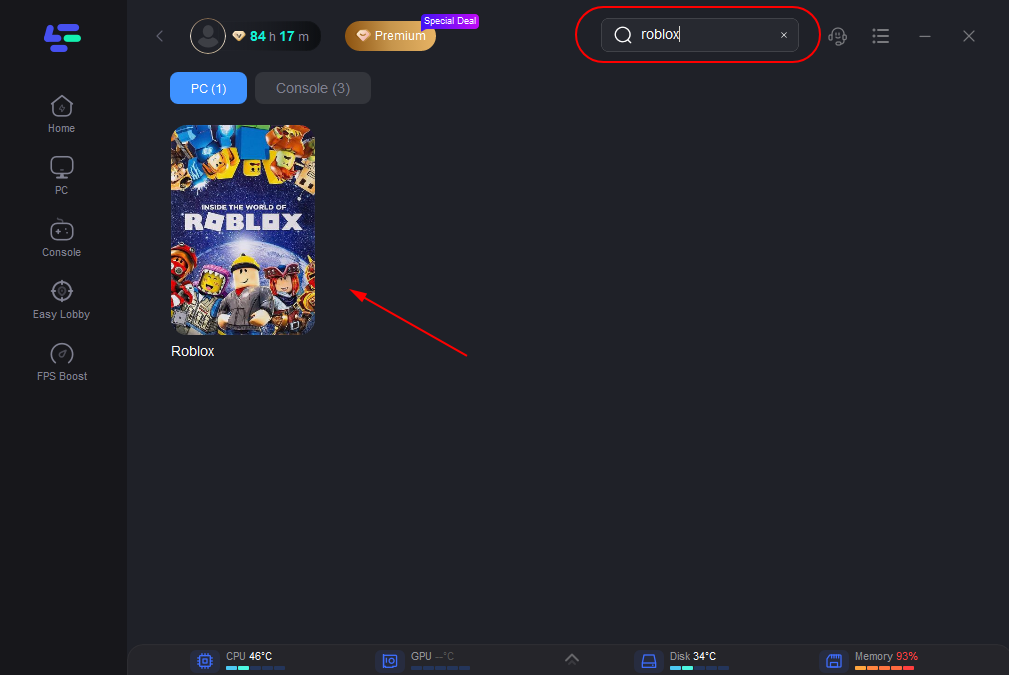
After installation, launch LagoFast. Type "Roblox" in the search bar, and click the game after he appears.
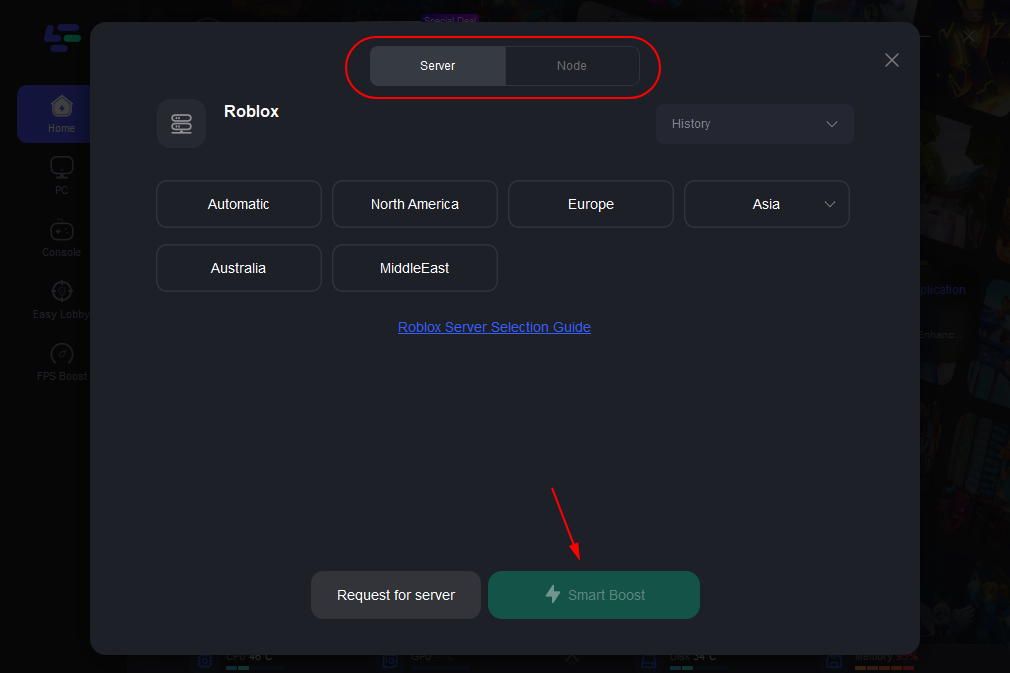
According to your geographic location and needs, choose the best server that allows you to enjoy a better gaming experience, and then click the "Smart Boost" button.
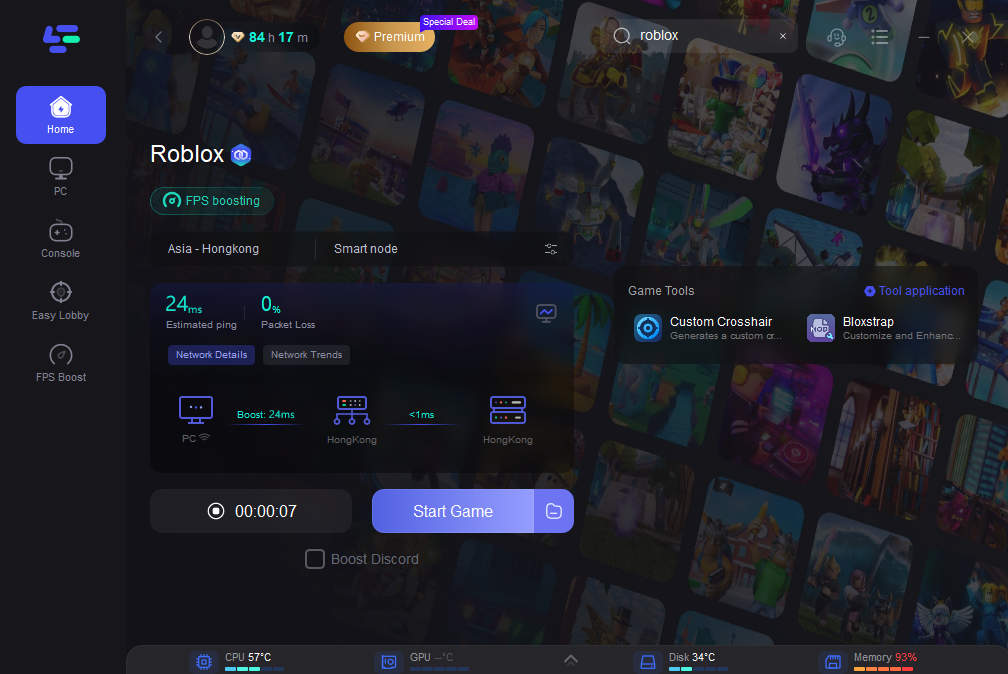
Then check the ping and pocket loss before your Roblox journey.
6. FAQs
Why Can’t I Create a Gamepass in Roblox?
Several reasons may block you:
- You’re using the Roblox app instead of a browser
- You haven’t created a game/place yet
- Your account is under 13 or not email verified
- You didn’t request the desktop site on mobile browser
- You're trying to create Gamepasses on someone else’s game
How to Increase Income with Gamepass
Here are some tips to earn more Robux using Gamepasses:
- Set multiple price points: 5, 10, 50, 100, 1,000 Robux
- Use eye-catching thumbnails (bright icons help get clicks)
- Join donation games like Please Donate and Bid Battles
- Promote your booth on Reddit, TikTok, Discord
- Be active — chat with people, say thank you, and engage donors
Final Thoughts
In 2025, Gamepasses remain one of the best ways to earn Robux passively. Whether you’re on mobile, tablet, or PC, you can create and sell Gamepasses for free — and use them in donation games to earn. If you’re stuck or the UI changes again, check the latest community tutorials like:
Boost Your Game with LagoFast for Epic Speed
Play harder, faster. LagoFast game booster eliminates stutter and lags on PC, mobile, or Mac—win every match!
Quickly Reduce Game Lag and Ping!
Boost FPS for Smoother Gameplay!