
Battlefield 6 has arrived with some of the most intense large-scale firefights the series has seen. Whether you prefer infantry skirmishes, long-range sniping, or vehicle combat, your sensitivity settings play a major role in your performance. Many players overlook this part of the settings menu, yet well-tuned sensitivity can instantly improve accuracy, recoil control, and muscle memory. Because Battlefield 6 offers deep customization across mouse, keyboard, and controller inputs, new players may feel overwhelmed by the large number of sliders.
This guide simplifies everything — how to change sensitivity, recommended ranges, and the best beginner-friendly setups.

- ✅ Reduce Lag and High Ping.
- ✅ Boost FPS at the Same Time.
- ✅ Support 2000+ Popular Online Games.
- ✅ Stop Stuck & Black Screen Issues.
- ✅ Ensure Stable Connections.
Part 1: How to Change Sensitivity on Battlefield 6: Step-By-Step Guide
Part 2: The Best Battlefield 6 PC Sensitivity Settings
Part 3: Recommended Battlefield 6 Sensitivity Settings for Beginners
Part 4: How to Improve Your Gameplay – LagoFast
Part 1: How to Change Sensitivity on Battlefield 6: Step-By-Step Guide
Adjusting sensitivity in Battlefield 6 is simple once you know where each setting is located. The game gives you full control to fine-tune how aiming feels across different playstyles.
Tutorial: How to Change Sensitivity on Battlefield 6
Step 1: Open Settings from the main menu or pause screen during a match.
Step 2: Select Controller or Mouse & Keyboard depending on your input device.
Step 3: Locate the Sensitivity section, where you’ll find sliders for aim sensitivity, zoom sensitivity, vertical look ratio, uniform aiming, and other aiming options.
Step 4: Adjust your general aim sensitivity first, then fine-tune zoom sensitivity or vertical ratio if needed.
Step 5: Scroll further to find separate sensitivity settings for infantry, vehicles, helicopters, and aircraft — tune these individually if you want consistency across all playstyles.
Step 6: After making changes, enter the Firing Range to test your new settings before jumping into real matches.
Part 2: The Best Battlefield 6 PC Sensitivity Settings
On PC, precision matters, especially in high-speed gunfights. The core idea behind any Battlefield 6 PC sensitivity guide is that lower sensitivity generally provides better tracking accuracy, while higher sensitivity helps with quick turns in chaotic situations. The “Uniform Aiming” option also helps ensure consistent aiming across different zoom levels.
A reliable starting point for Battlefield 6 sensitivity settings on PC is a main sensitivity between 10 and 20. This range works well for common mouse DPI levels such as 800–1200. You can then fine-tune ADS values based on your preferred weapon class — lower for sniping and slightly higher for close-quarters combat.
Battlefield 6 Mouse and Keyboard Sensitivity
Mouse and keyboard players have excellent flexibility thanks to DPI and raw input settings. If you’re not sure where to begin, use this guideline:
- Lower DPI (400–800) + medium in-game sensitivity = smoother tracking
- Higher DPI (1000–1600) + lower in-game sensitivity = fast but controlled aim
For infantry combat, keep aim sensitivity medium-low to improve recoil control. Hip-fire should feel responsive, while ADS should feel stable. Many players enable “Uniform Soldier Aiming” to maintain consistent sensitivity across different magnifications.
Battlefield 6 also provides sliders for acceleration and input curves. Beginners should keep acceleration at zero for predictable movement.
Battlefield 6 Controller Sensitivity
Controller players experience Battlefield 6 very differently due to aim assist. A good Battlefield 6 controller sensitivity setup balances responsiveness and steadiness. Ultra-high sensitivity often makes aim assist harder to use effectively, especially during target tracking.
A strong baseline is:
- Horizontal/Vertical Sensitivity: 50–70
- Zoom Sensitivity: 80–100
- Deadzone: As low as possible without stick drift
- Aim Input Curve: Default or BF4-style gradual curve
With additional customization options—such as gyroscope aiming, flick look, and input acceleration—you can refine your controller feel even further. Smooth curves generally outperform sharp jumps in sensitivity.
Battlefield 6 Aim Sensitivity
Your Battlefield 6 aim sensitivity determines how quickly your reticle moves in response to input. Higher sensitivity improves turning speed but reduces control, while lower sensitivity offers precision at the cost of reaction speed. Because Battlefield 6 features a mix of long-range and close-range fights, sensitivity should match your role:
- Snipers: Lower sensitivity
- Assault/Medic: Mid-range sensitivity
- SMG/Shotgun: Slightly higher sensitivity
Muscle memory matters most. Once you find a comfortable setting, stick with it so your hand or thumb can adapt naturally.
Part 3: Recommended Battlefield 6 Sensitivity Settings for Beginners
If you’re new to Battlefield or shooters in general, prioritize consistency over speed. Many beginners set sensitivity too high, making crosshair control unstable and unpredictable.
Try these beginner-friendly values:
For Mouse & Keyboard
- DPI: 800–1000
- Aim Sensitivity: 12–18
- ADS Sensitivity: 70–90 percent of hip-fire
- Vertical Aim Ratio: Around 50
- Uniform Aiming: On
For Controller
- Stick Sensitivity: 50–60
- Zoom Sensitivity: 80–90
- Deadzone: 5–7
- Aim Input Curve: Default or BF1-style curve
Use these settings for several matches. The goal is not perfection but building steady muscle memory so you can track enemies smoothly and control recoil. As you gain experience, you’ll naturally adjust these values.
Part 4: How to Improve Your Gameplay – LagoFast
Sensitivity tuning is essential, but performance tools can further improve aiming and responsiveness. LagoFast is a game-boosting platform that reduces lag, stabilizes FPS, and helps sharpen aiming in FPS titles like Battlefield 6.
- One standout feature is Aim Master, a built-in aim-training module designed to refine mouse movement, flick shots, and crosshair placement.
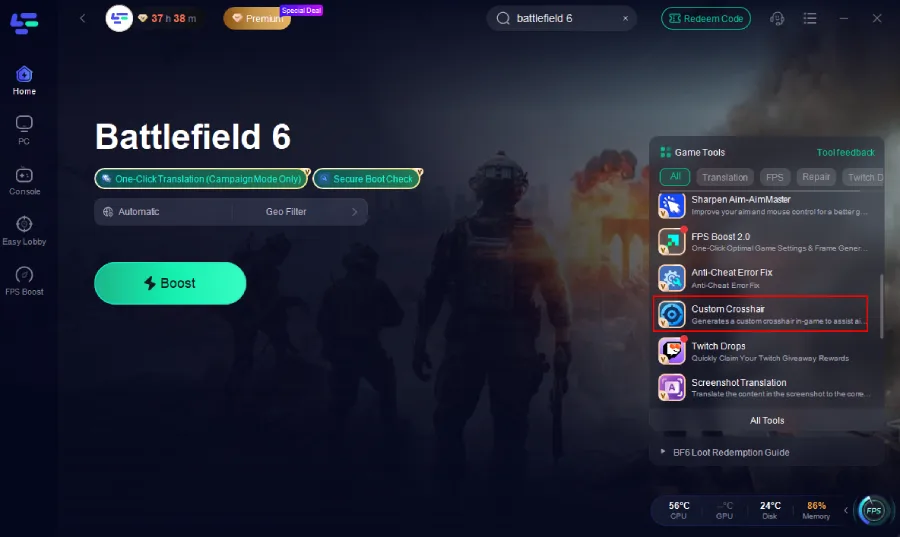
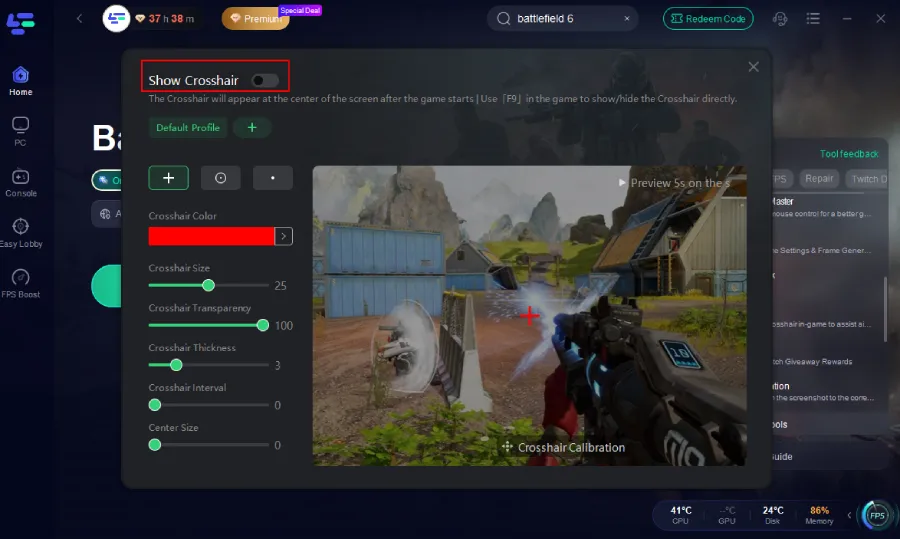
- Another powerful tool is Custom Crosshair, which provides a clear, stable crosshair overlay regardless of weapon or optic — especially useful during fast-paced firefights where default reticles may be hard to see.
Together, Aim Master and Custom Crosshair create an optimized training environment, especially when paired with LagoFast’s reduced-latency routing for smoother gameplay.
Tutorial to Use LagoFast to Enhance Your Battlefield Gameplay
Download and launch LagoFast.
Search for Battlefield 6 in the dashboard.

Select your nearest game node or auto-optimize.
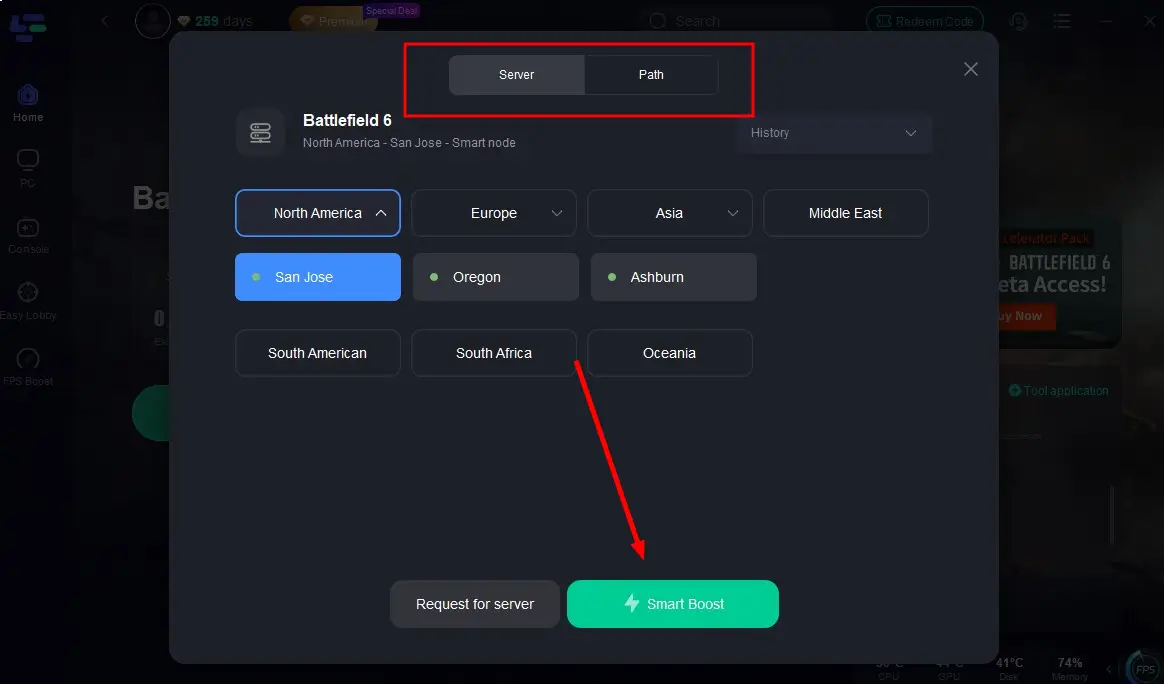
Enable Smart Boost mode to combine ping and FPS optimization.

How to Get Aim Master Tool with LagoFast:
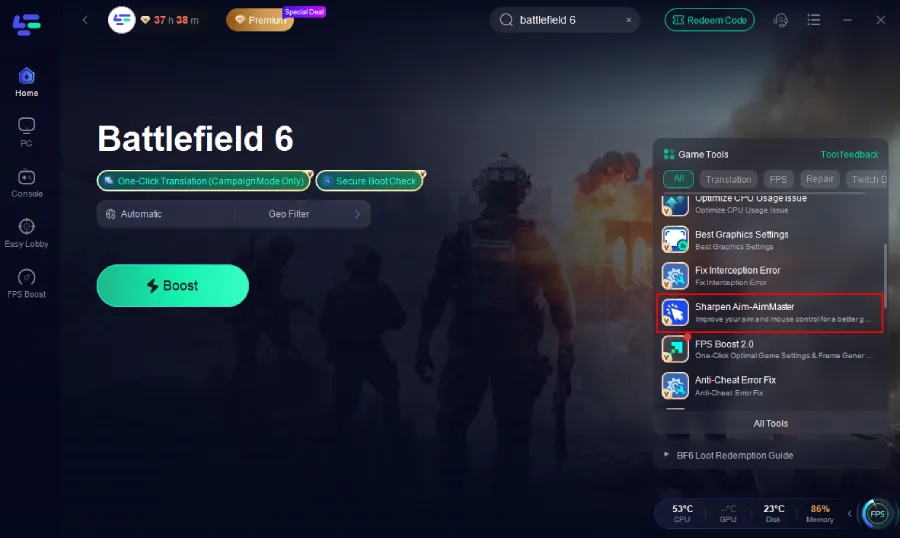
Step 1: Click the Aim Master tool on the right.
Step 2. Choose your hotkey, turn on the tool.
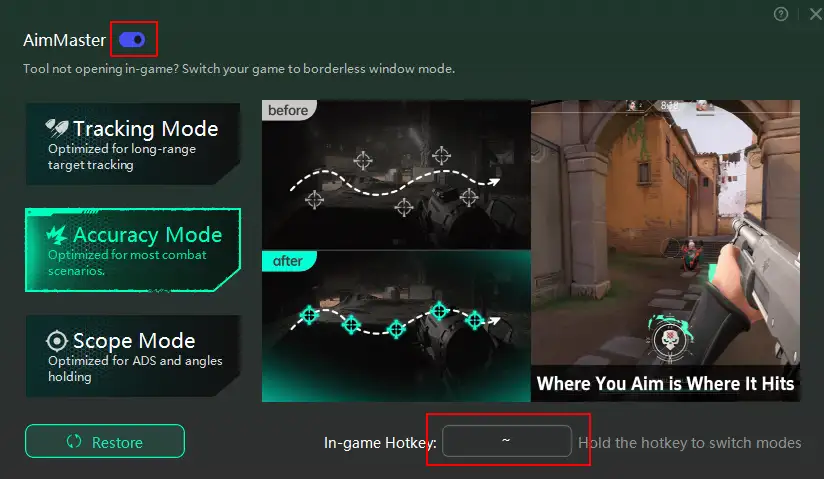
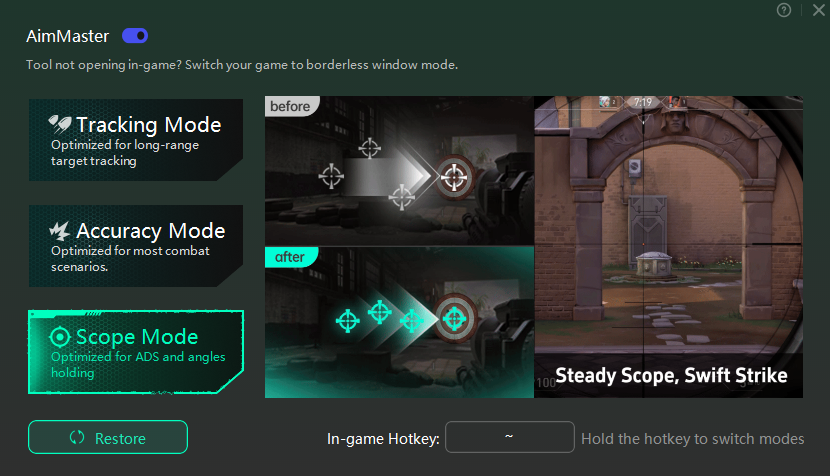
Explanation of the three modes:
- Tracking Mode: This mode is optimized for long-distance target tracking. When you're dealing with enemies at a far-off distance, Tracking Mode can help you zero in on them more accurately. It adjusts the aim assist in a way that makes it easier to follow and hit those distant foes.
- Accuracy Mode: As the name suggests, Accuracy Mode is suitable for most combat scenarios. It provides a balanced aim assist that helps you land your shots more consistently in the midst of the chaotic battles that Helldivers 2 is known for.
- Scope Mode: Scope Mode is designed with ADS and angle-holding in mind. When you're using weapons with scopes and need to hold your aim at specific angles for a more accurate shot, this mode comes in handy. It fine-tunes the aim assist to work in harmony with the scoped view, allowing for more precise aiming.
How to Get a Custom Crosshair in Battlefield 6:
Step 1. Click the custom crosshair tool.
Step 2. Adjust the shape, size, thickness, and color to your preference. Turn on the "Show Crosshair".
Conclusion
Perfecting your sensitivity settings in Battlefield 6 is one of the fastest ways to boost your performance, whether you’re engaging in close-range fights or taking long-distance shots. Taking time to tune mouse, keyboard, and controller settings creates a consistent feel, improves accuracy, and builds muscle memory that supports every match. Beginners benefit from stable, moderate values, while experienced players can fine-tune for specialized playstyles.
With LagoFast, Aim Master, and Custom Crosshair, you can push your performance even further. With the right setup, Battlefield 6 becomes smoother, more controlled, and more competitive.

Boost Your Game with LagoFast for Epic Speed
Play harder, faster. LagoFast game booster eliminates stutter and lags on PC, mobile, or Mac—win every match!
Quickly Reduce Game Lag and Ping!
Boost FPS for Smoother Gameplay!