
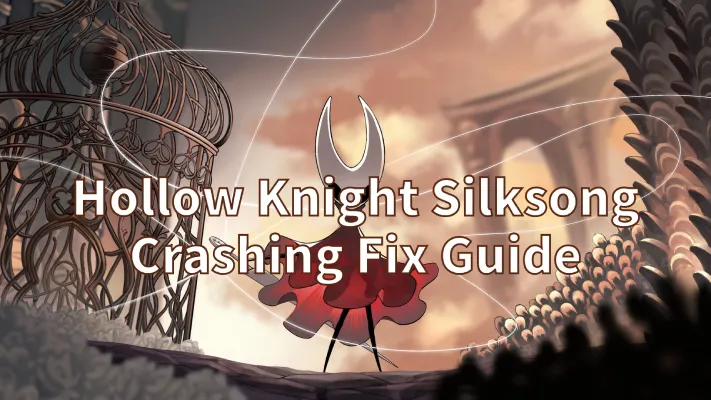
Update: Silksong Crashed Steam. Hollow Knight: Silksong's release on September 4 caused a surge in traffic, temporarily crashing Steam, Xbox, and PlayStation stores. Players may experience issues purchasing the game during this time.
If you’ve been fired up for Hollow Knight: Silksong and hit a snag—especially Hollow Knight Silksong crashing, Hollow Knight Silksong Crash on launch, Hollow Knight Silksong Crashing at Startup, or Hollow Knight: Silksong (Steam) keeps crashing or Hollow Knight: Silksong Crashes On PC—you’re not alone and you’re in the right place.
After years of waiting, Silksong finally launched worldwide on September 4, 2025 across PC, consoles, and Switch platforms. With that much hype, millions of downloads on day one, and so many different system setups, a few stability problems are almost guaranteed. Even if Team Cherry hasn’t yet confirmed specific bugs, early reports from players suggest that crashes on startup and random freezes can happen.
This guide breaks down possible causes, quick fixes, and step-by-step solutions you can try today. We’ll kick things off with the first solution using LagoFast Game Booster, then move on to other proven troubleshooting tips.

- ✅ Reduce Lag and High Ping.
- ✅ Boost FPS at the Same Time.
- ✅ Support Populaire Mod.
- ✅ Support Game Translation.
- ✅ Fix connection issues easily.
- ✅ End Stuck & Crashing Issues.
Part 1: Is Hollow Knight Silksong Crashing on PC a Server Problem?
Part 2: Error E502 L3 in Hollow Knight: Silksong on Steam — What’s Going On
Part 3: How to Fix Silksong Won’t Launch, Crashes, or Black Screen on PC
Part 4: Silksong on PlayStation (PS5/PS4) — Won’t Launch, Freeze, or Errors
Part 5: Silksong on Xbox (Series X|S / One) — Startup, Install, and Crash Issues
Part 6: Silksong Installation, Updates, and Download Problems
Part 7: Silksong Controller, Input, and Interface Fixes
Part 8: Why Silksong Stops Working After a Patch
Part 9: Hollow Knight: Silksong Minimum PC Requirements and Hardware Check
Part 10: When to Contact Support for Hollow Knight: Silksong Crashing
Part 1: Is Hollow Knight Silksong Crashing on PC a Server Problem?
Silksong is primarily a single-player game. Launch crashes are almost always caused by your device, drivers, store client, or files—not by “server outages.” Start with the quick checks below, then move on to your platform.
Quick Checks for All Platforms
- Restart everything: PC/console and router.
- Free up space: Leave extra space on the drive where Silksong is installed (downloads and unpacking require more room).
- Update client and OS: Make sure Steam/EA App/Xbox/PlayStation/Switch and the game itself are updated.
- Disable overlays: Discord, GeForce Experience, Afterburner/RTSS, and ReShade often crash 2D engines at launch.
- Temporarily disable antivirus: Real-time protection may block new executables. Turn it back on after testing.
Part 2: Error E502 L3 in Hollow Knight: Silksong on Steam — What’s Going On
What’s really happening
- E502 L3 is not a Silksong bug.
- It’s a Steam server error (often linked to the Akamai CDN), meaning servers are overloaded or temporarily unavailable.
- This error shows up most often during major events—like the Steam Summer Sale or a huge release (such as Silksong).
- It affects the store pages, wishlists, and purchases—the game itself works fine, you just can’t load content from Steam.
Why this happens
- Server overload: Steam servers can’t handle the traffic surge.
- CDN issues: Steam’s content delivery network fails to respond and returns an E502 L3 error.
- Heavy demand during events: Big launches or discounts cause these outages.
Quick fixes
- Refresh the page or restart Steam—try multiple times until the connection comes back.
- Use the web version of the store—steamcommunity.com or store.steampowered.com may load normally.
- Change download region—this can sometimes bypass overloaded servers.
- Wait for Steam to stabilize—since this is a server-side issue, you can’t fully fix it on your own.
Part 3: How to Fix Silksong Won’t Launch, Crashes, or Black Screen on PC
On Steam, the minimum requirements are Windows 10 21H1+, i5-3470, 8 GB RAM, GTX 1050/R9 380 (2 GB), ~and 8 GB storage. If your hardware is weaker or Windows is outdated, the game may fail to start.
Quick Fix with LagoFast Game Booster (PC)
If Silksong crashes right after the launcher, freezes on the splash screen, or looks like a “server problem” (sync/login loops, CDN timeouts), the real cause is often poor routing or packet loss. For better overall gameplay, you can also enhance your experience with mods through Mod Master and explore multiple Mod Master Games directly within LagoFast. LagoFast stabilizes the connection during launch and updates, preventing these issues.
What LagoFast does for Silksong:
- Reduces packet loss and stutter that can cause the game to freeze.
- Balances CPU and GPU load for smoother performance.
- Offers Smart Boost mode, which automatically selects the best server route.
- Works across both Steam and other PC launchers.
How to use it:
Step 1: Click the Free Trial button to download and install LagoFast Free Trial.
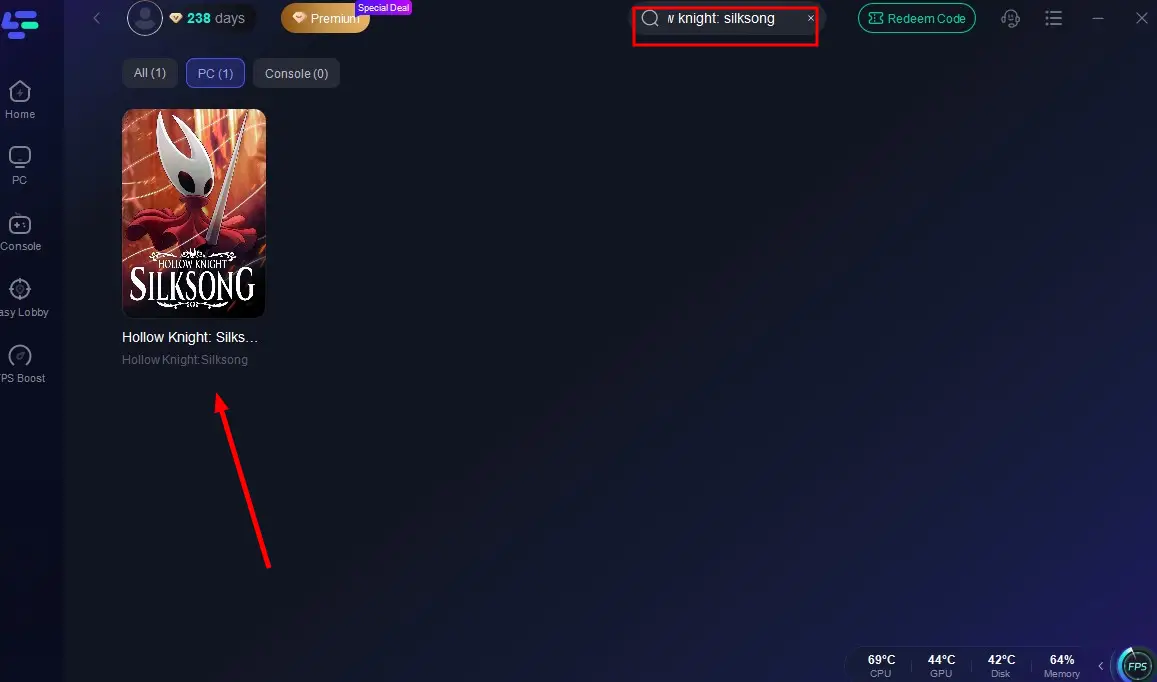
Step 2: Open LagoFast then click the PC button on the left and search for Hollow Knight: Silksong in the search bar, click it after appearing.
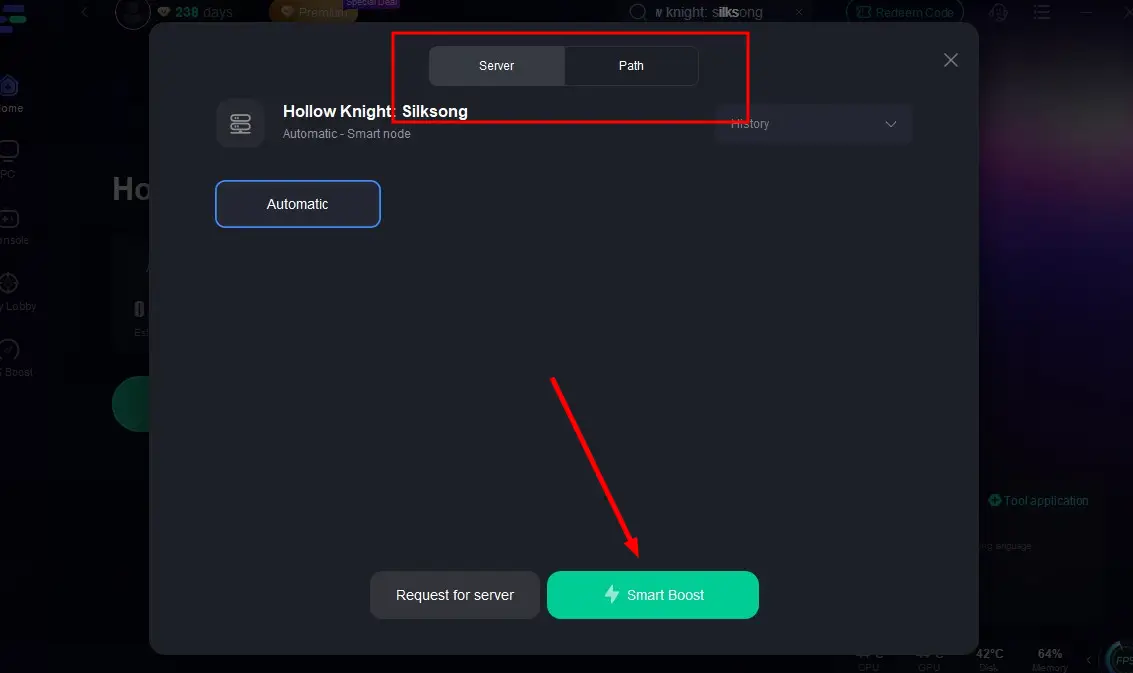
Step 3: Click on Server to change to a better server that ensures a stable connection, then click on Smart Boost.
Step 4: Check the specific game ping, packet loss, and multiple path connections on the right side.
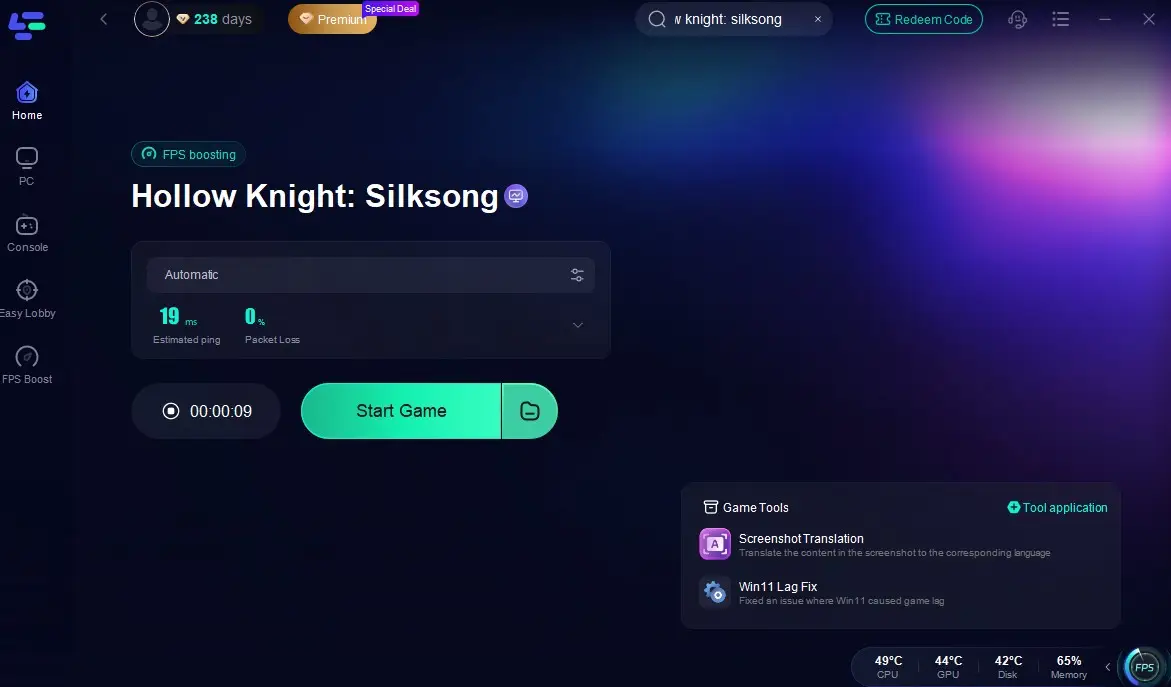
Many players report fewer crashes after boosting, especially if they had random disconnects or instability during launch.
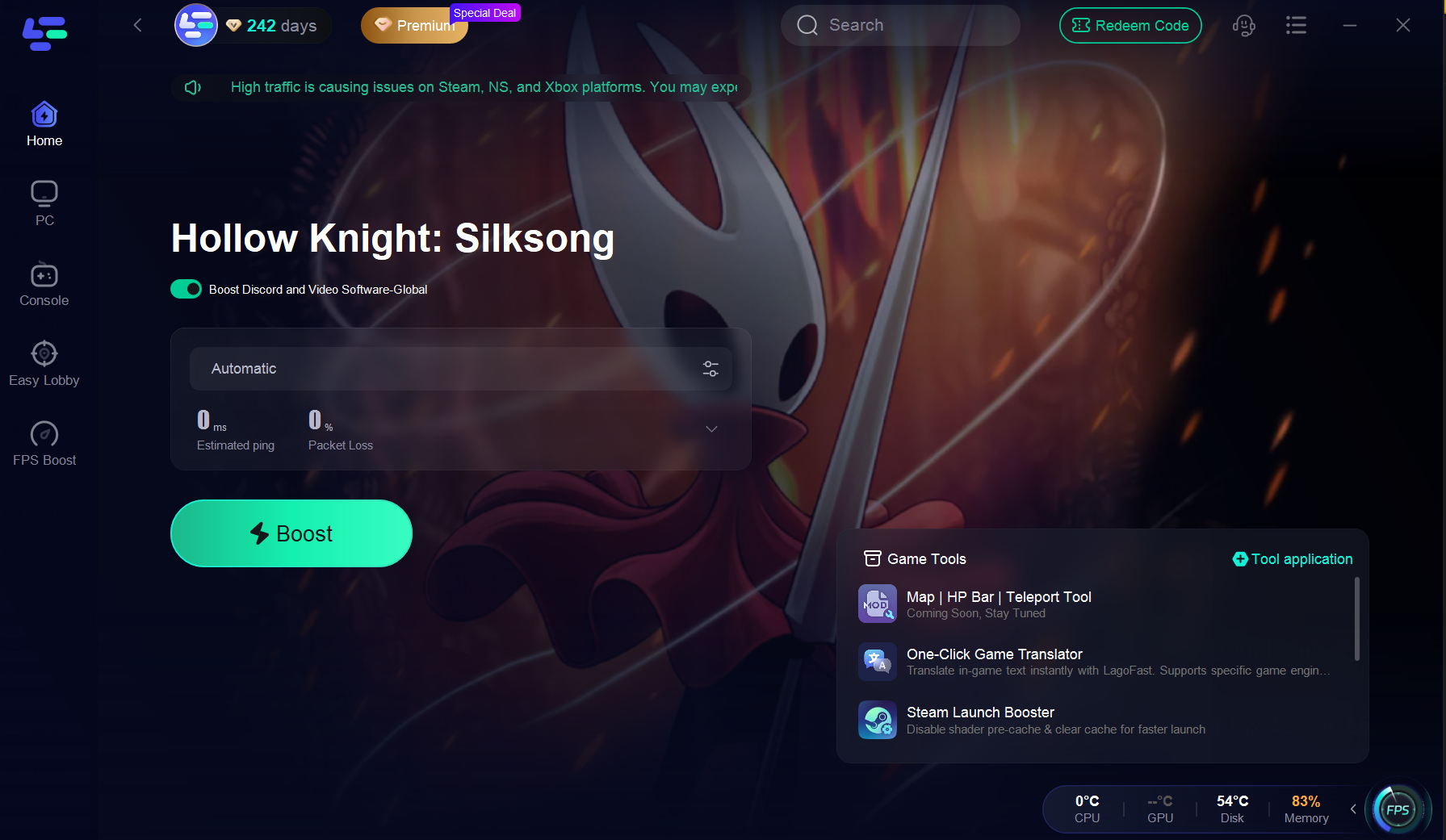
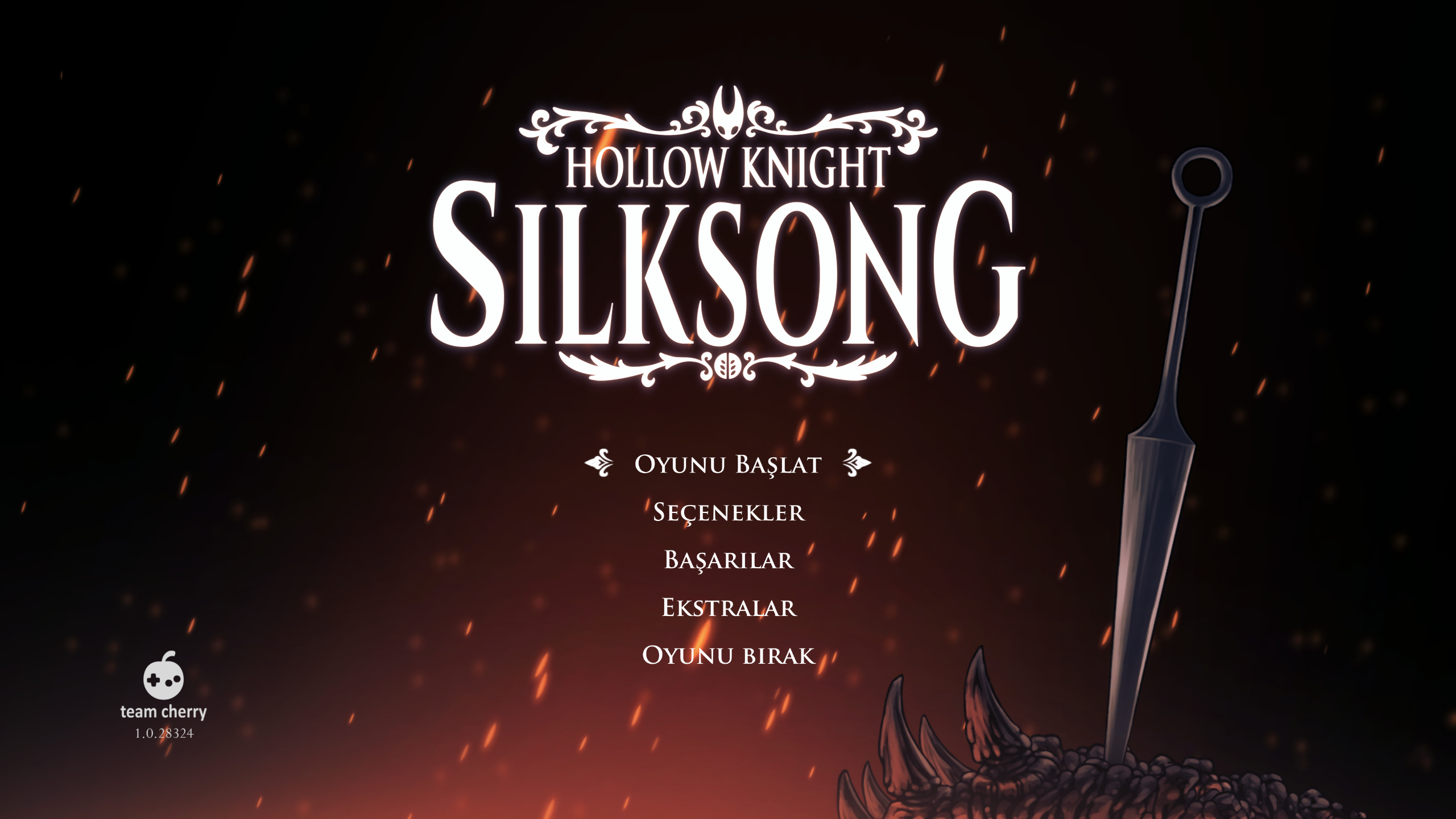
Hollow Knight: Silksong One-Click Translation Tool Tutorial
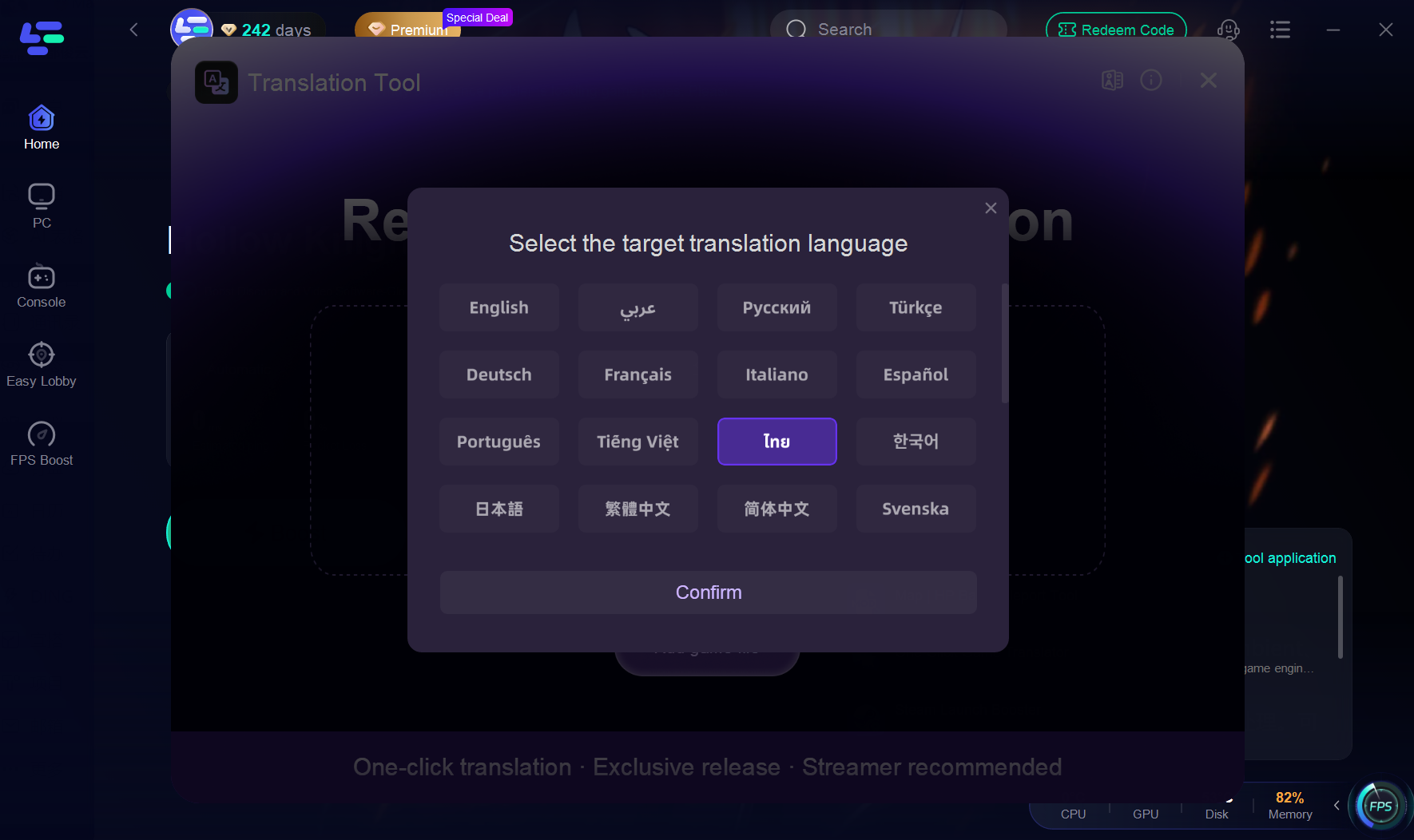
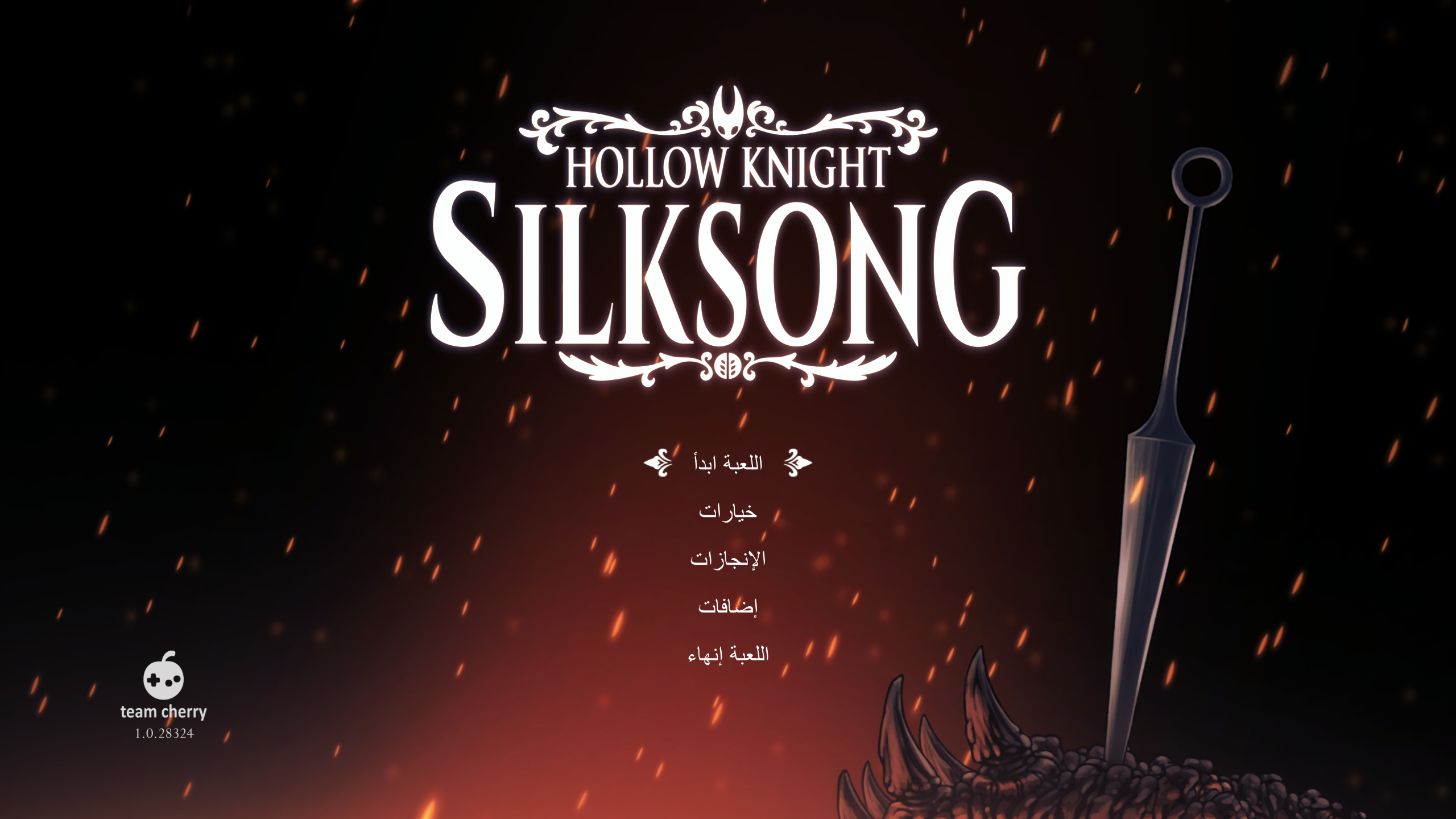
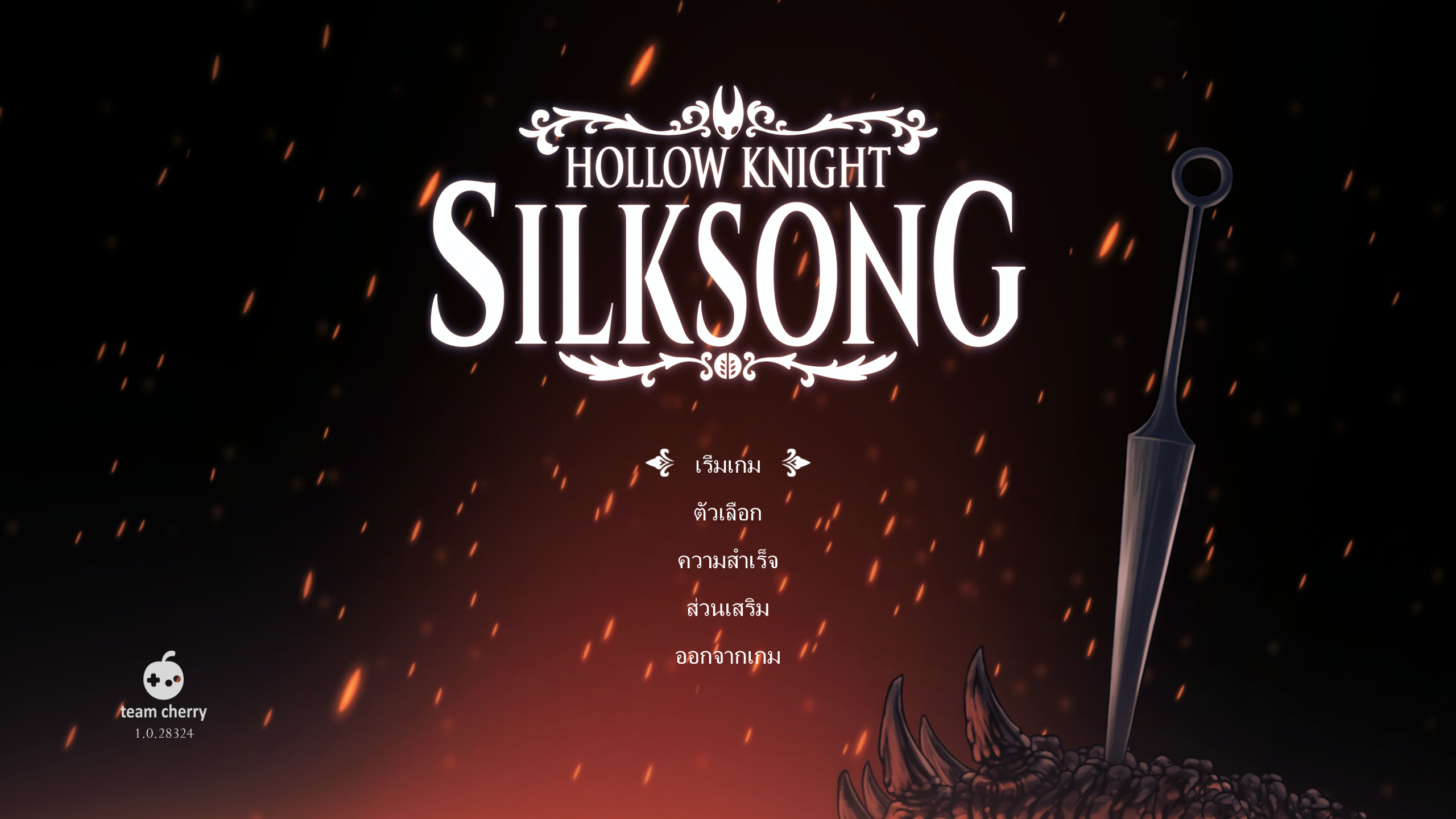
We always prioritize your gaming experience. LagoFast one-click translation tool for Hollow Knight: Silksong now supports Arabic, Thai, Turkish, etc.
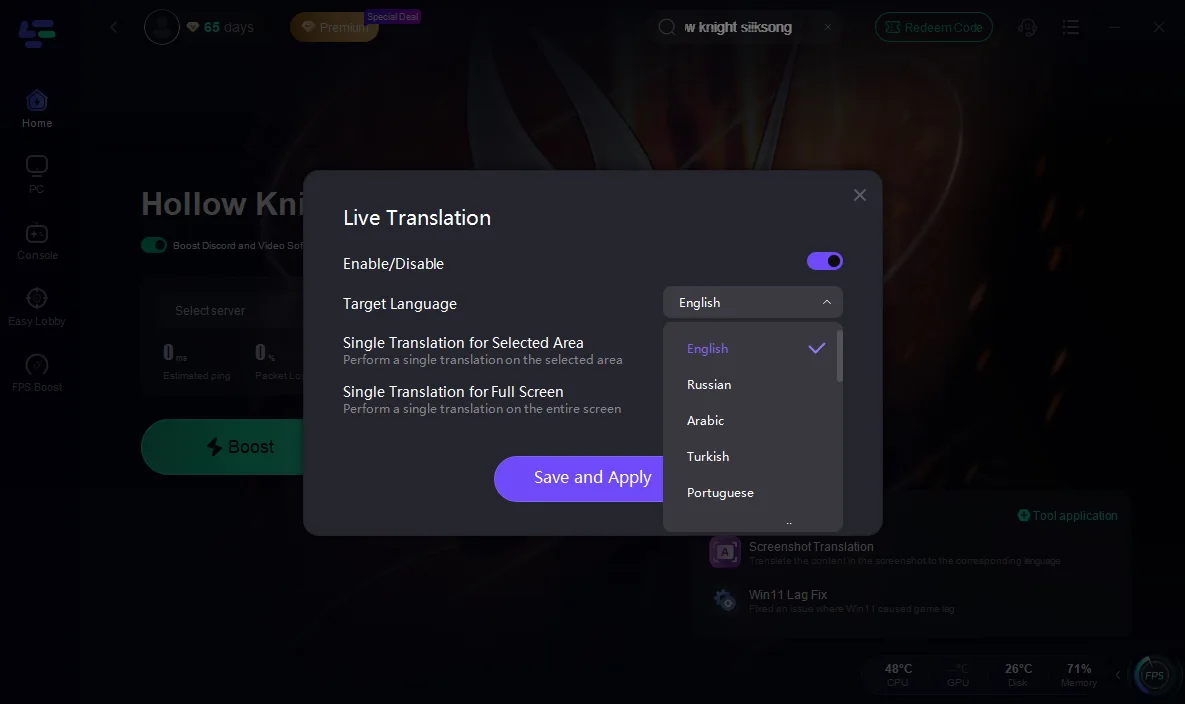
Step 1: Click to use the One-Click Game Translator Tool.
Step 2: Choose your target language, then enjoy the game.
Play Hollow Knight: Silksong in Arabic
Play Hollow Knight: Silksong in Thai
Play Hollow Knight: Silksong in Turkish
Or you can use the Screenshot translation Tool > And choose your target language.
2. Verify Steam Files & Updates
Corrupted or missing files are a common cause of Hollow Knight Silksong Crash on launch. Luckily, Steam includes a simple verification tool:
- Open Steam, right-click on Silksong, and choose Properties.
- Navigate to Local Files → Verify integrity of game files.
- Let Steam scan and re-download any missing pieces.
Also, make sure your Steam client is updated—older versions sometimes conflict with new Unity builds.
3. Update Graphics Drivers & Runtimes
Outdated graphics drivers can trigger Hollow Knight Silksong Crashing at Startup. Head to Nvidia, AMD, or Intel’s official site and install the newest drivers for your card.
Don’t forget system libraries: Silksong depends on Microsoft Visual C++ Redistributables and DirectX. Installing or updating these runtimes often resolves instant crash problems.
4. Disable Overlays & Recording Software
Overlays are convenient but often unstable. Steam Overlay, Discord Overlay, GeForce Experience, or even recording tools like OBS or Bandicam can cause Hollow Knight: Silksong (Steam) keeps crashing.
Disable overlays one by one to see if stability improves. If the game runs without crashing, you’ll know which app was interfering.
5. Check Network & Firewall Settings
Some Unity games require initial online checks, and if blocked by your firewall, they may crash. Go to your firewall or antivirus settings and whitelist Silksong.
If you’re on WiFi, try switching to Ethernet or using LagoFast for a stable connection. Connection drops during startup can sometimes look like game crashes.
6. Remove Conflicting Software
Programs like Citrix or aggressive firewall suites can conflict with Unity-based titles. If you’ve tried everything else, uninstall or update such software. In many past cases with Hollow Knight, removing Citrix or tweaking firewall rules immediately solved launch crashes.
Part 4: Silksong on PlayStation (PS5/PS4) — Won’t Launch, Freezes, or Errors
- Update firmware and the game: Make sure your console is on the latest system software and Silksong is updated.
- Restart and clear cache: Fully power down the console, unplug it for 60 seconds, then reboot.
- Safe Mode: If the UI feels sluggish or the game won’t open, launching in Safe Mode can help.
- Storage: Keep enough free space. On PS5, running the game from the internal SSD is recommended.
- Controller/device conflicts: Disconnect third-party capture cards or USB devices while testing.
Part 5: Silksong on Xbox (Series X|S / One) — Startup, Install, and Crash Issues
- Clear cache: Hold the power button for 10 seconds, unplug for 60 seconds, then restart.
- Update system and game: If launching via Game Pass, confirm your subscription is active and your account is signed in properly.
- Move to internal drive: External hard drives can slow down downloads and load times.
- Repair/reset the game: Go to Settings → System → Storage → Games & Apps → Silksong → Manage.
Hollow Knight: Silksong on Nintendo Switch / Switch 2 — Won’t Open, Data Corruption, or Lag
- System update and data check: Settings → Data Management → Scan for Corrupt Data.
- Power cycle: Restart the console, remove and reinsert the microSD card.
- Install to internal storage: It’s faster than microSD; leave a few GB free.
- Remove third-party accessories: Some docks and controllers may interfere.
Part 6: Silksong Installation, Updates, and Download Problems
Silksong is only around 8–10 GB on PC, but downloads may be slow on launch day.
- Switch download region, use a wired connection, and pause other network activity.
- If the game downloads but won’t start, check your files and antivirus quarantine.
- Problems are usually storage or client-related, not due to the game’s size.
Part 7: Silksong Controller, Input, and Interface Fixes
- On Steam, toggle Steam Input per game to fix double inputs or unresponsive controllers.
- For DualSense/DualShock, avoid duplicate drivers; use XInput or Steam’s remapper.
- On ultrawide monitors, if the HUD looks too small, adjust HUD scaling or wait for a community fix (PCGamingWiki updates quickly).
Part 8: Why Silksong Stops Working After a Patch
- Verify game files, reset configs (
...\AppData\Local\...\Silksong\settings, path may vary). - Uninstall recent mods.
- If you used ultrawide hacks, remove them—Silksong natively supports 21:9 and third-party hacks can break things.
Part 9: Hollow Knight: Silksong Minimum PC Requirements and Hardware Check
Silksong’s requirements are low (4–8 GB RAM; budget GPUs).
- If your GPU is below GTX 1050 / R9 380 or your Windows version is outdated, crashes at launch aren’t surprising.
- Always confirm against the Steam page and verified requirements.
Part 10: When to Contact Support for Hollow Knight: Silksong Crashing
Reach out only if:
- Crashes occur on a clean account with no overlays.
- File verification passes but the game still crashes at the title screen.
- You’re on a supported OS, with updated drivers, and hardware above minimum.
Prepare details: crash timing, OS version, GPU driver version, storage client version, and error messages.
Submit them to Steam discussions or Team Cherry support, ideally with a DxDiag/system log.
Conclusion
Everyone’s excited to dive into Pharloom, but running into Hollow Knight Silksong crashing, Hollow Knight Silksong Crash on launch, Hollow Knight Silksong Crashing at Startup, Hollow Knight: Silksong (Steam) keeps crashing, or Hollow Knight: Silksong Crashes On PC can ruin the mood fast.
The fixes above are practical, beginner-friendly, and often effective. Starting with LagoFast Game Booster is a great move for stabilizing performance. Then double-check your Steam files, update drivers, disable overlays, whitelist the game in your firewall, and clean up any conflicting software.
With these steps, you’ll drastically increase your chances of solving Silksong crashes and finally enjoy Hornet’s journey the way it was meant to be played—smooth, stable, and uninterrupted.
Boost Your Game with LagoFast for Epic Speed
Play harder, faster. LagoFast game booster eliminates stutter and lags on PC, mobile, or Mac—win every match!
Quickly Reduce Game Lag and Ping!
Boost FPS for Smoother Gameplay!