

Since its launch, Highguard has attracted a large competitive player base thanks to its fast-paced gunplay and strong anti-cheat focus. However, many players are blocked at launch by system warnings related to Secure Boot and TPM 2.0. Messages like “Secure Boot & TPM 2.0 Not Detected in Highguard” have become common, leaving players confused about what went wrong and how to fix it.
This Highguard Secure Boot Guide explains why these requirements exist, how to enable them correctly, and how to quickly check your system status so you can get back into the game without trial and error.

- ✅ Reduce Lag and High Ping.
✅ Boost FPS at the Same Time.
✅ Support 2000+ Popular Online Games.
✅ Change Server without Latency.
✅ Boost Game Loading Speed.
Part 2. What Is Secure Boot? Why Secure Boot & TPM 2.0 Are Not Detected in Highguard
Part 3. How to Check My Current Secure Boot Status
Part 4: How to Enable Secure Boot and TPM 2.0 to Play Highguard
Part 5. Why Is Secure Boot and TPM 2.0 Needed for Highguard?
Part 6. Can I Play Highguard Without Secure Boot?
Part 1. Highguard Overview
Highguard is a modern competitive shooter released for PC, with availability through major platforms such as Steam. The game focuses on ranked multiplayer modes, tactical team play, and strict anti-cheat enforcement to ensure a fair environment.
Unlike many casual shooters, Highguard places strong emphasis on system-level security. This decision directly affects how the game launches on Windows 10 and Windows 11 PCs. While the gameplay itself is accessible, the technical entry barrier is higher than usual, especially for older systems or PCs that were upgraded from legacy BIOS setups.
Part 2. What Is Secure Boot? Why Secure Boot & TPM 2.0 Are Not Detected in Highguard
Secure Boot is a UEFI feature that ensures your PC only boots using trusted software approved by the system manufacturer. TPM 2.0, or Trusted Platform Module, is a hardware-based security component that stores encryption keys and verifies system integrity.
Highguard requires Secure Boot and Easy Anti-Cheat to work together. Easy Anti-Cheat relies on Secure Boot and TPM 2.0 to prevent kernel-level tampering, cheats, and unsigned drivers from interfering with the game.
When Highguard shows Secure Boot & TPM 2.0 Not Detected in Highguard, it is usually due to one of these reasons:
- Secure Boot is disabled in BIOS
- The system is using Legacy BIOS instead of UEFI
- The system disk uses MBR instead of GPT
- TPM 2.0 is disabled or set to an older version
Part 3. How to Check My Current Secure Boot Status
Quick Method to Check Current Secure Boot or BIOS Settings Status in Windows
For many players, the hardest part is not enabling Secure Boot—it’s figuring out whether it’s already enabled and what exactly is missing. Windows error messages are often vague, and checking BIOS manually can feel risky if you’re not familiar with firmware settings.
This is where tools like LagoFast Game Booster can save time.
LagoFast is commonly known for network optimization, but it also includes a built-in Secure Boot & TPM 2.0 status checker designed for games with strict anti-cheat requirements like Highguard.
Instead of guessing, the tool automatically scans your system configuration and clearly shows:
- Whether your PC is running in UEFI or Legacy mode
- If Secure Boot is enabled, disabled, or unsupported
- Whether TPM 2.0 is active and correctly configured
How to Use LagoFast to Check Secure Boot for Highguard
Download and install LagoFast
Search for Highguard in the game list
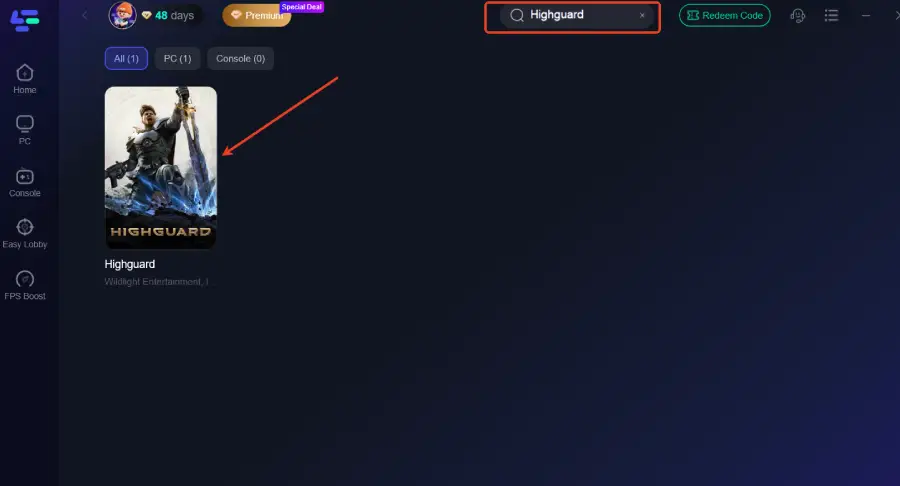
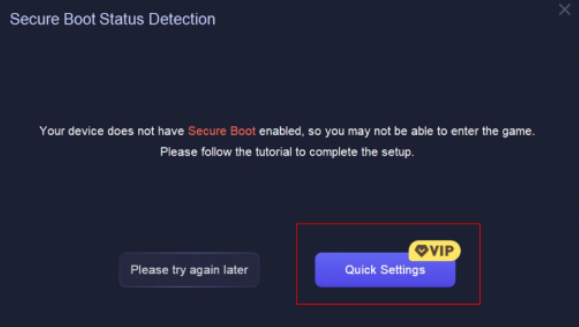
Run the Secure Boot Check tool.

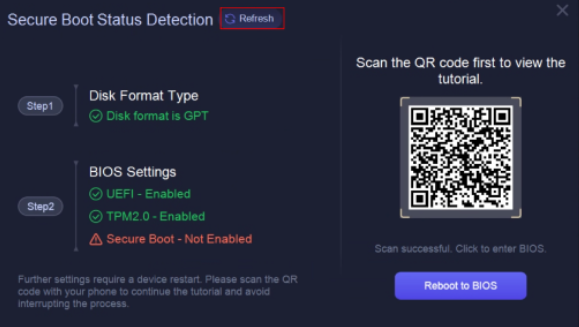
The tool displays current Secure Boot and TPM status
If an issue is found, it provides guided instructions and direct BIOS reboot support
After enabling the settings, refresh the scan to confirm success
If everything is set correctly, you’ll see a confirmation message indicating Secure Boot and TPM 2.0 are ready.
Choose your preferred server node and click "Smart Boost" to start optimizing.
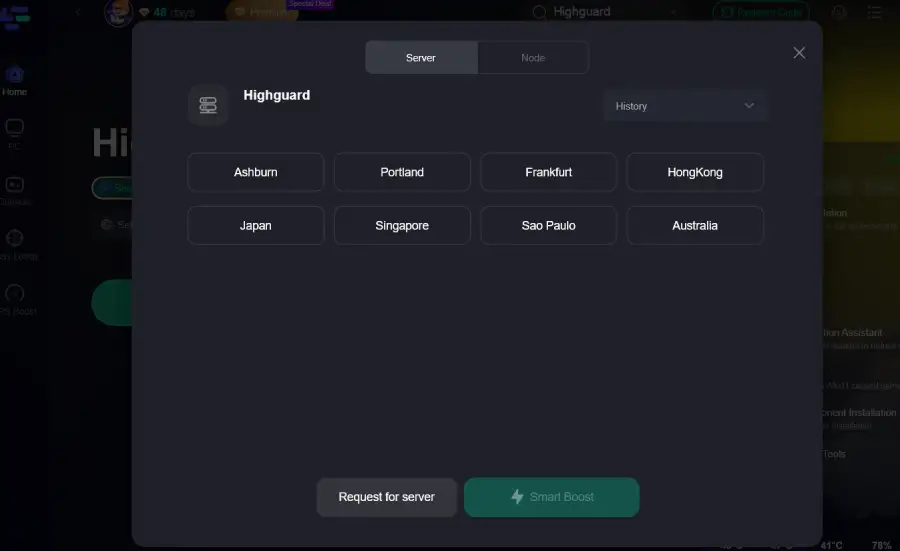
Launch your game and enjoy smooth, optimized gameplay with lower ping and no stutter.

More Benefits of LagoFast Game Booster for Highguard
Beyond system checks, LagoFast also improves gameplay experience:
- Highguard High Ping Reduction: Optimizes routing to lower latency and stabilize connections.
- Highguard FPS Boost: Frees background resources and reduces stutter during intense firefights.
- Fix Highguard Waiting in Login Queue: Improves connection stability during peak hours.
- Highguard Change Server Easily: Allows switching to better-performing regional servers with one click.
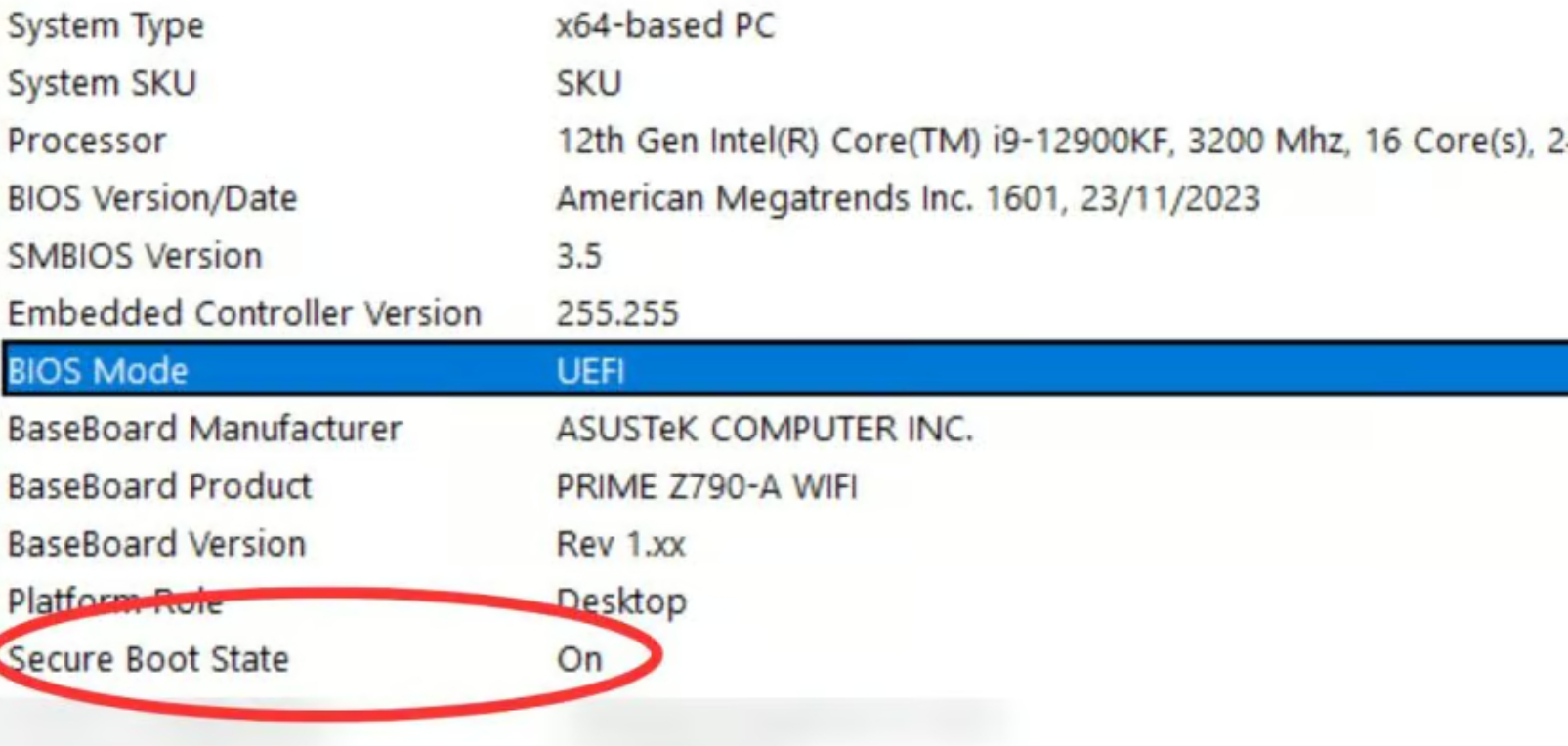
Manual Way to Check Your Current System Mode in Windows
Before entering BIOS, confirm how your system is currently configured.
- Press Win + R, type
msinfo32, and press Enter - Look for BIOS Mode
- If it says UEFI, you can proceed
- If it says Legacy, Secure Boot cannot be enabled yet
Also check:
- Secure Boot State
Part 4: How to Enable Secure Boot and TPM 2.0 to Play Highguard
If you’re seeing launch errors, this section walks you through exactly how to enable Secure Boot and TPM 2.0 to play Highguard, even if your PC was built years ago or upgraded from an older Windows version.
There is no single “one-click” fix, because the process depends on your current system configuration. Follow the steps in order.
Step 1: Convert Your System Disk from MBR to GPT (If Required)
Secure Boot only works with GPT disks. Many older PCs still use MBR, even on Windows 10 or 11.
This conversion does not delete data when done correctly.
- Open Command Prompt as Administrator
- Run:
- If validation succeeds, run:
After conversion, reboot your PC and enter BIOS.
This step is critical and is one of the most common reasons why Secure Boot & TPM 2.0 are not detected in Highguard.
Step 2: Switch BIOS from Legacy to UEFI
Once inside BIOS:
- Locate Boot Mode, CSM, or Launch Compatibility Support Module
- Disable CSM or Legacy Boot
- Set Boot Mode to UEFI Only
- Save changes and reboot back into BIOS if required
Do not enable Secure Boot yet if TPM is still disabled.
Step 3: Enable TPM 2.0 in BIOS
TPM settings vary by motherboard manufacturer:
- Intel systems: look for PTT (Platform Trust Technology)
- AMD systems: look for fTPM
Steps:
- Enable TPM / PTT / fTPM
- Ensure the version shows TPM 2.0, not 1.2
- Save changes
If TPM was previously disabled, Windows may take one extra reboot to detect it properly.
Step 4: Enable Secure Boot Properly
Now that UEFI and TPM 2.0 are active:
- Go to Secure Boot settings in BIOS
- Set Secure Boot to Enabled
- If prompted, choose Install Default Secure Boot Keys
- Set Secure Boot Mode to Standard (not Custom)
Save and exit BIOS.
At this point, your system meets Highguard’s security requirements.
Step 5: Verify Secure Boot and TPM 2.0 in Windows
After rebooting:
Open msinfo32 again
Confirm:
- BIOS Mode: UEFI
- Secure Boot State: On
You can now launch Highguard. The error message should be gone.
Common Issues That Still Block Highguard
Even after following the steps, some players may still run into issues:
- Outdated BIOS: Secure Boot options may not appear until BIOS is updated
- Custom Secure Boot Keys: Reset to default keys
- Unsupported Hardware: Some very old motherboards lack TPM 2.0 support
If Secure Boot is enabled but Highguard still refuses to launch, proceed to Part 4 to verify everything using a dedicated system check tool.
Part 5. Why Is Secure Boot and TPM 2.0 Needed for Highguard?
Many players ask why Highguard enforces these requirements so strictly when other games do not.
The main reason is anti-cheat integrity.
Highguard relies on Easy Anti-Cheat at a deep system level. Secure Boot ensures that only trusted bootloaders and drivers run when Windows starts, while TPM 2.0 verifies that critical system components haven’t been tampered with.
Together, they help prevent:
- Kernel-level cheats
- Driver-based injections
- Boot-time exploits that traditional anti-cheat cannot detect
This approach aligns with newer competitive titles that prioritize fair play, even if it raises the technical entry bar.
Part 6. Can I Play Highguard Without Secure Boot?
Short answer: No.
At the time of writing (January 2026), Highguard will refuse to launch if Secure Boot or TPM 2.0 is missing or disabled. There is no official workaround, and attempting to bypass these checks is not recommended.
If your hardware does not support Secure Boot or TPM 2.0, your only long-term options are:
- BIOS updates (if supported by the motherboard)
- Hardware upgrades
- Playing on a different system that meets the requirements
Conclusion
Highguard’s strict security requirements can feel frustrating at first, but they exist to protect competitive fairness. By following this Highguard Secure Boot Guide, you can resolve detection errors, enable Secure Boot and TPM 2.0 correctly, and verify your system status with confidence. With the right setup—and tools like LagoFast—you’ll spend less time troubleshooting and more time playing.

Boost Your Game with LagoFast for Epic Speed
Play harder, faster. LagoFast game booster eliminates stutter and lags on PC, mobile, or Mac—win every match!
Quickly Reduce Game Lag and Ping!
Boost FPS for Smoother Gameplay!