
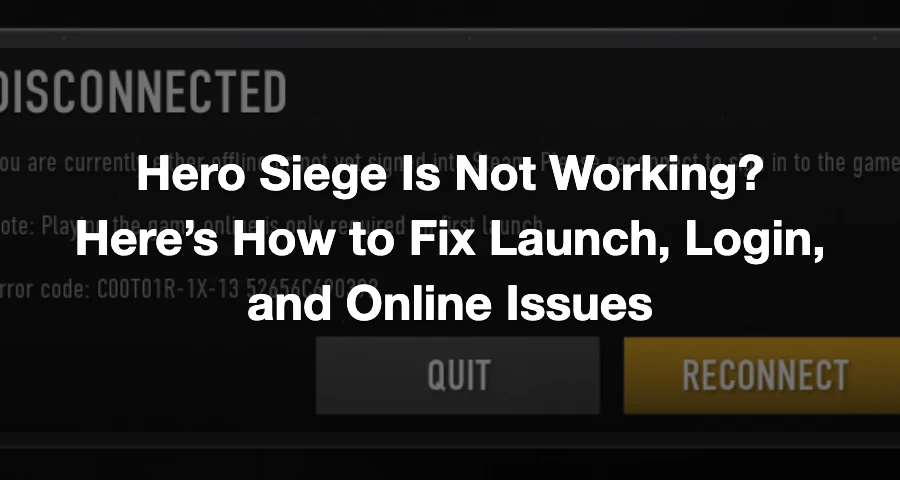
“Simply disable Stealth Mode. Problem solved,” one of the best fixes reported by players to fix the following issues:
The servers are reachable, but your connection or login is failing.
The game is blocked by a local app, security tool, or corrupted local data.
The game will not launch due to a client-side conflict or unsupported setup.
If Hero Siege starts offline but fails online, focus on account, firewall, antivirus, and network fixes first. If it will not launch at all, start with stuck processes, RTSS, drivers, and minimum requirements.

- ✅ Lower ping and fewer disconnects.
- ✅ More FPS and better PC performance.
- ✅ Support for 3000+ games.
- ✅ Stable connections and region switching.
What “not working” usually looks like in Hero Siege
Players report one of these problems:
The game does not launch from Steam.
Hero Siege opens, but online login fails.
The online or Enter button is grayed out or dark.
The game cannot connect to servers.
Online play fails on Steam Deck or Linux.
Those symptoms matter, as the fix path differs for each one.
Why Hero Siege may not be working
1) Server-side instability can happen, but it is not broadly confirmed right now
Hero Siege has experienced real server instability before, the developers mentioned that player floods caused servers to crash often. So server trouble is a real possibility during heavy activity.
However, as of the latest status check on April 15, 2026, there is no active widespread outage detected. If your problem is occurring right now, assume local or account-related causes first unless you also see fresh reports in the Hero Siege Steam discussions or official channels.
2) Online play needs a PanicNet account
According to the official Hero Siege Portal troubleshooting page, you need a PanicNet account to play Hero Siege online. If you can launch the game but cannot log in or the online flow does not complete, check that account requirement before changing anything else.
3) Firewall or antivirus may block server access
Local security software is a common cause. If the game launches but cannot connect, your firewall, antivirus, or internet setup may be blocking access.
4) Local app data or Steam permissions can break online login
There is a long-running fix for the dark or unavailable online button: fully close Steam, run Steam as administrator, move the Hero_Siege folder from %localappdata% to another location, then restart your PC. This is one of the most practical fixes for login and online button issues.
5) RTSS can stop the game from launching
If you use RivaTuner Statistics Server, Stealth Mode is a known conflict. Some players fixed launch failure by disabling Stealth Mode. Another reported fix is creating a profile for Hero_Siege.exe and setting the detection level to None when playing in fullscreen.
6) Steam Deck and Linux multiplayer can fail
Linux and Steam Deck reports point to online issues around EAC and launch method. One common report states that online used to work with minor issues on Steam Deck but stopped functioning after EAC changes. Another player report indicates that disabling Proton and using the native Linux build restored multiplayer.
7) Unsupported specs can stop launch
Hero Siege lists these minimum requirements:
64-bit processor and operating system
Windows 10
8 GB RAM
If your PC does not meet those basics, launch problems are expected.
How to check before fixing anything
Before you start changing files or settings, narrow the issue down quickly:
Check whether the game is broadly down. The latest public status page says Hero Siege is operational, last updated April 15, 2026.
Check the Hero Siege Steam discussions for fresh player reports.
Test whether the game launches offline. If it does, but online fails, the problem is more likely account, server access, firewall, or routing related.
Check whether only multiplayer is broken on Steam Deck or Linux. If so, Proton or EAC is more likely than corrupted game files.
If the online or Enter button is gray, verify that you actually entered your password and that your PanicNet account is valid.
How to Enjoy a Better Gaming Experience in Hero Siege
One of the most overlooked factors in your performance is the quality of your gaming experience. Lag, stutters, and frame drops can make or break your run, especially in higher wormhole levels or multiplayer sessions. That’s where LagoFast comes in.
LagoFast is a dedicated lag reducer and FPS booster that dramatically improves your connection and in-game responsiveness. It routes your connection through optimized paths to reduce ping, eliminate packet loss, and keep your gameplay smooth even during chaos-heavy moments. If you’ve been struggling with random disconnections or input delays, LagoFast could be your secret weapon.
What’s even better? LagoFast supports cross-device acceleration. Whether you're playing Hero Siege on a PC or mobile device, LagoFast adapts to your platform. That means you get a consistent, low-latency experience no matter where you play, perfect for long grind sessions or daily runs on the go.
Tutorial to use LagoFast to ensure smooth gameplay on PC:
Step 1: Start by clicking on the Free Trial button to download and install LagoFast Free Trial.
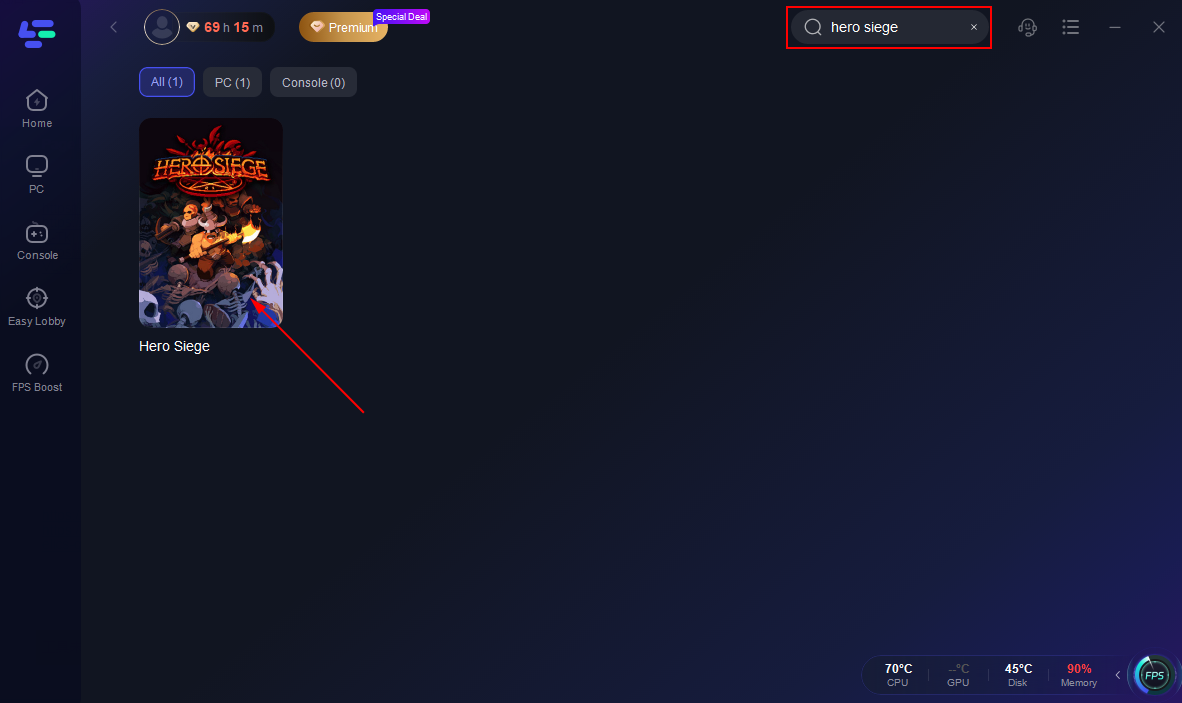
Step 2: Once the installation is complete, open the LagoFast application and use the search bar to find Hero Siege. Select it from the list of games that appear.
Step 3: Choose a server that is geographically closest to you, or pick the one with the lowest latency to ensure the best possible performance.
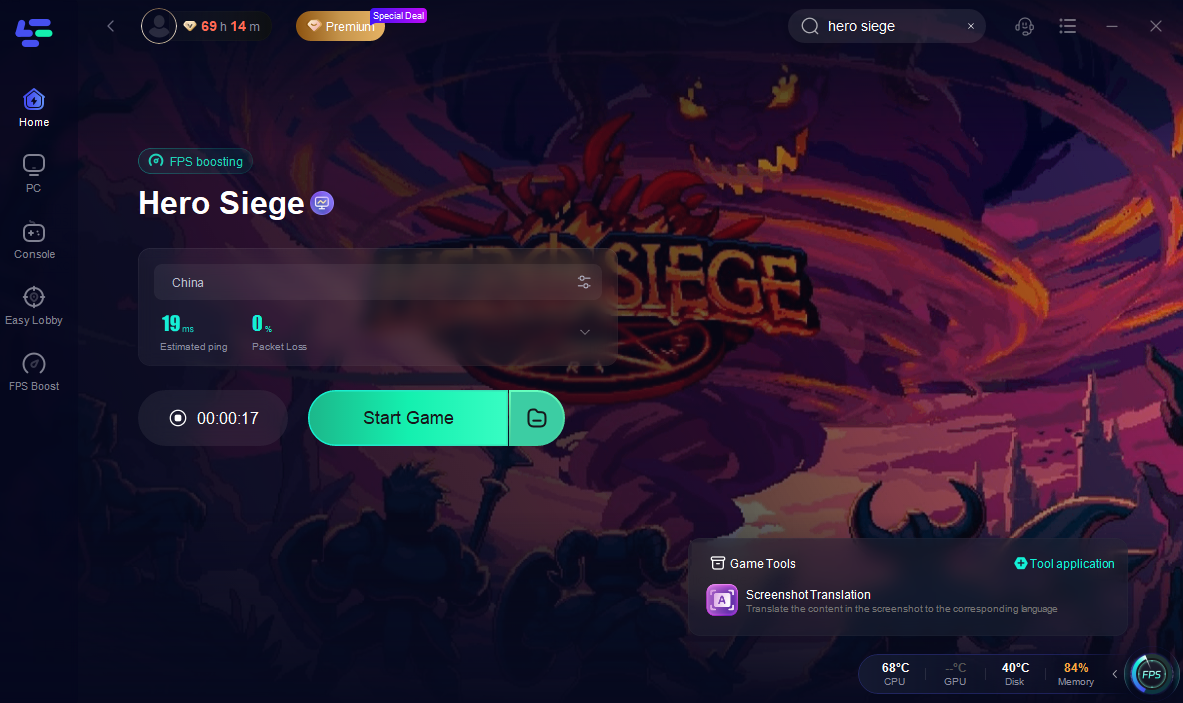
Step 4: Once LagoFast has optimized your connection, simply return to Hero Siege and enjoy a significantly smoother and more responsive gaming experience.
Step-by-step fixes in the best order
1) Fully exit Hero Siege and end any stuck herosiege.exe task
This is the fastest fix if the game refuses to open after you already tried launching it.
Press
Ctrl + Shift + Escto open Task Manager.Look for
herosiege.exe.End the task if it is still running.
Launch the game again from Steam.
This fixes the game without needing a full reboot.
2) Restart Steam, then run Steam as administrator
If login or online options are broken:
Fully close Steam.
Right-click
steam.exe.Open Properties if needed and enable Run as administrator, or just use right-click > Run as administrator.
Relaunch Steam.
Try Hero Siege again.
This is one of the recommended fixes for the dark or unavailable online button.
3) Restart your PC and router
This is basic, but it matters for Hero Siege connection problems.
Shut down Hero Siege and Steam.
Reboot your PC.
Restart your router or modem.
Reconnect and test again.
We recommend restarting network devices for connection trouble.
4) Confirm your PanicNet account and credentials
If you can launch the game but cannot get online:
Make sure you have a PanicNet account.
Re-enter your login details carefully.
If the Enter button is grayed out, ensure the password field is not blank.
This is especially important when the game opens normally but online access does not.
5) Whitelist hero_siege.exe in antivirus and check firewall rules
If Hero Siege cannot connect to the server, do this next:
Add
hero_siege.exeto your antivirus allowlist.Allow Hero Siege through Windows Firewall or your third-party firewall.
Temporarily test after disabling only the blocking rule if you know what you are doing.
This is one of the most directly supported fixes for online access problems.
6) Reset the local Hero_Siege app data folder
If online login is broken or the online button stays dark:
Close Steam completely.
Press
Win + R, type%localappdata%, and press Enter.Find the
Hero_Siegefolder.Cut and paste its contents to another folder as a backup.
Restart your PC.
Relaunch Steam and Hero Siege.
Do not delete the files first if you want a safe rollback. Moving them out is the cleaner first test.
7) Disable RTSS Stealth Mode or set detection to None
If Hero Siege will not launch, especially in fullscreen, check RTSS.
Open RTSS.
Disable Stealth Mode.
If you use fullscreen, create a profile for
Hero_Siege.exe.Set detection level to
None.Try launching again.
This is one of the clearest community-confirmed launch fixes.
8) Update your GPU drivers
If the game hangs, fails to load properly, or crashes at startup, update your graphics driver and test again.
Use the official driver pages for your GPU vendor, such as NVIDIA drivers or AMD support.
9) Verify game files if you suspect broken local files
If Hero Siege started working before and now suddenly fails after an update, crash, or forced shutdown, verifying game files in Steam is a reasonable next step.
This step is not the strongest documented fix in the provided material, so treat it as a standard cleanup check rather than a confirmed Hero Siege-specific solution.
Still cannot start Hero Siege at all?
If the game does not even launch, check these basics:
Your OS is Windows 10 or newer.
Your system is 64-bit.
You have at least 8 GB RAM.
RTSS is not interfering.
Background overlays or monitoring tools are closed.
If you are using fullscreen and RTSS, the Hero_Siege.exe profile tweak matters more than generic crash advice.
Steam Deck and Linux notes
This is the main platform-specific warning area.
For Linux and Steam Deck, player reports point to two important checks:
Do not use Proton if you are trying the native Linux build.
Online multiplayer may fail because of EAC-related compatibility issues.
One ProtonDB report states: “DO NOT USE PROTON: that games natively designed for Linux. Just launch it normally.” Another report indicates that disabling Proton allowed multiplayer connection again.
That said, Steam Deck and Linux online support can still be inconsistent depending on the current build. If offline works but multiplayer does not, this may be a platform compatibility issue rather than something wrong with your account.
When to stop troubleshooting and contact support
If you already tried the fixes above and Hero Siege still is not working, stop changing random settings and contact official support through the Steam Support page for Hero Siege.
Include these details:
The exact error code or prompt.
Whether the game fails on launch, login, or online connection.
Whether offline mode works.
Whether this happens only on Steam Deck or Linux.
The fixes you already tried.
Your OS, RAM, and whether you use RTSS, antivirus, or firewall software.
The exact error text matters. Support guidance specifically asks for the error code or prompt that is blocking online play.
FAQ
Is Hero Siege down right now?
No widespread outage is currently confirmed. The latest status page update on April 15, 2026, says Hero Siege is operational, but server connection is still the top reported issue.
Why is the online or Enter button grayed out in Hero Siege?
Common causes include missing PanicNet login details, a blank password field, Steam permission issues, or broken local app data in %localappdata%\Hero_Siege.
Does Hero Siege need a PanicNet account to play online?
Yes. The official Hero Siege Portal states you need a PanicNet account to play online.
Why does Hero Siege not work on Steam Deck or Linux multiplayer?
The main reported causes are EAC-related multiplayer problems and using Proton when the game has a native Linux build. Disabling Proton is one of the most commonly reported fixes, but results can vary.
What should I send to support if Hero Siege still is not working?
Send the exact error code or prompt, your platform, whether offline works, and the troubleshooting steps you already tried.

Boost Your Game with LagoFast for Epic Speed
Play harder, faster. LagoFast game booster eliminates stutter and lags on PC, mobile, or Mac—win every match!
Quickly Reduce Game Lag and Ping!
Boost FPS for Smoother Gameplay!