
The gaming landscape is evolving rapidly, with players increasingly demanding flexibility across devices. Enter Google Play Games Beta, a groundbreaking platform that bridges the gap between mobile and PC gaming. This Windows application allows users to play select Android games on their desktops or laptops while enjoying features like cross-device synchronization, PC optimizations, and Google Play Points integration.
In this guide, we explore what makes Google Play Games Beta a game-changer, its standout features, compatibility requirements, and learn the method to get Google Play Games beta.

- ✅ Reduce Lag and High Ping.
- ✅ Boost FPS at the Same Time.
- ✅ Support 1000+ Popular Online Games.
- ✅ Support Easy Lobby in all Cod Games without Lag
Part 1: What Is Google Play Games PC?
Part 2: How to get Google Play Games beta on PC?
Part 3: How to enhance the experience of Google Play Games using LagoFast?
Part 4: Google Play Games beta requirements
Part 5: What games are available on Google Play Games beta
Part 1: What Is Google Play Games PC?
Google Play Games Beta is a Windows-native application developed by Google to bring mobile gaming to PCs without relying on emulators, it officially launched in 2022. Unlike third-party solutions like BlueStacks or NoxPlayer, this official platform offers a curated library of Android games optimized for Windows 10 and 11. By leveraging Google's ecosystem, it ensures seamless integration with your Google Account, Play Store achievements, and cloud saves.
Currently available in select regions (including the U.S., Canada, Mexico, Brazil, Southeast Asia, and parts of Europe), the Beta version focuses on delivering a polished experience for titles like Summoners War, Mobile Legends: Bang Bang, and State of Survival.
Features of Google Play Games PC
- Cross-Platform Synchronization: Start a level on your Android device and finish it on your PC without missing a beat.
- PC-Optimized Gameplay: Google's team works directly with developers to optimize games for PC hardware. This means the players can enjoy enhanced graphics, keyboard/mouse support and windowed/full-screen modes
- Google Play Points Integration: Earn Play Points—Google's rewards program—by playing games on either mobile or PC. Accumulate points to redeem for in-game items, discounts, or premium app subscriptions.
- Security First: Every game undergoes rigorous Google Play Protect scans to block malware and ensure compliance with safety standards.
- Lightweight Performance: Google Play Games Beta runs natively on Windows, reducing CPU/RAM usage.
Part 2: How to get Google Play Games beta on PC?
If your computer meets the minimum requirements for Google Play Games and you want to get it, successfully install it on your PC, and complete the setup, the following steps will help you:
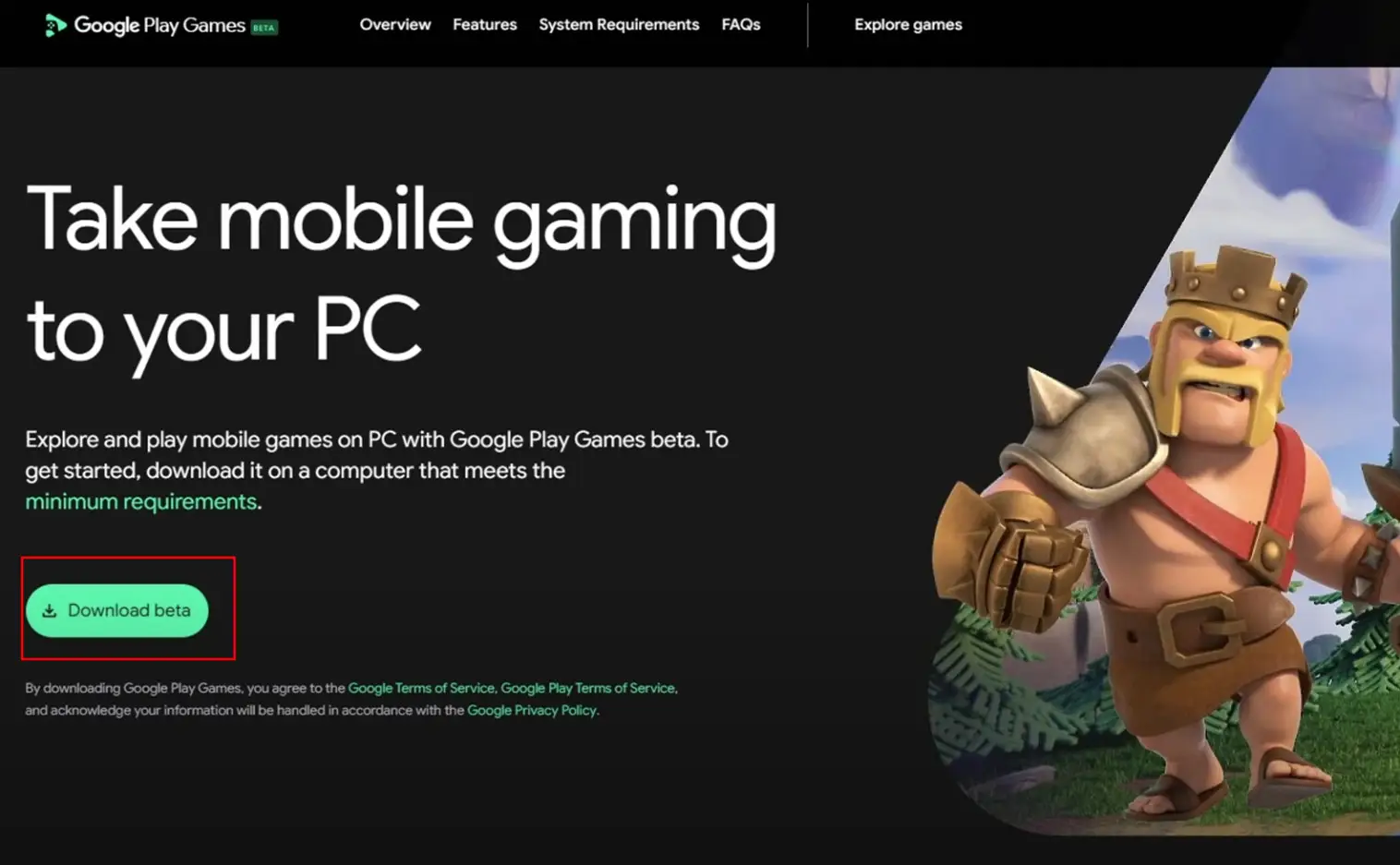
- Download and Installation: Visit play.google.com/googleplaygames, click the download button - this process may take a few minutes.
2. Set up virtualization settings: Before you install Google Play Games Beta on your PC, CPU virtualization must be turned on in your computer's BIOS settings.
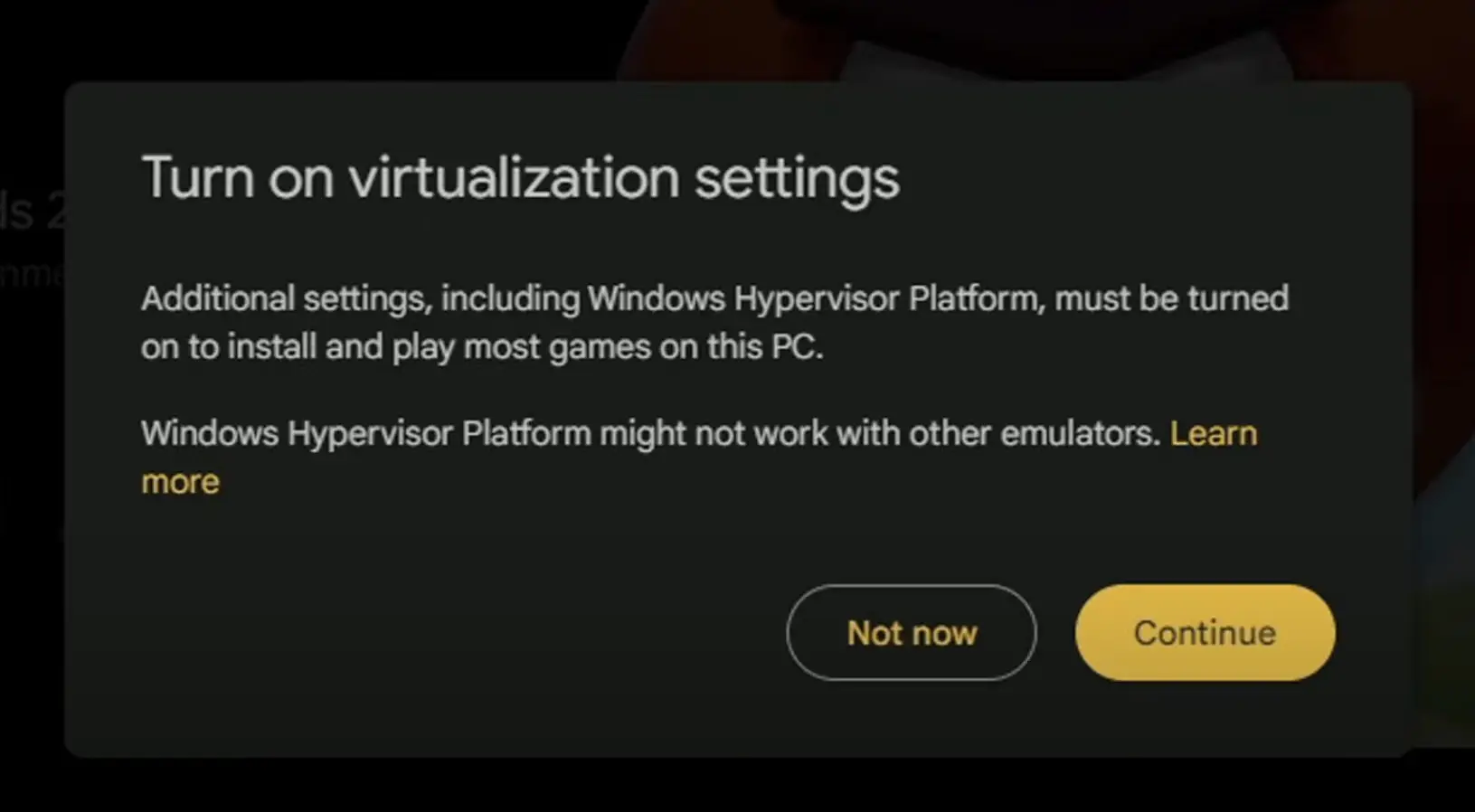
Tip: If you installed other emulators on your computer, they might not work when Windows Hypervisor Platform is turned on. Learn how to turn off Hypervisor after installation.
3. Sign in to your account: To play across devices, be sure to sign in with the same account on your mobile device and your PC.
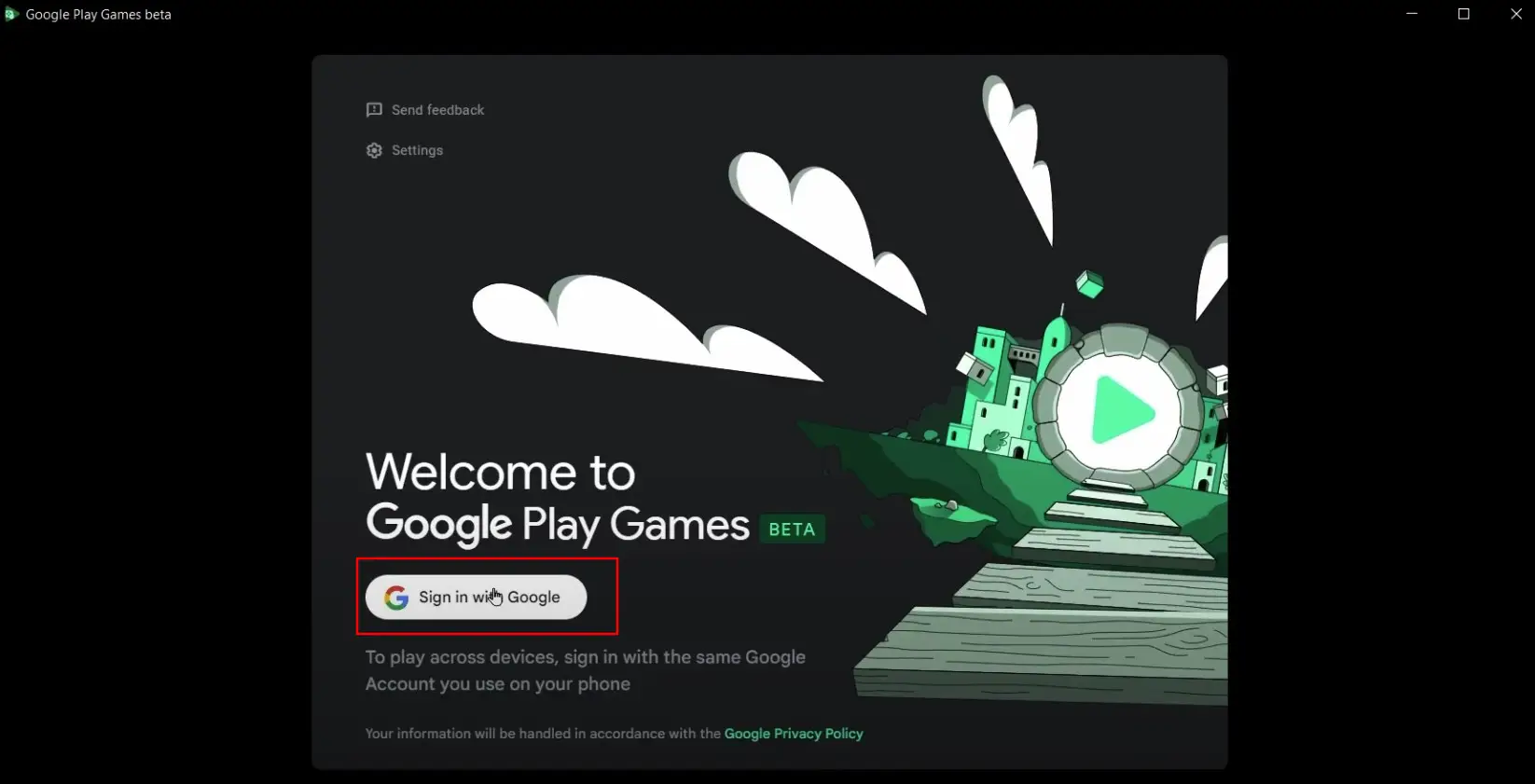
Tip: Only the first user who installed Google Play Games Beta on PC can open it and play games.
4. Troubleshoot installation errors: If prompted, turn on Windows Hypervisor Platform.
Part 3: How to enhance the experience of Google Play Games using LagoFast?
LagoFast Game Booster is a specialized network optimization tool designed to enhance online gaming experiences by reducing latency, minimizing packet loss, and stabilizing connections. Key features include:
- Multi-Platform Support: Compatible with PC (Windows), consoles (PlayStation/Xbox), and mobile games (Android/iOS).
- Multi-Game Support: Allows simultaneous acceleration for multiple games/applications.
- Intelligent Routing: Automatically selects the fastest server path using proprietary algorithms to bypass congested networks.
- Global Server Nodes: Offers access to optimized servers worldwide, ideal for cross-region gameplay.
- Real-Time Monitoring: Provides ping tracking, packet loss diagnostics, and bandwidth usage analytics.
Enhance the gaming experience on Google Play Games using LagoFast
Step 1. Download and install LagoFast on your PC by clicking the ‘Free Trial' button below.
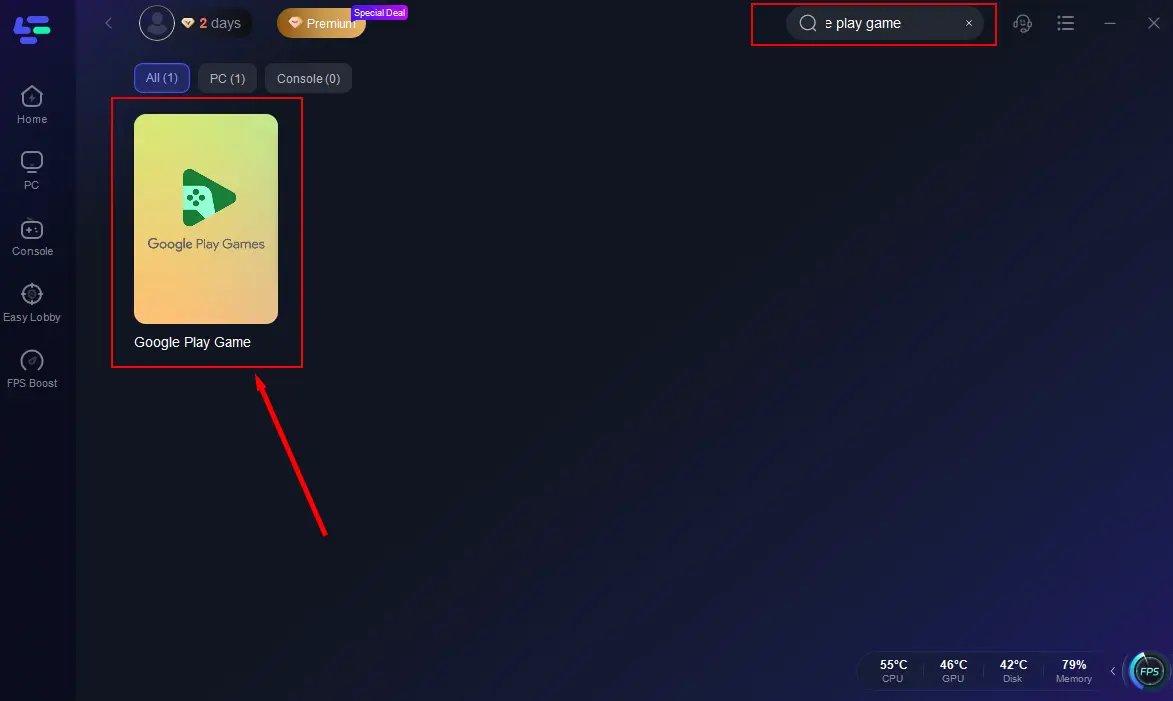
Step 2. Launch LagoFast, type "Google Play Games" into the search bar, and click the search result.
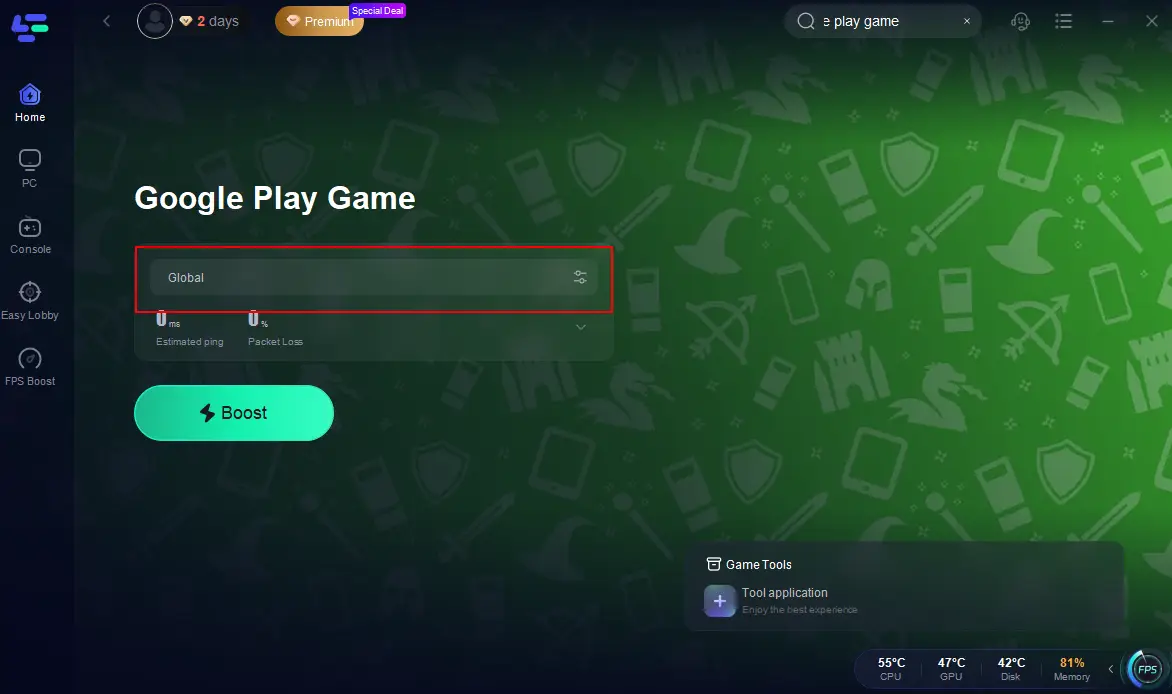
Step 3. Select a suitable server and node, then click "Smart Boost".
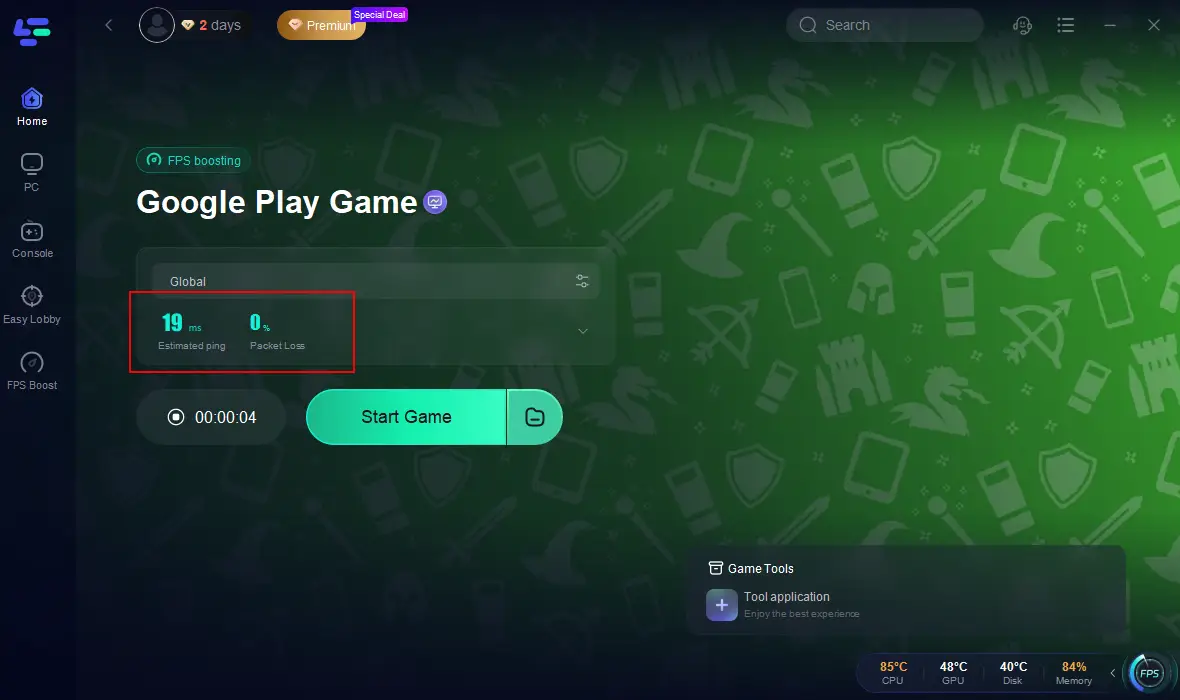
Step 4. Check the real-time ping and packet loss rate, and finally click "Start Game" to enjoy a smoother Google Play Games experience!
Part 4: : Google Play Games beta requirements
To run Google Play Games Beta smoothly, your PC must meet these minimum specs:
- OS: Windows 10 (v2004 or later)
- Storage: 10 GB free space (SSD recommended)
- GPU: Intel UHD 630 or equivalent (discrete GPUs like NVIDIA GTX 600+ perform better)
- CPU: 4 physical cores (Intel/AMD)
- RAM: 8 GB
- Virtualization: Enabled via BIOS/UEFI
Note: A Windows admin account is required for installation.
Part 5: What games are available on Google Play Games beta?
Google Play Games Beta features 100+ curated Android games optimized for PC. The list grows monthly, with a focus on popular multiplayer, RPG, and strategy titles. Below are confirmed and notable games:
1. Top Games Available:
- Summoners War: Sky Arena (RPG/Gacha)
- Mobile Legends: Bang Bang (MOBA)
- State of Survival: Zombie War (Strategy)
- Cookie Run: Kingdom (RPG/Adventure)
- Evony: The King's Return (MMO Strategy)
- Garena Free Fire MAX (Battle Royale)
- Arknights (Tower Defense/RPG)
2. Indie & Casual Titles:
- Stardew Valley (Farming Sim)
- Dead Cells (Action Roguelike)
- Among Us (Social Deduction)
- Alto's Odyssey (Endless Runner)
Conclusion
Google Play Games Beta represents a bold step toward unifying mobile and PC gaming. With its seamless sync, optimized performance, and robust security, it's an enticing option for gamers seeking flexibility. Get Google Play Games on your PC right now and enjoy a perfect game experience on the big screen by using LagoFast!
Boost Your Game with LagoFast for Epic Speed
Play harder, faster. LagoFast game booster eliminates stutter and lags on PC, mobile, or Mac—win every match!
Quickly Reduce Game Lag and Ping!
Boost FPS for Smoother Gameplay!