
Forza Horizon 6 FHE01 Error—Many players have been asking the same question on Reddit:
“Did any of you encounter FHE01 error and successfully fixed it (Xbox App)?”
It’s a common frustration right now, especially when the game refuses to launch no matter what you try.
Players report going through almost every basic fix:
- “Reinstall graphic drivers
- Reinstall DirectX
- Update everything on MS Store
- Verify game files
- Change drive
- Etc… but no luck.”
The Forza Horizon 6 FHE01 error is a startup crash that usually appears right after launching the game and is typically caused by software conflicts (such as Citrix Workspace or remote desktop tools), corrupted game files, or problematic peripheral drivers. It may feel random, but in most cases it comes from a specific system conflict rather than the game itself. In this guide, we’ll break down every working Forza Horizon 6 FHE01 crash fix step by step so you can quickly find the cause and get back into the game.
Part 1: What Is Forza Horizon 6 Error FHE01?
Part 2: Common Causes of Forza Horizon 6 Error FHE01
Part 3: How to Fix Forza Horizon 6 Error FHE01
Part 4: How to Use LagoFast to Improve Stability
Part 1: What Is Forza Horizon 6 Error FHE01?
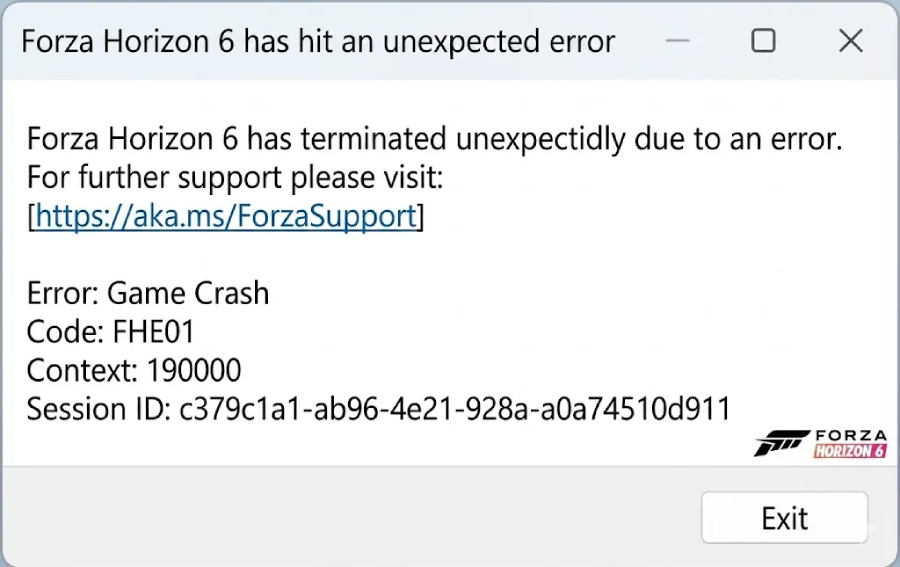
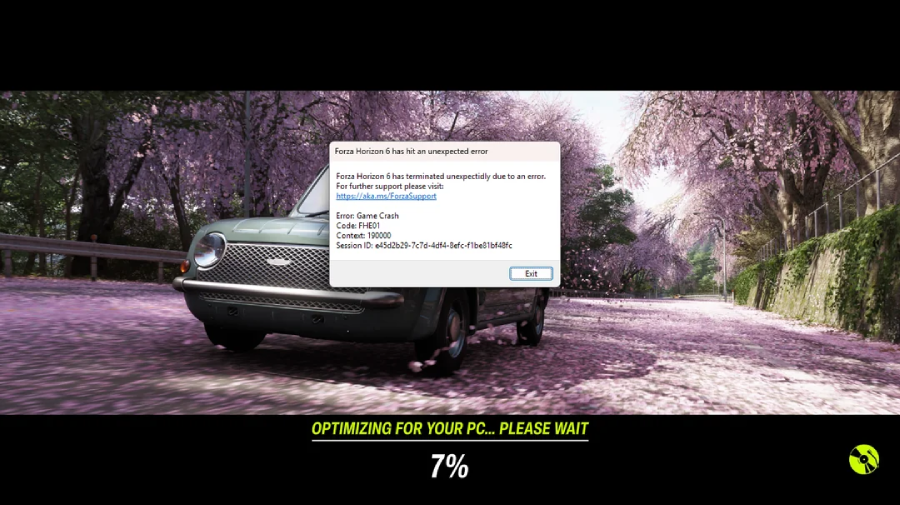
The Forza Horizon 6 Error FHE01 is a startup crash that usually happens right after launching the game. Instead of loading normally, the game may close instantly or display an “unexpected error” message.
Most players see something like:
“Forza Horizon 6 has hit an unexpected error FHE01."
This is not a single fixed bug. In most cases, it points to a system-level conflict during the game’s startup process on PC.
It typically occurs when something on your system interferes with initialization, such as:
- Background apps like Citrix or other remote desktop tools
- Connected USB devices (controllers, racing wheels, or other peripherals) that interfere with input initialization
- GPU driver issues such as instability or outdated versions
- Overlays and monitoring tools like Discord, MSI Afterburner, or GeForce Experience
Because there are multiple possible triggers, the crash can feel random—but it’s usually caused by a specific conflict on the system rather than a single game-side bug.
Part 2: Common Causes of Forza Horizon 6 Error FHE01
Before fixing it, it’s important to understand what’s actually triggering the crash. In most cases, FHE01 is caused by a system-level conflict during game startup rather than a single bug.
- Corrupted Game Files: Missing or incomplete game files can prevent the game from loading properly, leading to an immediate crash or “unexpected error” message.
- Hardware compatibility issues or outdated GPU drivers: In some cases, older hardware or outdated GPU configurations may struggle with the game’s launch process, causing instability at startup.
- Racing Wheel or Controller Conflicts: Multiple connected input devices (especially racing wheels or advanced controllers) can sometimes interfere with device initialization during launch.
- RivaTuner / RTSS (MSI Afterburner Overlay): Performance monitoring tools like RTSS or overlays can hook into the game and cause startup crashes or FHE01 errors.
- Temporary Files & Cache: Corrupted shader cache or leftover temporary files from previous sessions may also interfere with the game’s startup process.
Part 3: How to Fix Forza Horizon 6 Error FHE01
Below are the most effective fixes ranked from easiest to most powerful. Try them in order—most players don’t need to go all the way to the end.
Fix 1: Restart Your PC and Relaunch the Game
It sounds simple, but it often works.
A full restart helps:
- Clear stuck background processes
- Reset GPU and input states
- Remove temporary launch conflicts
After rebooting, launch the game immediately before opening other apps.
Fix 2: Uninstall or Temporarily Disable Citrix Workspace
This is one of the most consistently reported working fixes from players.
Many users found that the FHE01 crash disappeared after uninstalling Citrix Workspace and restarting the PC, likely because it can interfere with the game’s startup process due to background security or remote-work services.
Community signal:
- Reddit players report Citrix removal + PC restart fixes FHE01
- Steam discussions also mention a workaround where disconnecting Xbox/PS controllers before launching can help bypass the crash
Most other commonly suggested fixes—such as reinstalling the game, verifying files, updating drivers, or changing system settings—have mixed results among players. Some temporary workarounds also exist, but they are not always consistent or reliable.
Overall, current community feedback strongly points to Citrix conflicts and USB device interference as the main causes behind the FHE01 error.
Fix 3: Disconnect Controllers, Wheels, and USB Devices
USB input conflicts are another common trigger.
Try unplugging:
- Xbox / PlayStation controllers
- Racing wheels (Logitech, Thrustmaster, etc.)
- Extra USB peripherals
Some setups fail at launch when multiple input devices are detected at the same time.
Fix 4: Switch to Windowed Mode (Alt + Enter)
If the game briefly launches before crashing:
Press Alt + Enter to switch to windowed mode.
This can bypass fullscreen rendering issues that sometimes trigger FHE01.
Fix 5: Verify Forza Horizon 6 Game Files
If the game files are corrupted or missing, Forza Horizon 6 may fail to launch and trigger the FHE01 error.
On Steam:
- Right-click the game → Properties
- Go to Installed Files
- Click Verify integrity of game files
On Xbox App / Microsoft Store:
- Open the game settings
- Select Repair (or Reset if needed)
This process replaces damaged or missing files and often fixes startup crashes caused by a broken installation.
Fix 6: Update or Clean Install Your GPU Driver
Outdated or unstable GPU drivers can sometimes cause launch instability or startup crashes.
- Perform a clean install of the latest NVIDIA Game Ready Driver or AMD Adrenalin Driver
- Avoid upgrading over old driver profiles without cleaning previous versions
A clean driver install helps eliminate hidden conflicts that can prevent the game from launching properly.
Fix 7: Disable Overlays and Monitoring Software
Overlay software can interfere with the game’s rendering process and trigger crashes.
Turn off:
- Discord overlay
- GeForce Experience overlay
- MSI Afterburner / RTSS
RTSS (RivaTuner Statistics Server) is especially known for causing startup conflicts in DirectX-based games.
Fix 8: Run Forza Horizon 6 as Administrator
Permission issues can sometimes block proper game initialization.
- Right-click the game → Properties
- Go to Compatibility
- Enable Run as Administrator
This ensures the game has full system access during launch.
Fix 9: Install Visual C++ Redistributables and DirectX Runtime
Missing system libraries may lead to startup failure in some cases.
Make sure your system has:
- Microsoft Visual C++ Redistributables (2015–2022)
- Latest DirectX runtime package
These components are required for many modern PC games to run correctly.
Fix 10: Check Windows Updates and Background Services
System-level issues can also trigger FHE01 crashes.
Check the following:
- Windows is fully updated
- No pending system updates or security patches
- Antivirus or security software is not blocking the game at launch
Some aggressive background services can silently interfere with game startup.
Fix 11: Reinstall Forza Horizon 6 as a Last Resort
If none of the above works, a clean reinstall may be necessary.
- Uninstall the game completely
- Remove leftover installation folders if needed
- Reinstall from scratch
This helps fix deeper corruption issues that cannot be resolved through repair or verification.
Part 4: How to Use LagoFast to Improve Stability
If you’re still getting FHE01 crashes or unstable launches, the issue may not only be your PC—it can also be related to unstable routing or connection spikes during startup. This is where LagoFast Game Booster can help improve overall network stability in online games.
LagoFast is a game-focused network optimization tool that helps lower ping, reduce packet loss, and optimize routing paths to game servers for a smoother and more stable connection. It also includes features like Fix Games Servers Issue and FPS Boost 2.0, which help further improve performance and stability in supported games.
How to Use LagoFast
Step 1: Click the Free Trial button to download and install LagoFast.
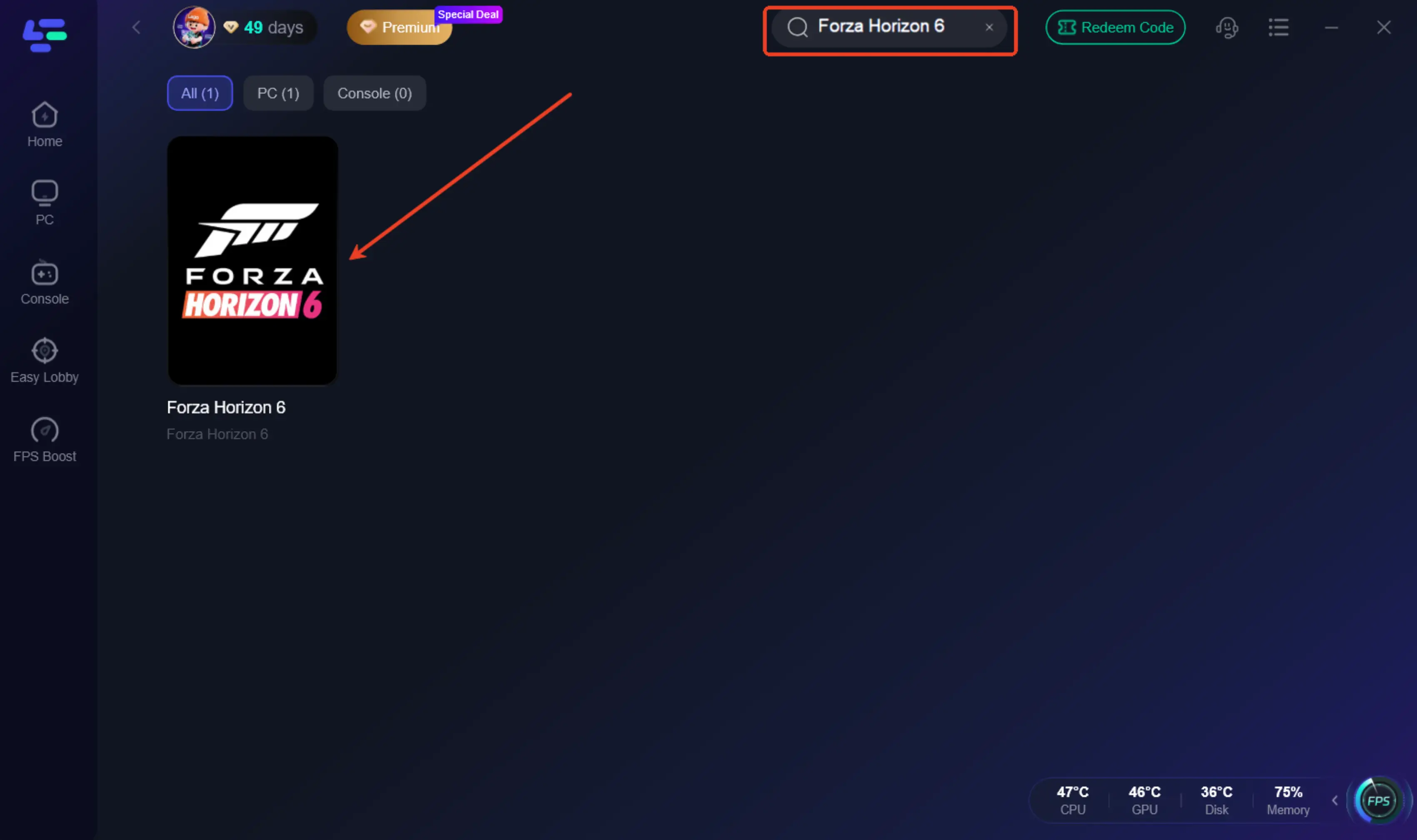
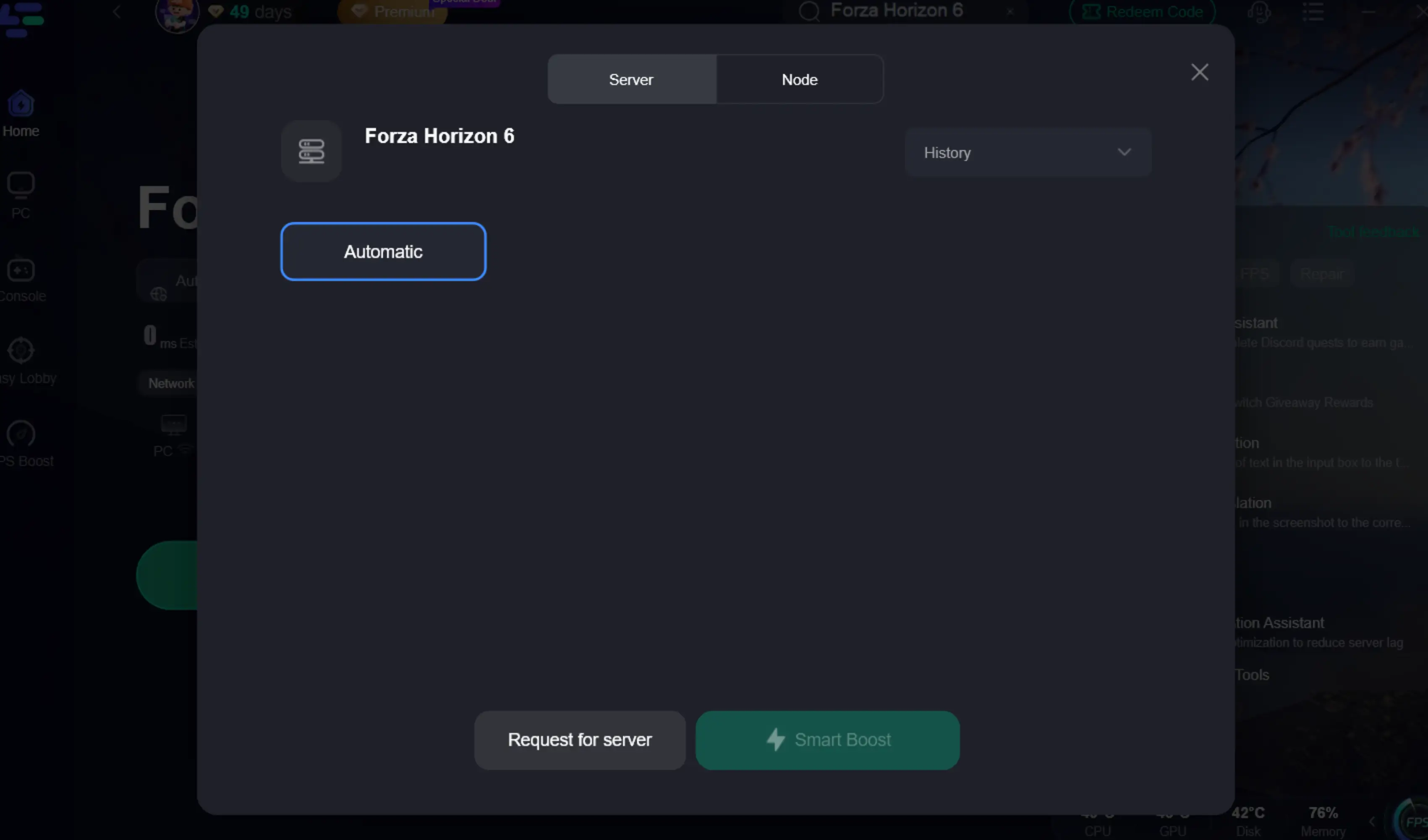
Step 2: After installation, search for "Forza Horizon 6" in the search bar and select the game.
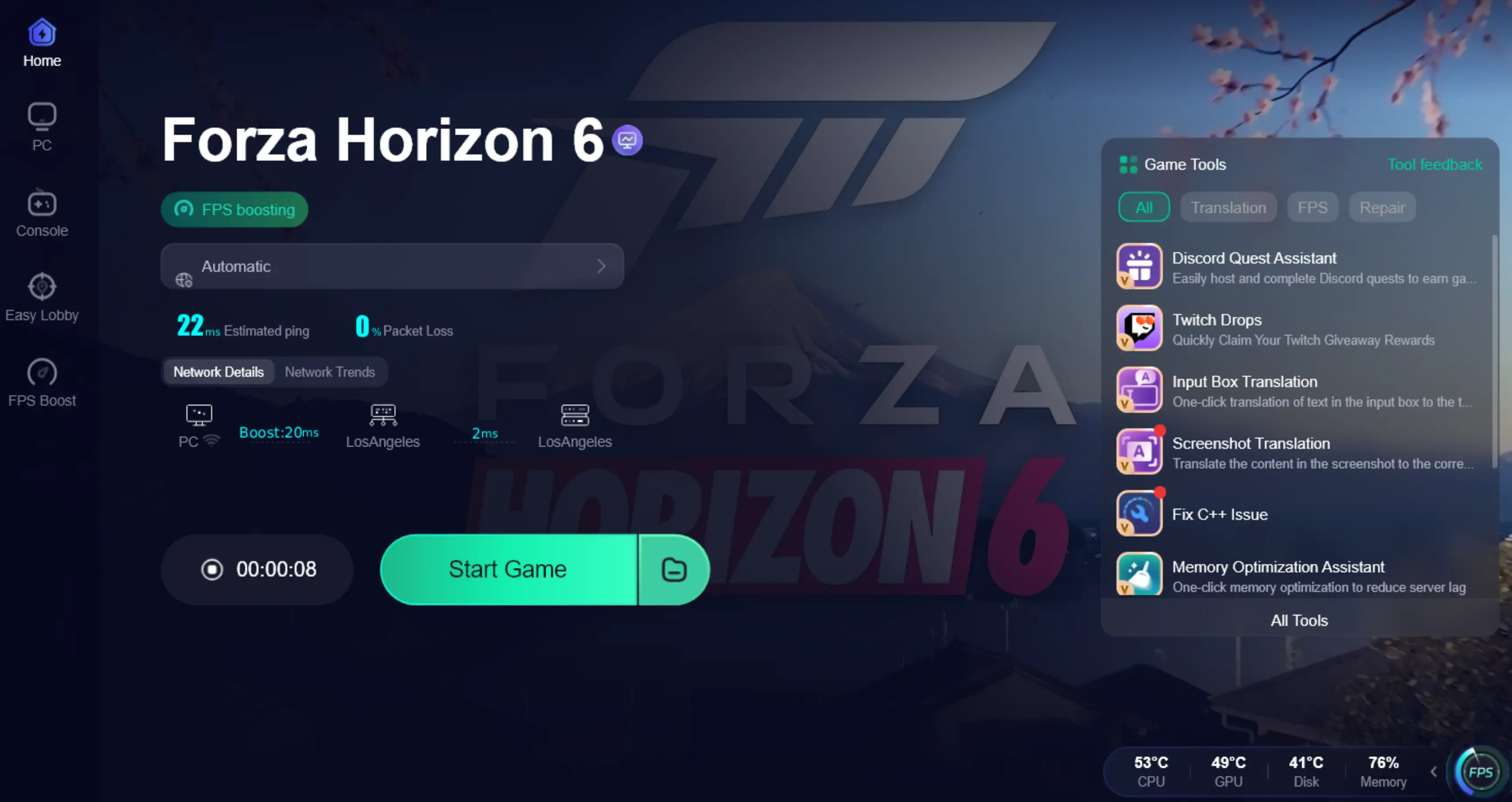
Step 3: Choose your preferred server node and click "Smart Boost" to start optimizing.
Step 4: Launch the game and enjoy a smoother experience with lower ping and more stable online performance.
Part 5: FAQs
Q1: Why does Forza Horizon 6 crash with FHE01 on launch?
FHE01 usually appears when the game fails to initialize properly due to system conflicts, such as background security software, driver issues, or input device interference during startup.
Q2: Is FHE01 a game bug or a PC issue?
It's usually a PC-side conflict rather than a single in-game bug, often triggered by software running in the background or incompatible system components.
Q3: Does reinstalling Forza Horizon 6 fix FHE01?
Not always. Many players report that reinstalling does not solve the issue, and fixes like removing Citrix or disconnecting USB devices are more effective.
Q4: Why does Citrix Workspace cause crashes?
Citrix can interfere with certain background processes used during game startup, which may lead to launch failures or FHE01 errors.
Final Thoughts
FHE01 in Forza Horizon 6 is frustrating, but it’s usually not a broken game—it’s a PC system conflict. The key is to find what’s interfering with the game at launch instead of randomly reinstalling everything.
Quick takeaways:
- Most FHE01 crashes come from background software (especially Citrix), USB devices, or overlays
- Simple fixes like restarting, disconnecting devices, or verifying files often solve the issue
- Driver updates and clean system setups help, but conflicts are usually the real cause
- Reinstalling the game should only be the last step if nothing else works
If you go through the fixes in order, most players can get back into the game without needing to reinstall Windows or make complicated system changes.
Boost Your Game with LagoFast for Epic Speed
Play harder, faster. LagoFast game booster eliminates stutter and lags on PC, mobile, or Mac—win every match!
Quickly Reduce Game Lag and Ping!
Boost FPS for Smoother Gameplay!