
Counter-Strike 2 is a fast-paced competitive shooter where most players jump straight into official matchmaking to start a match. However, some players encounter the frustrating “Failed to reach any official servers” error when trying to queue. When this happens, the game cannot establish a connection to an official server, so matchmaking fails before the match even begins. If you're trying to fix the “Failed to reach any official servers” error in CS2, it usually means the client cannot reach Valve’s server network during matchmaking. In this guide, we’ll explain the common reasons behind this issue and the steps you can take to fix it.

- ✅ Reduce Lag and High Ping.
- ✅ Boost FPS at the Same Time.
- ✅ Add CS2 to Steam Library.
- ✅ Change Server Without Latency.
- ✅ End All Connection crash Issues.
- ✅ Multiplatform: PC, Mobile, Console.
Part 1: Why Does Failed to Reach Any Official Servers in CS2
Part 2: How to Fix CS2 Error Failed To Reach Any Official Servers
Part 3: Manual & Alternative Ways to Fix CS2 Can't Connect to Official Server
Part 1: Why Does Failed to Reach Any Official Servers in CS2
Before trying to fix the issue, it helps to understand what the “Failed to reach any official servers” error actually means in Counter-Strike 2. In most cases, the problem appears before the game can establish a connection to an official matchmaking server.
Common Situations Players Experience
When this issue occurs in Counter-Strike 2, players may see different error messages or matchmaking failures. The most common ones include:
- “Failed to reach any official servers CS2 – unknown network error encountered.”
- “Matchmaking Failed. Failed to reach any official servers. There might be a problem with your internet connection or firewall configuration.”
- Matchmaking queue fails immediately after clicking Start Matchmaking
- Unable to join official servers
- The queue never starts
- CS2 cannot connect to official server
In most cases, these messages appear because the game client cannot reach the official matchmaking network, so the match never begins.
Common Causes Behind the Error
In most cases, this error appears because the game client cannot successfully reach the official server network operated by Valve Corporation. Several network-related issues can prevent the connection from being established.
Steam Server Issues
Occasionally, Steam matchmaking services may experience outages or temporary maintenance. When this happens, the client cannot reach official servers, and matchmaking may fail before a connection is created.
Network Routing Problems
Your internet connection may work normally for browsing or downloads but still take an unstable route to the game servers. If the routing path is unstable or blocked, the client cannot reach the matchmaking network.
VPN or Game Accelerator Node Problems
Some players use VPNs or game accelerators to improve latency. However, if the selected node is overloaded or poorly routed, it can prevent traffic from reaching the official servers.
DNS Configuration Issues
DNS servers translate server addresses into IP addresses. If the DNS response fails or is delayed, the client may not be able to locate the matchmaking servers.
Firewall or Security Software Blocking
Firewall rules or antivirus software may accidentally block network traffic from Steam or Counter-Strike 2, preventing the game from communicating with the official server network.
Part 2: How to Fix CS2 Error Failed To Reach Any Official Servers
If the “Failed to reach any official servers” error keeps appearing in Counter-Strike 2, the problem is often related to unstable network routing between your device and the game servers. Even if your internet connection works normally, the connection path to the server can still be congested or unstable. In these situations, using a network optimization tool like LagoFast Game Booster can help stabilize the connection. By optimizing the route to CS2 servers, it can improve connection stability, reduce ping, and minimize packet loss during matchmaking.
Besides network optimization, LagoFast also provides several useful tools for CS2 players:
- Add CS:GO to Steam Library – Safely add CS:GO back to your Steam library without modifying any game files.
- CS2 Best Graphics Settings – Automatically adjust graphics settings to improve FPS and overall performance.
- FPS Boost 2.0 – One-click optimization for better frame rates and smoother gameplay with frame generation support.
- Steam Launch Booster – Disable shader pre-cache and clear unnecessary cache files for faster game startup.
- Game Crash Fix – Repair common environment issues such as DirectX 12 or C++ runtime errors with a single click.
These tools not only help resolve connection issues but also improve overall stability and performance when playing CS2.
How to Use LagoFast for CS2
Step 1: Click the Free Trial button to download and install LagoFast.
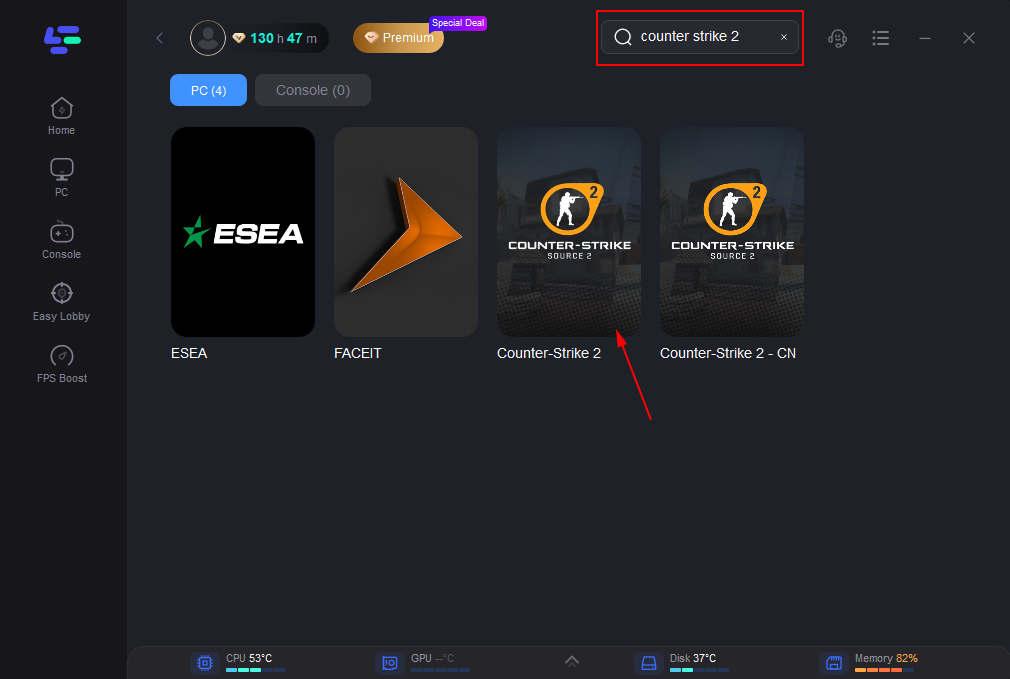
Step 2: After installation, search "Counter-Strike 2" in the search bar and select the game.
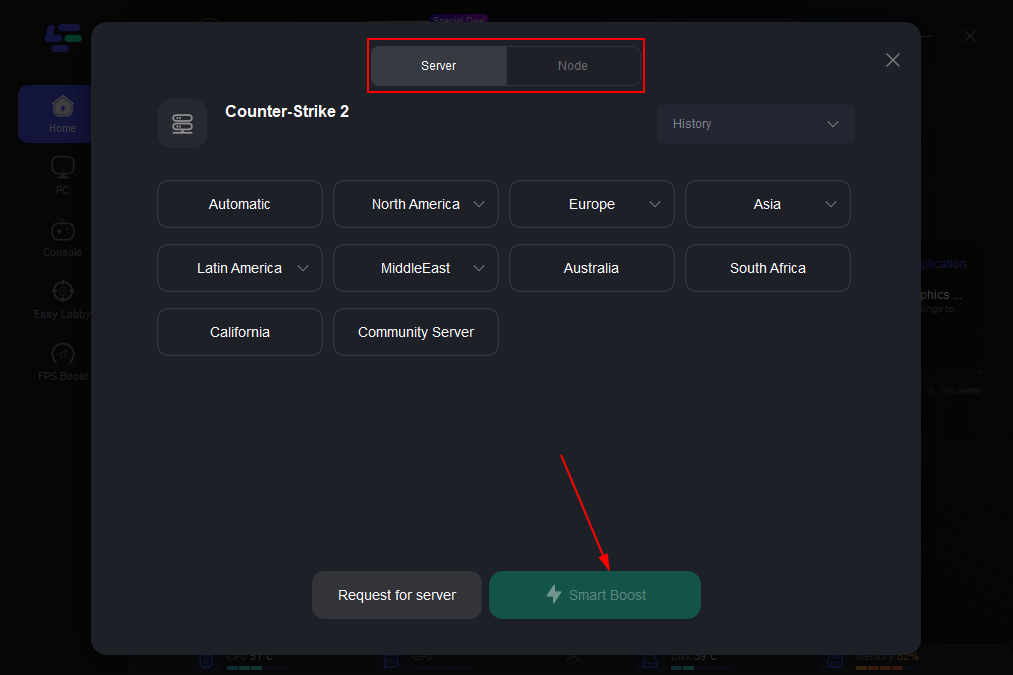
Step 3: Choose your preferred server node and click "Smart Boost" to start optimizing.
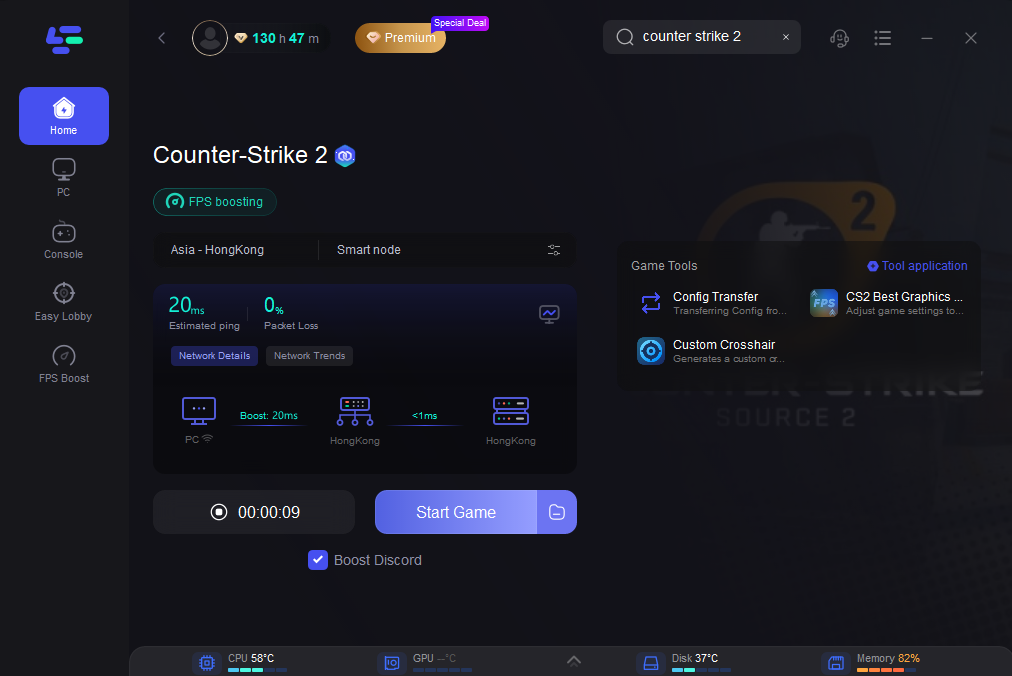
Step 4: Launch your game and enjoy smooth, optimized gameplay with lower ping and packet loss.
Part 3: Manual & Alternative Ways to Fix CS2 Can't Connect to Official Server
If the “Failed to reach any official servers” error in Counter-Strike 2 still persists after trying the methods above, you can try several manual troubleshooting steps.
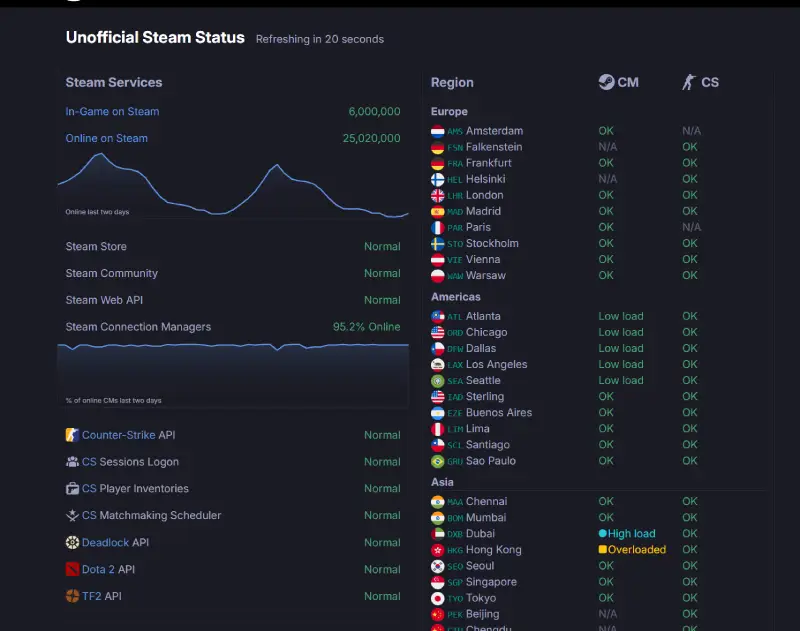
Check Steam Server Status
Sometimes the issue is caused by temporary problems with Steam matchmaking services operated by Valve Corporation. When the servers are down or under maintenance, the client cannot reach the official server network, which results in the “Failed to reach any official servers” error.
In this situation, the problem is usually not related to your local setup.
You can:
- Check the Steam server status page
- Look for community reports about matchmaking outages
- Wait a few minutes and try connecting again
If the problem is server-side, matchmaking will start working again once the services are restored.
Change Your DNS Server
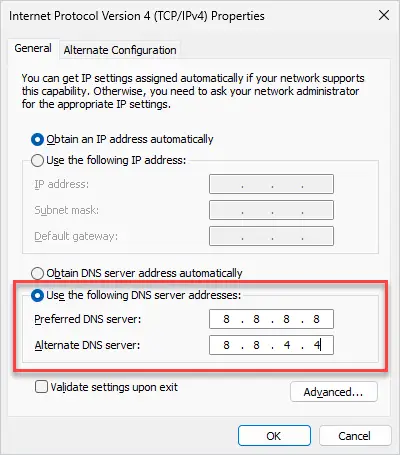
DNS servers are responsible for resolving server addresses. If the DNS response is slow or incorrect, the client may fail to locate the matchmaking servers.
Switching to a reliable public DNS can help improve server lookup reliability.
Recommended options include:
- Google DNS: 8.8.8.8 / 8.8.4.4
- Cloudflare DNS: 1.1.1.1 / 1.0.0.1
After changing the DNS settings, restart Steam and try matchmaking again.
Disable VPN or Switch Nodes
If you are using a VPN or a game accelerator, the selected node may not route traffic correctly to CS2 servers.
You can try the following:
- Temporarily disable the VPN and test the connection
- Switch to a different node or region
- Reconnect to Steam before launching the game again
Changing the routing path can sometimes restore access to official servers.
Check Firewall Settings
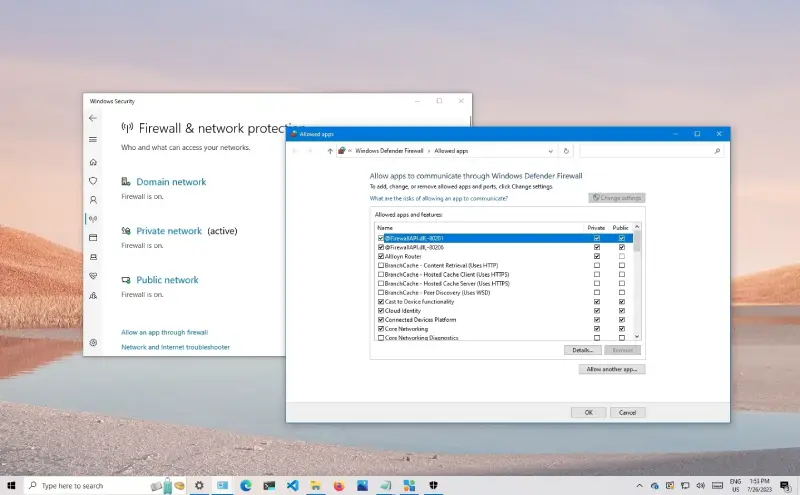
Firewall or security software can sometimes block network communication between Steam and the official servers.
Make sure the following applications are allowed through your firewall:
- Steam Client
- Counter-Strike 2
If necessary, add them to the firewall exception list and restart the game.
Restart Your Router
Temporary routing issues or NAT problems can also prevent your client from reaching matchmaking servers.
Restarting the router can refresh the network connection and clear routing cache.
Steps:
- Turn off the router
- Wait about 30 seconds
- Turn it back on
- Restart your computer and launch Steam again
This simple reset can often resolve temporary network communication problems.
Conclusion
The “Failed to reach any official servers” error in Counter-Strike 2 usually appears when the game cannot communicate with the official matchmaking network. In most cases, it’s related to temporary server issues or unstable network routing rather than a serious problem with the game itself. After checking your connection and applying a few simple fixes, matchmaking should start working normally again so you can get back into the game.
Boost Your Game with LagoFast for Epic Speed
Play harder, faster. LagoFast game booster eliminates stutter and lags on PC, mobile, or Mac—win every match!
Quickly Reduce Game Lag and Ping!
Boost FPS for Smoother Gameplay!