
If you are trying to play Deep Rock Galactic: Rogue Core with friends but the co-op connection feels unstable, delayed, or fails to connect properly, the problem may be related to how the game handles P2P multiplayer through Steam.
Deep Rock Galactic: Rogue Core is a 1–4 player co-op FPS roguelite on Steam, and its co-op experience is built around playing with other players in shared missions.
For many players, the issue is not the game itself, but the connection route between the host and the other players.
In some cases, Steam’s default connection may fail to create a normal P2P route and instead send traffic through a relay server. When that happens, players may experience higher ping, delayed actions, failed joins, or unstable co-op sessions.
LagoFast’s Fix P2P Error tool is designed to help restore a better P2P connection path and improve the co-op experience.

- ✅ Lower ping and fewer disconnects.
- ✅ More FPS and better PC performance.
- ✅ Support for 3000+ games.
- ✅ Stable connections and region switching.
Why Deep Rock Galactic: Rogue Core Co-op May Have High Ping
Deep Rock Galactic: Rogue Core follows the same co-op spirit as the original Deep Rock Galactic. The original Deep Rock Galactic multiplayer is known for using a peer-to-peer hosting model rather than dedicated multiplayer servers.
That means one player acts as the host, and other players connect to that host.
Normally, this type of connection should feel smooth when players are close to each other or have a stable route. But if Steam cannot create a proper P2P connection, the traffic may be routed through a relay server instead.
For players in some regions, this relay route may go through Hong Kong or another distant node, which can cause:
high ping
delayed shooting or movement
failed co-op joins
unstable sessions
random disconnects
slow host response
bad experience when playing with friends in another city or country
This is especially frustrating because the game is built around co-op. If the connection between players is bad, the whole run feels worse.
What the P2P Problem Looks Like
You may be facing a P2P connection issue if:
you cannot join your friend’s lobby
your friend cannot join your lobby
Steam invite does not work properly
the game connects, but ping is much higher than expected
actions feel delayed even when your internet speed is fine
the host feels normal, but other players lag
the session disconnects after entering a mission
co-op works sometimes, then suddenly fails again
local or nearby friends still get high latency
If you and your friend are physically close, but the game still feels like you are connecting through a faraway server, Steam may not be using the best P2P route.
Why Steam Default Co-op May Not Work Well
Steam multiplayer can use relay routing when direct P2P is not available or not stable. This can help some players connect, but it is not always the best route for low-latency co-op.
For Deep Rock Galactic: Rogue Core, this can be a problem because the game depends heavily on fast co-op response.
In a normal run, players need to:
shoot enemies quickly
dodge attacks
revive teammates
react to swarms
move together through caves
coordinate objectives
escape under pressure
When the connection is delayed, even a small ping problem can make the game feel bad.
The issue is not always your download speed. You can have fast internet and still get poor co-op performance if the route between players is bad.
Best Fix: Use LagoFast Fix P2P Error
LagoFast now supports the Fix P2P Error tool for games including Deep Rock Galactic: Rogue Core and Street Fighter 6.
For Deep Rock Galactic: Rogue Core, this tool helps fix cases where Steam’s default P2P connection does not work properly and traffic is routed through a high-latency relay path.
The goal is simple:
help the game use a better P2P connection and improve the co-op route between players.
When used together with LagoFast’s dedicated co-op region servers, it can create an experience similar to remote LAN play, making it easier for players in different locations to connect more smoothly.
What LagoFast Fix P2P Error Helps With
The tool is useful when you have problems like:
P2P connection failed
failed to join lobby
Steam invite not working
high ping in co-op
unstable host connection
delayed co-op gameplay
connection routed through relay server
nearby friends still getting high latency
multiplayer session disconnects
co-op feels worse than it should
It is especially useful for players who want to play with friends across different regions, cities, or networks.
How to Use LagoFast Fix P2P Error for Deep Rock Galactic: Rogue Core
Step 1: Open LagoFast
Step 2: Search for Deep Rock Galactic: Rogue Core
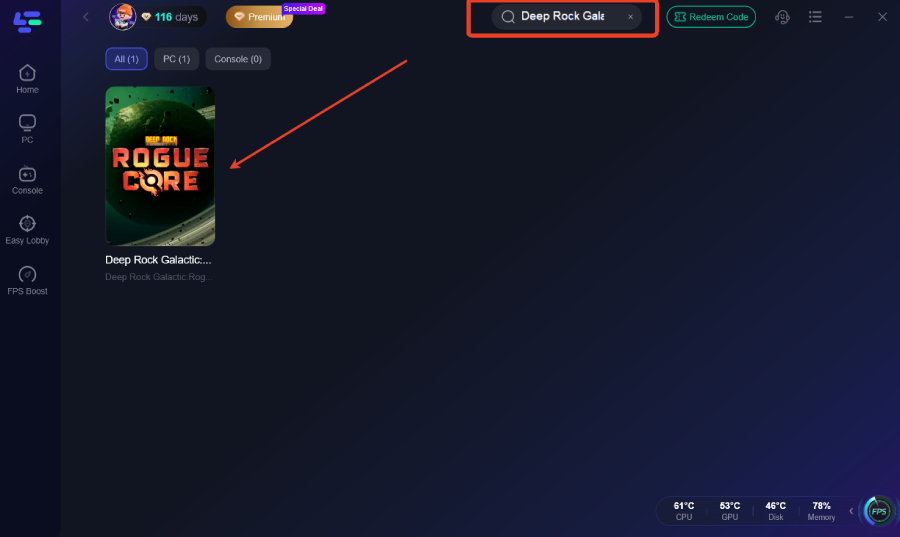
Step 3: Select the Game
Step 4: Use Fix P2P Error
Find and enable the tool:
Fix P2P Error
This is the co-op connection repair tool for P2P multiplayer issues.
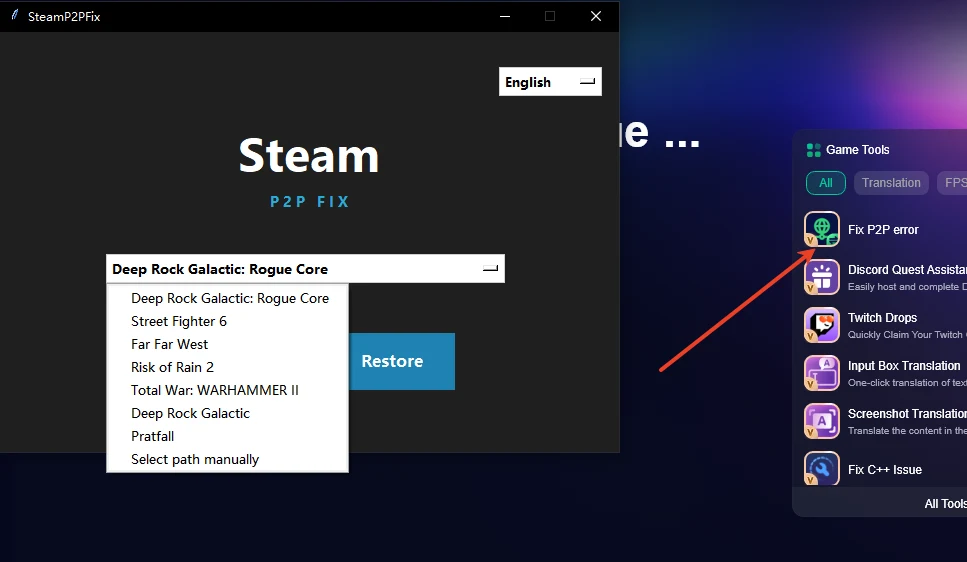
Step 5: Choose a Co-op Dedicated Region
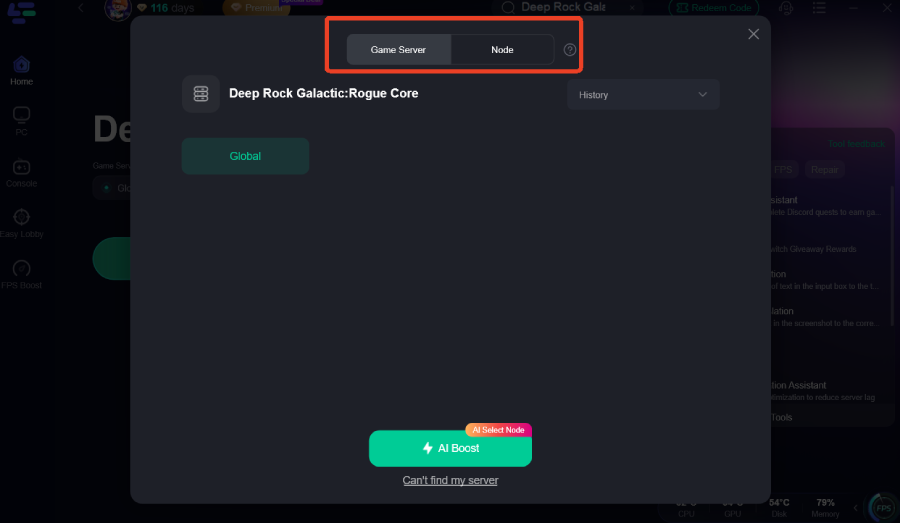
Select the recommended co-op region server.
For best results, choose a route that is suitable for both the host and the joining players.
Step 6: Start Boost
Click boost and wait for LagoFast to finish route optimization.
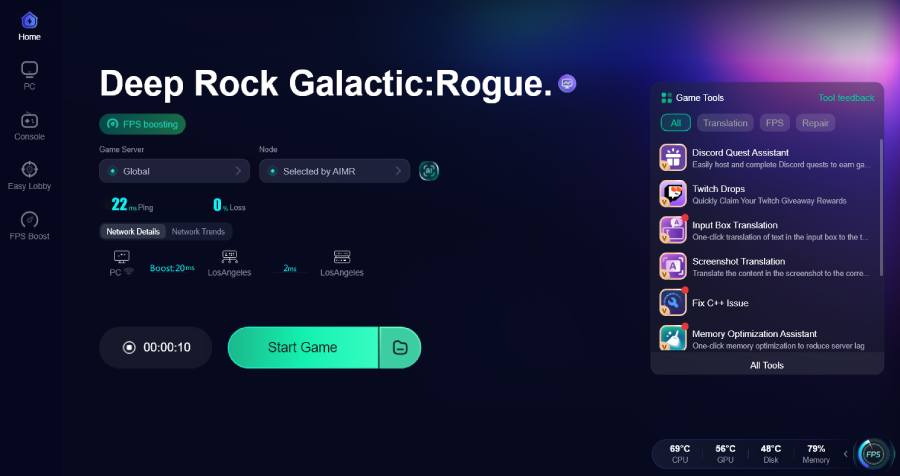
Step 7: Launch the Game Through Steam
Open Deep Rock Galactic: Rogue Core from Steam.
Step 8: Host or Join the Lobby Again
Create a lobby or accept your friend’s Steam invite.
Check whether:
the lobby connects faster
ping is lower
co-op feels smoother
disconnects are reduced
player actions respond faster
Host Setup: What the Host Should Do
If you are the host, your connection matters the most.
Before inviting friends:
Open LagoFast.
Enable Fix P2P Error.
Choose the best co-op route.
Start boost.
Launch Deep Rock Galactic: Rogue Core.
Create the lobby.
Invite your friends through Steam.
The host should avoid switching networks or closing LagoFast after the lobby is created.
If the host connection changes, other players may disconnect.
Guest Setup: What Other Players Should Do
If you are joining a friend’s lobby, you should also use LagoFast.
Steps:
Open LagoFast.
Search for Deep Rock Galactic: Rogue Core.
Enable Fix P2P Error.
Choose the same or closest co-op region.
Start boost.
Accept the Steam invite.
Join the lobby again.
For the best result, both the host and joining players should use the same co-op optimization setup.
Fix 2: Restart Steam and the Game
If the P2P route gets stuck, restart Steam completely.
Steps
Close Deep Rock Galactic: Rogue Core.
Close Steam.
Open Task Manager.
End all Steam processes.
Restart Steam.
Open LagoFast and enable Fix P2P Error.
Launch the game again.
This helps when Steam keeps using the old bad route or relay path.
Fix 3: Let the Friend With the Best Network Host
In P2P co-op, the host’s network quality affects everyone.
The best host should usually be the player with:
stable wired connection
lower packet loss
better upload speed
more stable route to other players
fewer background downloads
better PC performance
If one player has bad upload speed or unstable Wi-Fi, do not let that player host.
Try switching hosts and compare the result.
Fix 4: Avoid Wi-Fi If the Co-op Session Is Unstable
Wi-Fi can make P2P co-op worse, especially in action co-op games.
Use a wired Ethernet connection if possible.
Wi-Fi may cause:
packet loss
ping spikes
random disconnects
delayed hit response
unstable lobby connection
If Ethernet is not possible, at least move closer to the router and avoid downloading files while playing.
Fix 5: Disable Normal VPNs
A normal VPN may make the P2P route worse.
Many VPNs send all traffic through one encrypted server. That can increase delay and cause new connection problems.
For Deep Rock Galactic: Rogue Core, a normal VPN may cause:
higher ping
relay routing
failed lobby joins
worse host connection
unstable Steam invites
If you are using a normal VPN, turn it off and use LagoFast’s game-specific route optimization instead.
A game route optimizer is better for this type of problem because it focuses on game traffic and co-op stability.
Fix 6: Check Firewall and Antivirus
Your firewall may block P2P communication or Steam networking.
Allow these through Windows Firewall:
Steam
Deep Rock Galactic: Rogue Core
LagoFast
Steam Web Helper
game executable
Steps
Open Windows Security.
Go to Firewall & network protection.
Choose “Allow an app through firewall.”
Add Steam and Deep Rock Galactic: Rogue Core.
Add LagoFast if needed.
Restart Steam.
Try joining the lobby again.
Use this fix if the lobby invite works, but the connection fails before entering the game.
Fix 7: Check NAT and Router Restrictions
Strict NAT or router restrictions can make P2P co-op fail.
Signs of NAT-related problems:
you can join some players but not others
friends cannot join your lobby
Steam invite opens but connection fails
only one specific player cannot connect
co-op works on another network but not yours
Try this:
Restart your router.
Disable extra VPN or proxy settings.
Avoid public Wi-Fi.
Use a home network instead of office/school network.
Test with another host.
Use LagoFast Fix P2P Error to improve the connection path.
Fix 8: Keep Steam Online and Updated
Steam invite and P2P connection can fail if Steam is not working correctly.
Check that:
Steam is online
both players are logged in
Steam overlay is enabled
the game is updated
both players are on the same game version
Steam is not downloading updates in the background
If Steam overlay is disabled, invites may not work properly.
Fix 9: Recreate the Lobby
Sometimes the lobby route is bad from the start.
Try this:
Leave the lobby.
Close the game.
Restart Steam.
Start LagoFast boost again.
Host a new lobby.
Invite friends again.
Do not keep retrying the same broken lobby forever. Creating a fresh lobby can force Steam and the game to rebuild the connection.
Fix 10: Test Different Co-op Routes in LagoFast
If one route still gives high ping, switch to another co-op region.
For example, try:
the closest region to the host
the closest region between all players
the route with lower packet loss
the route with more stable latency
For cross-region play, the lowest ping route for one player may not be the best for the whole team. Choose the route that gives the most stable result for everyone.
- ✅ Lower ping and fewer disconnects.
- ✅ More FPS and better PC performance.
- ✅ Support for 3000+ games.
- ✅ Stable connections and region switching.
Best Setup for Remote LAN-Style Co-op
For the smoothest Deep Rock Galactic: Rogue Core co-op experience, use this setup:
Host uses wired internet.
All players close normal VPNs.
Host opens LagoFast.
Host enables Fix P2P Error.
Host selects the co-op dedicated region.
Other players also enable Fix P2P Error.
Everyone uses the same or closest co-op route.
Host creates the lobby.
Friends join through Steam invite.
Start the mission after everyone’s ping is stable.
This setup helps the game avoid bad relay routing and makes co-op feel closer to LAN-style play.
When This Fix Will Not Help
LagoFast can help with P2P routing and co-op connection stability, but it cannot fix every issue.
It may not help if:
Steam is down
the game server is under maintenance
the game has a new patch bug
your friend’s PC cannot run the game smoothly
the host has very poor internet
the game files are corrupted
the lobby system itself is temporarily broken
If all players are having the same issue after a new update, wait for an official patch or hotfix.
Final Answer
If Deep Rock Galactic: Rogue Core has high ping, failed joins, or unstable co-op, the problem may be caused by Steam not using a proper P2P route. Instead, the connection may be sent through a relay server, which can increase latency and make co-op feel delayed.
The best fix is to use LagoFast’s Fix P2P Error tool.
It helps restore a better P2P connection path and, when combined with LagoFast’s co-op dedicated region servers, can create a smoother remote LAN-style co-op experience.
Boost Your Game with LagoFast for Epic Speed
Play harder, faster. LagoFast game booster eliminates stutter and lags on PC, mobile, or Mac—win every match!
Quickly Reduce Game Lag and Ping!
Boost FPS for Smoother Gameplay!