

What's going on?
Players all over Russia (especially in Siberia and the Far East) are experiencing instant disconnects after logging in or creating a lobby in Phasmophobia. The error reads "Client Timeout" and you're kicked out of the game.
Reddit thread: "Disconnected Client Timeout literally every game"
"Recently, when I play Phasmophobia, 99% of the time I get kicked out of the game with the error 'clientdisconnect:timeout'... My internet is completely stable - other games work fine."
This seems to be a widespread issue. Players are reporting random disconnects, often just a few minutes into the game, even when the connection is working fine.
Other comments mention:
"Never had this happen before, but now I'm getting timeout errors in every session - sometimes after 30 minutes. I've tried almost every solution on the internet. Nothing helps."
Hot Related: Phasmophobia Server Down: Fix Issues in Russia
What Russian players are saying (June 2025)
- "All VPNs over WARP no longer work."
Users report that Cloudflare WARP is unable to connect.
- "Changing providers or waiting for the block to be lifted are the only options."
This reflects growing frustration, especially in regions like Siberia where server access is completely blocked.
- "Phasmophobia follows the same setup as Dead by Daylight."
The DBD In-Depth Guide recommends:
- VPN
- Tools like Lagofast
- Special routing via custom DNS or MTU edits
Probable causes
- Instability on the server side (according to some reports, problems with Photon servers).
- Poor routing from Russian or regional providers, especially after the introduction of infrastructure restrictions.
- No backup logic or reconnection in Phasmophobia - the game simply times out.
- The issue persists even after recent updates, despite the fact that the developers have already mentioned it in previous changelogs (for example, version v0.9.4.3).
How to fix Client Timeout error in Phasmophobia with LagoFast
Why use LagoFast
Phasmophobia uses Unity cloud servers located in the USA. Due to network restrictions or sanctions, many users from Russia cannot connect to these servers. LagoFast is a game accelerator that intelligently redirects traffic, helping to bypass blocks and at the same time reduce ping.
Step-by-step instructions for fixing ClientTimeOut with LagoFast
Step 1: Download and install LagoFast
- Go to the official LagoFast website.
- Click the Free Trial button and install the application.
Step 2: Open LagoFast and find Phasmophobia
- Launch LagoFast.
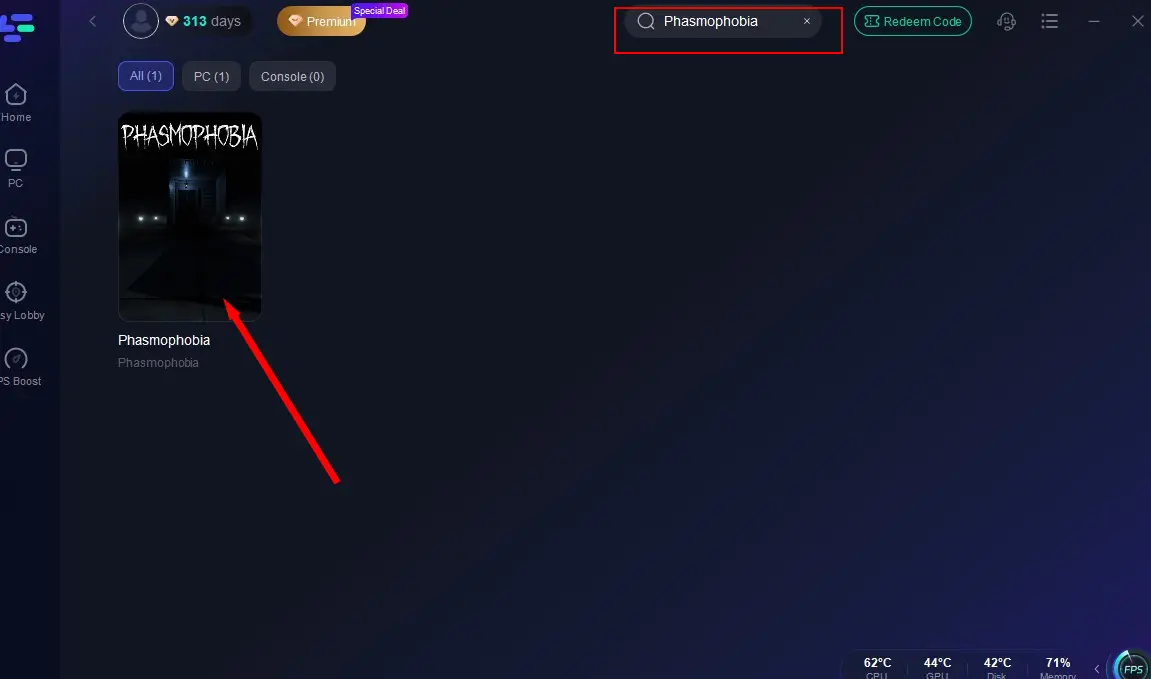
- In the PC tab (on the left), type Phasmophobia in the search bar.
- When the game appears in the list, click on it.
Step 3: Choose the best server
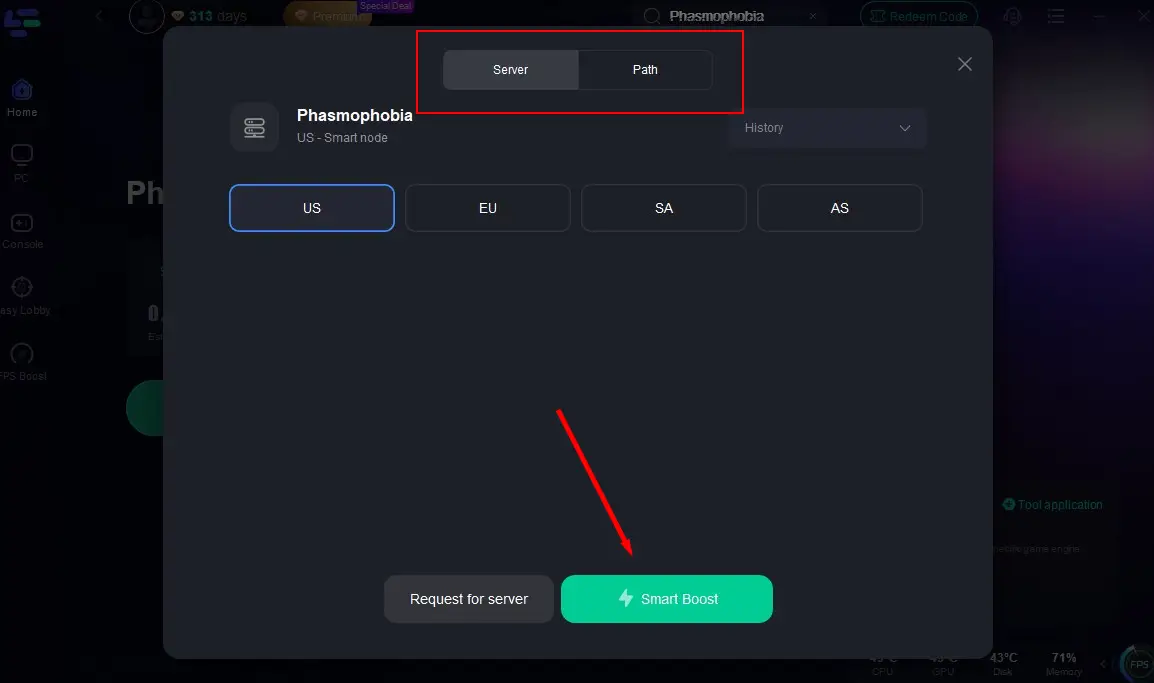
- Click the Select Server button.
- Choose a server in Europe (e.g. Germany or France) or on the US East Coast, depending on the lowest ping.
These regions usually provide a stable connection to Unity Cloud.
Step 4: Enable Smart Boost
Once you have selected a server, click Smart Boost.
LagoFast will automatically optimize:
- Your route
- Ping
- Packet loss
Step 5: Check your connection parameters
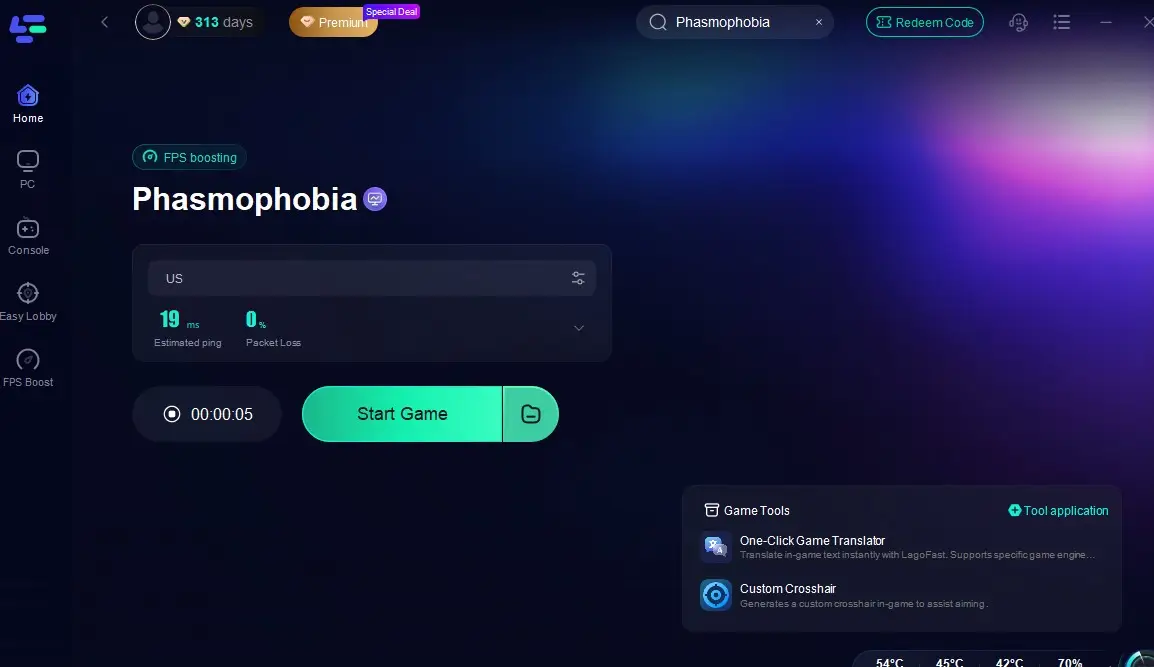
On the right side of the interface, check:
- Real-time ping
- Packet loss
- Multipath route information
If all indicators are green and stable, you are ready to play.
Step 6: Launch Phasmophobia
- Click Start Game inside LagoFast or open the game manually.
- You should now be able to avoid the ClientTimeOut error.
If the error still appears:
- Try changing the server region in LagoFast
- Re-enable Smart Boost with updated routing

Boost Your Game with LagoFast for Epic Speed
Play harder, faster. LagoFast game booster eliminates stutter and lags on PC, mobile, or Mac—win every match!
Quickly Reduce Game Lag and Ping!
Boost FPS for Smoother Gameplay!