
Starting up EA Sports FC 26 only to find yourself frozen on the loading screen is among the most frustrating hurdles a gamer can face. Whether you're PC, console, or switching between platforms, this guide will break down why it happens, how LagoFast can help bypass it, other practical fixes, and how to reduce the chances of it happening again.

- ✅ Reduce Lag and High Ping.
- ✅ Boost FPS at the Same Time.
- ✅ Support 2000+ Popular Online Games.
- ✅ Change Server without Latency.
- ✅ End Stuck & Crashing Issues.
Part 1: Understanding the FC 26 Stuck on Loading Screen Issue
Part 2: Fix Stuck on Loading Screen Issue with Game Booster — LagoFast
Part 3: Other Solutions to Fix FC 26 Stuck on Loading Screen
Part 4: How to Prevent Future FC 26 Loading Screen Issues
Part 1: Understanding the FC 26 Stuck on Loading Screen Issue
Players across PC and subreddit forums report FC 26 freezing right at the startup—often stuck on the splash logo or loading bar. Community feedback reveals several common culprits:
In-Game Overlay Conflicts
Many users fixed the freeze by disabling overlays in GeForce Experience and the EA App. As one Redditor put it: “Disabling the in-game overlay seems to work. That's where it got stuck.”
Corrupted User Profile or Settings
Sometimes the issue persists even after full reinstalls. A workaround that worked: creating a brand-new Windows user profile, reinstalling the game there, and launching it cleanly.
EA Background Service or Anti-Cheat Conflicts
Some players resolve the startup freeze by terminating the EA background service or launching the game via the EAAntiCheat.GameServiceLauncher directly.
Overlay Input & Resolution Mismatch
Community solutions include disabling stream input and overlays and changing resolution to a lower windowed mode (such as 1280×780) to regain access.
License Restoration on Consoles
On PS5, users discovered success by going to Settings → Users and Accounts → Other → Restore Licenses, which helps with recognition issues on splash screens.
Wait It Out
In a few cases—especially during first launch—waiting 3–5 minutes was all that was needed to move past the loading screen.
Part 2: Fix Stuck on Loading Screen Issue with Game Booster — LagoFast
Sometimes, what appears to be a freeze is actually a networking conflict at launch. LagoFast Game Booster, a game booster optimized for FC 26, can help by streamlining your network routing and smoothing startup data flow.
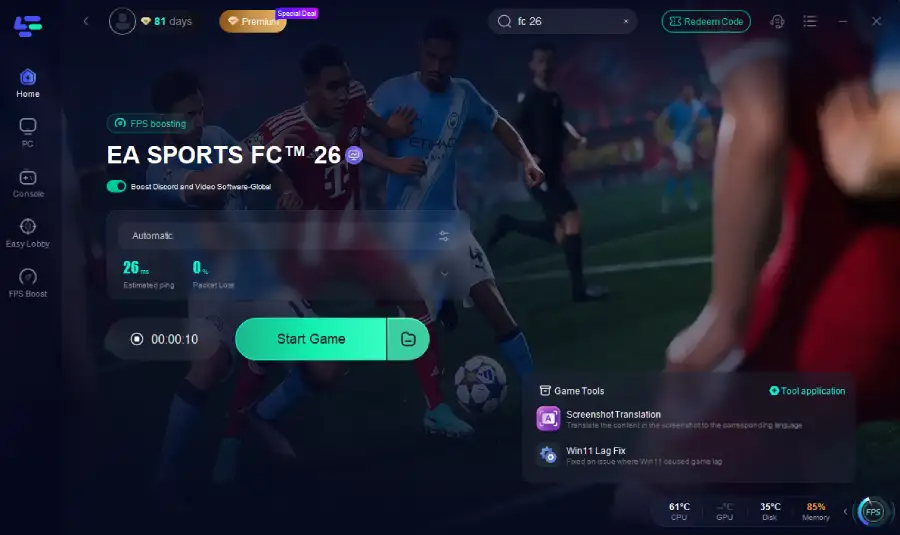
How to use LagoFast Game Booster on PC
Step 1. Download LagoFast by clicking the "Free Trial" button.
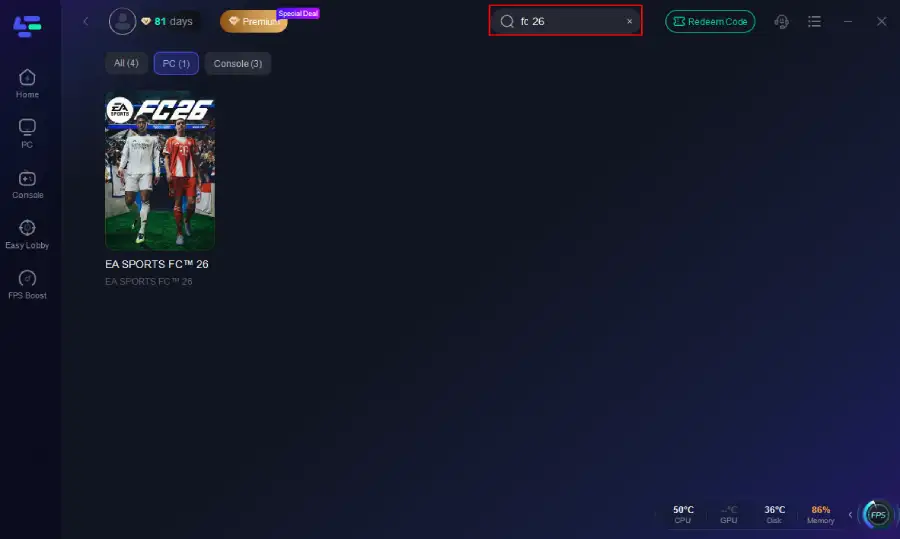
Step 2. Before you start your game, search for it within the LagoFast application to ensure it's supported.
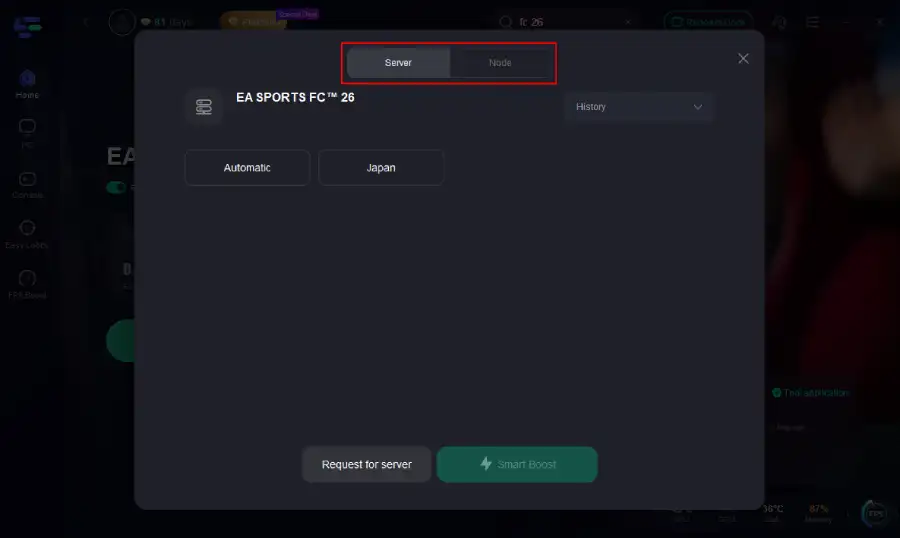
Step 3. Navigate to "Select Server" to choose the most stable server. Follow up by selecting the best Node available on the right to optimize your connection.
Step 4.Click the "Smart Boost" button to get real-time data on your game's ping, packet loss, and network type, which helps in monitoring and adjusting for optimal performance.
How to use LagoFast Game Booster on Console (PS5 / PS4)
LagoFast Box offers a simple, one-click method to optimize your game connection and reduce lag on PS5 or PS4:
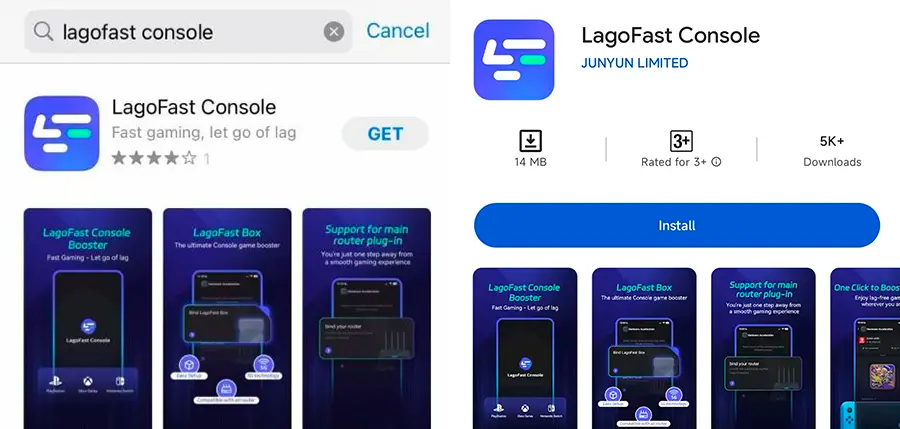
Step 1: Download the LagoFast Console App on your phone to control the LagoFast Box.
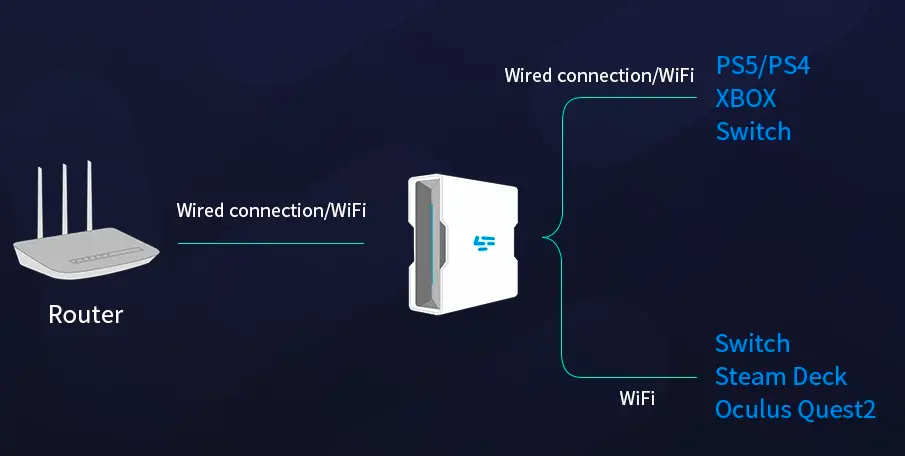
Step 2: Establish a connection between your LagoFast Box, router, and console, choosing between a wired or wireless connection.
Step 3: Launch the LagoFast Console App and boost FC 26. Once you have completed the binding process with the LagoFast Box, proceed to boost this game within the LagoFast Console App.
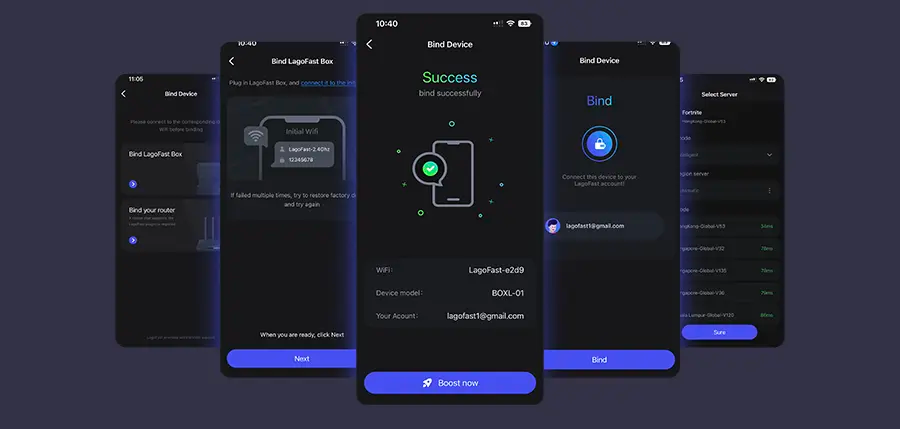
This device intelligently prioritizes game packets and selects optimal routes, reducing lag spikes and smoothing online play.
Follow the tutorial to fix FC 26 stuck on your mobile devices:
Step 1: Search “LagoFast Mobile booster” in the Google App Store or Apple App Store. Alternatively, click here to download the APK File.
Step 2: Click the “Download” button, then install and launch “LagoFast Mobile Booster”.
Step 3: Start FC 26, then switch to LagoFast Mobile and search for it.
Step 4. Select and click FC 26 in the interface.
Step 5: Enter the server selection interface, where you can change to a stable server, then click the “Boost” button to fix FC 26 Not Working and enhance the gaming experience
Step 6: Finally, go back to FC 26 and start playing it without any issues.
Part 3: Other Solutions to Fix FC 26 Stuck on Loading Screen
Here are additional fixes that gamers swear by:
1. Disable Overlays and Conflicting Services
- Turn off overlays in both GeForce Experience and EA App, as they often interrupt launch processes.
- End the EAbackgroundservice and launch the game via EAAntiCheat.GameServiceLauncher.
2. Create a Fresh Windows User
If everything else fails, install the game into a new Windows profile. A user shared:
“As soon as I made a new user, the game just… worked.”
3. Change Resolution & Window Mode
Lowering resolution and switching to windowed mode (e.g., 1280×780) has helped many bypass splash screen lock.
4. Restore Console Licenses (PS5)
Use the restore licenses menu to troubleshoot stuck screens on PlayStation.
5. Wait It Through
If it's your first time launching, some players report the game finally progresses after waiting 3-5 minutes.
6. Reinstall & Re-Download
Sometimes, a clean reinstall from Steam or EA App, after fully uninstalling, can resolve corruption issues.
Part 4: How to Prevent Future FC 26 Loading Screen Issues
- Always disable overlays before launching FC 26—this small step prevents many conflicts.
- Use LagoFast from the start, especially on early launches, to ensure clean network handshakes.
- Set up a stable fallback, such as creating a secondary Windows user ready for reinstallation if needed.
- Keep drivers and the EA App updated, reducing compatibility bugs.
- Clear cache periodically or reboot systems to avoid residual glitches.
- Consider a wired connection or network optimization to eliminate packet-level hang-ups.
Part 5: FAQs
Q: Is this issue common on both PC and consoles?
Yes—both platforms experience it, with overlay conflicts on PC and license or handshake issues on consoles frequently cited.
Q: Can LagoFast completely eliminate the startup freeze?
It helps by stabilizing network flow, reducing chances of freezing due to data handshake failures—but overlay or system-level problems may still need manual fixes.
Q: Does changing resolution actually work?
Yes—running the game in lower, windowed resolution bypasses graphics initialization errors that can trap the splash screen.
Q: Why does creating a new Windows user help?
It avoids corrupted registry entries, overlay histories, or EA App data tied to your original user profile.
Q: Is there a way to restore broken console settings?
On PS5, Restore Licenses in Settings can reset game validation and remove stuck startup screens.
Conclusion
FC 26 getting stuck on the loading screen is a frustrating yet fixable issue. Overlay interference, network instabilities, user profile corruption, or display conflicts are the most common culprits. By combining LagoFast’s dynamic network optimization with manual fixes—disabling overlays, reinstalling under a new user, adjusting resolution, or restoring licenses—you can regain control and return to smooth gameplay.
Boost Your Game with LagoFast for Epic Speed
Play harder, faster. LagoFast game booster eliminates stutter and lags on PC, mobile, or Mac—win every match!
Quickly Reduce Game Lag and Ping!
Boost FPS for Smoother Gameplay!