
Lag, stuttering, or freezing in EA Sports FC 26 can completely derail your gameplay—whether you're executing the perfect pass or locking in a critical shot. Many PS5 and PS4 users report frustrating performance issues like input delay, animation jitter, or sudden pauses during matches. But worry not: this guide breaks down why these issues occur and gives you proven, step-by-step fixes to get your game running smoothly again.

- ✅ Reduce Lag and High Ping.
- ✅ Boost FPS at the Same Time.
- ✅ Support 2000+ Popular Online Games.
- ✅ Change Server without Latency.
- ✅ End Stuck & Crashing Issues.
Part 1: Introduction to FC 26 Lag Issues
Part 2: Understanding the Causes of Lag in FC 26
Part 3: How to Fix FC 26 Lagging or Freezing on PS5/PS4
Part 4: Other Solutions to Fix Lagging or Freezing on PS5/PS4
Part 1: Introduction to FC 26 Lag Issues
FC 26 is designed to feel fast, fluid, and responsive. Yet many players encounter serious lag and freeze problems—especially during intense matches or cinematics. These issues may stem from input delay, stuttering, or poor network response. On Reddit and EA’s forums, users describe the game as "super glitchy and lagging, making it almost unplayable," even on high-end systems .
Lag doesn't just interrupt gameplay—it kills momentum, ruins responsiveness, and turns matches into frustrating ordeals. To prevent that, it’s important to understand what causes lag on consoles and how to fix it.
Part 2: Understanding the Causes of Lag in FC 26
Several factors contribute to lag and freezing on PS5 and PS4:
Unstable Network Connection
A poor network, unstable Wi-Fi, or high ping can introduce input delay and rubber-banding.
TV or Display Input Lag
Playing on a display without “Game Mode” enabled can add 20–100 ms of lag—noticeable in competitive conditions.
Outdated System or Game Software
Firmware or game versions not fully updated often suffer from unpatched performance and responsiveness bugs.
Background Network Bandwidth Usage
Other devices streaming or downloading during your session can choke your game connection.
Cache or Temporary File Clutter
Console memory that’s bogged down can cause stutter or slow responses.
Server-Side Issues or Overload
Sometimes, the fault lies with EA’s servers—global load increases can result in lag even with a perfect player setup.
Part 3: How to Fix FC 26 Lagging or Freezing on PS5/PS4
1. Using LagoFast Game Booster on Console
Many players experience lagging or freezing issues while playing FC 26, which can significantly impact the gaming experience and affect match outcomes. To effectively address these problems, using LagoFast Game Booster for network optimization is an excellent solution. LagoFast helps players automatically adjust network settings, optimize connections, and reduce latency, ensuring smoother gameplay. Whether on PS5 or PS4, with Lagofast, you can enjoy a more seamless gaming experience and say goodbye to the frustrations of lag in FC 26. To optimize your game connection and reduce lag on PS5 or PS4, LagoFast offers LagoFast Box as a fast method.
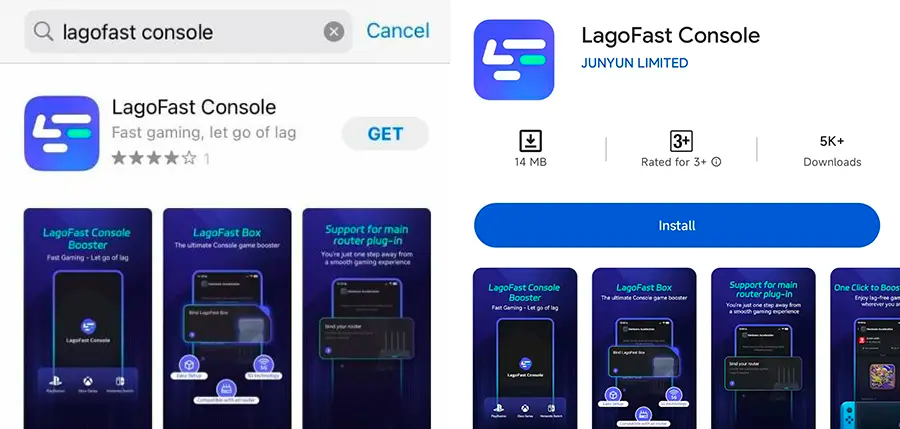
Step 1: Download the LagoFast Console App on your phone to control the LagoFast Box.
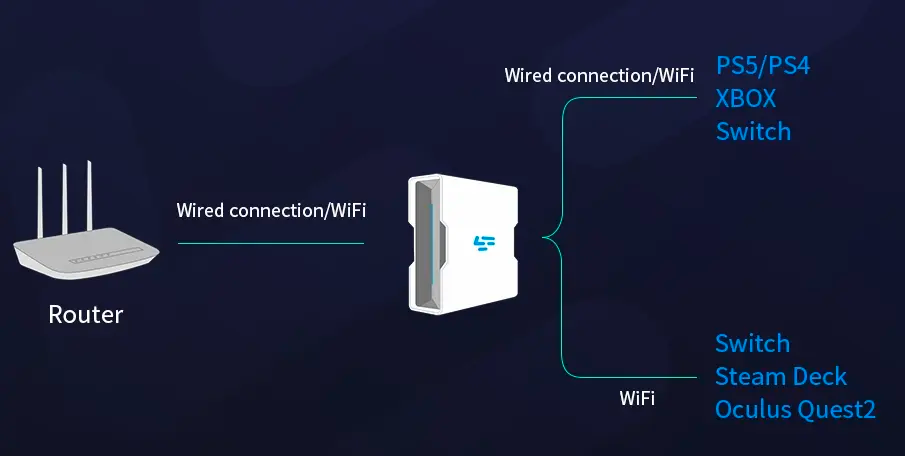
Step 2: Establish a connection between your LagoFast Box, router, and console, choosing between a wired or wireless connection.
Step 3: Launch the LagoFast Console App and boost FC 26. Once you have completed the binding process with the LagoFast Box, proceed to boost this game within the LagoFast Console App.
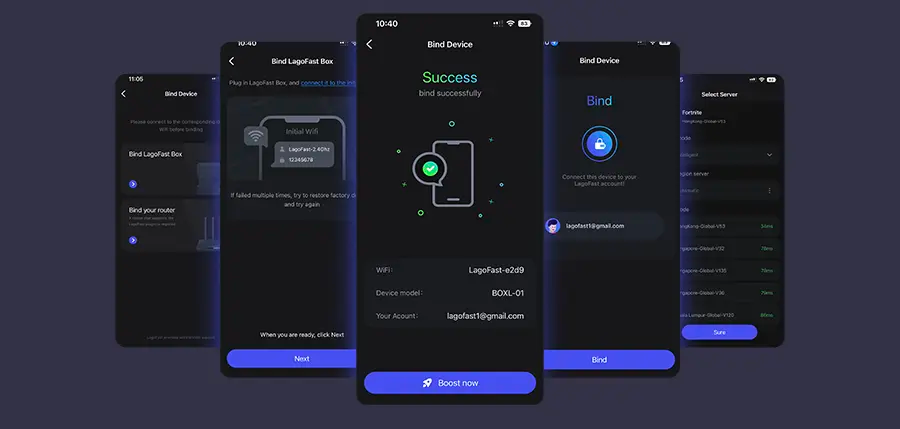
This device intelligently prioritizes game packets and selects optimal routes, reducing lag spikes and smoothing online play.
Moreover, LagoFast also support game boost on both PC and Mobile.
Tutorial to use LagoFast to fix FC 26 Lag on PC:
Step 1. Download LagoFast by clicking the "Free Trial" button.
Step 2. Before you start your game, search for it within the LagoFast application to ensure it's supported.
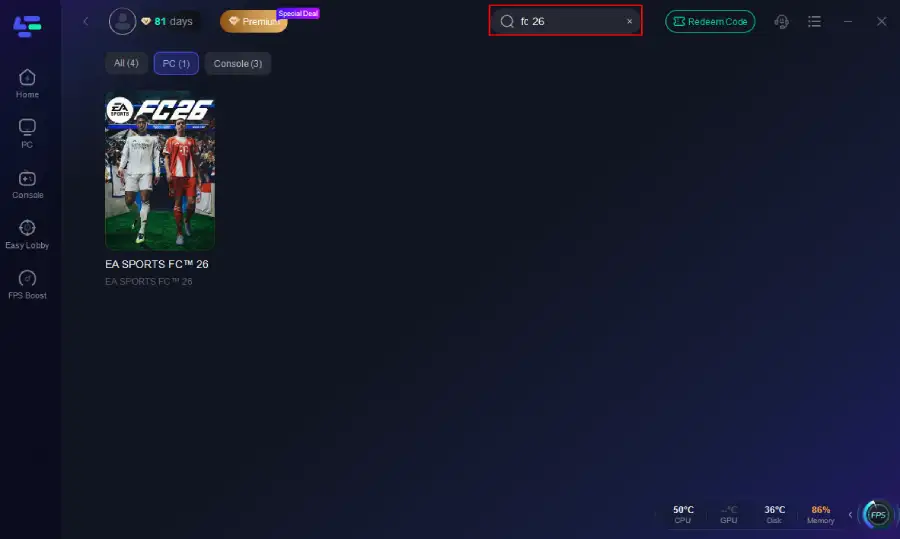
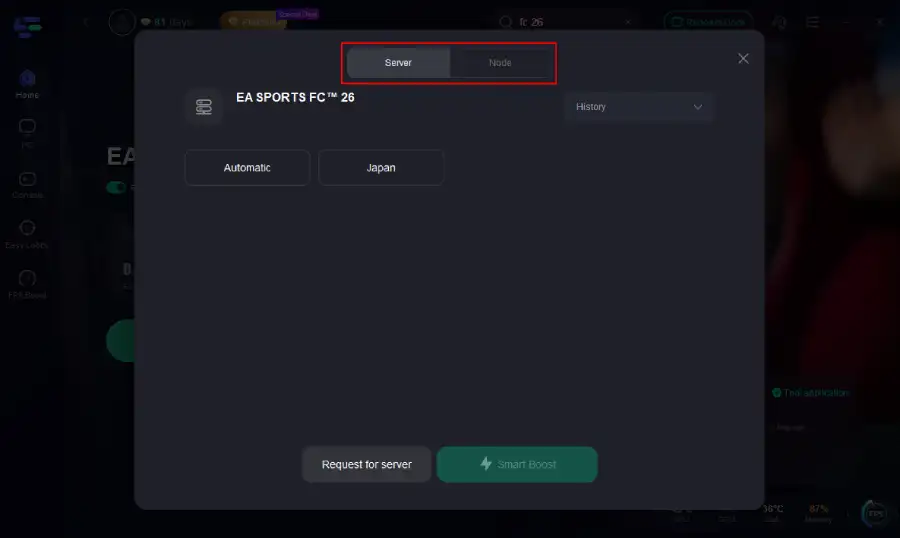
Step 3. Navigate to "Select Server" to choose the most stable server. Follow up by selecting the best Node available on the right to optimize your connection.
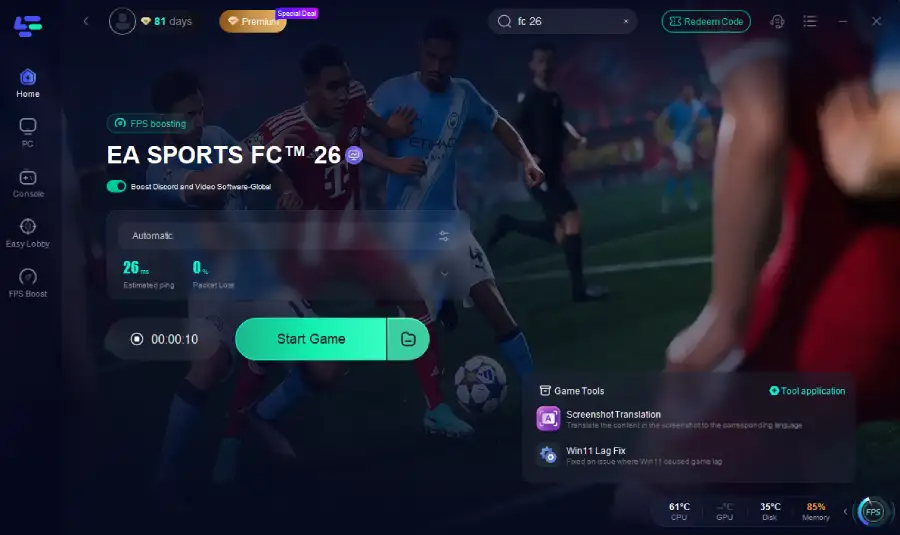
Step 4.Click the "Smart Boost" button to get real-time data on your game's ping, packet loss, and network type, which helps in monitoring and adjusting for optimal performance.
Follow the tutorial to reduce lag in FC26 on your mobile devices:
Step 1: Search “LagoFast Mobile booster” in the Google App Store or Apple App Store. Alternatively, click here to download the APK File.
Step 2: Click the “Download” button, then install and launch “LagoFast Mobile Booster”.
Step 3: Start FC 26, then switch to LagoFast Mobile and search for it.
Step 4. Select and click FC 26 in the interface.
Step 5: Enter the server selection interface, where you can change to a stable server, then click the “Boost” button to fix FC 26 Not Working and enhance the gaming experience
Step 6: Finally, go back to FC 26 and start playing it without any issues.
2. Display Optimization
Ensure your TV or monitor has Game Mode turned on—this minimizes input delay and ensures your commands translate faster on-screen.
3. Update System & Game
- Console System: Go to Settings → System and ensure your PS5 or PS4 firmware is up-to-date.
- Game: Confirm that FC 26 is updated via the game library (EA App, PlayStation Store, or nearby prompt).
This addresses known bugs and performance issues that EA has likely patched.
Part 4: Other Solutions to Fix Lagging or Freezing on PS5/PS4
1. Use a Wired Connection
Whenever possible, connect your console directly to your router via Ethernet. This cuts down on packet loss, wireless interference, and unpredictable latency.
2. Power Cycle to Clear Cache
- Turn off your console completely.
- Unplug it (and your router) for 2–3 minutes.
- Plug back in and restart—this clears cache and resets stuck processes.
3. Free Up Storage Space
Ensure your console has plenty of free space—at least 10–15%. Full storage can slow down game loads and performance.
4. Network Traffic Management
- Avoid heavy streaming or downloads on the same network while playing.
- Set QoS (Quality of Service) in your router to prioritize console traffic—this gives FC 26 data first priority, lowering in-game lag.
5. Monitor EA Server Status
Lag may be caused by server issues outside your control. Check EA's official support or social feed for updates on outages and maintenance.
Part 5: FAQs
Q1. Will using Wi-Fi always cause lag?
Not always—but Wi-Fi is more prone to jitter and packet loss than Ethernet. For optimal responsiveness in FC 26, wired connections are recommended.
Q2. Does enabling "Game Mode" really help?
Absolutely. Display "Game Mode" reduces input delay significantly—often by up to 100 ms.
Q3. Can system updates really improve gameplay smoothness?
Yes — updates often include important patches that fix lag, freezing, and input responsiveness issues.
Q4. Should I keep my console connected during off sessions?
Power cycling your console occasionally clears cache and prevents long-term bottlenecks that cause lag.
Q5. Can poor EA servers be the problem?
Definitely. When multiple players experience widespread lag, server-side issues are often at fault—even with perfect home setups.
Conclusion
Lag and freezing in EA Sports FC 26 on PS5/PS4 can stem from network, hardware, or server issues. Simple fixes like updating your console, enabling Game Mode, power cycling, and using a wired connection help—but for truly solid results, LagoFast Box offers a one-step solution to reduce latency, stabilize your connection, and ensure smoother gameplay.
Don’t let lag steal your goals—apply these steps, optimize your setup, and get back to playing FC 26 with the responsiveness it was designed to deliver.
Boost Your Game with LagoFast for Epic Speed
Play harder, faster. LagoFast game booster eliminates stutter and lags on PC, mobile, or Mac—win every match!
Quickly Reduce Game Lag and Ping!
Boost FPS for Smoother Gameplay!