
Every year, fans of EA Sports’ football franchise look forward to fine-tuning their gameplay experience, and FC 26 is no exception. While graphics and game mechanics evolve with each installment, one thing remains consistent: mastering your controller settings can be the difference between a frustrating loss and a thrilling victory. Whether you’re a PC gamer who plugs in a controller, a PlayStation loyalist, or an Xbox player, optimizing your setup ensures faster reactions, precise passing, and smooth gameplay. In this guide, we’ll break down the best FC 26 controller settings for each platform and share tips to maximize your gaming experience.

- ✅ Reduce Lag and High Ping.
- ✅ Boost FPS at the Same Time.
- ✅ Support 2000+ Popular Online Games.
- ✅ Change Server without Latency.
- ✅ End Stuck & Crashing Issues.
Part 1: FC 26 Controller Settings for PC
Part 2: FC 26 Controller Settings for PlayStation Users
Part 3: FC 26 Controller Settings for Xbox Users
Part 4: How to Maximize Your FC 26 Gaming Experience?
Part 1: FC 26 Controller Settings for PC
Many PC players enjoy the combination of higher frame rates and custom hardware, but playing with a controller still provides a more natural football experience. EA’s FC series has historically supported Xbox and PlayStation-style controllers on PC, making setup straightforward.
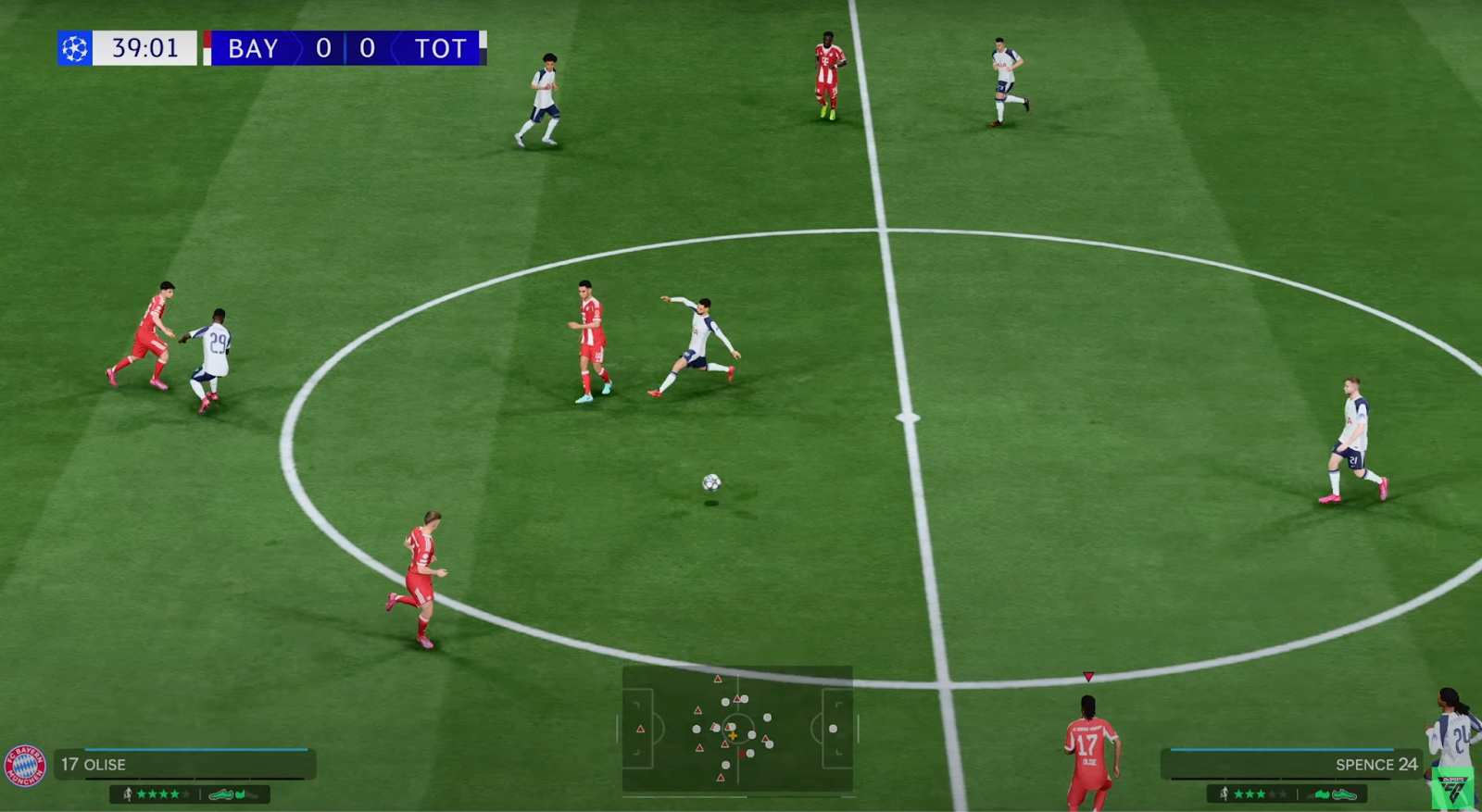
Key PC Controller Settings to Optimize:
Controller Vibration:
- Disable vibration if you want uninterrupted focus, or keep it enabled if you like immersive haptic feedback.
- Most pro players prefer turning it off to avoid distractions.
Analog Sprint (Off):
- Turning this off ensures sprinting is consistent—no half-sprint delays when pressing the trigger.
- With it off, you’ll get maximum sprint speed instantly.
Timed Finishing (On):
- Recommended for advanced players. Mastering the green bar timing can drastically improve shot accuracy.
- For beginners, you may want it off until you’re comfortable.
Auto Switching (Air Balls and Loose Balls):
- This setting prevents the game from switching players unnecessarily.
- Air balls and loose balls are the most logical moments to switch.
Auto Switching Move Assistance (None or Low):
- Keeping this on “None” gives full manual control.
- “Low” can help casual players avoid being caught out of position.
Pass Assistance Settings:
- Through Pass Assistance: Semi – balances control with precision.
- Cross Assistance: Semi – allows you to control cross trajectory better.
- Shot Assistance: Assisted – keeps shots reliable, especially for beginners.
Defending:
- Tactical Defending is the modern standard.
- It requires better positioning but offers more realistic defensive gameplay.
PC-Specific Tips:
- Controller Type: Xbox controllers usually integrate seamlessly with Windows, while PlayStation controllers may need DS4Windows or Steam configuration.
- Custom Button Mapping: PC allows more flexibility—remap controls for comfort.
- FPS and Input Lag: Ensure V-Sync is disabled for smoother input response.
Part 2: FC 26 Controller Settings for PlayStation Users
For PlayStation players, the DualSense controller provides an immersive football experience with adaptive triggers and haptic feedback. However, some features may not always be competitive.
Key PlayStation Settings:
Adaptive Triggers:
Turn off in competitive play. The resistance on sprint triggers feels realistic but can delay reaction time.
Controller Vibration:
Similar to PC, disabling vibration can help keep you focused.
Pass and Shot Assistance:
Assisted shooting is great for beginners, but experienced players should experiment with Semi or Manual for more control.
Right Stick Switching:
Use “Player Relative” instead of “Ball Relative” for easier and more intuitive switching.
Defending Style:
Tactical Defending should always be selected for consistency with online play.
Custom Button Layout:
Many pro players remap “Sprint” from R2 to R1 for quicker access.
Experiment with assigning “Skill Moves” or “Jockey” to more comfortable buttons.
PlayStation-Specific Advantages:
- DualSense Haptics: While not ideal in competitive matches, it’s fantastic for casual gaming immersion.
- Cross-Platform Gaming: PlayStation users can match up with Xbox and PC players, so competitive settings matter even more.
- PS5 Performance Mode: Ensure your console is set to “Performance” for smoother gameplay and reduced input lag.
Part 3: FC 26 Controller Settings for Xbox Users
Xbox users have the benefit of controllers that naturally integrate with both PC and console, making them a popular choice across platforms.
Key Xbox Settings to Consider:
Controller Vibration:
- Keep it off for competitive play, unless you prefer the immersive feel.
Analog Sprint:
- Always off for consistency.
Auto Switching:
- Air Balls and Loose Balls remain the best option.
Pass & Shot Controls:
- Through Ball: Semi
- Cross: Semi
- Shot: Assisted (or Semi if you’re confident)
Right Stick Switching:
- Player Relative recommended for better positioning.
Button Remapping:
- Some Xbox players switch “Sprint” from RT to RB for faster reaction.
- Experiment with moving “Skill Move” buttons if you find thumb travel uncomfortable.
Xbox-Specific Perks:
- Elite Controller Support: If you own an Xbox Elite controller, you can assign paddles to frequently used actions like sprint or skill moves.
- Low Latency on Xbox Series X/S: The console’s focus on competitive performance ensures smoother response.
- Cross-Platform Play: Xbox users also benefit from wider matchmaking pools, making proper controller settings even more essential.
Part 4: How to Maximize Your FC 26 Gaming Experience?
Beyond controller settings, your overall gaming experience can improve dramatically with the right tools. One standout solution is LagoFast, a cross-device game optimizer designed for football fans and esports players.
Why Choose LagoFast?
- Cross-Platform Support: Works on PC, PlayStation, and Xbox.
- Lag & Ping Reduction: Minimizes latency to ensure smooth online matches.
- FPS Boost: Optimizes performance so your controller inputs register instantly.
- Smart Routing Technology: Chooses the fastest network path to the game server.
- Easy Setup: Simple interface for both casual and competitive players.
By pairing your optimized controller settings with LagoFast, you ensure a seamless FC 26 experience with sharper reactions and fewer disruptions.
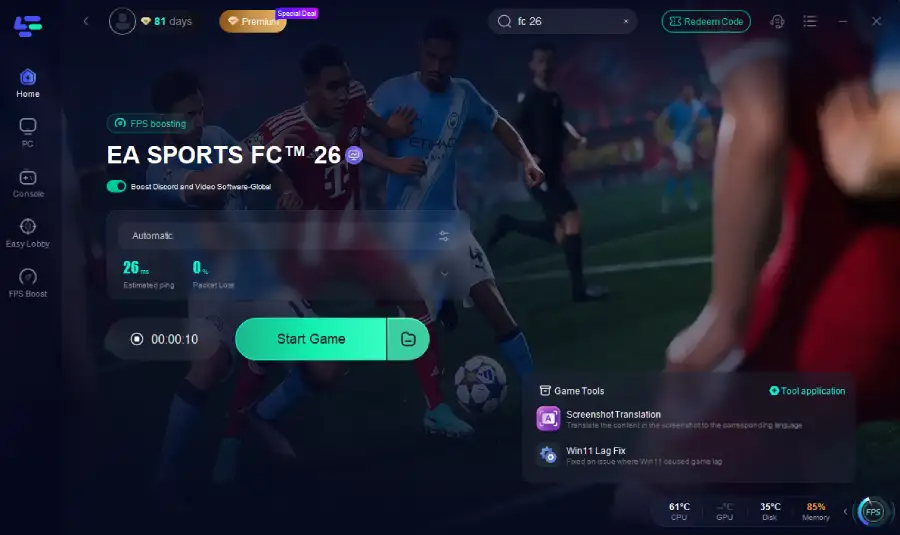
Tutorial to use LagoFast to maximize FC 26 gaming on PC:
Step 1. Download LagoFast by clicking the "Free Trial" button.
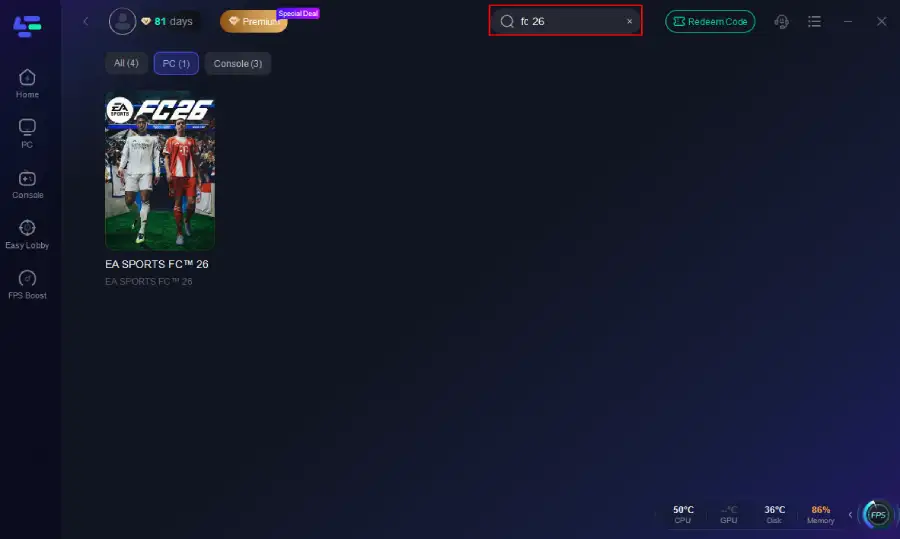
Step 2. Before you start your game, search for it within the LagoFast application to ensure it's supported.
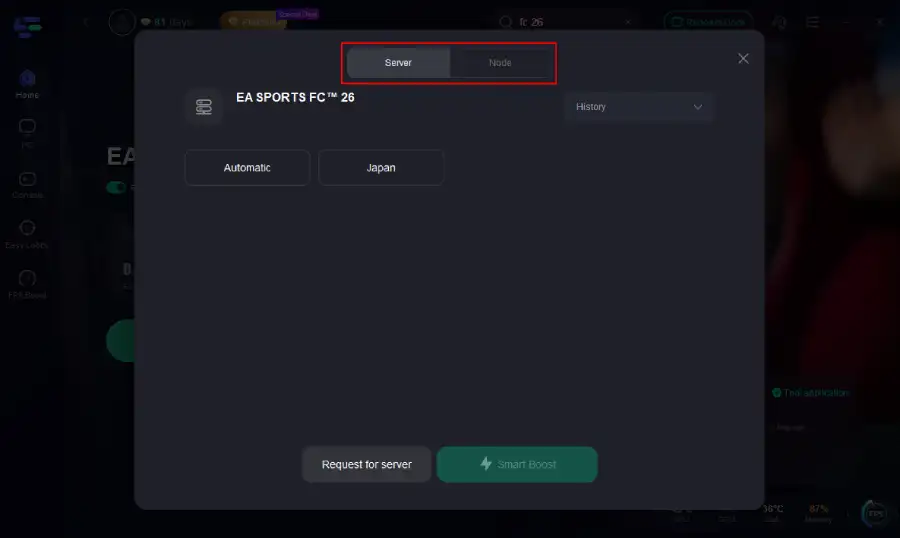
Step 3. Navigate to "Select Server" to choose the most stable server. Follow up by selecting the best Node available on the right to optimize your connection.
Step 4.Click the "Smart Boost" button to get real-time data on your game's ping, packet loss, and network type, which helps in monitoring and adjusting for optimal performance.
Tutorial on using LagoFast Box to enhance your console gaming experience:
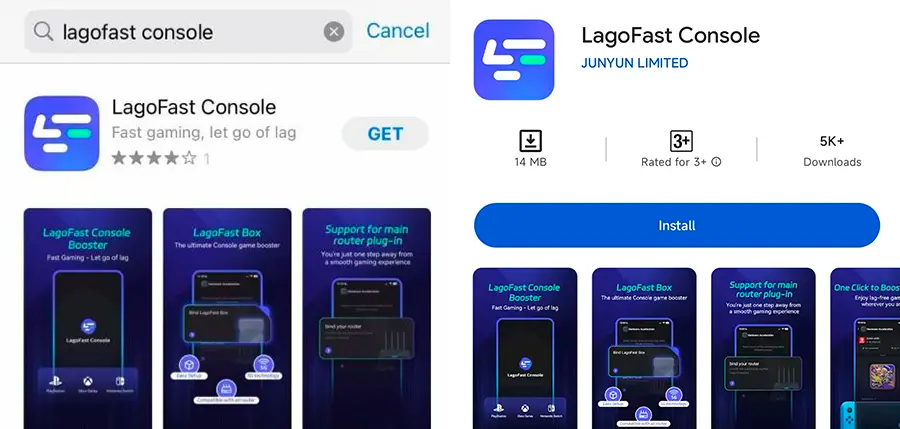
For console platforms, LagoFast provides the LagoFast Box, which can be controlled directly from the mobile app for real-time optimization.
Step 1: Download the LagoFast Console App on your phone to control the LagoFast Box.
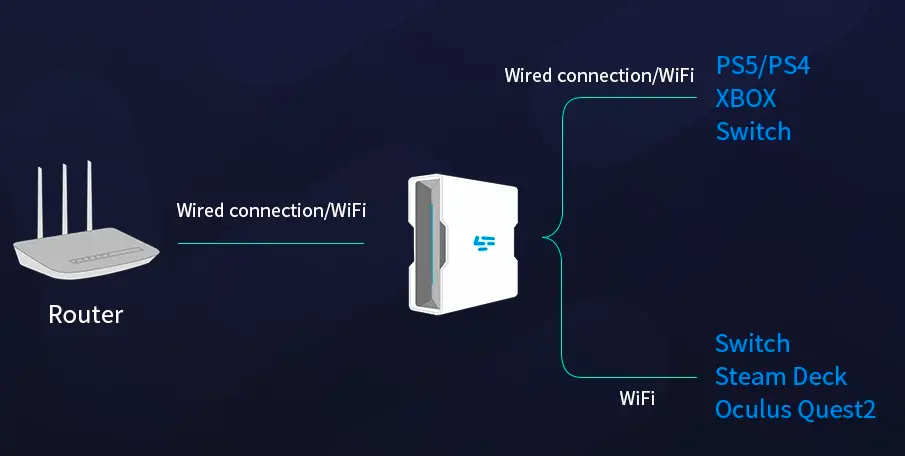
Step 2: Establish a connection between your LagoFast Box, router, and console, choosing between a wired or wireless connection.
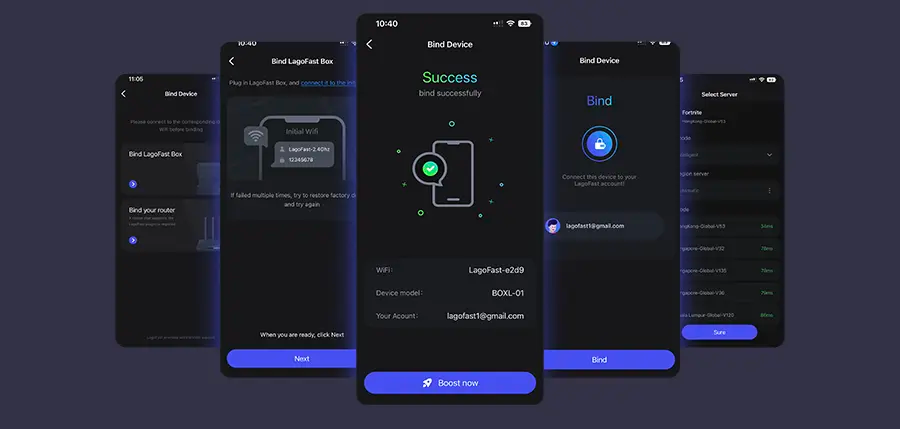
Step 3: Launch the LagoFast Console App and boost FC 26. Once you have completed the binding process with the LagoFast Box, proceed to boost this game within the LagoFast Console App.
Follow the tutorial to use the LagoFast Mobile to ensure a gaming experience on your mobile devices:
Step 1: Search “LagoFast Mobile booster” in the Google App Store or Apple App Store. Alternatively, click here to download the APK File.
Step 2: Click the “Download” button, then install and launch “LagoFast Mobile Booster”.
Step 3: Start FC 26, then switch to LagoFast Mobile and search for it.
Step 4. Select and click FC 26 in the interface.
Step 5: Enter the server selection interface, where you can change to a stable server, then click the “Boost” button to enhance the gaming experience
Step 6: Finally, go back to FC 26 and start playing it without any lag.
Conclusion
Getting the best out of FC 26 isn’t just about skill on the pitch—it’s about ensuring your controller settings are tailored to your style of play. Whether you’re on PC, PlayStation, or Xbox, fine-tuning settings like sprinting, passing assistance, and defensive controls can make all the difference. PlayStation users should consider adjusting adaptive triggers, Xbox players can leverage Elite paddles, and PC gamers benefit from remapping flexibility. Finally, tools like LagoFast provide that extra competitive edge by ensuring stable, lag-free gameplay. With these optimizations, you’ll step onto the virtual pitch ready to dominate every match.

Boost Your Game with LagoFast for Epic Speed
Play harder, faster. LagoFast game booster eliminates stutter and lags on PC, mobile, or Mac—win every match!
Quickly Reduce Game Lag and Ping!
Boost FPS for Smoother Gameplay!