
Elden Ring Nightreign has brought a fresh wave of excitement to the gaming community, but like any game, it's not without its glitches. Encountering common errors can be a real buzzkill, disrupting your immersion in the vast and mysterious world FromSoftware has crafted. These issues range from game - crashing bugs to frustrating graphical glitches and connectivity problems. But fear not, as we're here to guide you through the most prevalent Elden Ring Nightreign common errors and how to fix them.

- ✅ Reduce Lag and High Ping.
✅ Boost FPS at the Same Time.
✅ Support 2000+ Online Games
✅ Change Server Without Latency.
✅ Multiplatform: PC, Console, Mobile.
✅ End Stuck, Connection & Crashing Issues
Part 1: Elden Ring Nightreign Technical Errors and Fixes
Part 2: Elden Ring Nightreign Network-Related Errors
Part 3: Other Errors in Elden Ring Nightreign
Part 4: Enhance Your Gaming Experience with LagoFast Game Booster
Part 1: Elden Ring Nightreign Technical Errors and Fixes
Crashing and Freezing
One of the most frustrating Elden Ring Nightreign common errors is crashing and freezing. This can occur during intense battles, while exploring new areas, or even when simply loading the game.
Possible Causes:
- Outdated Graphics Drivers: Your graphics card might not be able to handle the game's visuals properly if the drivers are old. For example, if you have an NVIDIA card, not having the latest 551.23 or later can lead to rendering issues that cause crashes.
- Overheating: If your PC's components, especially the GPU or CPU, are overheating, the game may freeze or crash to protect the hardware.
- Corrupted Game Files: A faulty download or an issue during the installation process can result in corrupted game files, leading to instability.
Solutions:
- Update Graphics Drivers: Visit the official website of your graphics card manufacturer (NVIDIA, AMD, etc.) and download the latest drivers for your specific model.
- Check for Overheating: Ensure that your PC's cooling system is working correctly. Clean dust from fans and heatsinks. You can also use software like HWMonitor to monitor your component temperatures.
- Verify Game Files: If you're using Steam, right - click on Elden Ring Nightreign in your library, select "Properties", go to the "Local Files" tab, and click "Verify Integrity of Game Files". This will redownload any corrupted files.
- Use LagoFast Game Booster: LagoFast can be a great help here. It optimizes your system resources, closing unnecessary background processes that might be contributing to the overheating or resource - hogging issues. By doing so, it can reduce the likelihood of crashes and freezes. Additionally, its network optimization features can also help in case the crashing is related to network - induced instability during online play.
Tutorial to use LagoFast to boost Elden Ring: Nightreign:
Step 1: Click the Free Trial button to download and install LagoFast.
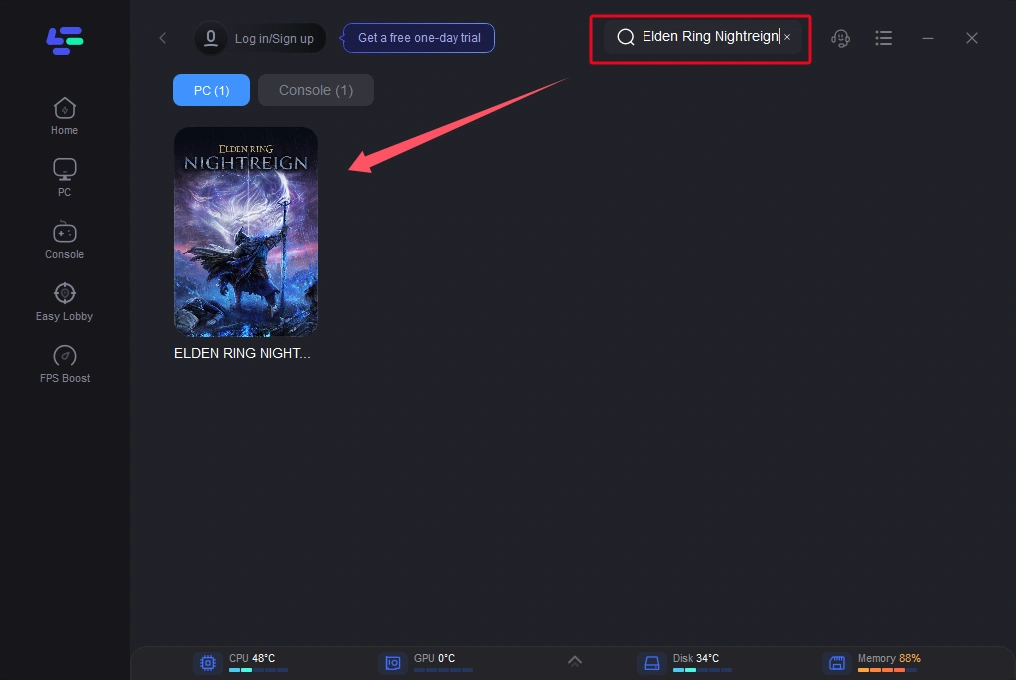
Step 2: Open LagoFast then click the PC button on the left and search ELDEN RING NIGHTREIGN in the search bar, click it after appearing.
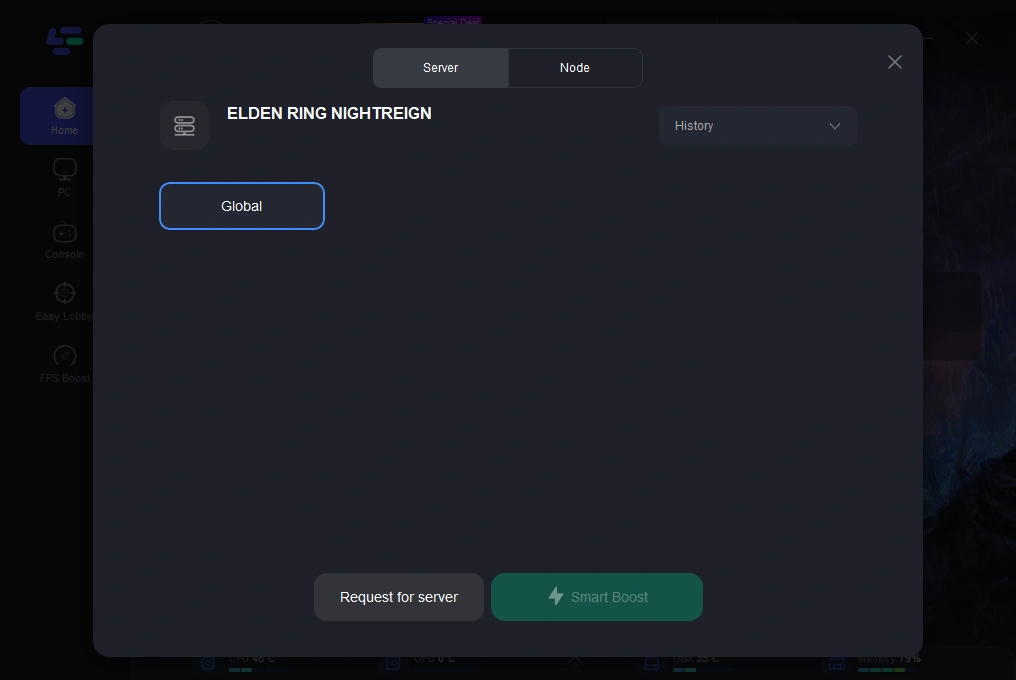
Step 3: Click on “Server” to change to a better server that ensures your gaming experience, then click on “Smart Boost”.
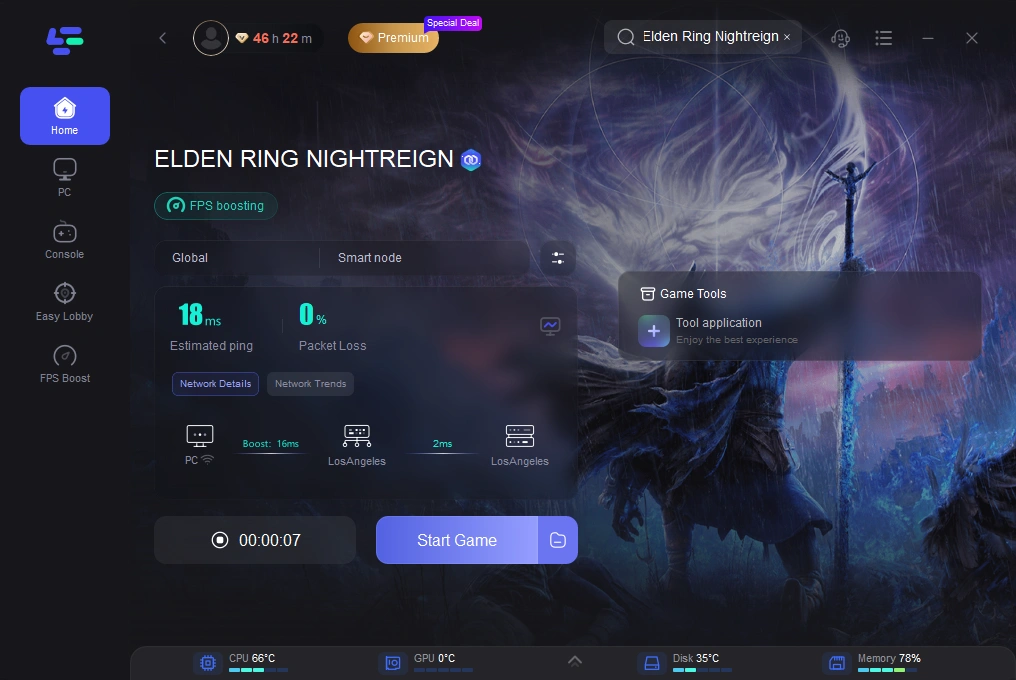
Step 4: Check the specific game ping, packet loss, and multiple path connection on the right side. Finally, click the “Start Game” to play the game.
Black Screen or White Screen on Startup
Some players have reported seeing a black or white screen when trying to launch Elden Ring Nightreign, with only the cursor visible.
Possible Causes:
- Conflicting Background Programs: Programs running in the background, such as antivirus software or resource - hungry applications, can interfere with the game's startup.
- Incompatible Display Settings: Incorrect resolution or refresh rate settings in the game can cause this issue.
Solutions:
- Close Background Programs: Before launching the game, close any unnecessary programs. You can use the Task Manager (press Ctrl + Shift + Esc) to end tasks.
- Reset Display Settings: If possible, access the game's settings file (usually located in the game's installation directory) and reset the display settings to default. If you can't access the file, reinstalling the game may reset these settings.
- LagoFast's Assistance: LagoFast can scan your system for potential background program conflicts and automatically close those that might be interfering with the game's startup. This can be especially useful if the black or white screen issue is caused by a resource - intensive program running in the background.
Part 2: Elden Ring Nightreign Network-Related Errors
Connection Timeouts and Disconnects
Given that Elden Ring Nightreign has online elements, connection timeouts and sudden disconnects can be a major headache.
Possible Causes:
- Weak or Unstable Internet Connection: A slow or intermittent Wi - Fi connection can cause these issues.
- Server Overload: If too many players are trying to access the game's servers simultaneously, it can lead to connection problems.
- Firewall or Antivirus Blocking: Your security software may be blocking the game from accessing the internet.
Solutions:
- Check Internet Connection: Try connecting to a different network or resetting your router. You can also run a speed test to ensure your internet speed meets the game's requirements.
- Wait and Retry: If the servers are overloaded, waiting for a while and then trying to connect again may solve the problem.
- Configure Firewall and Antivirus: Add Elden Ring Nightreign to the list of allowed programs in your firewall and antivirus settings.
- LagoFast for Network Stability: LagoFast is designed to optimize your network connection for gaming. It routes your game traffic through its own network of dedicated servers, which can significantly reduce ping and latency. This can be extremely helpful when dealing with connection timeouts and disconnects. By using LagoFast, you can potentially bypass network congestion points and establish a more stable connection to the game servers.
Unable to Join Multiplayer Sessions
Multiplayer is a key part of Elden Ring Nightreign, but some players face issues when trying to join sessions.
Possible Causes:
- Region - Locked Servers: Depending on your location, you may be having trouble connecting to certain servers.
- Outdated Game Version: If you haven't updated the game to the latest version, it may not be compatible with other players' versions.
Solutions:
- Check Server Regions: Make sure you're trying to connect to servers that are available in your region. Some VPN services can also be used to access servers in other regions, but be cautious as this may violate the game's terms of service.
- Update the Game: In Steam, go to the game's properties and ensure that automatic updates are enabled. If not, manually update the game to the latest version.
- LagoFast for Server Access: LagoFast can assist with server - related issues as well. If you're having trouble accessing servers due to network restrictions or congestion, LagoFast's network optimization can help you connect to the appropriate servers more easily. It can also help in changing servers if you need to, by providing a more stable connection to different server regions.
Part 3: Other Common Errors in Elden Ring Nightreign
Controller Not Working
For those who prefer to play with a controller, having it not recognized or malfunctioning in Elden Ring Nightreign can be a big letdown.
Possible Causes:
- Driver Issues: If the controller drivers are not installed correctly or are outdated, the game may not recognize the device.
- Steam Input Configuration: Incorrect Steam input settings for the game can also cause problems.
Solutions:
- Update Controller Drivers: Connect your controller to your PC and visit the manufacturer's website to download and install the latest drivers.
- Configure Steam Input: In Steam, go to the game's properties, select the "Controller" tab, and ensure that Steam Input is correctly configured for your controller.
In - Game Glitches (e.g., Invisible Enemies, Weird Lighting)
Some players have reported glitches like enemies becoming invisible or the lighting in the game looking strange.
Possible Causes:
- Shader Cache Issues: The game's shader cache may be corrupted, leading to graphical glitches.
- Software Conflicts: Other software running on your PC may be interfering with the game's graphics rendering.
Solutions:
- Clear Shader Cache: In your graphics card's control panel, there should be an option to clear the shader cache. For example, in NVIDIA Control Panel, you can find this option in the 3D settings.
- Disable Unnecessary Software: Close any software that you think might be causing conflicts, such as overlay programs or custom graphics enhancers.
Part 4: Enhance Your Gaming Experience with LagoFast Game Booster
LagoFast Game Booster is a powerful tool designed to enhance your gaming experience, especially when dealing with Elden Ring Nightreign common errors. Beyond fixing crashes and network issues, players can further elevate their gameplay by using mods—such as Fix Game Crash or Two-Player Online Co-op Mod—and explore many other mod-enabled games available on LagoFast. It offers a range of features that can solve most of the issues you might encounter in the game, ensuring smoother performance and a more immersive experience.
One of its key functions is network optimization. LagoFast has its own global network of dedicated servers. When you play Elden Ring Nightreign, it routes your game traffic through these servers, which can effectively reduce ping, latency, and packet loss. This is a game - changer for online play, as it eliminates connection timeouts, disconnects, and issues joining multiplayer sessions.
What's more, LagoFast is compatible with both PC and console platforms. Whether you're playing Elden Ring Nightreign on your Windows PC or your PlayStation/Xbox console, you can benefit from its optimization features. It's user-friendly too, with a simple interface that allows you to easily start optimizing your gaming experience with just a few clicks.
Tutorial to use LagoFast to fix lag in Elden Ring: Nightreign:
Step 1: Click the Free Trial button to download and install LagoFast.
Step 2: Open LagoFast then click the PC button on the left and search ELDEN RING NIGHTREIGN in the search bar, click it after appearing.
Step 3: Click on “Server” to change to a better server that ensures your gaming experience, then click on “Smart Boost”.
Step 4: Check the specific game ping, packet loss, and multiple path connection on the right side. Finally, click the “Start Game” to play the game.
Tutorial to use LagoFast Box to enhance your console gaming experience:
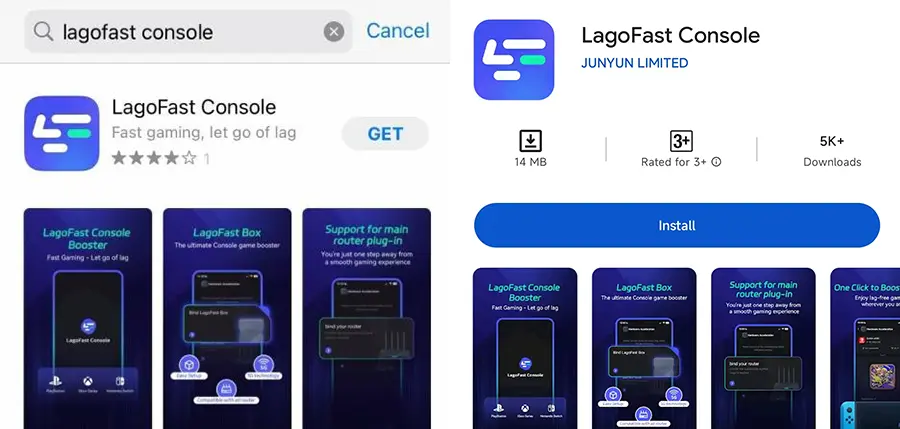
Step 1: Download the LagoFast Console App on your phone to control the LagoFast Box.
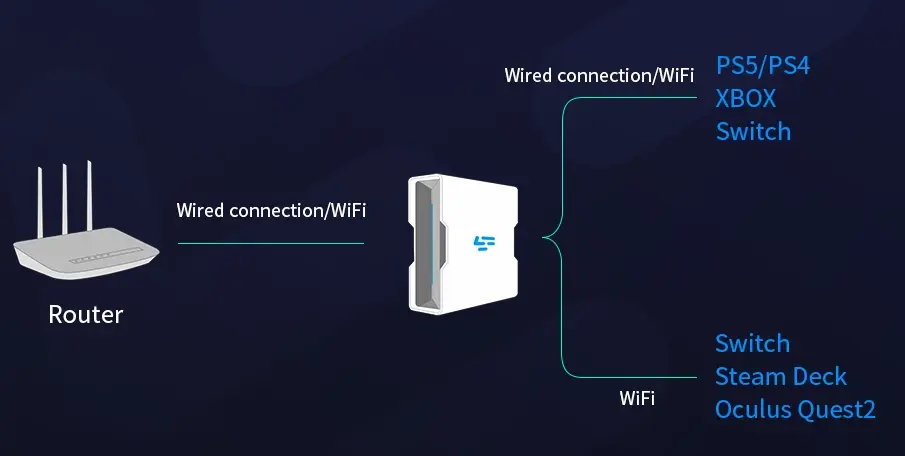
Step 2: Establish a connection between your LagoFast Box, router, and console, choosing between a wired or wireless connection.
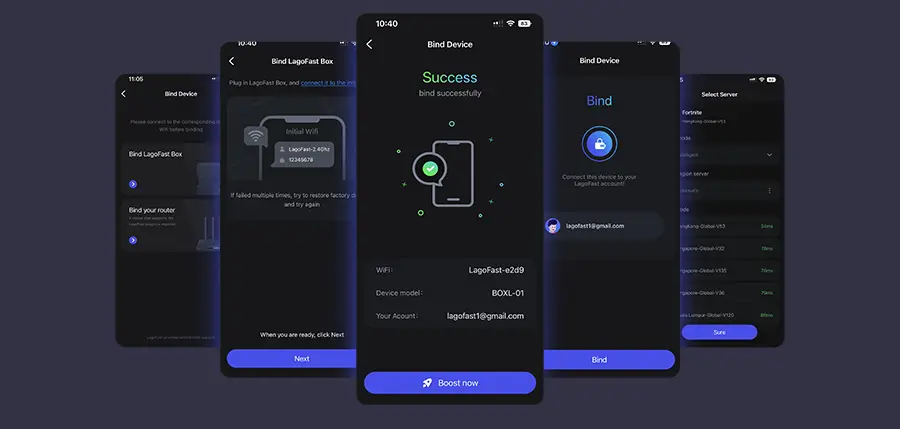
Step 3: Launch the LagoFast Console App and boost Valorant. Once you have completed the binding process with the LagoFast Box, proceed to boost this game within the LagoFast Console App.
Conclusion
Encountering Elden Ring Nightreign common errors can be a frustrating experience, but with the right knowledge and troubleshooting steps, you can get back to enjoying the game in no time. Whether it's technical glitches, network problems, or controller issues, the solutions provided above should help you overcome most of the hurdles. Remember to keep your system and game updated, and always check for the latest patches and fixes from the developers. By using tools like LagoFast Game Booster, you can further enhance your gaming experience and reduce the occurrence of many common errors. So, get back out there and immerse yourself in the epic world of Elden Ring Nightreign without the annoyance of constant errors.
Boost Your Game with LagoFast for Epic Speed
Play harder, faster. LagoFast game booster eliminates stutter and lags on PC, mobile, or Mac—win every match!
Quickly Reduce Game Lag and Ping!
Boost FPS for Smoother Gameplay!