
If you running into the errors: "We could not activate EA Sports FC 26 on this computer". Launching EA Sports FC 26 only to be greeted with nothing—no splash screen, no menus, no game—is unbelievably frustrating. Whether you're on PC, mobile, or console, this issue can stem from a variety of sources. In this guide, we'll break down why EA FC 26 may not launch, how to fix it across different platforms, how to use LagoFast to optimize gameplay, and provide answers to common questions.

Part 1: Why EA FC 26 Is Not Launching
Part 2: How To Fix EA FC 26 Not Launching
Part 3: Use LagoFast to Optimize FC 26 Game Performance
Part 1: Why EA FC 26 Is Not Launching
There are several common reasons why EA FC 26 might fail to launch on your PC:
Corrupted or Missing Game Files
Launch failures often stem from damaged files. Many players fix this by running a Verify Integrity on Steam or using the Repair option in the EA App.
Outdated Graphics Drivers or Systems
If your GPU drivers or Windows version are outdated, the game may crash at startup. Updating them often resolves the issue
Anti-Cheat Conflicts (EA AntiCheat)
EA AntiCheat may fail to run or encounter errors, especially if conflicting software (like FACEIT or kernel-level tools) is present. Reinstalling or repairing EAAC often fixes this.
Permissions and Antivirus Blocks
The game may require elevated permissions to launch. Antivirus/firewall software may block it as well. Running the game as administrator and whitelisting it can help.
Excessive Background Software or Overlays
Software like Steam, Discord, overlays, or buggy apps (GameFirst VI, RGB tools) can interfere. Disabling or temporarily removing these often restores functionality.
Compatibility and System-Level Conflicts
Older compatibility modes, Secure Boot, or Control Flow Guard may undercut launching. Adjusting compatibility settings or temporarily disabling advanced system protections can help.
Corrupted Launcher Cache (EA App)
The EA App cache sometimes becomes corrupted. Clearing the cache and restarting the application frequently fixes launching problems.
Part 2: How To Fix EA FC 26 Not Launching
On PC
Repair or Verify Game Files
- Steam: Right-click EA FC 26 → Properties → Local Files → Verify Integrity.
- EA App / Origin: Use the Repair option under game settings.
Update Drivers and System
Make sure your GPU drivers and Windows updates are current.
Run as Administrator & Disable Overlays
Right-click the game executable, select Run as Administrator.
Disable overlays in Steam, EA App, and Discord.
Repair EA AntiCheat
Navigate to EAAntiCheat.Installer.exe, select “Uninstall All,” then reinstall. This can resolve anti-cheat launch blocks.
Clear Launcher Cache
Close the EA App and delete the %ProgramData%/Origin folder (excluding LocalContent). Restart the launcher.
Clean Boot
Use msconfig to disable unnecessary startup programs. Restart your PC and launch only the EA FC 26 game.
Reinstall Game & Launcher
If none of the above works, a clean uninstall and reinstall of both the game and launcher often works.
On Mobile
Restart App & Device
Fully close the app and restart your phone.
Update App & OS
Ensure both EA FC 26 and your operating system are up to date.
Check Storage Space
Low storage can prevent game launch—free up space as needed.
Reinstall App
Uninstall and reinstall the app to fix missing files or corrupted data.
On Console (PlayStation / Xbox)
Restart Console
Perform a full shutdown and restart—clearing temporary data.
Check for Updates
Ensure both your console firmware and FC 26 are fully patched.
Reinstall Game
Uninstall FC 26 completely and reinstall it to ensure all files are intact.
Clear Cache / Power Cycle
Power off the console, unplug for 2–3 minutes, then power it back on to reset cache.
Verify Network & Server Status
Check EA server status online to confirm there’s no server downtime.
Part 3: Use LagoFast to Optimize FC 26 Game Performance
While LagoFast Game Booster doesn’t directly fix launch errors, it can help stabilize your network connection—especially if launch issues are tied to connectivity or handshake errors.
How to use LagoFast Game Booster on PC
Step 1. Download LagoFast by clicking the "Free Trial" button.
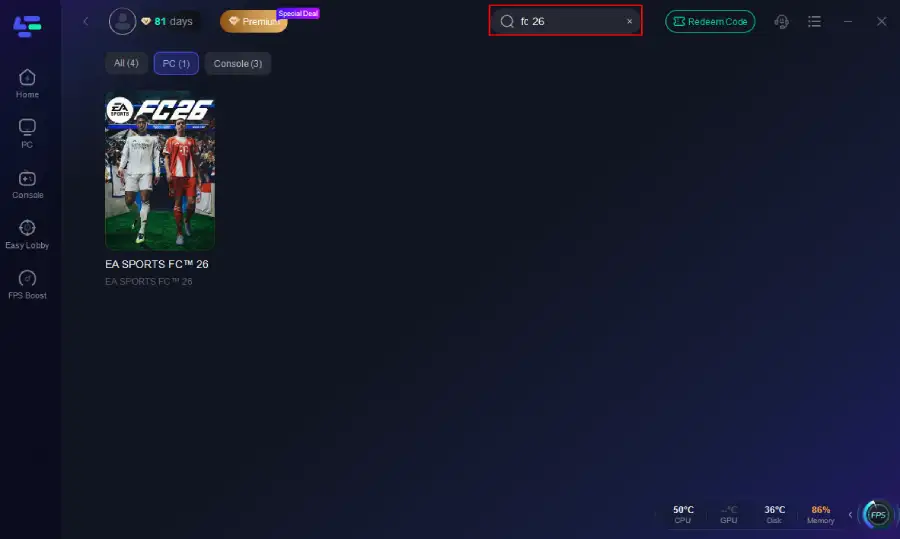
Step 2. Before you start your game, search for it within the LagoFast application to ensure it's supported.
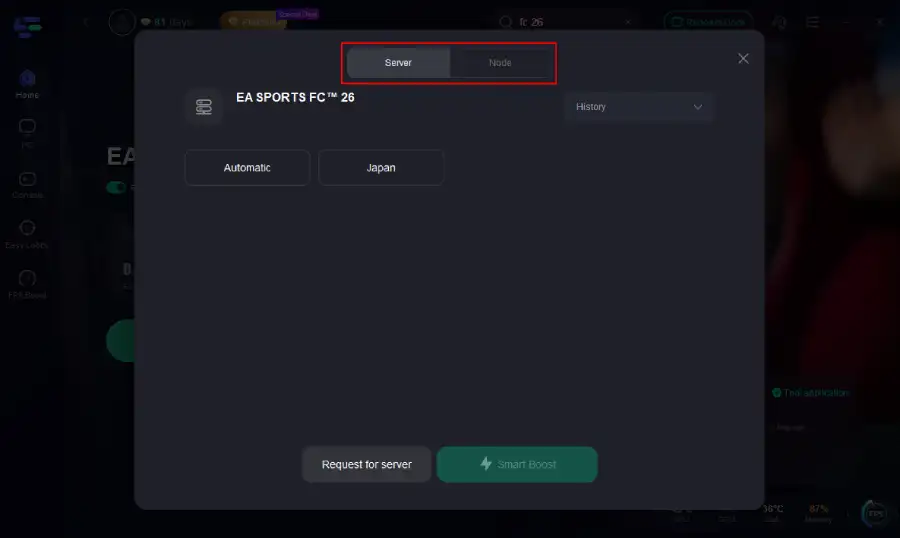
Step 3. Navigate to "Select Server" to choose the most stable server. Follow up by selecting the best Node available on the right to optimize your connection.
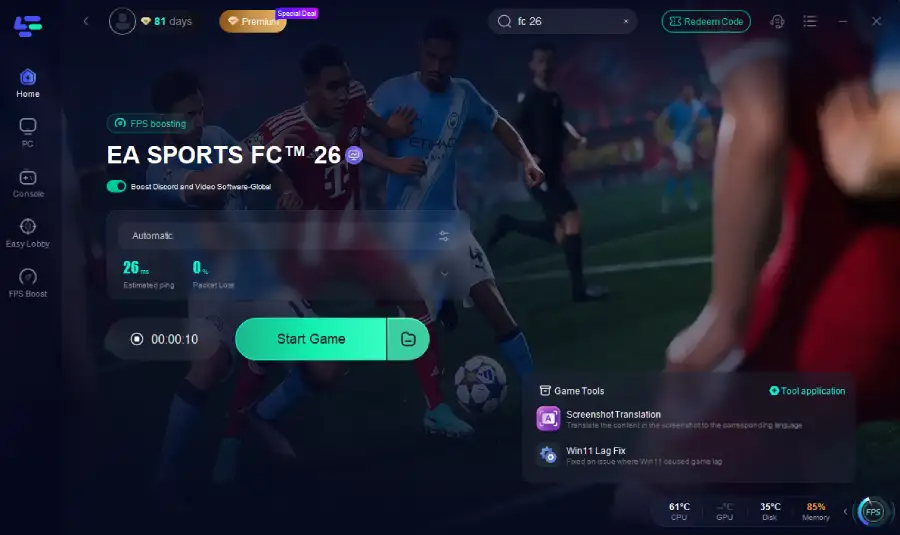
Step 4.Click the "Smart Boost" button to get real-time data on your game's ping, packet loss, and network type, which helps in monitoring and adjusting for optimal performance.
How to use LagoFast Game Booster on Console (PS5 / PS4)
LagoFast Box offers a simple, one-click method to optimize your game connection and reduce lag on PS5 or PS4:
Step 1. Download the LagoFast Console App to control the LagoFast Box

Step 2. Connect your LagoFast Box to your router and Console. You can use either wired connection or wireless connection.

Step 2. Launch LagoFast Console App and Boost FC 26. After you finish LagoFast Box binding, you can boost the game in LagoFast Console App.

Follow the tutorial to use the LagoFast Mobile on your mobile devices:
Step 1: Search “LagoFast Mobile booster” in the Google App Store or Apple App Store. Alternatively, click here to download the APK File.
Step 2: Click the “Download” button, then install and launch “LagoFast Mobile Booster”.
Step 3: Start FC 26, then switch to LagoFast Mobile and search for it.
Step 4. Select and click FC 26 in the interface.
Step 5: Enter the server selection interface, where you can change to a stable server, then click the “Boost” button to fix high ping and enhance the gaming experience
Step 6: Finally, go back to FC 26 and start playing it without any lag.
LagoFast improves launch stability by optimizing server communication, which can make game startup smoother.
Part 4: FAQs
Q: What should I do if EA FC 26 on Steam is not launching?
Verify game files, update drivers, run as administrator, and disable overlays or background apps.
Q: Why is EA FC 26 not launching on PC?
Possible causes include corrupt files, anti-cheat conflicts, outdated software, or overlay issues.
Q: How to fix EA FC 26 not launching after the splash screen?
Disable overlays, repair anti-cheat, clear cache, or run the game in compatibility mode.
Q: What general steps fix EA Sports FC 26 launch failure?
Use a troubleshooting checklist: repair files, update software, clear overlays, fix anti-cheat, and use LagoFast if connection-related.
Conclusion
Launching issues with EA Sports FC 26 across PC, mobile, and consoles are frustrating—but rarely unsolvable. Start with platform-specific fixes like file verification and cache clearing. Update software, disable overlays, and reinstall as needed. When network instability may be part of the problem, supplement your efforts with LagoFast to optimize connection quality and improve launch reliability.
Boost Your Game with LagoFast for Epic Speed
Play harder, faster. LagoFast game booster eliminates stutter and lags on PC, mobile, or Mac—win every match!
Quickly Reduce Game Lag and Ping!
Boost FPS for Smoother Gameplay!