
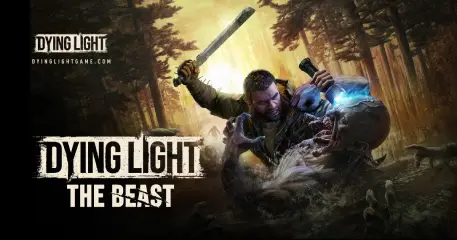
Excited players diving into Dying Light: The Beast may run into a frustrating issue: the game crashing unexpectedly. Whether it’s freezing during co-op, shutting down on startup, or randomly closing mid-mission, these crashes can ruin the experience. If you’ve been searching for “Dying Light: The Beast crashing,” this guide covers the common reasons behind the problem and practical ways to fix it.

- ✅ Less ping and crashes.
- ✅ Boost FPS at the Same Time.
- ✅ Support for 3000+ games..
- ✅ Stable connection and region switching.
Part 1. Why Does Dying Light: The Beast Crash?
Part 2. Basic Fixes for Crashing Issues
Part 3. Advanced Fixes You Can Try
Part 4. Gameplay Features in Dying Light: The Beast
Part 5. Will Dying Light: The Beast Get Post-Launch Updates?
Part 6. Use LagoFast to Stop Crashes from Network Instability
Part 1. Why Does Dying Light: The Beast Crash?
Crashing issues in Dying Light: The Beast can be caused by multiple factors, ranging from hardware limitations to software conflicts. The most common reasons include:
- Outdated GPU Drivers—Running older graphics drivers may cause rendering conflicts.
- Corrupted Game Files—Incomplete downloads or file errors can trigger sudden shutdowns.
- Overheating Hardware—Long sessions may push your CPU or GPU beyond safe limits.
- Background Apps Conflicts – Overlay programs (Discord, Steam, Nvidia, etc.) can interfere.
- Network Instability—For co-op, weak connections can freeze or crash sessions.
Part 2. Basic Fixes for Crashing Issues
If Dying Light: The Beast keeps crashing, try these quick fixes before diving into advanced solutions:
- Update GPU Drivers—Check for the latest NVIDIA, AMD, or Intel drivers.
- Verify Game Files—On Steam or Epic, use “Verify Integrity of Files” to fix corrupted installs.
- Lower Graphics Settings – Reduce resolution, disable ray tracing, or lower shadows to reduce strain.
- Close Background Apps—Disable overlays like GeForce Experience, Discord, or MSI Afterburner.
- Check System Temps—Use monitoring tools to ensure your PC isn’t overheating.
Part 3. Advanced Fixes You Can Try
If basic troubleshooting doesn’t help, you may need to dig deeper:
- Reinstall the Game—A clean installation can remove hidden corrupted files.
- Update Windows—Ensure you’re running the latest system updates for compatibility.
- Switch to Windowed Mode—This can help if crashes occur during full-screen rendering.
- Disable Overclocking—Revert CPU/GPU to default speeds to prevent instability.
- Check for Known Bugs—Follow Techland’s official patch notes, as some crashes may be fixed in updates.
Part 4. Gameplay Features in Dying Light: The Beast
Techland has expanded on the parkour and combat systems that made the Dying Light franchise popular. In The Beast, players harness both human agility and beast-like powers, creating a hybrid playstyle that feels faster and more brutal than ever. Key features include:
- Enhanced parkour—smoother wall runs, vaults, and rooftop traversal.
- Beast Abilities—special powers that give players devastating melee attacks and survivability boosts.
- Dynamic Co-op—Up to four players can team up, with shared progression ensuring no one falls behind.
- Open World Exploration—diverse districts filled with quests, enemies, and environmental hazards.
These mechanics combine to create a survival experience that is both challenging and rewarding, especially in multiplayer.
Part 5. Will Dying Light: The Beast Get Post-Launch Updates?
Techland has a proven track record of long-term support—Dying Light (2015) received new content and updates for years after release. It’s highly likely that The Beast will follow the same roadmap. Players can expect:
- Regular Bug Fixes—stability patches to resolve crashing, freezing, and co-op errors.
- New Content Drops—additional story quests, weapons, or limited-time events.
- Community-Driven Updates—Techland often listens to fan requests, meaning features like crossplay could arrive later if demand is strong.
With this ongoing support, Dying Light: The Beast is set to remain an evolving survival experience long after its initial launch.
Part 6. Use LagoFast to Stop Crashes from Network Instability
Not all crashes in Dying Light: The Beast are caused by bugs—sometimes unstable connections trigger freezes or forced exits, especially in co-op. That’s where LagoFast comes in. By rerouting your traffic through optimized servers, it ensures smoother gameplay and reduces the chance of disconnects that feel like crashes.
Quick Steps with LagoFast
1. Install LagoFast and open the app.
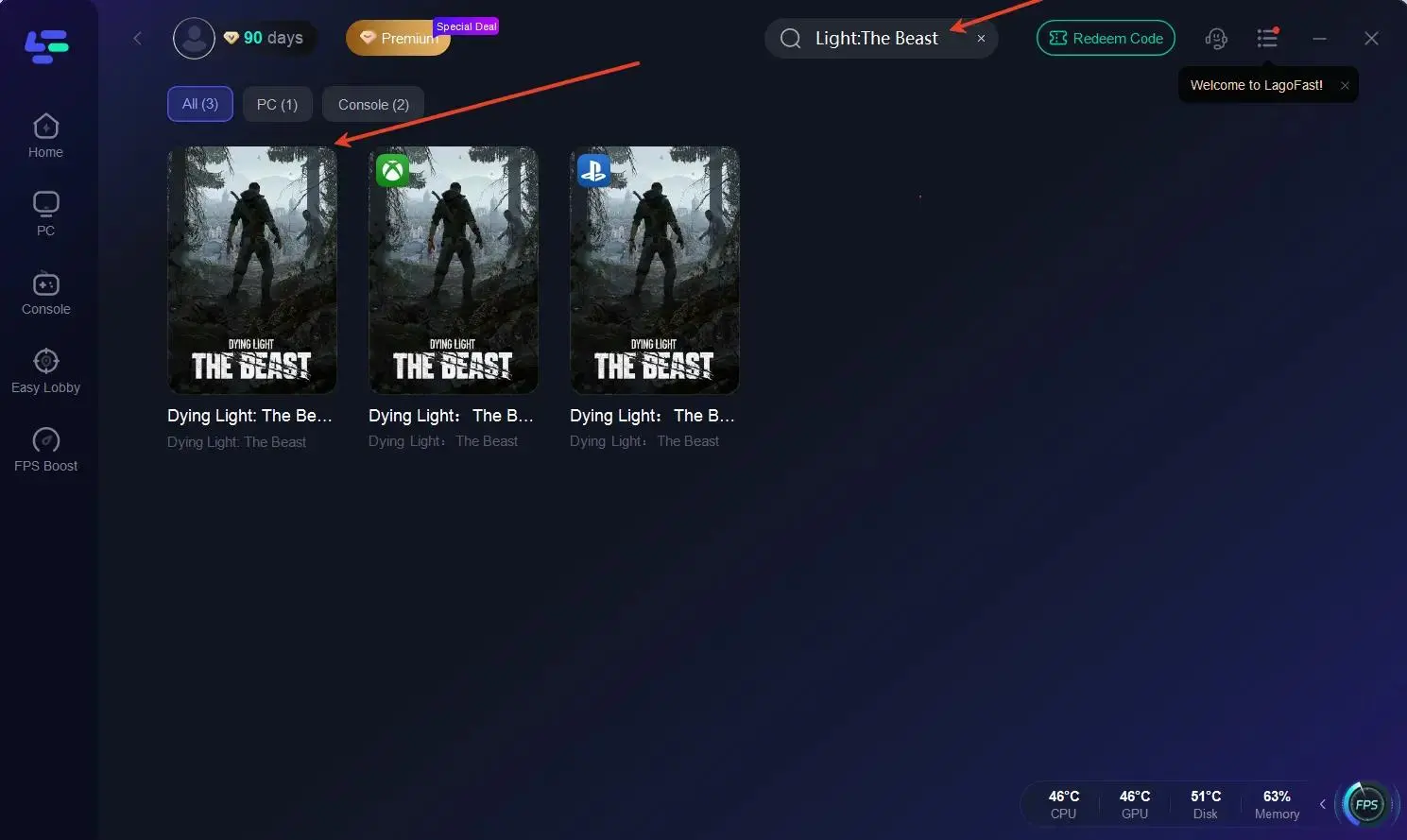
2. Search for Dying Light: The Beast.
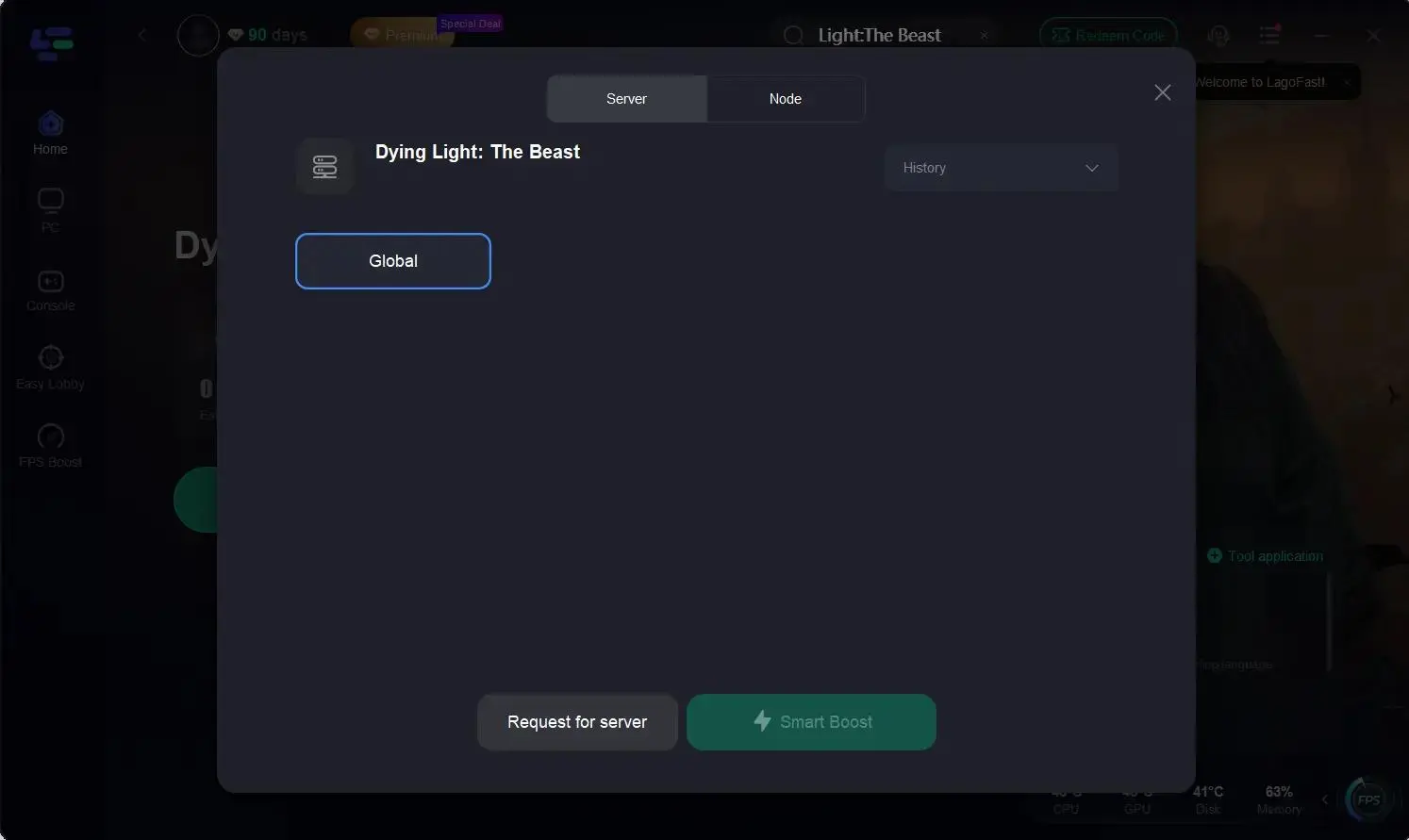
3. Select the most stable server and node.
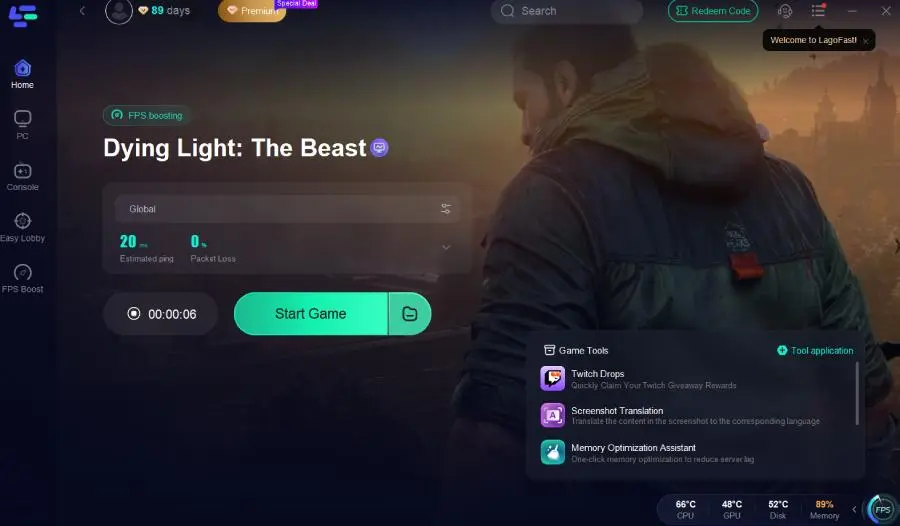
4. Start Smart Boost to monitor and stabilize your connection.
Benefits of Using LagoFast
- Lower ping and faster response times
- Stable connection for long co-op sessions
- Real-time monitoring of packet loss and network quality
- Automatic routing adjustments for smoother gameplay
By using LagoFast, you can cut down on false crash issues caused by poor connectivity, keeping your sessions immersive and uninterrupted. Instead of worrying about sudden freezes, you’ll be able to fully enjoy the beastly action Techland designed.
Conclusion
If Dying Light: The Beast keeps crashing, the issue may stem from outdated drivers, corrupted files, or unstable networks. By following the fixes above—and using LagoFast for connection stability—you can minimize interruptions and enjoy Techland’s beastly new adventure the way it was meant to be played.

Boost Your Game with LagoFast for Epic Speed
Play harder, faster. LagoFast game booster eliminates stutter and lags on PC, mobile, or Mac—win every match!
Quickly Reduce Game Lag and Ping!
Boost FPS for Smoother Gameplay!